Split View & Session Naming
Focus mode normally shows one session at a time, full-screen. Split view breaks that rule for exactly one case: two terminals side by side. This page also covers something unrelated but adjacent — how a session gets its title in the first place, and how to override that yourself.
Two terminals side by side
Section titled “Two terminals side by side”Split view puts a second session next to the one you’re already looking at, both live and both typeable at once.
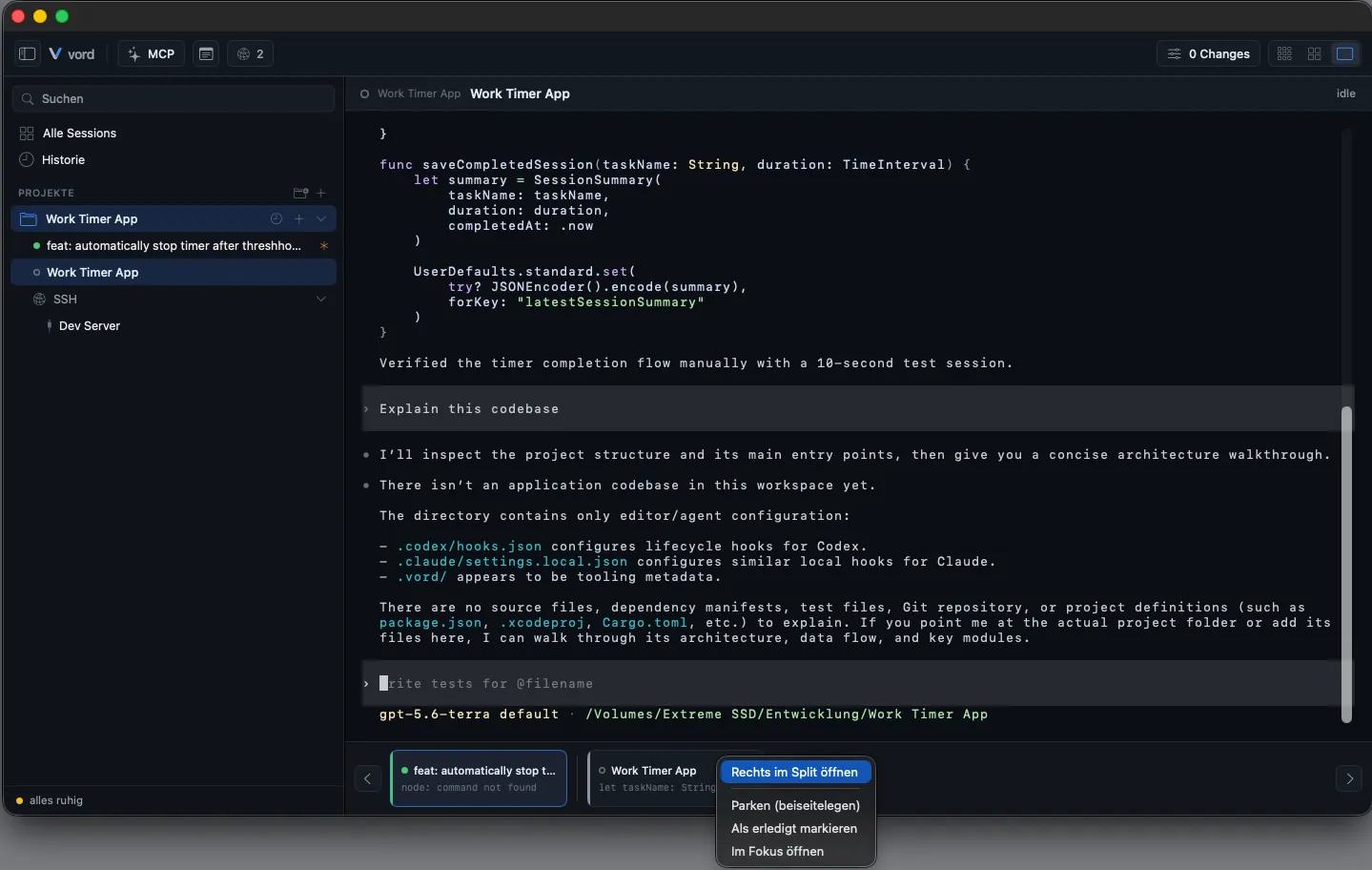
- From the gallery strip or a session’s context menu, choose Open on the right in split.
- The focus area splits into two columns. The left column keeps whatever was selected before; the right column shows the session you just picked.
- Both terminals accept input independently — clicking into either side gives it keyboard focus without disturbing the other.
- Each side has its own header (project, branch, status dot, agent badge) and its own session picker: click the title in either column to swap in a different session for that side.
Opening a session into the split that’s already showing on one side is a no-op — vord won’t split a session against itself.
Swapping and closing a side
Section titled “Swapping and closing a side”There’s no dedicated “swap” button. Each side’s title is a picker: click it and you get a menu of your other sessions, with a checkmark on whichever one is currently shown on that side. Pick a different session and that column updates to show it. To reorder the two — put the right session on the left and vice versa — set each side in turn with its own picker. (Picking the session that’s already on the other side just points both columns at the same session; it doesn’t swap them.)
Each column has its own close (×), always visible (not hover-only, since it’s the only way to dissolve the split):
- Closing the right side just ends the split — you’re back to a single terminal showing the left session.
- Closing the left side promotes the right session into the single-terminal view, then ends the split.
Closing a side only closes the split, not the session itself — the session keeps running and reappears in the gallery/pool like normal.
Automatic session naming
Section titled “Automatic session naming”Every session gets a title automatically, and it updates live as long as you haven’t set one yourself:
- claude sessions are named from the OSC terminal title claude itself sets — the same title an ordinary terminal emulator would show in its tab.
- Codex creates a short content-based title itself after the first task. vord takes it from the native session index and follows later renames. Until naming, a preview of the first prompt can appear. Names set manually in vord take precedence. On resume, the stored name is kept; older prompt names are not automatically renamed by the update.
- kimi sessions are named from kimi’s own session state — its title, effectively the first prompt — since kimi sends no usable OSC title either.
This difference is structural, not a bug — it’s one more entry in the claude vs. codex vs. kimi list of things that work differently under the hood. All three approaches update the title you see in the tile, the sidebar, and the focus header.
Renaming a session manually
Section titled “Renaming a session manually”A manual name overrides automatic naming until you clear it.
- Double-click a session’s title on its cockpit tile — this opens an inline text field. Or use the session’s context menu → Rename…, which opens a dialog instead and works from anywhere the menu is available.
- Type the new name and press Return to apply it.
- Press Return on an empty field (or clear the dialog’s field and confirm) to remove the manual name — automatic naming takes back over immediately.
- Escape cancels the inline edit without changing anything.
There’s no restriction on what you can rename — any session (claude, codex, kimi, plain shell, SSH) accepts a manual title, and it sticks until you clear it or rename it again.
Where this fits
Section titled “Where this fits”Split view lives inside focus mode — see Focus Mode & the Gallery for how focus mode itself works (flipping between sessions, the gallery strip, project capsules) and how a split is opened from there in the first place. The agent badge visible in each split header (Claude terracotta vs. Codex cyan) is covered in depth on Subagents & the Hierarchy Tree.