The Cockpit Grid
The cockpit grid is the main working area of vord’s Normal view: a live, dynamic layout of real, typeable mini-terminals. This page covers how it fills itself, how you select and type into a tile, and the two modes — auto and manual — that control its layout.
Sessions on a host
Section titled “Sessions on a host”Sessions from a paired Mac host appear in the same cockpit and session overview as local sessions. When the host is online, the tile shows its live terminal and sends typing to that host. The host’s terminal size remains in control; the client does not resize it. When the host is offline, the tile shows an offline message instead of a terminal.
In vord Cowork, host sessions with transcript-chat support open as a conversation with a message composer; when the host does not support it, vord keeps the terminal and shows a notice.
The host session’s title appears in the tile and in its context menu. The menu lets you open the session in Focus and copy its title. Local session actions such as parking, sharing, renaming, and opening local files are not available for host sessions.
Host badge with operating system
Section titled “Host badge with operating system”A desktop-computer badge shows the host name on the tile, in the sidebar, and in Focus. Once the host reports its details, the badge also shows the OS version next to the name, and hovering it reveals the headless version running on that host. A Windows host uses a PC icon instead of the desktop-computer icon.
Starting a session on a host
Section titled “Starting a session on a host”Right-click a project in the sidebar and choose On host…. The sheet starts on This Mac — pick a paired, online host to start there instead. Choose one of the agents the host reports as installed, then pick one of the host’s projects (the list is requested from the host when the sheet opens; use the reload button if it is still empty). If the host has no project list yet, enter its absolute working directory instead — vord registers the directory on the host first. Below the project picker, New project on host… creates a fresh project right from the sheet: either an empty folder on the host, or a copy of one of this Mac’s git projects, pushed over with code sync. Both need a current vord-headless — the host only creates projects in its work folder or next to an existing project — and the new project is selected automatically once it is ready. The start goes out as a sessionOpen frame. It matches the iPhone payload and adds the Mac project, which is not the host’s project id. A session without that project stays visible until you assign one. See A Mac project for every host session. If the host is offline, the agent is missing, or the host refuses, the sheet shows a plain-language reason. The host side of both ways has its own page in New project on host.
Starting sessions requires the start-sessions right on the host. You grant it while pairing by answering yes to the question whether this device may start sessions, or later on the host with vord-headless devices grant <mac-id> start-sessions (vord-headless devices lists the paired Macs with their IDs and rights; vord-headless devices revoke <mac-id> start-sessions takes the right away). When the host refuses a start for this reason, vord shows the exact command with this Mac’s ID.
Ending a session on a host
Section titled “Ending a session on a host”Host sessions end from the tile or sidebar context menu (End session…) or from the Focus header’s × button. vord asks for confirmation first, then sends a sessionClose frame to the host. The session disappears from the cockpit once the host confirms it through its session list.
Branch and change status
Section titled “Branch and change status”When the host advertises desktopGit, vord matches the session’s working folder to the most specific host worktree and shows its branch in the tile and sidebar. If the folder is missing or no worktree matches, no branch label appears. Pure host projects also show the changed file count from the host. Sync controls stay disabled with the note “Sync for host sessions is coming soon”; ahead/behind and sync actions are unavailable.
In a pure host project, the Inspector lists the changed files reported by the host and loads each file’s diff from the host. Only the Diff tab is available: staging, commits, history and the file tree are not offered for host sessions yet. If the host is offline or cannot load a change, the file shows a short note instead of a diff.
Up to 12 live mini-terminals at once
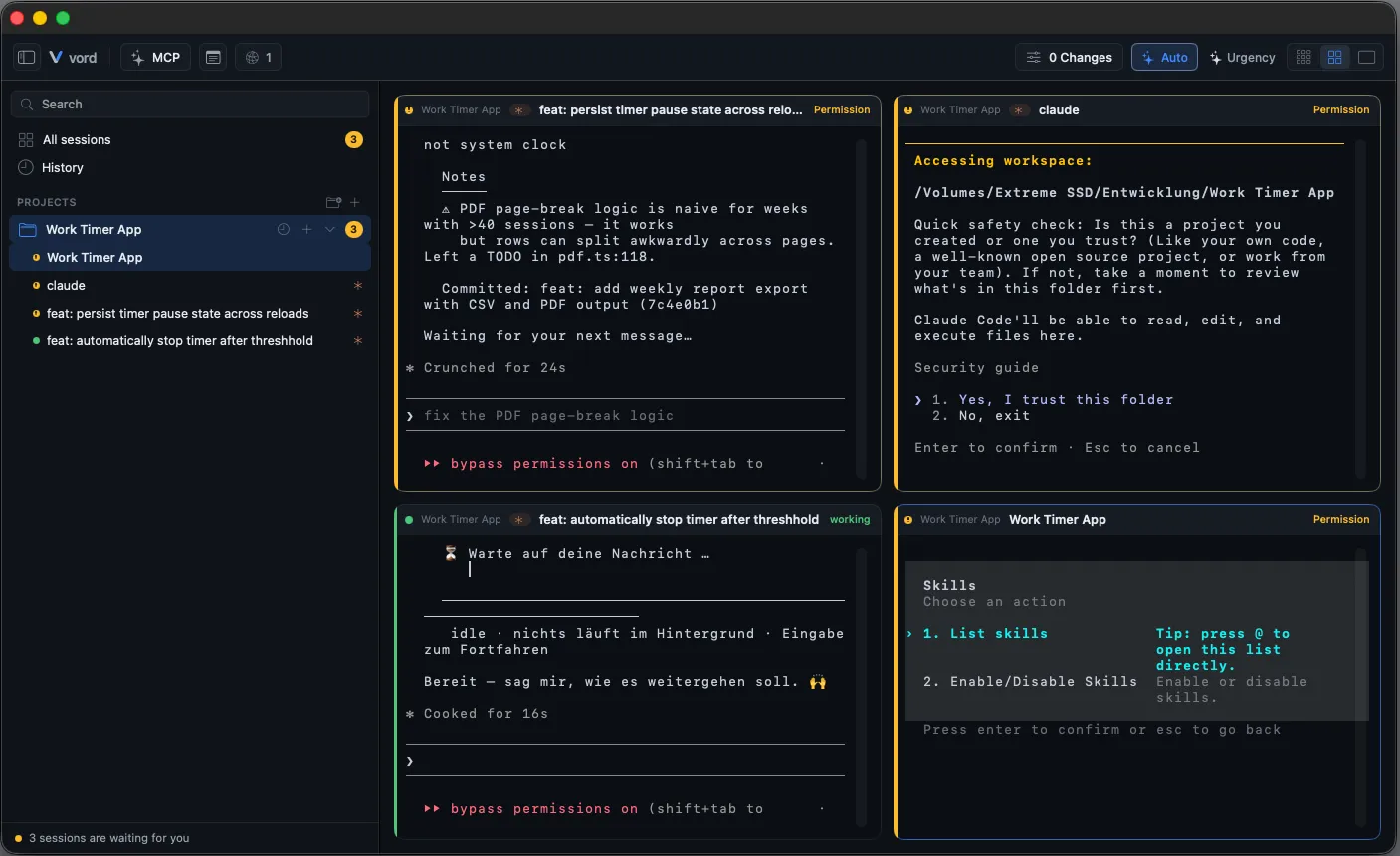
Section titled “Up to 12 live mini-terminals at once”Each tile in the grid is a real terminal, not a preview — you can click into any tile and type directly into that session, the same as a full terminal window.
The grid reshapes itself around however many sessions you have open, up to a maximum of 12 visible slots (4 columns × 3 rows):
- 1 session: full-screen
- 2 sessions: side-by-side split
- 3 sessions: a single row
- 4 sessions: a 2×2 grid
- 5 sessions: 3 over 2
- 6 sessions: 3 over 3
- More: additional rows
The top row is drawn slightly taller than the rows below it. This works identically for claude, codex, kimi, and plain shell sessions — there’s no license gate on the grid itself; it’s available on Basic and Pro alike.
How the grid fills itself (project first, no jitter)
Section titled “How the grid fills itself (project first, no jitter)”By default, the grid fills its slots in Project order: tiles are grouped by project name (A–Z), then by creation time (oldest first). See The Pool & Sorting for the full axis list. Project and Agent order stays stable when a session’s status changes; Status and Last activity respond to their changing values.
What it never does is scramble. A new session shifts the tiles behind it by one place. If the grid is already full, a new session appears on the overflow slot instead. Project, Agent, and Created use stable ordering and do not reorder on a status change. Status and Last activity can reorder when their values change. That’s intentional: a grid that jumps every time a session finishes a turn is hard to work in. Pins and selected root/family members stay protected and never yield their slot to another session.
Selecting and typing into a tile
Section titled “Selecting and typing into a tile”- Open sessions — the grid fills automatically in the current sort order.
- Click a tile to select it. Selection, the terminal’s blinking cursor, and real keyboard focus always move together — a header click, an arrow-key move, or picking a session from the pool all drag keyboard focus along with them, so what you see selected is always what you’re typing into.
- Type directly into a tile’s mini-terminal. It behaves like a real terminal — no separate “reply box” to find first.
- Right-click a tile for its context menu: Pin to this slot (📌, keeps it fixed in place), Mark as done (✓, ends the process but keeps it recoverable), Park (set aside) (⏸, hides it while the process keeps running).
When the agent’s question box is taller than the tile, a bar along the bottom edge reads “Question doesn’t fit the tile – open in focus”; a click opens Focus, where the whole box is on screen, and the tile keeps its size. Typing into a tile or into Focus while you have scrolled back jumps to the live end first, the same way Terminal.app does, so the keys reach the question that is current. A tile that sits at the live end keeps following new output, also when the grid rearranges or the tile changes size; it only stays where it is once you scroll back yourself, and scrolling down to the end makes it follow again.
In the Mac chat view, a claude question box with several questions shows one question at a time, labelled Question 2 of 3 · short title. Choosing an answer advances to the next question; after the last one, Review your answers offers Submit answers and Cancel, and the box closes after that step. A multi-select question shows Multiple choice: please answer in the terminal instead of answer buttons. If you type in the chat composer while a question box is open, vord keeps the text and shows Sent once the open question is answered below it, then sends it when the box closes.
For what “pin,” “mark as done,” and “park” actually do to the underlying session — and which one to reach for — see Pin, Park & Mark Done.
Auto vs. manual mode
Section titled “Auto vs. manual mode”The Auto-fill toggle in the toolbar’s Cockpit menu (on by default) switches between two behaviors:
- Auto on: slots fill by the current sort axis. Project, Agent, and Created keep their order through status changes; Status and Last activity can reorder as their values change. Pinned sessions stay fixed regardless.
- Auto off (manual mode): only pinned sessions and sessions you’ve explicitly placed stay put. You control ordering and sizing yourself by dragging.
The auto/manual state is session-wide but not persisted across app restarts — vord always starts back up in auto mode.
Live reorder by dragging (manual mode)
Section titled “Live reorder by dragging (manual mode)”With Auto off, grab a tile by its header (the termhead) and drag it to another position. Other tiles animate out of the way live, without tearing down or blacking out the real terminal underneath mid-drag. Release to commit the new order.
Two restrictions apply here: dragging only works in manual mode, and pinned tiles can’t be dragged — they’re fixed points until unpinned.
A family is one unit, so it drags as one. If a session has child sessions, the parent and its children share a single grid place. By default the children fold into the parent’s card as clickable strips in its foot; switch Parent and child sessions to Grouped and they get their own cards inside a shared frame instead. Dragging moves the whole family either way — grab any member’s header in Grouped mode and the entire frame travels with it — and pinning fixes the whole family. There is nothing to pull apart: a child can’t be dragged out of its family, because it never had a grid place of its own. See Child sessions for both layouts.
Workflow route on a parent tile
Section titled “Workflow route on a parent tile”When that parent has an active workflow run, its tile adds a compact route directly below the header and above the terminal. The headline names the blueprint, current stage, gate activity, active child-agent products, exact position (Stage 2 of 4), and elapsed whole minutes. The connected nodes underneath show the complete stage sequence: passed nodes are filled, the current node is outlined and active, future nodes stay muted, and gate and loop symbols retain their meaning in tooltips. This is observed progress, not an estimated percentage or ETA. Click the route to open that run in the Workflows panel.
The same space turns into a yellow or red banner only when something needs attention: a human approval, a halt, or a provider-diversity warning. The banner keeps the stage position and elapsed time visible. Approve asks for confirmation before it passes the gate; Resume is shown only for a halted run and extends its budget by two spawns and 30 minutes. A warning reports the provider comparison but never blocks a valid skeptic verdict and has no action.
Resizing rows and columns (manual mode)
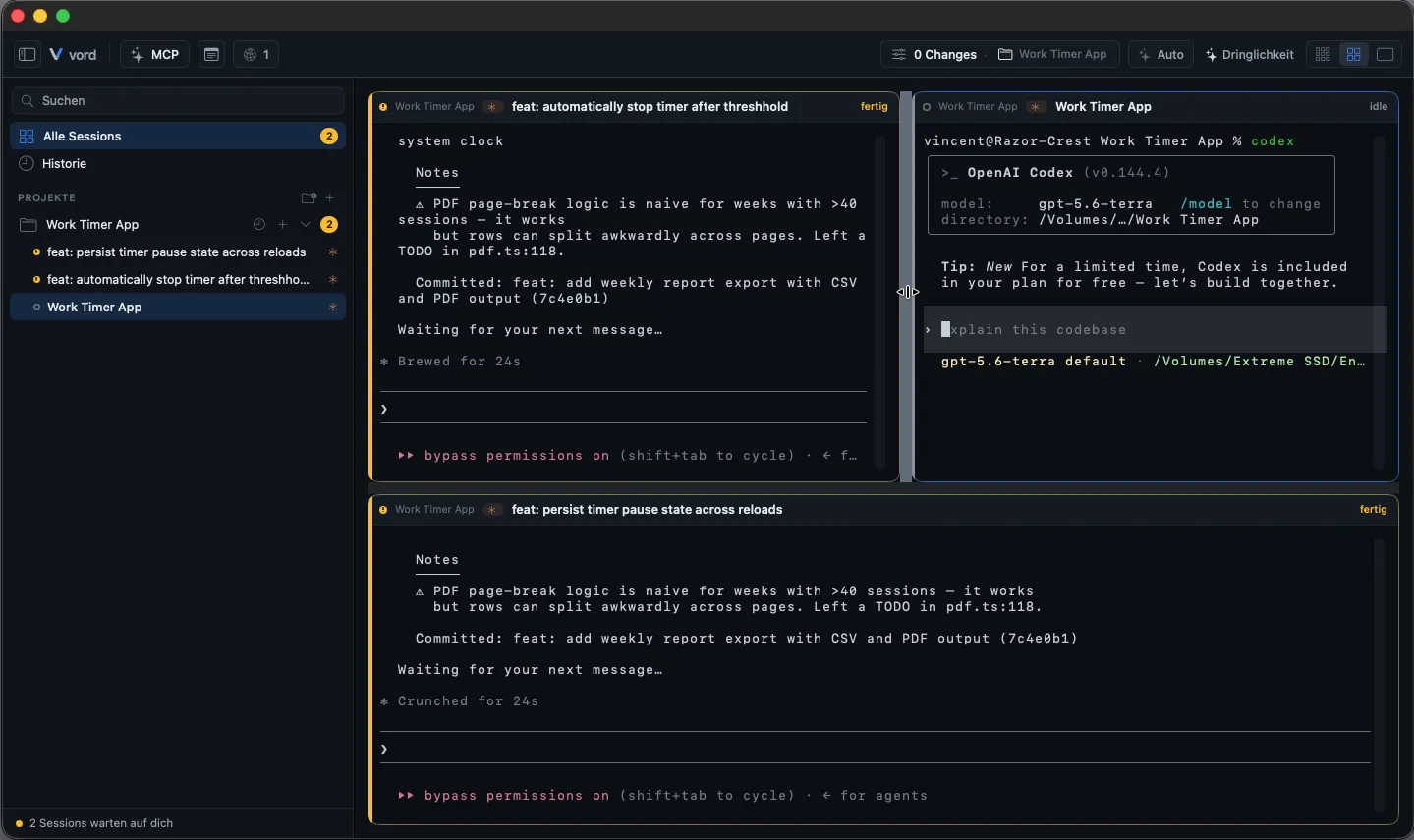
Section titled “Resizing rows and columns (manual mode)”In manual mode, row and column dividers appear between tiles. Drag a divider to set custom size ratios between the tiles it separates. This layout is remembered per tile count — a 4-tile layout and a 5-tile layout are tracked as separate, independent arrangements, so resizing one doesn’t touch the other.
To undo your manual sizing, use Reset layout from a tile’s context menu.
The session header (termhead) and its soft-cascade
Section titled “The session header (termhead) and its soft-cascade”Every tile has a header showing, left to right: a status dot, the location (project · branch), the session title, an agent badge, and a status word. Location comes before the title on purpose — when you scan the grid, “where is this running?” reads before “what is it working on?”. The title fills the space that’s left and gets clipped if it has to; the full title always lives in the hover tooltip. A branch name only appears when it differs from the repo’s default (main/master) — same-as-default branches stay hidden to save space.
When a tile is too narrow to show all of this, elements disappear as whole units, in a fixed order, rather than truncating into unreadable fragments:
- The status word goes first.
- The agent badge shrinks to just its color icon.
- The location (project · branch) goes last.
Hovering the header always shows the full title, location, and status in a tooltip, regardless of how much is currently hidden.
Terminal or conversation on a tile
Section titled “Terminal or conversation on a tile”A tile doesn’t have to show the terminal. Hover its header and click the speech-bubble icon (💬) in the action row that appears on the right, and the tile shows the session’s conversation instead: your prompts, the agent’s answers as real Markdown, its tool steps as quiet one-liners. It’s the same read-only history you get in Focus mode and on the iPhone companion, read straight from the agent’s own session file.
Why you’d want it on a tile: the terminal wraps the agent’s prose to whatever width the window had at the moment it was written, and no terminal can undo those hard line breaks. On a narrow cockpit tile, older output therefore stays as thin as it was. The conversation view re-wraps at the tile’s current width every time, so a small tile stays readable.
- Click the bubble again to go back to the terminal. Nothing is lost in the meantime — the session keeps running, and the terminal comes back with its scrollback, search and selection untouched.
- The switch also sits in the tile’s right-click menu (“Show conversation on the card” / “Show terminal on the card”), so you don’t have to find the hover row.
- Every tile remembers its own choice. It belongs to the session, not to the grid slot: re-sorting, a trip through the pool, switching views, and quitting vord all keep it.
- The conversation is read-only. You answer in the terminal — there’s one place to type, and it isn’t here. Tool output isn’t in the conversation either (that’s the bulk of a transcript); switch back to the terminal for that.
- Shell and SSH sessions have no conversation and always stay on the terminal — they never get the bubble icon.
- Ended sessions still show their conversation for every hosted agent, as long as the agent’s session file is still on disk.
The conversation opens on its newest messages, reaching further back than the terminal’s own scrollback; a Show earlier messages button above the first entry reveals older ones — and then pulls further-back pages from the session file — while keeping your reading position. While you’re reading older messages, new ones appear only after you scroll all the way to the bottom or click the arrow. A tile only reads its history while it’s actually showing the conversation — tiles on the terminal, sessions waiting in the pool, and parked sessions cost nothing.
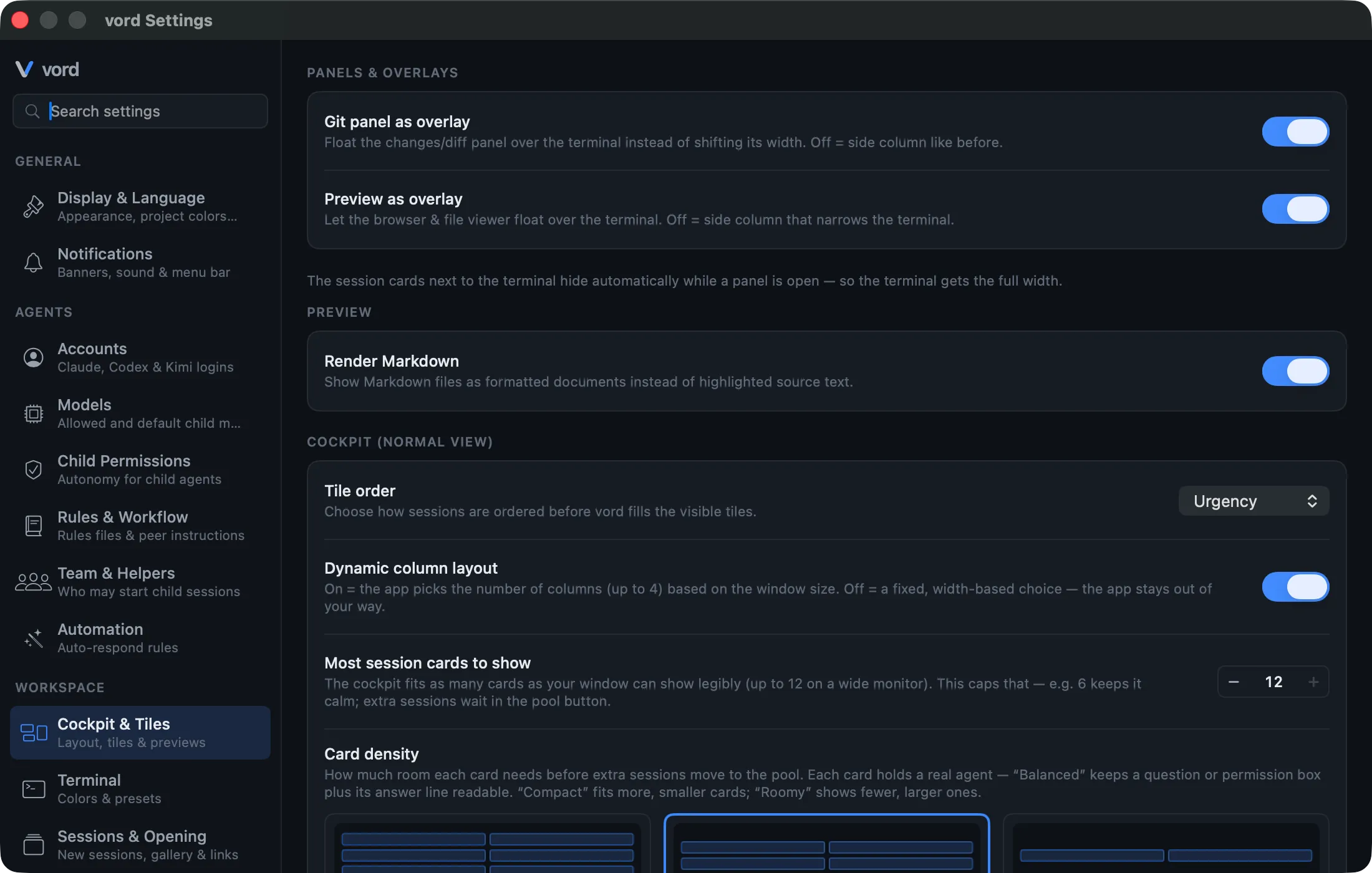
To start every tile on the conversation instead of the terminal, set What a card shows under Settings → Workspace → Cockpit & Tiles (see the table below). Tiles you’ve switched by hand keep their own choice.
Card density and capacity (settings that shape the grid)
Section titled “Card density and capacity (settings that shape the grid)”Two settings groups shape how many tiles fit and how big they are. Both live under Settings → Workspace → Cockpit & Tiles:
| Setting | Options | Default | Effect |
|---|---|---|---|
| Card density | Compact / Balanced / Roomy | Balanced | How much minimum room a tile needs before extra sessions move to the pool. Balanced guarantees a question/permission box plus its reply line stays readable; Compact fits more, smaller tiles; Roomy shows fewer, larger ones. |
| Dynamic column layout | on / off | on | When on, the number of columns (up to 4) is picked from the window’s aspect ratio rather than a fixed width-based choice. |
| Most session cards to show | 4–12 | 12 | Caps the grid below the absolute maximum — e.g. set it to 6 to keep things calm even on a wide monitor. It counts cards, not sessions: in the default Folded family layout a parent and three children are one card, so a 6-card grid can hold far more than six sessions. |
| What a card shows | Terminal / Transcript | Terminal | Which view a tile starts on — the real terminal or the conversation (see above). A tile you switch by hand keeps its own choice and ignores later changes here. Shell and SSH sessions always stay on the terminal. |
| Parent and child sessions | Folded / Grouped | Folded | How a family uses the grid. Folded folds the children into the parent’s card (one card per family; the family bar takes its room from inside the card, so the terminal area shrinks a little — family size never changes how many cards fit). Grouped gives every member its own card inside one shared, outlined frame — all terminals readable at once, but each member consumes a card of the cap above. A grouped family never breaks across a row: if it no longer fits, the whole family moves to the next one. |
If density and the card-count cap disagree, density always wins — the grid never sacrifices legibility to hit a higher tile count, though it will happily show fewer tiles than the cap allows.
The absolute ceiling stays 12 tiles (4×3) no matter the window size or these settings.
Where to go next
Section titled “Where to go next”- The Pool & Sorting — what happens to sessions that don’t fit, and how sort axes work
- Pin, Park & Mark Done — the three ways to get a tile out of your way, compared
- Keyboard Navigation — moving between tiles with ⌘↑/⌘↓/⌘←/⌘→ and the command palette
- Settings Reference — the full Cockpit & Tiles pane and every other settings category