Settings Reference
vord’s settings window has 21 panes in five sidebar groups. The former Open links & files pane is part of Sessions & Opening, and the former Child Permissions pane is part of Helpers & Workflows. Workflow blueprints themselves live in the toolbar’s Workflows panel.
All settings pages in vord use the native grouped DSSettingsForm (TSK-18305). The scaffold gives each page the full detail viewport, and the form owns scrolling. References to cards below describe content controls inside a page or sheet, not the former card-scrolling page container.
The sidebar follows this order:
- General: Display & Language, Notifications
- Agents: Accounts, Models, Rules & Workflow, Helpers & Workflows, Automation
- Workspace: Cockpit & Tiles, Terminal, Sessions & Opening, Shortcuts, SSH, Saved Commands, Git & Projects
- Connections: iPhone & iPad, Session Sharing, vord Cloud, Organization, Voice Dictation
- Account & System: Account & License, Privacy & Diagnostics
Opening settings (⌘,)
Section titled “Opening settings (⌘,)”Open settings with ⌘, or the vord menu → Settings…. Use the search field above the grouped sidebar to find a pane by its name, card title, control, or a common keyword; selecting a result opens that pane. The category you had open last time is still remembered, and its stable persisted value did not change with this redesign.
Display & Language
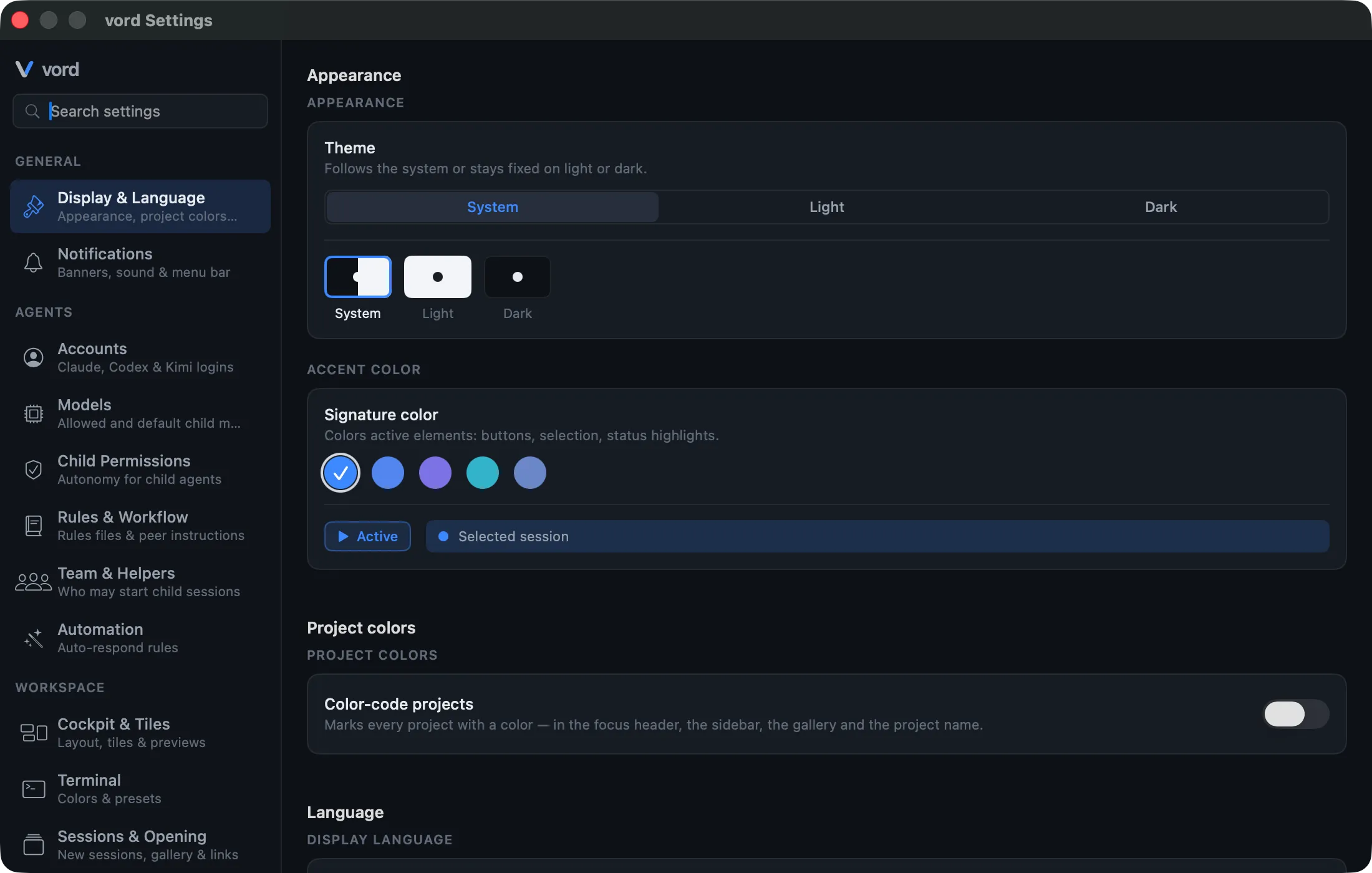
Section titled “Display & Language”Settings → General → Display & Language. Theme mode (System / Light / Dark) as a menu picker, plus an accent color from a fixed set of swatches — both with a live preview of the three modes and of the accent. There’s no free color picker for the accent; you pick from what vord ships.
Project colors
Section titled “Project colors”Settings → General → Display & Language. A master switch turns project color-coding on or off. When it’s on, choose Auto (every project gets its own muted, stable color spread across the hue spectrum) or Uniform (one color for all projects, picked with a ColorPicker). Right-click a project in the sidebar to give it its own color regardless of the mode.
Language
Section titled “Language”Settings → General → Display & Language. Switches the whole app’s display language immediately — no restart. Choose from a menu: System (follows macOS, filtered to the languages vord ships) or a fixed language: English, Deutsch, Français, Español. There’s no automatic language download and no languages beyond these four plus System.
Terminal
Section titled “Terminal”Settings → Workspace → Terminal. Everything about how a new terminal looks and starts:
- An optional startup command (leave empty for a plain shell; override per-project from the project context menu).
- Font (system fonts plus the bundled JetBrains Mono), size, and line height, with a live preview.
- A toggle for hex color-code highlighting in terminal output.
- Color presets as a visual card gallery, set separately for light and dark mode, with a Custom option for your own background/text/cursor colors and a Reset to vord default button.
Font choice applies globally — you can’t set a different font for light vs. dark mode.
Cockpit & Tiles
Section titled “Cockpit & Tiles”Settings → Workspace → Cockpit & Tiles. Layout decisions for the grid view of multiple sessions, independent of any single session: dynamic column count vs. fixed width, the maximum number of visible tiles, tile density (Compact/Balanced/Roomy), What a card shows (Terminal or Transcript — which view a session card starts on; a card you switch by hand in its hover header keeps its own choice, and shell/SSH sessions always stay on the terminal), how a parent session and the agents it started share the grid, the intensity of the “working” shimmer on green sessions, and where running subagents show up (off / focused session only / everywhere). A Team view card holds a two-way switch, view without a team (Cockpit / Focus), that picks where vord lands automatically the first time you switch into a project that has no team yet — see View Densities. Every option ships with a small layout sketch. macOS’s Reduce Motion setting always turns the shimmer off, regardless of the level you picked here.
The Render Markdown switch in the Preview card chooses whether Markdown files open as formatted documents or highlighted source text. It is shared with the file-preview and notes-view toggle, so changing it in one place changes the default everywhere.
See The Cockpit Grid, Density & Overview Modes, Subagents & the Hierarchy, and Child Sessions for what these controls actually change.
Sessions & Opening
Section titled “Sessions & Opening”Settings → Workspace → Sessions & Opening (internally still called focus in the code — the label changed, the setting didn’t). Everything about how a session opens, and where the things you click inside it open.
Two decisions about the session itself:
- Which view a newly opened session lands in: Focus, Normal grid, Compact grid, or Keep current view (still switches focus to the new session, just doesn’t change the view).
- Where the gallery of other sessions sits in Focus mode: top, bottom, right, or hidden (switch with ⌘←/⌘→ instead).
The input field always stays at the bottom in Focus mode — only the browsing gallery moves.
Keep checkpoints for sets how many days vord keeps a session’s checkpoints, from 7 to 365. The default is 30. Older checkpoints of a session are removed when vord starts. What a checkpoint is, and how the Timeline tab uses it: History & Checkpoints.
Below that, the Web links, Files and Preferred editor cards (their own pane until they moved here) decide where a ⌘-clicked web link or file path from the terminal opens — configured separately for links and files, each as a three-card choice: In vord (the built-in preview/browser), System default, or Choose an app…. The preferred editor is what the “Open in…” buttons use across the inspector, file viewer, and file explorer.
The chosen app is referenced by bundle ID, so it survives being moved or renamed — but if you uninstall it, vord doesn’t silently fall back to the system default; you have to pick again.
See Focus Mode & the Gallery, and The Built-in Browser plus File Preview for what “In vord” actually shows.
Shortcuts
Section titled “Shortcuts”Settings → Workspace → Shortcuts. The full key binding table, grouped by action, each row with a title, an explanation, an editable key combo, and a reset button. Click a shortcut field to record a new combination; Reset all to defaults resets everything at once. Collisions are only warned about, not blocked — the most recently set binding wins, and vord trusts you to notice the warning.
Arrow-key navigation shortcuts need a modifier (⌘) so bare arrow keys still reach the terminal underneath.
See Keyboard Shortcuts for the full default table and how rebinding interacts with the macOS menu bar.
Notifications
Section titled “Notifications”Settings → General → Notifications. Every notification-worthy event always lands in the notification inbox first (bell icon, unread badge, read state synced between the Mac and paired phone companions) — this pane only controls which of those events also interrupt you live: native macOS banners, sound (with a choice of sound file), notifications to a paired phone (with an option to hide session names), a dock badge showing the count of waiting sessions, the Menu bar icon when vord is in the background, and holding back phone notifications while you’re actively working at the Mac. When that last option is on, Treat me as away after sets the idle threshold in the same pane. Each of six reasons — permission needed, done and waiting, has a question, plan approval, session failed, project board — can be toggled independently; a session ending cleanly and an agent showing you media are inbox-only and have no toggle here. Android notifications while the app is closed still need the Firebase Cloud Messaging integration; see Android Notifications.
See Notifications & the Menu Bar.
Project board
Section titled “Project board”Settings → Agents → Rules & Workflow → Project board. Use the project board (on by default) turns the per-project board on or off for every project; a project’s sidebar context menu can override it with Project board → Follow setting / On / Off. Off hides the board’s entry points and counts — the toolbar’s Board button — refuses board calls from agents with a hint to ask you directly, and leaves the board file untouched.
Teamwork instructions
Section titled “Teamwork instructions”Settings → Agents → Rules & Workflow. When other agents are running in parallel, vord appends a peer hint to the “waiting for you” nudge. Here you write free text (always appended while at least one other agent is running) and conditional rules of the form “when <peer count in project/globally> <comparison> <threshold> then <extra text>”. Multiple matching rules all get appended, one after another — there’s no priority or exclusivity between them. Nothing appears while you’re working solo.
These rules ride the same peer-context channel the agent gets automatically at session start and on later prompts — which is throttled to at most one update every 10 minutes per session, and never delivered to child sessions at all. See Multi-Agent Awareness & Teamwork for the full picture.
Automation
Section titled “Automation”Settings → Agents → Automation. A rule engine behind one master switch (off by default): on a trigger (a plan box appears, a permission box appears, a turn finishes, a keyword shows up in the last response), automatically Approve, Send text, or Block & escalate to you. Each rule has a scope (global or project), an optional per-session repeat limit, and its own on/off switch — new rules start disabled as a safety net. A separate card, “Continue after a usage limit,” automatically resumes after a rate-limit reset.
The Automatically continue when the limit resets switch is off by default. When enabled, vord continues eligible sessions after the reported reset time. Kimi is excluded; vord shows its limit and you continue the session yourself.
See Auto-Pilot and Usage Limits & Auto-Continue.
Settings → Workspace → SSH. Saved SSH connections (global or per-project) for one-click connecting, plus a read-only list of hosts from ~/.ssh/config, global options (keep-alive, auto-trust new host keys), and a “ssh-copy-id” button per connection. Passwords live only in the system Keychain, never in plain text in the panel. vord never writes to ~/.ssh/config — changes there have to be made by hand.
See SSH.
Saved Commands
Section titled “Saved Commands”Settings → Workspace → Saved Commands. Reusable command snippets — an alias mapped to a command, global or per-project — inserted and run from the ⌘K command palette in any running session (Enter inserts and runs, Shift+Enter inserts only).
Git & Projects
Section titled “Git & Projects”Settings → Workspace → Git & Projects. Fetch automatically keeps remote ahead/behind information current while vord is visible. Set the Fetch interval from 30 seconds to 1 hour in 30-second steps; turning off automatic fetch pauses only background fetches, not local ahead information or manual Fetch. Choose a Conflict resolution agent — Claude, Codex, or Kimi — for the prepared prompt vord starts when you ask it to resolve a merge conflict.
See Keyboard Navigation for the ⌘K palette itself.
iPhone & iPad (Pro)
Section titled “iPhone & iPad (Pro)”Settings → Connections → iPhone & iPad. The Mac side of the phone companions: turn the Remote connection (relay) on or off, inspect the Registration status, pair an iPhone, iPad, or Android device by QR code with a verification-code comparison step, manage the device list with revoke, and prevent sleep while a device is paired (configurable time window). The list labels each paired device from the name it reports — an iPad shows as “iPad” with an iPad icon. Notification presence and its idle threshold now live only under Notifications. With a current Mac, a paired iPhone or iPad can also change selected switches from the sections above and the per-account usage limits over the relay — see Controlling Sessions from the iPhone.
See The iPhone Companion (Pro), The Android Companion, and Pairing Your Android Device.
Hosts (vord Headless)
Section titled “Hosts (vord Headless)”Settings → Connections → iPhone & iPad → Hosts. Every host paired with this Mac is listed with its online state and the number of sessions it currently runs; the row also carries the host’s roles. The two roles — Sessions and Tests and builds — can be switched per host, and they apply on the host itself, for every Mac paired with it. Changing a role needs the hostAdmin permission: the host asks for it while pairing, and for an already paired Mac you can grant it later on the host with vord-headless devices grant <id> host-admin. Hosts with an older vord-headless show a hint instead of the two switches, because they do not know the roles yet. See Host roles for what each role does on the host.
Session Sharing (Pro, Beta)
Section titled “Session Sharing (Pro, Beta)”Settings → Connections → Session Sharing. Starting a share happens from a session’s right-click menu, not from this panel — here you manage shares that already exist: a default for whether new shares grant write access, the list of your active shares with a view-only/write toggle and a stop button, an “Accept…” flow for pasting a VORD-SHARE-1.… code, and a “Shared with me” list of sessions others have shared with you.
See Sharing a Session (Host) and Joining a Shared Session (Guest).
Accounts
Section titled “Accounts”Settings → Agents → Accounts. The local sign-ins of claude, codex, kimi, Grok, OpenCode and Muse on this Mac — one agent-colored card per kind. Muse currently has exactly one account. Each row uses a green/yellow status dot, separates the slot, real path and session count, and marks the account that will receive new sessions with Default. The picker above the rows is a visible pill instead of borderless text. Account actions, including Remove…, live in the row’s ⋯ menu; an empty card presents Connect account… at the point of need. See Agent Accounts for account management and Usage & quota for locally reported usage and quota readings.
This is not your vord license — that lives under Account & License. See Agent Accounts for the full story.
Models
Section titled “Models”Settings → Agents → Models. Choose which models a child session may use and the default model for each child-agent kind. A child that names a model must name one you have allowed; a child that omits it can use your selected default.
The Context budget card on the same page sets the compaction window for Claude sessions by role: Main sessions compact at, Child sessions compact at and Project leads compact at. Each picker offers Automatic or a fixed token count (200,000, 300,000 or 500,000 tokens). Project leads compact at 200,000 tokens by default; this is adjustable here.
Replace a model everywhere
Section titled “Replace a model everywhere”Replace model… swaps one pinned catalog ID (for example opus[1m]) for another model of the same provider in every cockpit automation job and in the helper default, in one step. The card sits above the provider lists.
Pick the provider that actually uses the old ID, the ID to replace (shown with how often it is pinned), and the replacement from that provider’s live catalog. The preview lists Jobs and Helper default; each row can be turned off before you apply. If the new model does not support the previous thinking level, the row shows the remap (for example high → xhigh). Running sessions keep their current model until they start again.
A model that is not pinned anywhere says so instead of a preview. Places that could not be read are listed above the preview and skipped. Apply writes only the model (and thinking level when it must change) and leaves every other stored field as it is. A pin that changed after the preview is left as it is. A write error stops; remaining places are listed as not replaced.
Helpers & Workflows
Section titled “Helpers & Workflows”Settings → Agents → Helpers & Workflows. One page controls whether agents may start child sessions, the maximum number per parent (1–20, default 3; a note appears above 8), which installed agent kinds they may start, each kind’s autonomy level and warnings, and the separate Enable workflows hard gate. The workflow switch defaults to on, but is effective only while child sessions are enabled. Turning the child-session master off disables the dependent controls without deleting any of their stored choices. Old Child Permissions links open this page. See Child Sessions and Workflow Blueprints.
The same page holds Automatic model selection (experimental), off by default. Switching it on checks your vord sign-in and access; from then on vord, not the parent agent, chooses provider, model and thinking level for child sessions, workflow stages and jobs created by agents. See Automatic model selection.
On the same page, you can turn on Allow scheduled child starts and set the planning horizon from 1 to 24 hours with Up to … hours ahead (default: 12). Both controls are disabled when child sessions are turned off. See Schedule child sessions for later for details.
The Project lead section controls Status rounds (on or off; at most every 5–240 minutes, default 30, and only when a led session needs attention) and Wake on stalled sessions (on or off; after 5–120 minutes, default 20). Both settings apply to all project leads. See Status rounds and work state.
The same section holds Project lead may stop all sessions (on by default): the lead may stop every top-level session of its project, not only the ones it started itself — except other project leads, child sessions and archived sessions; never a session that waits for you; and every stop of a session the lead did not start itself is written to the event log with its reason. Job sessions (automation runs) of its project it may stop regardless of this setting. Turn the switch off and the lead may only stop the sessions it started itself, plus those job sessions. Each project can override this in its project menu (Follow setting, On, Off); the iPhone has no switch. See What it can do.
Rules files
Section titled “Rules files”Settings → Agents → Rules & Workflow. An editor for the instruction files the agents read on startup — CLAUDE.md for Claude Code, AGENTS.md for codex, kimi, OpenCode, and Grok, and the mirrored ~/.config/muse/AGENTS.md for Muse — at two levels: Global (in your home folder, applies to every project) or a specific project (in that project’s folder, layered on top of the global rules). Pick the level from the Scope menu at the top; each level has its own set of files and its own unsaved state. The menu also has an All projects entry — that one holds no files, only the default setting every project inherits.
In the shared project layout the editable source is <project>/AGENTS.md. The Claude mirror for the common mode is <project>/.claude/CLAUDE.md. A leftover root <project>/CLAUDE.md is only migrated after an explicit visible diff and consent in Project rules layout (choose a version, optionally remove the root file after both shared files are written). Session role additions (main, helper, and project lead) are optional, global-only texts stored separately from the rules files; a missing store means unset and injects nothing until you enable and save a role. Rule sources and app additions previews known paths, account homes, unresolved conflicts, and the exact role block — not a reconstructed full provider prompt.
Project leads is a third role text on that card: an on/off switch and a text field (no template buttons), stored in ~/.vord/agent-role-instructions-project-lead.json. When enabled and not empty, vord adds it after the built-in project lead role for every agent that can run as a project lead (Claude, Codex, Kimi, OpenCode, Grok, Muse); project leads never receive the Main sessions or Helper sessions texts, and a save reaches a running lead at its next role refresh. Project-specific instructions for project leads belong in the project’s CLAUDE.md or AGENTS.md.
Text you write on this card is added to the context of every matching session. vord’s own size limits do not cover it, so a long text weighs on each of those sessions.
How the rules files work together
Section titled “How the rules files work together”Each level runs in one of three modes:
- Keep separate (the default) — every agent only knows its own rules file. The editor shows a segmented tab bar: six tabs at the global level (
CLAUDE.md,AGENTS.md, and the four disambiguated Kimi/OpenCode/Grok/Muse tabs above), two tabs per project (CLAUDE.md/AGENTS.md, since codex, kimi, OpenCode, and Grok all read the same project-level file). - Merge for the agent — your files stay exactly as they are, and nothing is ever written. Instead, at the start of a session each agent additionally receives the rules from every other agent’s file as hidden context — at project level that’s the one shared
AGENTS.md; globally each tool’s own file is listed separately. Sections that already appear word-for-word in the agent’s own file are left out, because that agent already reads them. This is the way to have every agent know the others’ rules without one file overwriting another. - Align — the same meaning at every scope: files are kept identical, but only after you confirm. Missing files are created only after you say so. Different existing files are overwritten only after you confirm a conflict, and a backup is kept outside the project (
~/.vord/agent-rules-backups/). Follower files that later drift are not silently rewritten. All projects does not offer Align — that would write many repos at once.
Align and Claude-compatible extra files. So that the aligned text loads only once, vord starts Grok with its Claude-compatible sources (~/.claude/…, <project>/.claude/…) turned off, and Claude with only its CLAUDE.md files. If that would hide a file with different rules — for example a project’s own .claude/CLAUDE.md or an AGENTS.md that Claude would otherwise read — vord keeps the agent’s normal file selection for that start instead. The agent starts and keeps those rules; the aligned text may then appear twice in its context. Rule sources and app additions lists the affected file as information, not as a conflict that blocks the start.
The pauschal switch: set All projects to Merge for the agent once and every project follows. A single project can deviate — pick it from the Scope menu and choose a different mode; a hint plus Use the setting for all projects takes the exception back. The All-projects level deliberately does not offer Keep files identical: that mode overwrites real files and needs a winner picked per project, which must stay a deliberate single decision rather than a bulk action. The All-projects view also lists every project that currently deviates.
On conflict, this file wins. With merging on, one app-wide setting decides which file takes precedence when the rules contradict each other — CLAUDE.md by default. vord never rewrites your wording; it only states the precedence to the agent. Instructions vord itself gives an agent at session start always outrank the quoted file rules.
Preview. With merging on, one button per agent (Claude, Codex, Kimi, OpenCode, Grok, Muse) shows verbatim what that agent additionally receives — built by exactly the same code that feeds the live session, so the preview can’t drift from reality. If the block grows past 16 KiB you get a warning that it costs context at every session start; nothing is ever silently truncated.
The editor opens in a formatted reading view that renders the Markdown — headings, lists, code blocks — so the rules are easy to read at a glance. This is one continuous read-only document: select and copy across headings, paragraphs, lists, and code blocks in a single action. Use the toggle in the top-right of the card to switch to the raw source, where you can edit the text directly; switch back to check the result. The choice is shared with the file preview and remembered across restarts. Saving works from either view, so you can still save after resolving a conflict without leaving the formatted view. Open large view opens the same read-only renderer in a wide sheet; Close or Escape returns without changing the text, file, sync state, or view preference.
Switching a project to Align for the first time checks what’s already on disk:
- Nothing on any side, or all files already identical → the mode activates immediately.
- Content on only some files → vord asks before creating the missing files.
- The files differ → the mode stays off and a conflict card appears instead. Confirming a version overwrites the other file after a backup; Turn off sync leaves them separate. Saving is blocked until you choose.
The same conflict card reappears if the files drift apart later while Align is on. Merge for the agent and Keep separate never write anything.
Below the editor: the file’s real path (Reveal in Finder), a line/byte count, and — past 32 KiB — a warning that Codex only reads that much of a project-level AGENTS.md by default and may cut off the rest. Switching scope or tab with unsaved edits prompts you to save or discard first.
Align (lead file)
Section titled “Align (lead file)”At the Global level, shared mode uses the selected rule file in the operating system’s home directory (~/.claude/CLAUDE.md or ~/.codex/AGENTS.md). Another agent account does not change this source; its rule file is a recipient. vord syncs global account mirrors itself, including a missing file for a configured account. Confirmation to set up the shared project layout is saved permanently; turning on Align alone does not replace that project-level consent.
vord applies changes to the global rule file to account mirrors that it last wrote itself. It remembers this state permanently, including across restarts. For mirrors from versions up to 0.2.205 that have no saved state yet, vord also replaces them with the rule file. It creates a backup before replacing a user’s version; if the mirror already matches vord’s saved bytes, no routine backup is created for a later rule-file change. The ring keeps the five newest versions for each normalized target path. Backup names contain a timestamp and UUID; an existing backup is never replaced. After each replacement of a user’s version, vord shows a notice in the rules settings with the target, backup, and time. The notice remains until Mark as reviewed; a later run with a current mirror does not remove it. The notice also appears if the rule file is empty or missing. If someone changes a mirror afterwards, that version is preserved and shown as a conflict. Such a copy blocks only that assistant from starting; the rule file and other assistants continue to work. For project files that already differ after a restart, the direction must be confirmed again. A symlink pointing to the rule file itself or to a file with the same content is treated as the same state: it does not block a start, and sync does not replace it. If the content differs, it remains a conflict for that assistant only; the notice names the link target. A symlink is never written to. Unsaved editor drafts are preserved during a conflict.
A conflict names the configured main file, lists every affected path with a short preview of each version, shows where the backup will be stored (~/.vord/agent-rules-backups/), and offers Keep this version or Turn off sync. A global account mirror that still matches the bytes vord last wrote, or that has no saved baseline yet, is updated to the lead file before the assistant starts. vord remembers that baseline across restarts. It backs up a user version before replacing it; when a mirror still matches vord’s saved baseline, later routine alignment does not create another backup. The ring keeps the five newest versions per standardized target path. Backup names include a timestamp and UUID, and an existing backup is never replaced. After a user version is replaced, vord shows a per-file notice with its target, backup, and time in Rules settings. The notice stays until Mark as reviewed; an up-to-date run does not remove it. When the lead file is empty or missing, the notice appears there too. A later edit of that mirror stops only that assistant; the lead file and the other assistants still start. Project files that already differ after a restart still need an explicit direction. A symlink that resolves to the lead file, or to another file with the same bytes, is in sync: it does not stop a start, and sync never replaces it. Different bytes stay a conflict for that assistant only, and the message names the link target. A symlink is never written. In vord, Align now opens the card without writing; Keep this version on the main file overwrites the copies after a backup. Turn off sync leaves the files separate. vord also lists all six roles with their resolved paths and the backup folder in the file-status list. Project Align uses that same choice — the winner is never hard-coded to Claude.
The same card lists every affected file and its status (missing, empty, present, unreadable). There is no second Align switch.
Merge is delivered once per session epoch (session start, or the first prompt if that channel was skipped — Kimi discards session-start context; Codex hooks before trust do not fire). OpenCode receives merge on its start injection, not on later peer updates.
Unreadable rule files or an unreadable ~/.vord/agent-rules-sync.json fail closed and show an error; they are never treated as “missing”.
Backups live at ~/.vord/agent-rules-backups/<tool>/ for global files and ~/.vord/agent-rules-backups/project/<hash>/ for project files, five most recent per file.
vord operating manual
Section titled “vord operating manual”A second card in the same pane, vord operating manual, is unrelated to the rules files themselves: it’s a short, auto-generated summary of what this installation currently offers, appended to what an agent receives at the start of a session — on by default.
Where the rules files describe how you want the agent to work, the operating manual describes the installation it’s running in: where the lead rules file lives (with a reminder to edit it, not one of the mirrored copies), whether child sessions are enabled and which agents/how many, whether vord Cloud is connected, which notification channels reach you, the state of usage-limit auto-continue and plan auto-approval, whether scheduled jobs and voice dictation are available, whether scheduled child starts are allowed and how far ahead, and the names of installed skills. It also identifies the persisted session role: the parent owns integration and acceptance; a child executes its bounded assignment and reports results and blockers. Your instructions and shared quality rules still apply. Existing sessions receive an updated role block on their next supported delivery or resume; an older manual receipt cannot suppress it. Delivery does not prove that a model obeyed the instructions. Context-window text describes the requested configuration; actual compaction must be checked in client events.
Sections that have nothing to report (for example, child sessions turned off) are left out or reduced to a one-line “this is off” note instead of appearing empty.
The card has one switch — Describe what this installation offers — and a Preview… button that opens a sheet showing exactly what a chosen agent would receive: pick a recipient (Claude, Codex, Kimi, OpenCode, Grok, Muse) and a scope (Global or a specific project) from the two menus, and the sheet renders the same text the real session-start delivery would send, built from the same code — plus a character count and a Copy button. The preview describes capabilities without assuming a parent or child role. A real session additionally receives its own role block. The generated block targets roughly 3,000 characters; if your settings would produce more, the lowest-priority sections (skills, then scheduled jobs, and so on) are dropped first rather than the text being cut off mid-sentence. The role and standing-rule sections stay intact, even if they exceed a smaller delivery budget.
See Claude, Codex, Kimi, OpenCode, Grok & Muse — What Differs for why the agents read different files at all.
vord Cloud
Section titled “vord Cloud”Settings → vord Cloud. Connection to vord Cloud (team knowledge and chat), a license add-on: announces your live sessions as presence and feeds incoming mesh messages into the agent. There is no address or token to enter — sign-in uses your vord account once the add-on is booked; temporary failures retry automatically, and the card keeps a Reconnect button available. A separate switch, “Let the agent reply in the mesh,” controls whether the agent may write back — off by default, and sending is always an explicit act, never automatic chatter.
When you connect from a device that hasn’t been confirmed for vord Cloud yet, a dialog titled Enter the code from your email asks for the 6-digit code sent to the address shown there (We sent a six-digit code to …). Use Send a new code or Cancel; cancel leaves the status at Sign-in required until you choose Reconnect. The vord Brain window uses this same dialog after Confirm this Mac / Enter code. When a code is needed, the dialog also opens by itself in the main window, once per request. A system notification (Confirm this Mac for vord Cloud / Enter the code from your email to connect.) also fires once per request; a click brings the main window forward and opens that dialog, or this pane if there is no open request anymore. Without Send a new code, the server does not send another mail for 10 minutes.
See vord Chat.
Organization
Section titled “Organization”Settings → Connections → Organization. vord checks and installs organization skills that an owner or admin has shared. The card is Organization skills. When the account has more than one organization vault, choose one under Organization vault (Choose a vault). The list Distributed skills shows each skill’s Type: Skill, Installed: and Available: versions, Publisher:, and status.
Install and update organization packages automatically is on by default. Organization packages are installed and kept up to date automatically. Turn this off to choose each install and update yourself. With it off, a new skill is Available and offers Install; a newer version is Update available and offers Update. vord checks after vord Cloud connects, when vord becomes active, and every 30 minutes while the connection is available. Check now (or Checking… while a check runs) runs a manual check either way. Last checked shows the last successful check.
Local changes are never overwritten. A skill you edited is Local changes, with Overwrite with backup, Keep, and Remove with backup. Overwriting and removing keep a backup. Remove with backup leaves the skill Removed until Reactivate. Deleting the skill folder yourself does the same: it stays Removed until Reactivate. A skill the organization stopped sharing is No longer distributed and stays installed, with Remove with backup or Keep. A skill not published by an organization owner or admin is Not published by an organization admin and is not installed.
Organization skill events appear in the notification inbox. A banner follows the Show banners preference. Clicking a notice opens this settings pane.
Voice Dictation
Section titled “Voice Dictation”Settings → Connections → Voice Dictation. Optional voice-dictation connector: audio from a phone goes through the Mac to Skald for transcription and cleanup, and the resulting text lands in the phone companion’s compose field. Connect with “Connect with Skald” (browser login, no token to type), then flip the master switch. Shows your Skald account, plan, and monthly dictation quota once connected.
See Skald Dictation.
Privacy & Diagnostics
Section titled “Privacy & Diagnostics”Settings → Account & System → Privacy & Diagnostics. Three areas:
- Crash reports — vord asks once after first launch whether it may automatically send crash reports and a technical event log (never terminal content, prompts, or code). Your answer is remembered, and this switch reverses it at any time. A “Send feedback…” button sits beside it and works independently of that consent.
- Privacy — how long raw session recordings (for visual scrollback replay) and archived vord-started OpenCode child conversations are kept, with a “Delete all recordings” button.
- Diagnostic log — an on/off switch for a rotating local log of status changes, hook receipt, and UI actions, with export and clear buttons.
See Privacy & Your Data for retention options and what a crash report actually contains.
Account & License
Section titled “Account & License”Settings → Account & System → Account & License. Shows the signed-in vord account, license/trial status (Activated / Trial with days remaining / Expired), and — with an active login lease — plan (Basic/Pro), whether Remote is included, team seat usage, and the time of the last server check. If this device’s seat has lapsed, a “Re-check” button appears. Sign in and sign out both happen here; there’s no manual license-key entry anymore, only login.
See Account, License & Trial for the full trial/perpetual-fallback story, and Updates & Channels for how license status affects Sparkle updates.