Keyboard Navigation
vord’s grid is built to be driven from the keyboard. You can jump between tiles the way you’d read them on screen, start a new session in the right project, and reach almost any action through one search field.
Spatial movement (⌘↑/⌘↓/⌘←/⌘→)
Section titled “Spatial movement (⌘↑/⌘↓/⌘←/⌘→)”The arrow shortcuts move differently depending on direction, matching how the grid actually looks on screen:
- ⌘← / ⌘→ step through tiles in linear reading order (left to right, row by row) and wrap around — pressing ⌘→ on the last tile jumps back to the first.
- ⌘↑ / ⌘↓ jump to the same column in the row above or below. This is a real row jump, not a straight index step, so moving down always moves you down visually. It does not wrap: pressing ⌘↑ on the top row or ⌘↓ on the bottom row does nothing.
- If the row above/below is narrower, the column clamps to the last available slot in that row instead of jumping off the edge.
- With no tile selected yet, the first press of ⌘→ (or ⌘←) selects the first (or last) tile rather than skipping past it.
The two-dimensional row jump (⌘↑ / ⌘↓) only applies in the Normal density cockpit grid, which is the only view with a real 2D layout. In Compact and Focus there’s a single visual row, so all four arrows collapse to the same linear step-and-wrap. The row jump also needs the grid to have laid out at least once — a non-issue in normal use, since it lays out as soon as the window opens.
How focus follows selection
Section titled “How focus follows selection”Selecting a tile — by clicking its header, using the arrow shortcuts, or picking it in the command palette — also moves real keyboard focus and the blinking terminal cursor to that same tile. You never end up typing into a tile that isn’t the one visually selected. (Dragging a tile in manual reorder mode only reorders it; it doesn’t change which tile is selected.)
This happens automatically; there’s nothing to configure. The one edge case: it only takes effect once the vord window is key (active). If the window was in the background, focus catches up as soon as it becomes active again.
New session in context (⌘T)
Section titled “New session in context (⌘T)”⌘T starts a new Terminal session — a plain login shell — but first it has to work out which project to start it in. It resolves that from what’s currently active — the project of your selected session, or the sidebar scope you have focused — rather than defaulting to the first project in the list.
- Select a session or focus a project in the sidebar.
- Press ⌘T.
- vord opens a new Terminal (login shell) in that project. Type
claude,codex,kimi, or any command yourself from there.
If vord can’t resolve a clear project context — nothing selected, no sidebar scope — it plays the system alert sound and does nothing, rather than guessing and starting in the wrong place.
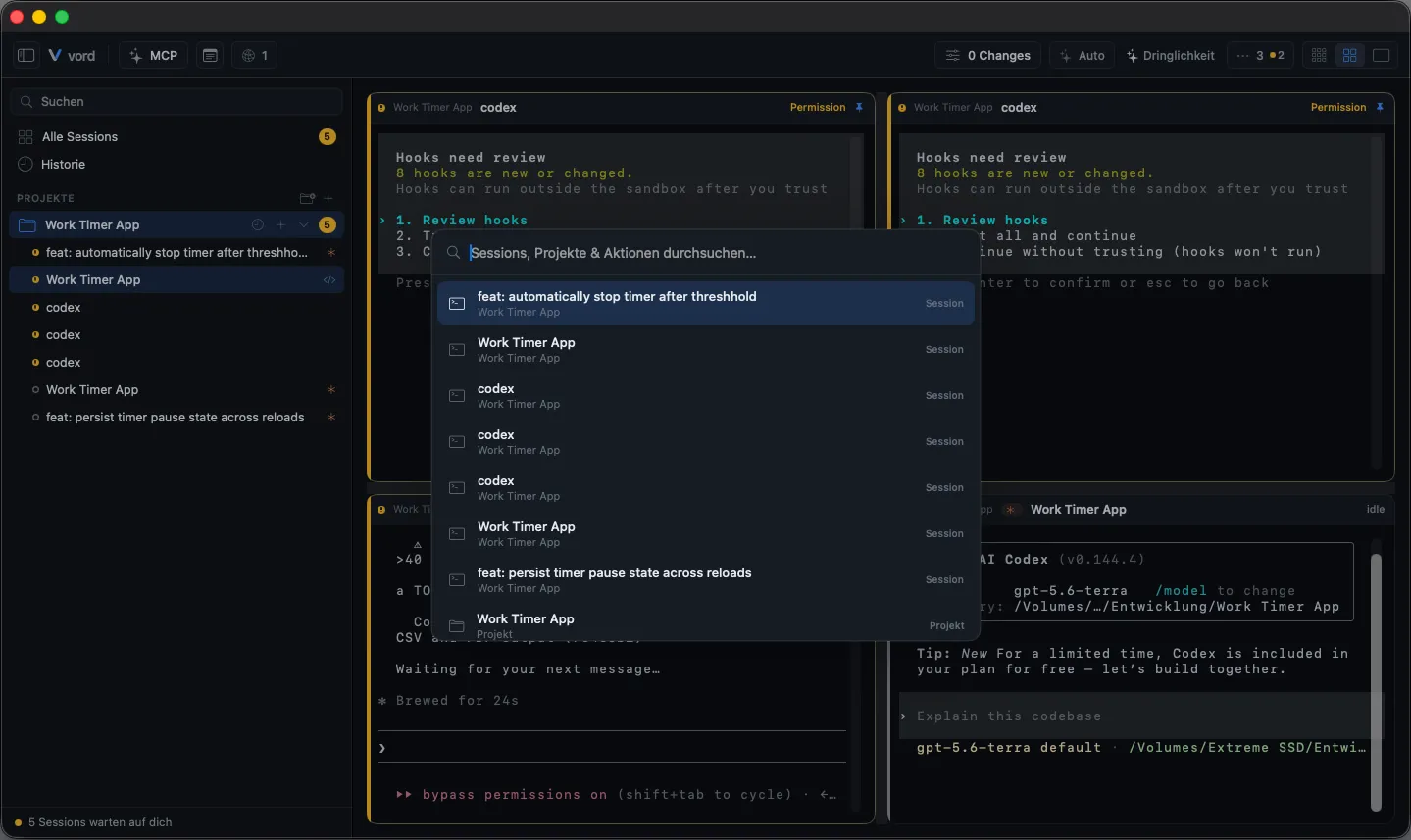
The command palette (⌘K) — jump to any session, project or action
Section titled “The command palette (⌘K) — jump to any session, project or action”Press ⌘K from anywhere in vord to open a searchable list that mixes your sessions, projects, actions, saved SSH connections, ~/.ssh/config hosts, and command snippets in one place — no mouse required. It’s a single palette; type to narrow it to whatever you’re after.
Type to filter, Enter to go
Section titled “Type to filter, Enter to go”- Press ⌘K.
- Type to filter the list.
- Press Enter (or click a result).
What Enter does depends on what you picked: selecting a session or project navigates to it and focuses the matching tile; selecting an action runs it immediately; an SSH connection or config host starts that connection; a snippet is inserted into the selected session (Enter runs it, Shift+Enter inserts it without submitting). A project lead is listed as a project lead, not as a normal session, and choosing it opens the project-lead column.
What appears in it
Section titled “What appears in it”Actions are the one category that’s gated. Every action in vord’s keyboard shortcut registry carries an inPalette flag; the palette only lists the ones with the flag set. Today every registered action opts in, so the whole shortcut registry is searchable here — but the flag gives vord a way to keep an action out of the palette (for example a context-free action that wouldn’t make sense to search for) without removing its keyboard shortcut.
Full shortcut list
Section titled “Full shortcut list”This page covers movement and the palette. For the complete default shortcut table, how to rebind any of them, and where the same actions show up in the macOS menu bar, see Keyboard Shortcuts.