Branches & Git Sync
vord shows you which branch every session is running on, keeps ahead/behind counts current in the background, and gives you one-click fetch/push/pull from the toolbar or the inspector. When a pull ends in a merge conflict, it can hand the fix to claude, codex or kimi instead of dropping you straight into conflict markers.
Branch and worktree rows in the sidebar
Section titled “Branch and worktree rows in the sidebar”Under each expanded project, vord groups sessions by the Git branch (or worktree) they’re actually running in — not by an assumed default, but by reading the live process’s working directory.
- A branch row only appears if a session is actually running on it. Empty branches don’t clutter the sidebar.
- Additional Git worktrees (not the main checkout) get their own icon and an “⌥ “ prefix.
- The row for the currently checked-out branch carries a status dot (🟢/🟡/⚪️) — the aggregated, most urgent status across every session on that branch. It’s not a fixed green; it speaks the same status language as individual session rows.
- Sessions vord can’t confidently tie to a branch land in a separate WITHOUT ASSIGNED BRANCH group instead of being guessed into the wrong one.
This is a read-only grouping — clicking a session under it focuses that session as usual, but you can’t switch branches from the row itself. See below for the actual way to switch.
Branch detection reads the real OS process (cwd), not a cached assumption, so it stays correct if you git switch inside a plain shell session yourself. If the underlying process ends, the sidebar keeps showing the last known branch/root rather than dropping the session into the unassigned group.
The Repo overview
Section titled “The Repo overview”Open a project’s Repo overview from its project row to inspect worktrees, branches, unpushed commits, and patch-based landing checks. The view only reports, except for worktrees vord created for a session: those rows offer Go to Session and Clean Up… (see Managing projects). It uses the main window’s right-hand column, exclusively shared with the Git Inspector, preview/browser, and session peek. Opening it replaces the current column content; close it from its header. There is no minimize-to-sidebar action.
Choose Open in Window in the Repo overview header to move that project’s overview into its own window. The right-hand column is released, and opening the same project again brings the existing overview window to the front.
Switching a branch
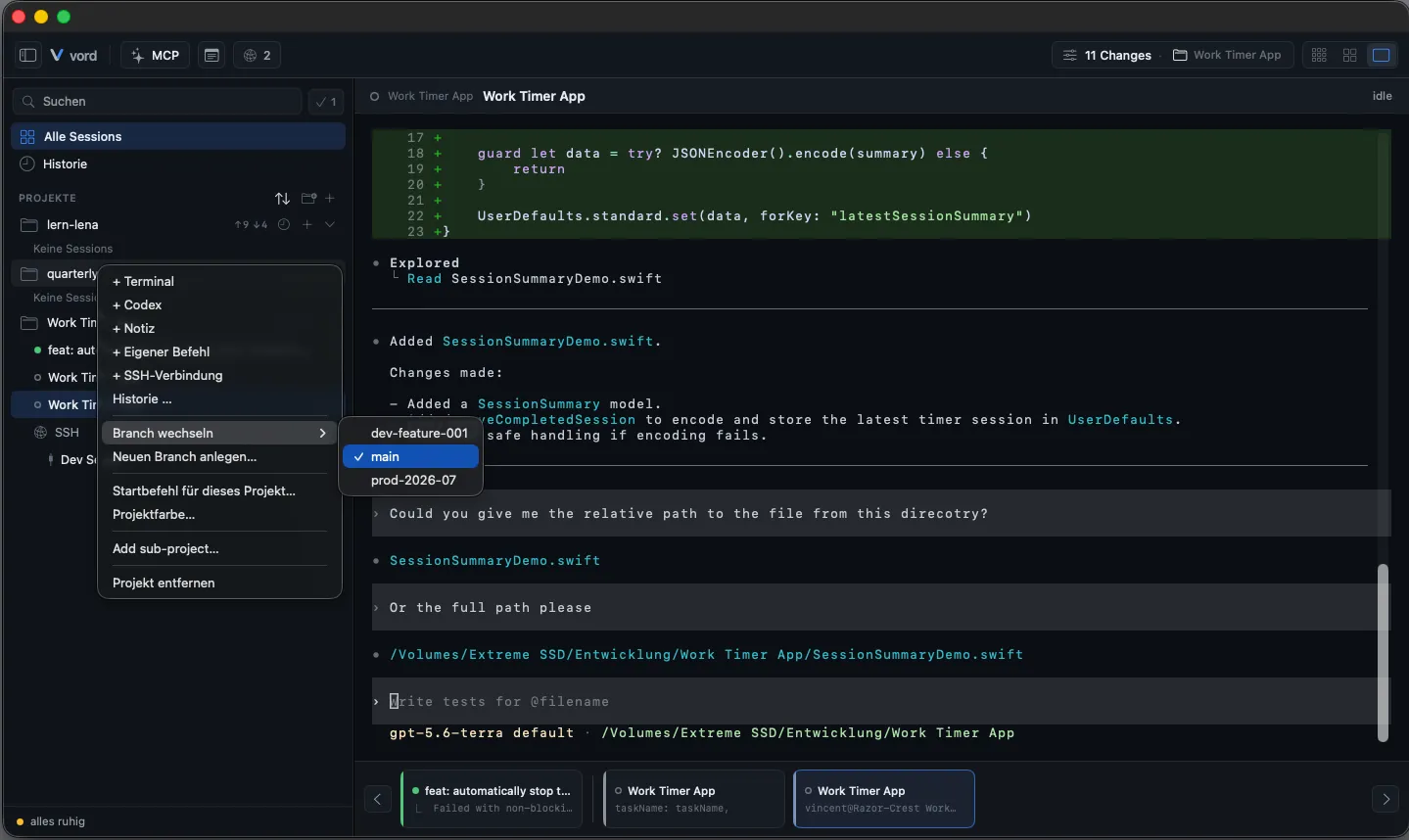
Section titled “Switching a branch”- Right-click a project in the sidebar (it must be a Git repo).
- Choose Switch branch → pick a branch from the submenu. A checkmark marks the branch currently checked out.
This runs git switch in the project’s main worktree and reloads its Git info. It only lists and switches local branches.
Creating a branch (no auto-checkout)
Section titled “Creating a branch (no auto-checkout)”- Right-click a project → Create new branch….
- Type a name in the alert’s text field → Create.
The branch is created (git branch <name>) but not checked out automatically — use Switch branch afterward if you want to work on it right away.
The Git sync bar (fetch/push/pull/publish) and the toolbar sync menu
Section titled “The Git sync bar (fetch/push/pull/publish) and the toolbar sync menu”The same sync controls appear in two places, both backed by the same state:
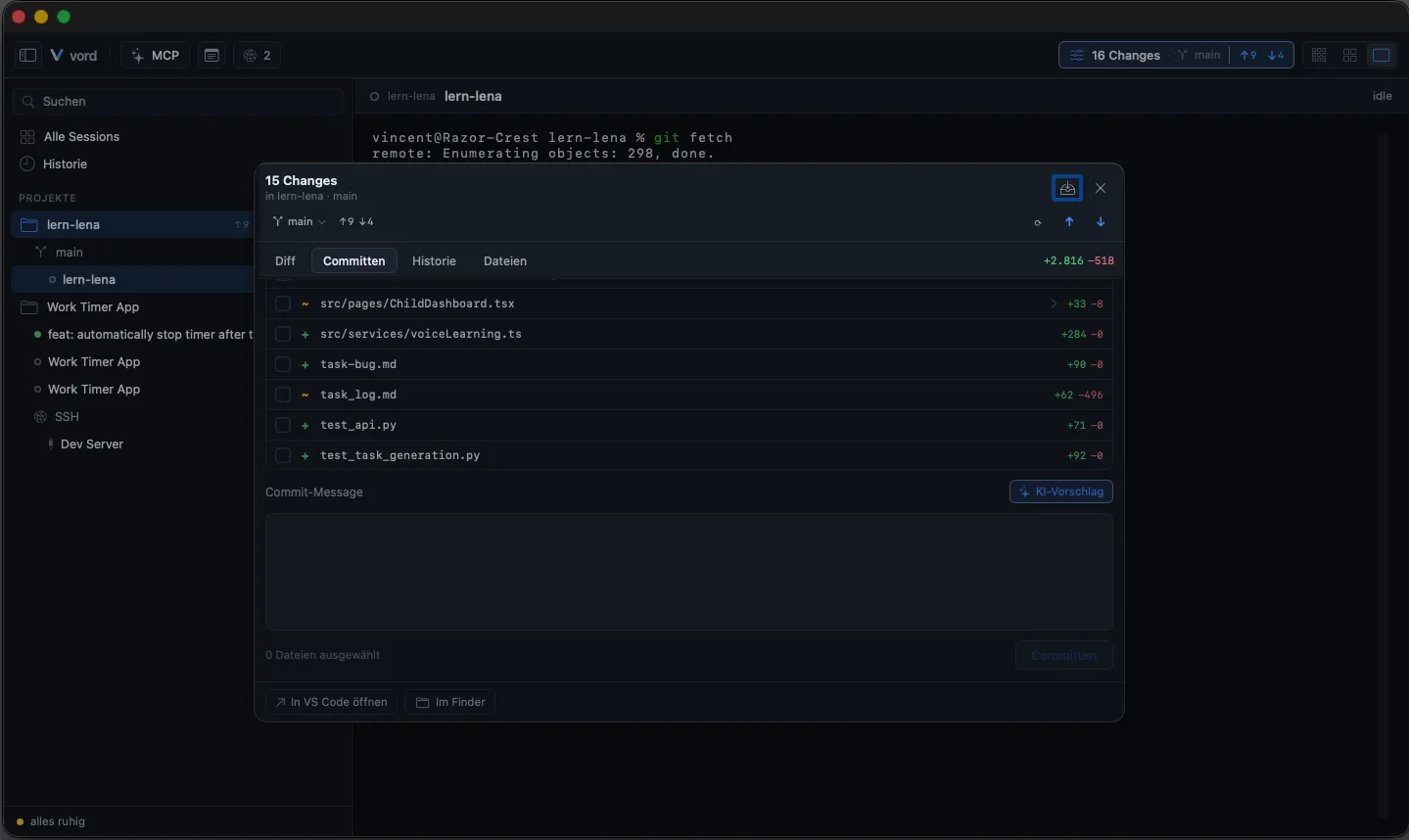
- Inspector header — the Git sync bar sits under the “N Changes” title at the top of the inspector panel.
- Toolbar — a Git sync menu button (a circular-arrows icon) offers fetch/push/pull/publish together with their counts, so you don’t have to open the inspector to sync. It carries a small number while there are commits ahead or behind, shows a spinner while a sync runs, and is disabled when there’s nothing to offer. The far-right Git inspector toggle shows the active project’s changed-file count and opens/closes the inspector. There is deliberately no one-click push.
| Control | Icon | What it does |
|---|---|---|
| Fetch | ⟳ | Fetches the remote without merging. |
| Push | ↑ | Opens the push review for local commits. Its menu entry shows the ahead count next to the label (“Push 2”), and a compact number sits next to the toolbar icon. Only offered when an upstream exists. |
| Pull | ↓ | Pulls and merges. Its menu entry shows the behind count. Only offered when an upstream exists. |
| Publish | ⤴ | Pushes a new local branch for the first time, setting up its upstream. Offered instead of Push/Pull when there’s no upstream yet. |
Menu entries grey out when there’s nothing for them to do — Push with nothing ahead, Pull with nothing behind, and so on.
Push review and preflight
Section titled “Push review and preflight”Push never performs a hidden fetch. Open To Push in the Inspector to review the outgoing commit subjects, affected files, +/− totals, binary files, submodule pointer changes, and path-based secret warnings. vord then asks Git for a dry-run of the exact branch update before enabling the real push. A review belongs to one repository and one exact Git snapshot: changing projects or changing the repository state expires it and requires a new review and dry-run.
- A danger blocks Push: conflicts, an open merge, a locked index, detached HEAD, no
origin, authentication/network failures, a protected branch, or any rejected dry-run update. - A warning requires an explicit Push anyway confirmation: behind/diverged history, binary/large outgoing files, or a path such as
.env,credentials.json, a private-key name,.pem, or.p12. - Informational notes explain a first publish, a local credential helper, or a submodule pointer update.
The secret warning is path-based only. vord does not inspect file contents for secrets, never reveals a repository-local credential-helper value, redacts Git diagnostics before display/logging, and offers no force-push action.
For a branch without an upstream, the same review remains complete before its first publish. vord compares refs/remotes/origin/<branch>...HEAD when that local remote-tracking ref exists. If the branch is new but other local origin/* tracking refs exist, it lists exactly the commits not reachable from any of them and uses the nearest local Origin base for the file comparison. Git’s empty tree is used only when no local Origin tracking ref exists at all. An unborn branch has nothing to publish. None of these local comparisons fetches or changes the remote.
The sync bar lives next to the inspector’s other tabs — stage and commit your own changes in the Commit tab before you push.
When you’re in a scope-less view (All Sessions or History, not a single project), the toolbar shows a project dropdown instead of a fixed branch label — it follows whichever session you have focused, but you can override it manually. With no project focused, both the body click and the sync actions are disabled with a hint: “No project — focus a session to show its Git status.”
When a sync fails
Section titled “When a sync fails”If a fetch, push, pull or publish doesn’t go through, vord opens a Notice alert that says what happened in plain language — in your app language, not in raw Git English:
| What Git ran into | What the notice tells you |
|---|---|
| Rejected credentials | Sign in to your Git provider again or renew your access token. |
| Unreachable server | Check your internet connection and try again. |
| Push rejected | The server has newer commits — pull first, then push again. |
| Protected branch | The branch only accepts changes through a pull request. |
| No upstream | The branch isn’t on the server yet — use Publish for the first upload. |
| Uncommitted changes in the way | Commit or discard them, then pull again. |
| Untracked files in the way | Move, delete or commit them, then pull again. |
| Another Git process running | Wait for it to finish and try again. |
The original Git line follows underneath as “Git reported: …”, so you keep the exact wording for a search or a bug report. If vord can’t place the cause, it shows that Git line on its own rather than inventing an explanation.
Ahead/behind indicators in the sidebar
Section titled “Ahead/behind indicators in the sidebar”Each project/branch row in the sidebar can also carry a compact ↑ahead/↓behind indicator, or a publish hint (⤴) if the branch has no upstream yet. It’s read-only by design — no buttons here, so the sidebar stays quiet. It only appears when there’s actually something to report: no “↑0/↓0” noise, and nothing shown for branches vord doesn’t recognize.
Use the Git sync bar or the toolbar’s Git sync menu (above) to act on what the indicator shows.
Auto-fetch in the background (foreground-only, backoff)
Section titled “Auto-fetch in the background (foreground-only, backoff)”vord periodically fetches (never merges) every open project’s remote, so ahead/behind counts stay current without you clicking Fetch by hand.
- Runs only while vord is in the foreground/visible — no background network activity while the app is hidden or inactive. It fetches once immediately when you bring the app back.
- A project whose remote stays unreachable gets skipped with an exponentially growing backoff (up to 12 skipped cycles), so one dead remote doesn’t stall syncing for every other open project.
- A manual Fetch always resets that backoff immediately.
- Local (network-free) ahead-reading keeps working even if auto-fetch is off — only the actual
git fetchpauses; “behind” then stays frozen at the last known state until your next manual fetch.
Let an agent resolve a merge conflict
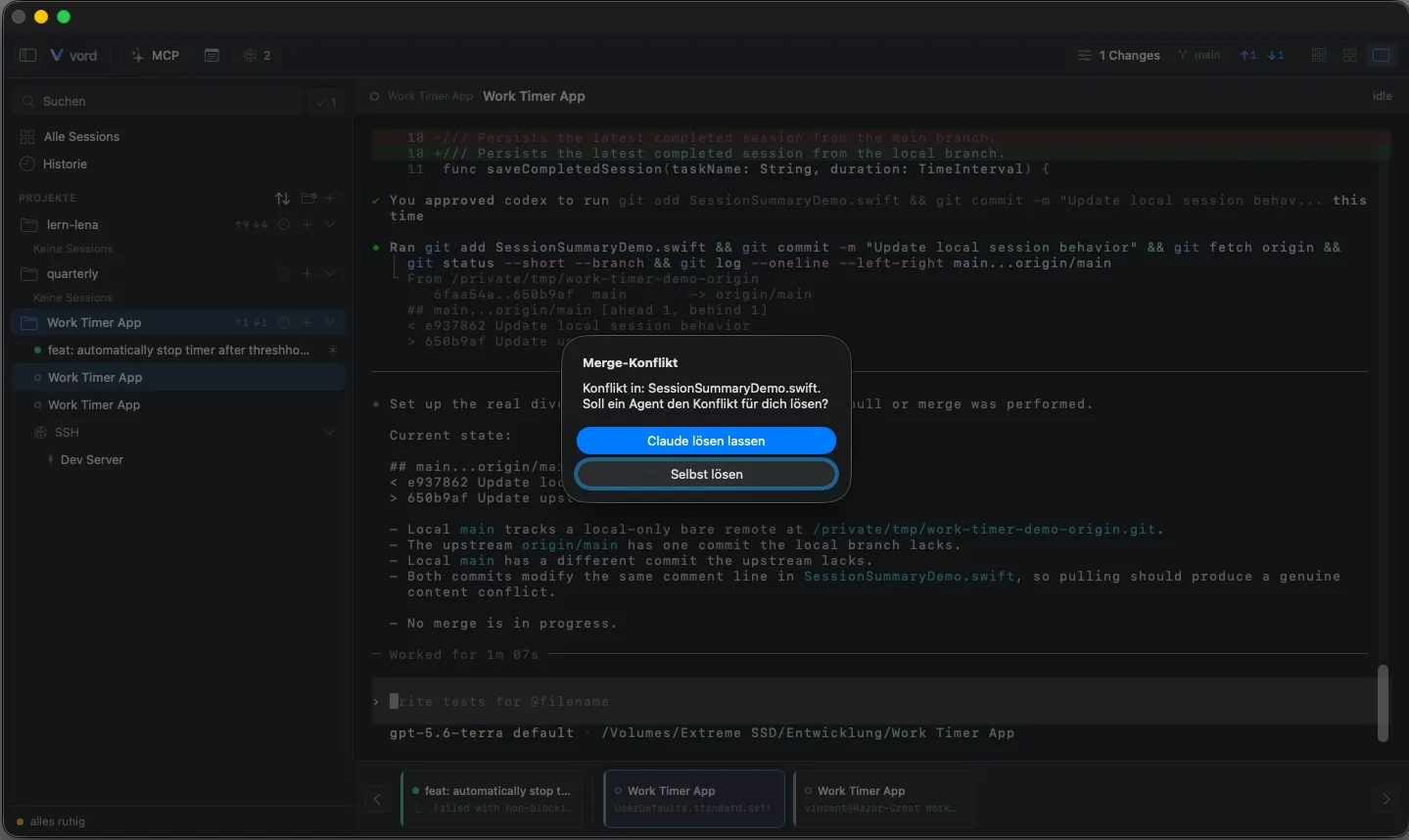
Section titled “Let an agent resolve a merge conflict”This is one of vord’s own features: after a Pull ends in a merge conflict, vord offers to start an agent that resolves it for you instead of leaving you with raw conflict markers.
- Trigger a Pull from the toolbar or the Git sync bar.
- If it results in a conflict, a system alert titled “Merge conflict” appears automatically, listing the conflicting files.
- Choose one:
- Let Claude resolve it (or Let Codex/Kimi resolve it, depending on your configured conflict agent) — opens a new terminal in the project and gives the agent a pre-written prompt naming the conflicted files. It’s expected to resolve the markers and finish the merge (
git add+git commit). Claude and codex receive the prompt as their start argument; kimi is started interactively and gets the same prompt typed into its composer as soon as it’s ready — either way you end up with a live session you can keep working in. - Resolve it myself — dismisses the alert; you resolve the conflict by hand.
- Let Claude resolve it (or Let Codex/Kimi resolve it, depending on your configured conflict agent) — opens a new terminal in the project and gives the agent a pre-written prompt naming the conflicted files. It’s expected to resolve the markers and finish the merge (
Session-branch mapping (a quick note on how this stays live)
Section titled “Session-branch mapping (a quick note on how this stays live)”The branch grouping in the sidebar (above) depends on vord probing each running session’s actual working directory and branch directly from its OS process — not from a cached assumption — so a git switch you run yourself inside a plain shell session is picked up correctly. This probe is cheap: it only re-runs git on a real directory change, with a forced refresh at least every 30 seconds as a backstop. It’s part of how sessions and branches connect, not a feature on its own — see Starting Sessions for how sessions get their working directory in the first place.