SSH
vord can start a terminal session directly on a remote host over SSH, right next to your local claude, codex, and shell sessions. Connections live in Settings → Workspace → SSH, and once saved, you launch them from the command palette (⌘K), the Session menu, or an optional toolbar button you add via Customize Toolbar….
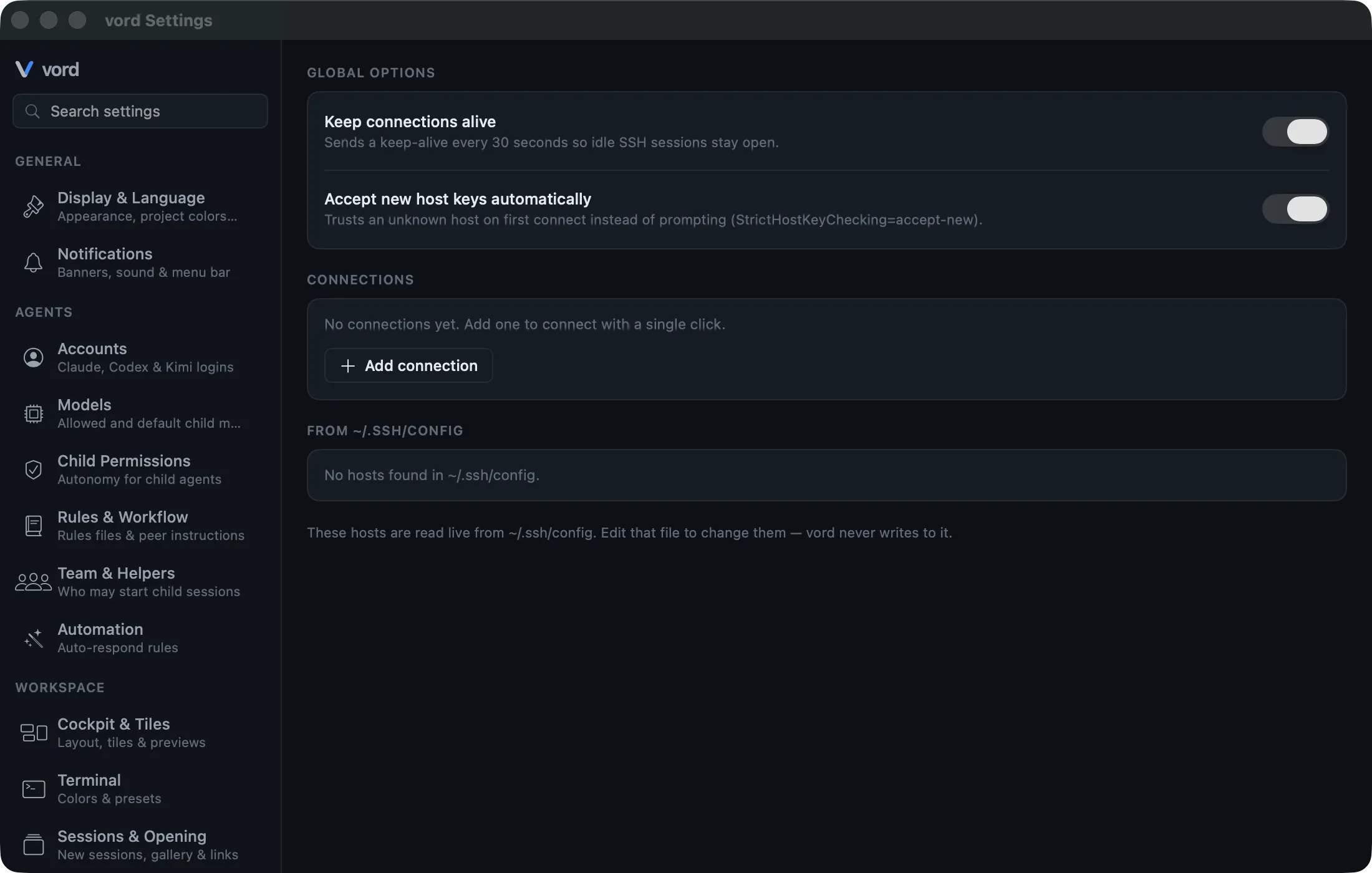
Saved connections (global or per project)
Section titled “Saved connections (global or per project)”A saved connection is a named SSH target — host, user, port, and an auth method — that you can start with one click instead of typing ssh user@host every time.
- Open Settings → Workspace → SSH → Connections and click Add connection.
- Enter a name (optional — vord falls back to
user@hostif you leave it blank), the host, user, and port (default22). - Pick an auth method:
- SSH agent (default) — uses whatever identities your
ssh-agentalready has loaded. - Private key — pick a key file with the file picker.
- Password — typed or pasted at connect time and stored in the Keychain (see the password chip below).
- SSH agent (default) — uses whatever identities your
- Pick a scope: Global (visible in every project) or a specific project.
- Optionally expand Advanced for legacy server compatibility (older KEX/cipher algorithms) and extra
sshflags (space-separated). - Save. The connection now shows up in the SSH toolbar pool and in the command palette.
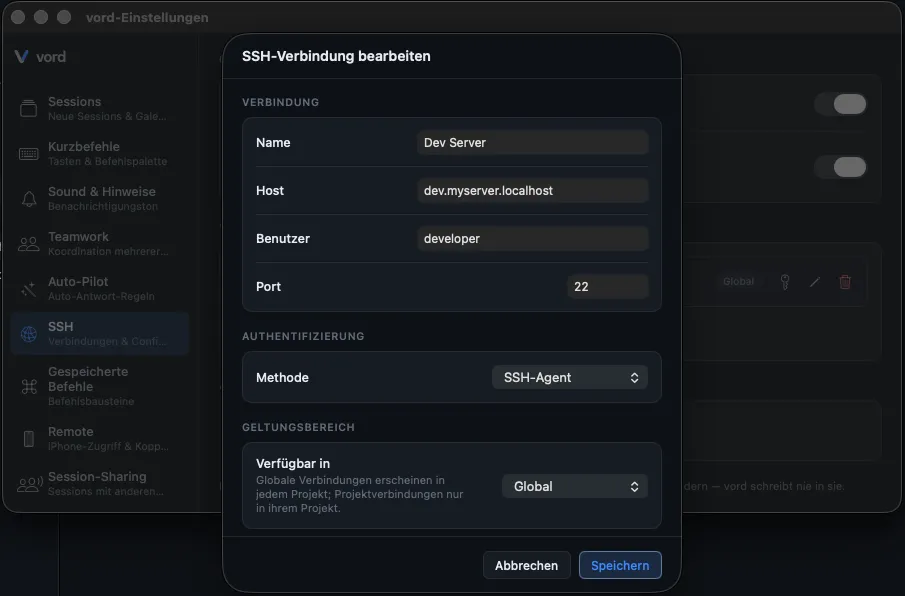
Click the connection from either place to start an .ssh session in the matching project context immediately.
Passwords and key passphrases are never stored in the connection file itself — only in the system Keychain, under vord’s own service namespace. See Settings Reference for where the non-secret connection data lives.
Reading ~/.ssh/config (read-only)
Section titled “Reading ~/.ssh/config (read-only)”vord also reads your local ~/.ssh/config live and lists its host aliases next to your saved connections, under From ~/.ssh/config in Settings → Workspace → SSH.
These entries are start-only — vord never writes to that file. User, port, and key selection are whatever your config file already says; vord only appends its own global -o options on top (see below).
Global options
Section titled “Global options”Two switches in Settings → Workspace → SSH → Global options apply to every SSH connection you start, whether it’s a saved connection or a ~/.ssh/config alias:
| Option | Default | Effect |
|---|---|---|
| Keep connections alive | On | Sends a keep-alive every 30 seconds so idle SSH sessions stay open. |
| Accept new host keys automatically | On | Trusts an unknown host on first connect instead of prompting (StrictHostKeyChecking=accept-new). |
The SSH toolbar pool and ⌘K
Section titled “The SSH toolbar pool and ⌘K”Once you have at least one saved connection or config alias, a network icon with a count can appear in the cockpit toolbar. It isn’t on the toolbar by default — add it through the toolbar’s Customize Toolbar… command, or use Session → Open SSH connection. Click it (or the menu item, or ⌘K) to get a filterable list (type to search) of everything you can connect to — saved connections and config-file hosts together. The same list is reachable through the command palette (⌘K).
Either path starts a fresh .ssh session. For how session starting, resuming, and the claude/codex/shell/SSH picker work in general, see Starting Sessions.
The password / passphrase / sudo chip
Section titled “The password / passphrase / sudo chip”If a session prompts for a password interactively — an SSH login password, a key passphrase, or a sudo prompt inside the remote shell — vord recognizes the prompt at the end of the last terminal line and shows a small chip in the bottom-right corner of that session’s terminal.
Click the chip to insert the saved password (raw text plus Enter). It’s never sent automatically — inserting is always a deliberate click.
Detection is a pure output heuristic: it matches known prompt suffixes (password:, '…':, [sudo] password for …:) at the end of a line. vord has no access to the terminal’s echo state, so this can’t be made more precise than string matching.
Installing a key with ssh-copy-id
Section titled “Installing a key with ssh-copy-id”If you’re currently using password auth, the Install key action on a connection row converts it to key-based auth for good: it copies your public key to the target server.
- In Settings → Workspace → SSH → Connections, find the connection and click Install key.
- vord opens a fresh, plain shell session in the matching project and types the
ssh-copy-idcommand for you (including-i <key>/-p <port>where relevant). - The server asks for the password once, interactively — type it in the terminal as normal.
This runs in a separate shell session, not inside the .ssh session itself — it’s a one-off local helper command, not something vord manages afterward.
File transfer with scp (drag-drop upload, fetch download)
Section titled “File transfer with scp (drag-drop upload, fetch download)”Upload: drag one or more files from Finder onto an .ssh tile in the cockpit. vord uploads them via scp into the home directory of the remote host.
Download: right-click an .ssh session and choose Fetch file from host…, then enter the remote path. The file lands in ~/Downloads.
Transfers run as a separate background process, not inside the session’s terminal — you get a short notification and an event-log entry, not a progress bar. There’s no timeout, so a large transfer can run as long as it needs.
The SSH host badge
Section titled “The SSH host badge”An .ssh tile and its focus view show a small pill with the connection name (or config alias) next to the other status badges — so you can tell at a glance that a session is running remote, not local. It’s purely informational.
Security (argv-injection guard, passwords in Keychain only)
Section titled “Security (argv-injection guard, passwords in Keychain only)”A few security properties hold across the whole SSH feature, not just individual actions:
- No argv injection. Host, user, and
~/.ssh/configaliases that start with-are rejected or skipped wherever vord builds a command line for them — a value like-oProxyCommand=…can’t smuggle an extra flag intossh,scp, orssh-copy-id. - Passwords never live in plain settings. Saved connections persist to a secret-free JSON file; passwords and key passphrases exist only in the system Keychain.
- Passwords stay out of logs. The password chip inserts text directly into the terminal — it’s never written to the transcript, event log, process argv, or environment variables.
SSH sessions go through the same license gate as any other session start (Basic/Pro/Trial/Perpetual) — see Settings Reference for licensing details, and Sending Input for paste and snippet behavior that applies to SSH sessions too.