File Preview
The preview panel doesn’t just render web pages — it also opens files. Click a file link an agent printed in the terminal, or type a path into the address bar, and vord renders it inline instead of shelling out to another app. It lives in the right-hand column beside the cockpit and is read-only. The column remembers its width separately for the preview, Inspector, Repo overview, and peek. Use the diagonal-arrow button in the header to temporarily Expand to full width; press it again to return to the column without changing the saved preview width.
Choose Open in Window in the preview header to move the visible file preview into its own window. The window has no panel header: its title and subtitle are in the window title, and the feedback tools, Markdown toggle, and external-open action are in the window toolbar. The main window’s right-hand column is released, and opening the same file target again brings its existing window to the front.
Each file opens in its own tab, next to any web pages you have open. A file is ready as soon as it appears; the footer shows Ready rather than a loading indicator.
Code view
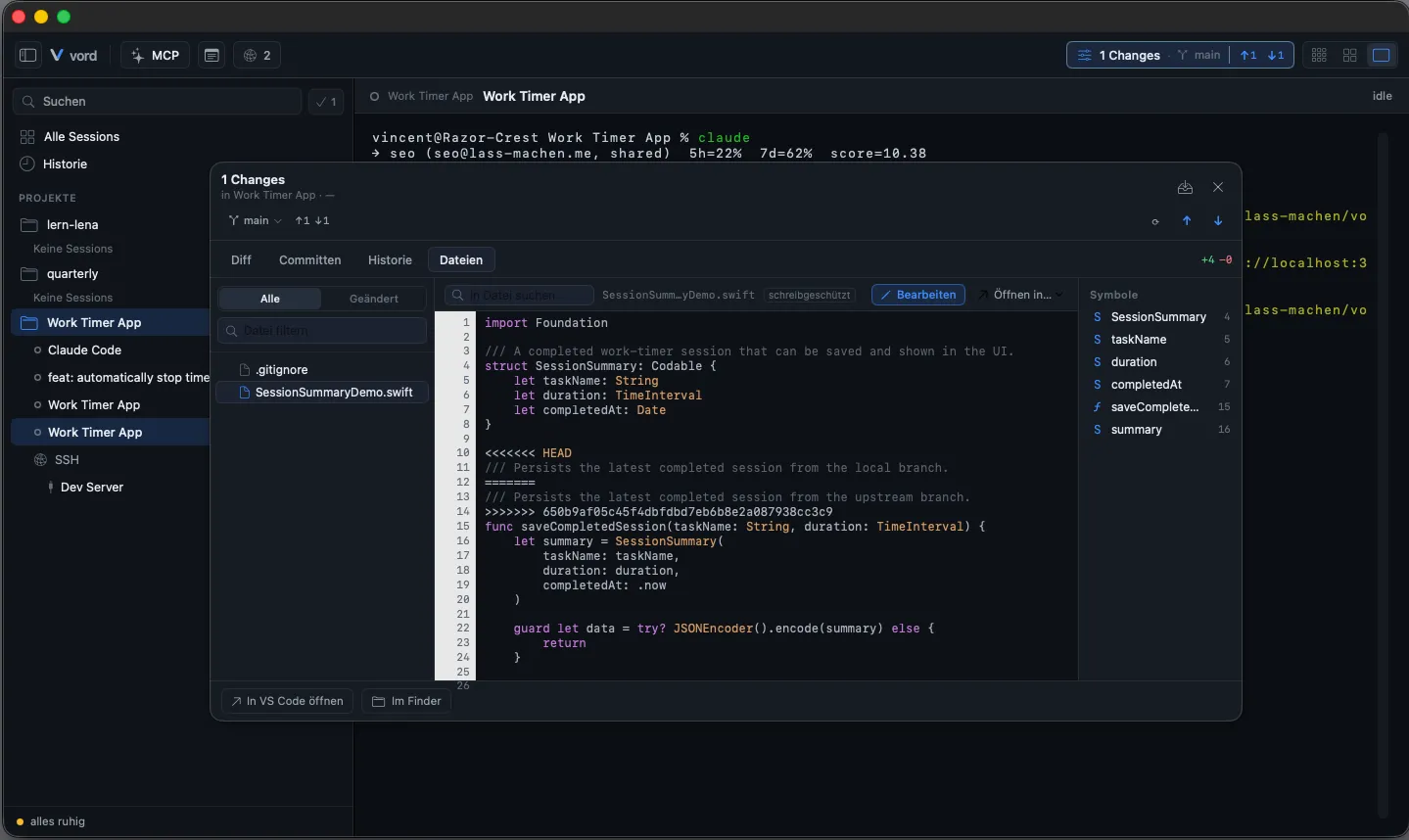
Section titled “Code view”Source, config, and log files render with syntax highlighting, using Highlightr to cover a wide range of languages — Swift, Python, JSON, YAML, and many more. The language is picked from the file extension. A file with no extension, like Makefile, still opens in the code view, but it renders as plain, unhighlighted text — there’s no name- or content-based language detection.
Open a code file the same way you open anything else in the panel:
- Click a file link the agent printed in the terminal, or
- Type a path into the address bar and press Enter.
The file renders with line numbers and highlighting automatically — there’s no separate “open as code” step.
Markdown view
Section titled “Markdown view”.md and .markdown files can render two ways:
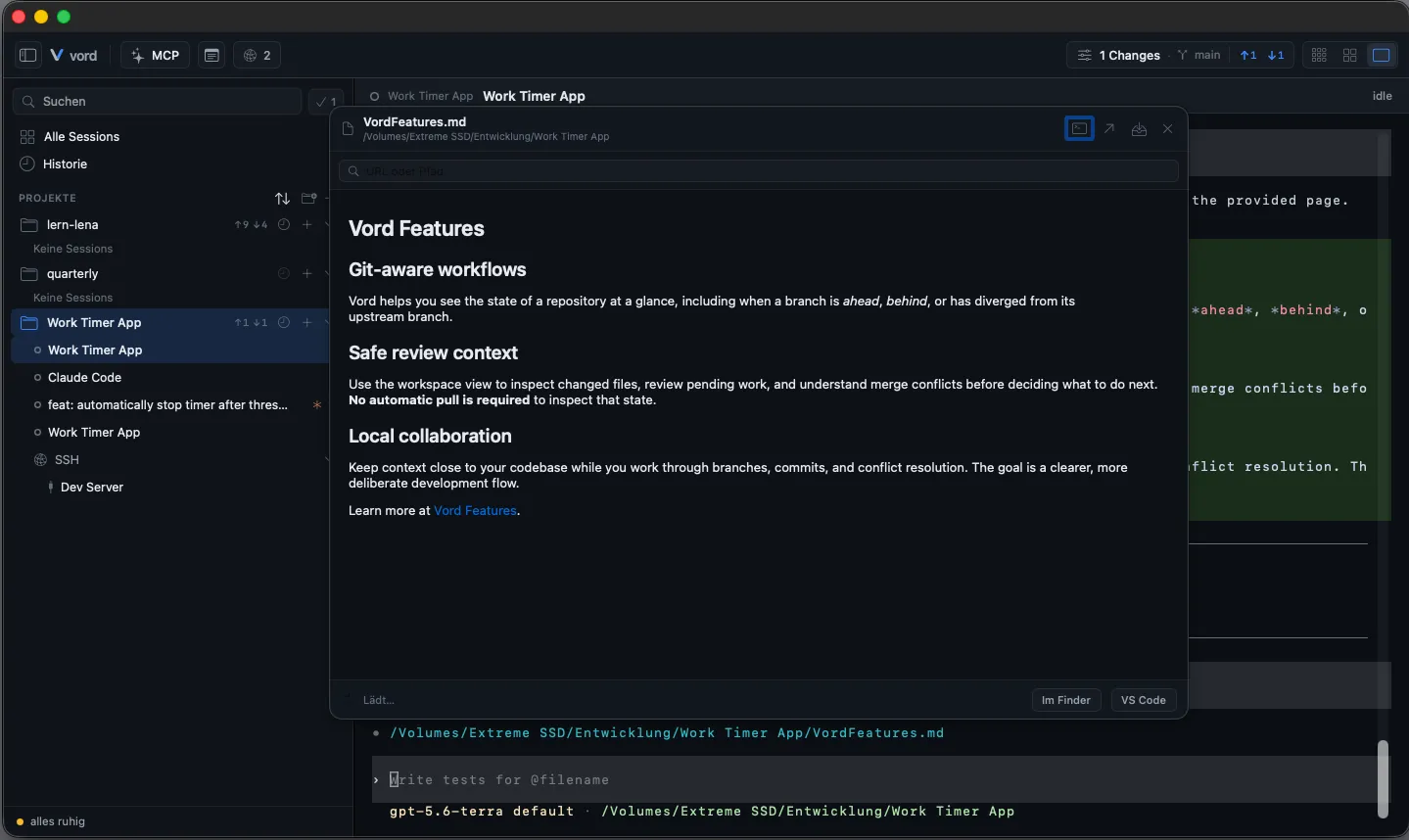
- Formatted — headings, lists, code blocks, block quotes, and GFM tables (with horizontal scroll for wide tables) rendered as native SwiftUI views.
- Raw — the Markdown source itself, syntax-highlighted like any other code file.
Switch between them with the toggle icon in the panel header (a terminal icon while formatted, inviting you to switch to raw; a document icon while raw, inviting you back to formatted). The switch is instant — no reload.
This preference is a single app-wide setting, not per-file: once you switch to raw, every Markdown file you open next starts in raw too, until you switch back. You can also set the same default under Settings → Workspace → Cockpit & Tiles → Preview → Render Markdown.
Images, HTML, and PDF
Section titled “Images, HTML, and PDF”Image files (png, jpg, jpeg, gif, svg, webp), HTML files (html, htm), and PDFs render inline through the same WKWebView the built-in browser uses for web pages, loaded directly from disk.
Other files
Section titled “Other files”Files with no inline rendering path — archives, binaries, anything vord doesn’t know how to display — get a plain placeholder with the file name instead of an error. From there, use the footer actions to open the file elsewhere.
When an agent shows you such a file right after something vord can display (for example a report followed by a ZIP of its evidence), the file opens as a background tab and the report stays in front.
File actions
Section titled “File actions”The panel footer shows two buttons whenever a file (not a web page) is open:
| Button | Action |
|---|---|
| In Finder | Reveals the file in Finder. |
<your IDE> |
Opens the file in your preferred editor — the label itself changes based on your Preferred IDE setting (VS Code by default). |
These are the only way to edit a previewed file — the preview itself never becomes editable.
Limits
Section titled “Limits”- 5 MiB size cap. Larger files show a “File too large” notice instead of content, both in code view and Markdown view.
- Symlinks are not followed. If the file itself is a symlink, vord shows “Symbolic link” and the link’s target path, but never reads or renders the target’s content — a deliberate security boundary, not a bug.
- Read-only. No inline editing anywhere in this panel; use the footer’s IDE action instead.
- No in-file search or outline. For that, use the Inspector.
Related
Section titled “Related”- Built-in browser — the same panel also renders live web pages, with its own address bar, auto-detected links, and pair-browsing feedback.
- The Inspector — the full file explorer with diffs, commit history, and in-file search.
- Notes — the internal notes panel reuses this Markdown renderer for rendered/raw note text.