Sharing a Session (Host)
Session sharing sends a live, real-time terminal stream of one of your sessions to another vord user. It works for any session kind — claude, codex, kimi, or plain SSH — because it streams raw terminal output, not agent-specific data.
What sharing is (and how it differs from a phone companion)
Section titled “What sharing is (and how it differs from a phone companion)”The iPhone or Android companion connects your own phone to your own Mac. Session sharing is different: it connects a completely different vord user — on their own Mac, iPhone, or Android device — to a session running on your Mac. Both features reuse the same relay connection and the same Pro/Remote entitlement, but they solve different problems.
A share is always 1:1: one invitation tied to one guest email. There’s no “invite multiple people at once” step — create a separate share for each guest.
A share covers a whole session family, not a single session. When you share a session that has child sessions — the ones an agent started with spawn_agent — those children come along, and any child spawned later joins the share on its own. See Sharing a family of sessions below.
Creating a share (email, view-only vs. can-type, the link/QR)
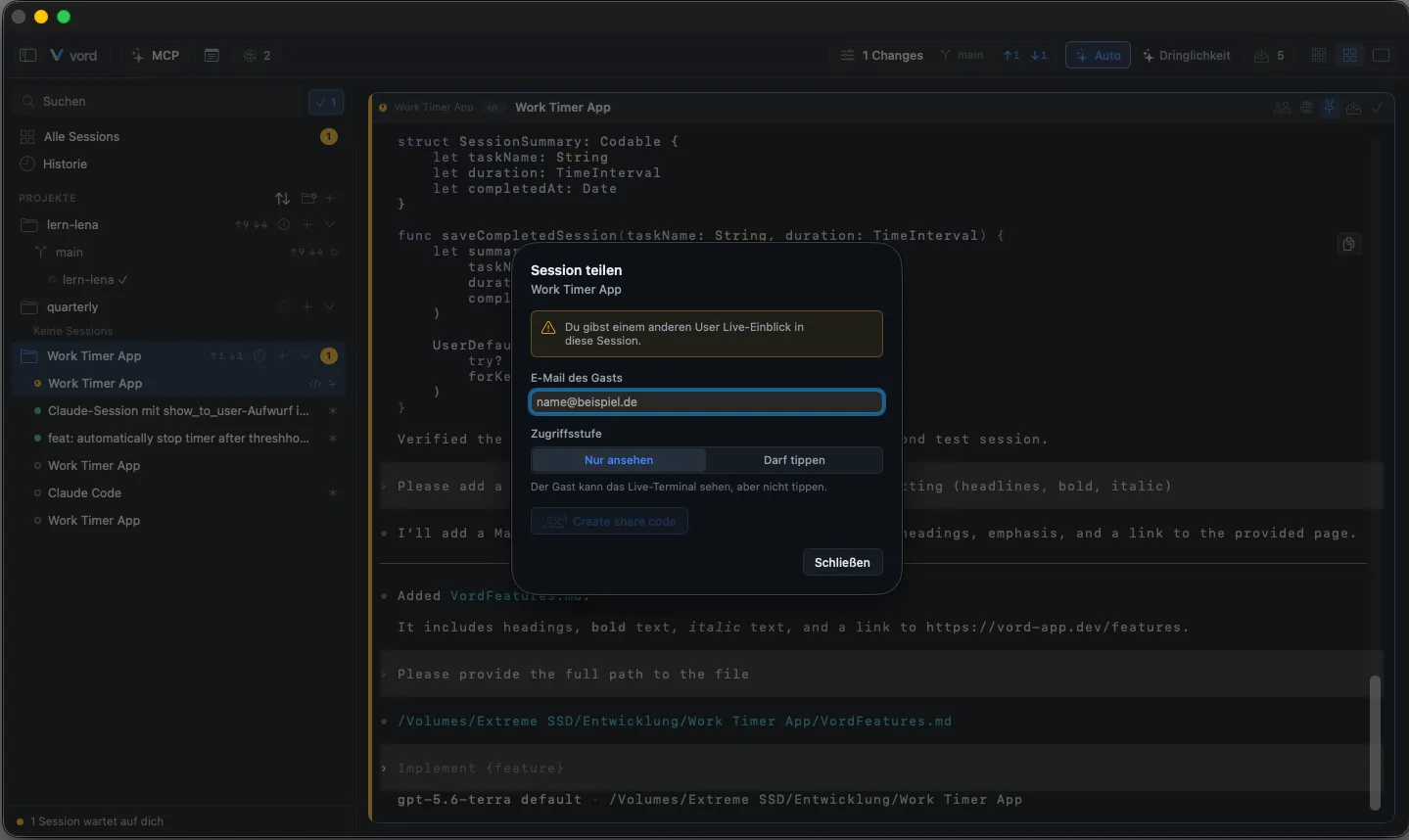
Section titled “Creating a share (email, view-only vs. can-type, the link/QR)”- Right-click the session you want to share (in the sidebar, grid, cockpit, or focus view) or the focus header, and choose Share session…. You can also click the people-icon button in the tile or focus header.
- Enter the guest’s email address. It’s required and gets a basic format check.
- Choose an access level:
- View only (default) — the guest can watch but not type.
- Can type — the guest gets full write access to your terminal. A red warning line appears when you pick this.
- Click Create share link. A confirmation dialog follows — sharper wording (“Grant write access?”) if you chose write access, since the guest will be able to run commands.
- The sheet now shows the invitation link (
https://hub.vord-app.dev/share#…) with a Copy link button, a QR code carrying that same link, and a note that it is single-use and expires. The rawVORD-SHARE-1.…code sits behind Copy the code instead if you’d rather paste that. - Send the link or QR to your guest through whatever channel you’d use anyway — Messages, email, Slack. vord doesn’t send it for you.
On a Mac or iPhone that has vord installed, opening the link goes straight into vord’s accept dialog with the code pre-filled — nothing is accepted automatically, the guest still confirms. Everywhere else the link opens a small page on hub.vord-app.dev that shows the code with a copy button and the three steps to accept it.
The code travels in the link’s fragment (everything after #). Browsers never send a fragment to a server, so it appears in no access log and no messenger link preview. Scanning the QR is still the tightest handoff: copying link or code places one-time security material on the system clipboard. If you send it remotely, use a channel you trust independently from the vord account and relay.
The guest redeems that invitation from their own vord app — see Joining a Shared Session.
The security model (ephemeral keys, out-of-band code, MITM anchor)
Section titled “The security model (ephemeral keys, out-of-band code, MITM anchor)”Every share generates a fresh X25519 keypair on the host, used only for that share. The code — whether pasted raw or carried in the link’s fragment — holds two distinct out-of-band anchors: the host’s ephemeral public key and a random bindSecret. The public key is also registered with the server, so the guest compares that server-confirmed value byte-for-byte with the independent copy in the code. The bindSecret never passes through the vord server; the guest uses it to authenticate its own ephemeral key, and the host verifies that binding before accepting it. A mismatch fails closed rather than silently downgrading. The relay URL is restricted to approved secure endpoints; even a compromised approved relay cannot derive the end-to-end session key, although it can still disrupt service or observe traffic timing and sizes. On top of the server-side grant, the host runs an independent read/write and session-confinement gate before anything from the guest reaches the terminal.
None of this is configurable — it’s the same for every share, high-value or not.
Sharing a family of sessions
Section titled “Sharing a family of sessions”If the session you share has spawned child sessions (see Subagents and Hierarchy), sharing the parent shares the family:
- Children that are already running when you create the share are included immediately — the whole family, including grandchildren already spawned under those children.
- Children spawned later under a shared session join the share automatically — the guest sees them appear within a second or two, no new invitation needed.
- The guest picks a session from a small family bar above the terminal (parent first, children indented) and opens it. Only the chosen session is shown in the terminal; sessions they have never opened stay quiet. Once a child has been opened, it keeps streaming in the background so switching back shows the latest state instantly.
- Access level applies to the whole family. If you hand over write access, the guest can type in every session of that family; switching back to view-only locks all of them again.
You don’t manage the family by hand — there’s no “add this session to the share” action. The family follows the parent/child relationship the agent itself created.
When a child session ends, it disappears from the guest’s family bar shortly afterwards (it stays visible briefly with its final state, so it doesn’t vanish mid-glance) — the share itself keeps running. When the shared parent ends, the whole share ends, exactly as before.
Switching access live (view ⇄ write)
Section titled “Switching access live (view ⇄ write)”You can change an active share’s access level without the guest reconnecting.
- Open the share’s context menu (sidebar/grid), the manage popover from the active people-icon button in the tile/focus header, or Settings → Connections → Session Sharing → Sessions you are sharing.
- Hand over write access, or take it back. The exact label depends on where you are: the context menu says Hand over control… / View only; the popover says Give control (allow typing) / Switch to view-only. The Settings row has the same toggle.
- The guest sees the new state immediately — no reconnect needed. Granting write access from the context menu asks for one confirmation (“Hand over control?”) since the guest can run commands afterward; from the popover or the Settings row the change applies right away.
Only the host can change this. A control signal arriving from the relay in the opposite direction is deliberately dropped — a guest (or a compromised relay) can’t escalate their own access.
There’s no access model finer than view/write — the switch always applies to the whole session, not to individual commands.
Stopping a share
Section titled “Stopping a share”- Choose Stop sharing from the session’s context menu, the tile/focus header popover, or the Stop button next to the share in Settings → Connections → Session Sharing.
- Confirm (“Stop sharing?” — the guest loses access immediately).
The guest is disconnected right away, even if the server-side revoke call happens to fail at that moment — the local state always reflects “not shared” so the header never lies about it. A leftover server-side share (if the revoke request failed) is cleaned up later by the server’s own expiry sweep.
Ending the session ends its shares automatically
Section titled “Ending the session ends its shares automatically”Ending a child of a shared session only removes that child from the share. Ending the shared session itself ends the share for every session in its family. Marking a shared session as done (which stops its process) or closing it (which archives it) automatically ends all of that session’s active shares — you don’t have to stop each one by hand first. The same happens when a shared claude session’s process ends on its own and the session moves to the history. The guest is disconnected immediately and sees the share end, instead of being left staring at a frozen, dead session. This runs through the same revoke path as Stop sharing, so the same “local state wins, server sweep cleans up any leftover” guarantee applies.
Shell sessions that merely exited keep their shares: they stay visible and can be picked up again, so a guest may keep watching until you stop the share or mark the session as done.
Sharing from a phone (intent only, keys stay on the Mac)
Section titled “Sharing from a phone (intent only, keys stay on the Mac)”You can create, adjust, or stop a share from your paired iPhone or Android device without touching the Mac. The phone only sends the intent as a remote command — key generation and the store registration for that share still happen on the host Mac.
- On the phone: open the session’s detail view, tap the … menu, and choose Share session… (or Manage sharing… if it’s already shared).
- Same flow as on the Mac: guest email, access level, and confirmation dialogs.
- On success, the invitation link is offered through the system share sheet (Messages, Mail, copy) instead of a Mac-style QR code.
The “shared” marker on the session
Section titled “The “shared” marker on the session”A small, passive icon on the session tile/focus header (next to the title and status) tells you at a glance whether you’re sharing it (filled people icon, accent color) or it’s shared with you as a guest (checkmark people icon, quieter tone). It’s informational only — no click needed, and a tooltip explains the state (“You are sharing this session” / “Shared with you”). It doesn’t show how many guests are connected, only whether sharing is active.
Beta and Pro gating
Section titled “Beta and Pro gating”Sharing requires:
- An active vord Pro entitlement (Remote) — see Account, License, and Trial and the Settings Reference entry for Session Sharing.
- Your Mac registered for remote access (Settings → Connections → iPhone) — without it, you’ll see “Register this Mac for remote access first.”
- An active sync subscription at the store — without one, sharing fails with a subscription error.
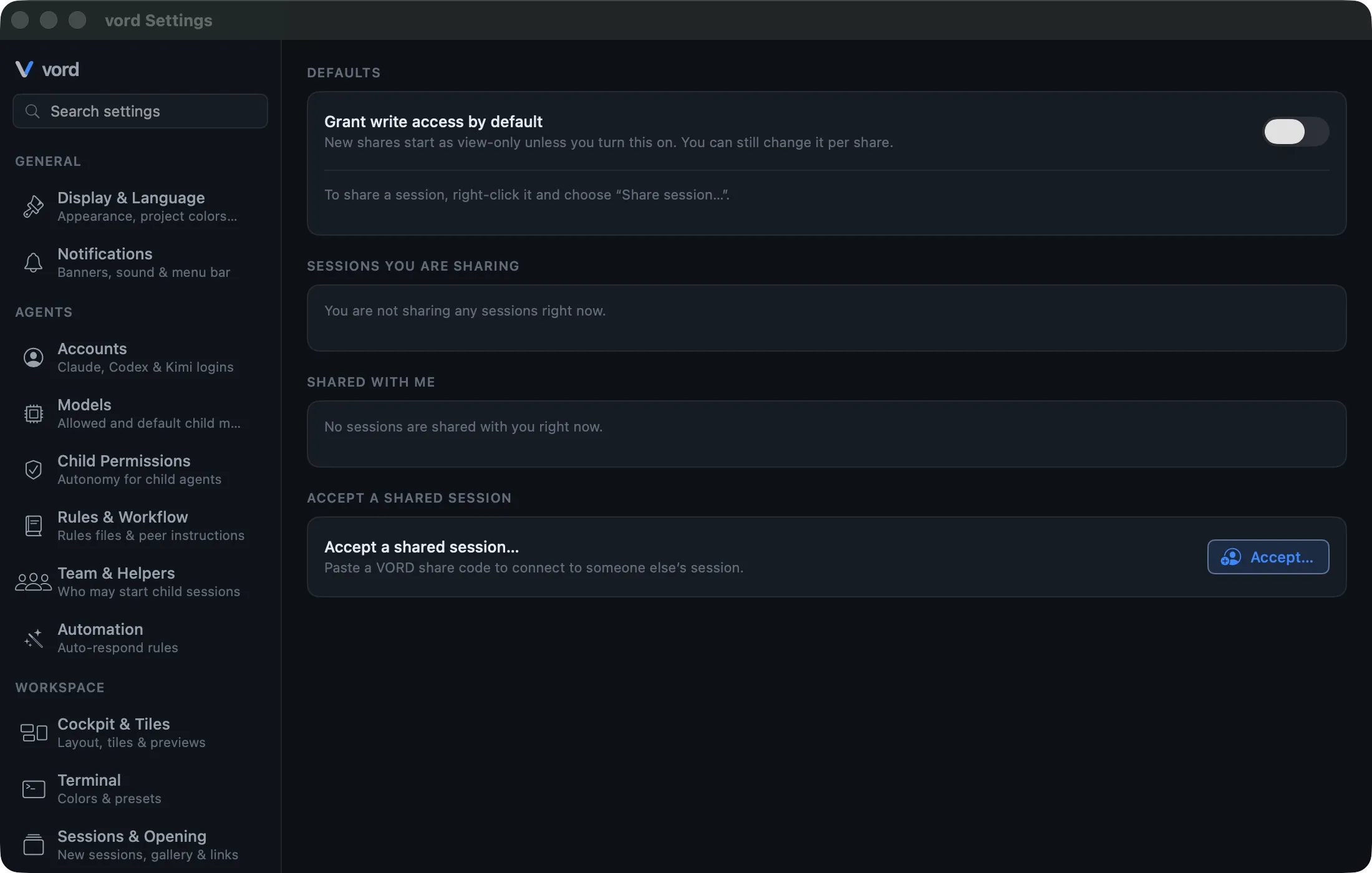
Manage all of your active shares and the sharing default from Settings → Connections → Session Sharing: a Grant write access by default toggle (only sets the sheet’s default selection — you can still change it per share), a Sessions you are sharing list with per-row Stop and access controls, and a Shared with me list of sessions where you’re the guest.
For the guest side of this feature — accepting a code and using the live view — see Joining a Shared Session (Guest). To see how shared sessions appear in the cockpit’s pool view, see The Pool and Sorting.