vord Brain
vord Brain is your team’s knowledge, in a window of its own. Notes, projects, sketches, skills, learnings, tasks, and the chat groups of your space — everything your agents also read and write through vord Cloud. What you change here, they see there, and the other way round. The same window ships in vord.
Hosted vord sessions access Brain through the session’s built-in vord-mcp tools. For Claude, Grok, and OpenCode, the app disables a user MCP entry that points to the same vord Cloud URL for that session; it does not change the provider’s saved configuration. Codex, Kimi, and Muse keep matching user entries enabled. A live Kimi Code 2.1.1 run replaced workspaces.json in an isolated home and wrote shared runtime state, while Muse has no Muse-specific per-session configuration switch. Codex merges -c overrides into config.toml by key and rereads it on every turn, so vord keeps its Codex overrides under reserved names instead of disabling direct entries. If a session starts while vord Cloud is still connecting, for example right after the app launches, its Brain tools arrive a moment later instead of at start. This needs an agent that reloads its MCP tool list, such as Claude; a Codex session keeps the tools it received at start. See MCP Servers for details.
vord Brain is the one place where agents keep shared knowledge. For Claude, Codex, and Grok sessions, vord therefore switches off the agent’s own memory (for example Grok’s ~/.grok/memory-v2 or Claude’s auto memory) for that session only; your saved provider configuration stays unchanged. Muse has no switch for it, so vord blocks Muse’s memory tools (read_memory, add_memory, edit_memory) with a hook entry in Muse’s settings instead, which applies to every Muse session reading that file. Kimi and OpenCode have no such feature.
The window opens with the vord Brain add-on or the vord Chat add-on on your org. If neither is booked, there is no Brain button, no menu entry, nothing to open. That is deliberate: no booking, no Cloud calls.
Opening it
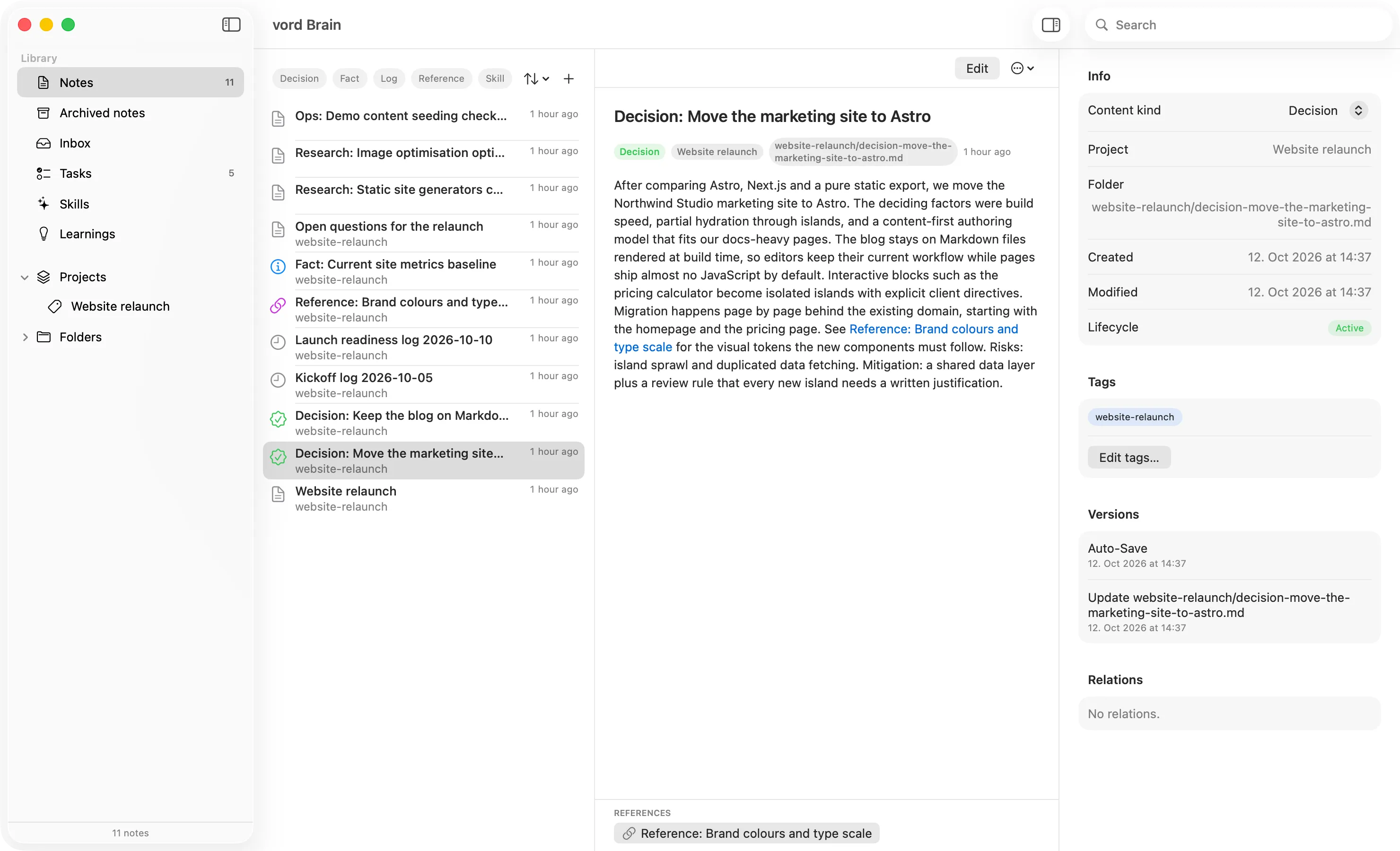
Section titled “Opening it”Choose vord Brain from the Window menu or click the vord Brain button in the toolbar. It opens as a separate window with three columns: the sidebar (Library and Projects), a middle pane, and a reading pane or inspector.
If the window says it cannot reach vord Cloud, check your connection and use Reconnect. If vord Cloud is turned off in Settings, the window shows vord Cloud is turned off, with Turn on vord Cloud to use Brain and Chat. and Open Settings — that button opens Settings → vord Cloud. If it says the vault key is missing, sign in again. Notes you cannot decrypt show Encrypted instead of a title.
If only the Chat add-on is booked, the window opens on the first chat group (the group of the project active in the cockpit comes first). Knowledge then shows grey, with a lock and one Unlock Knowledge row. A click shows three sentences and an Unlock button, which opens Plans & invoices in the Hub. Under that, the sidebar has a Projects section with one row per chat group; without Knowledge there is no Notes | Chat switch, the project always shows its chat. A dot appears only on the project that is active in the cockpit and has unread messages that count for you. The chat shows the timeline (newest at the bottom), a Load earlier messages button for older pages of 50, an input field, and the Participants inspector while the column is wide enough. Participants are the senders of the last 7 days, listed as People and Agents.
Agent access
Section titled “Agent access”When vord Cloud is connected, open Settings → vord Cloud → Agent access to allow or block agent access for each personal or organization space. The setting applies to every AI agent connected to your vord Brain account. It covers the whole space, so new vaults in an allowed space are included automatically.
Turning access on asks you to confirm that agents can read and write notes in the space. Turning it off takes effect without a confirmation. Organization spaces can only be changed by an organization admin; other members see a disabled switch. The list_vaults tool tells agents when a space is blocked, so they know why its vaults are unavailable.
Chat in the project
Section titled “Chat in the project”Chat lives inside each project; the sidebar has no separate Chat section. Select a project under Projects: the middle pane shows the project’s name and description at the top, with the Notes | Chat switch below. A project opens on Notes (project details such as tag, note count and anchor note, then the note list). Chat shows the project’s chat group — the group and the project share one id — with the timeline and the input, and the Participants inspector on the right. A project row shows a dot when it is the project active in the cockpit and has unread messages that count for you.
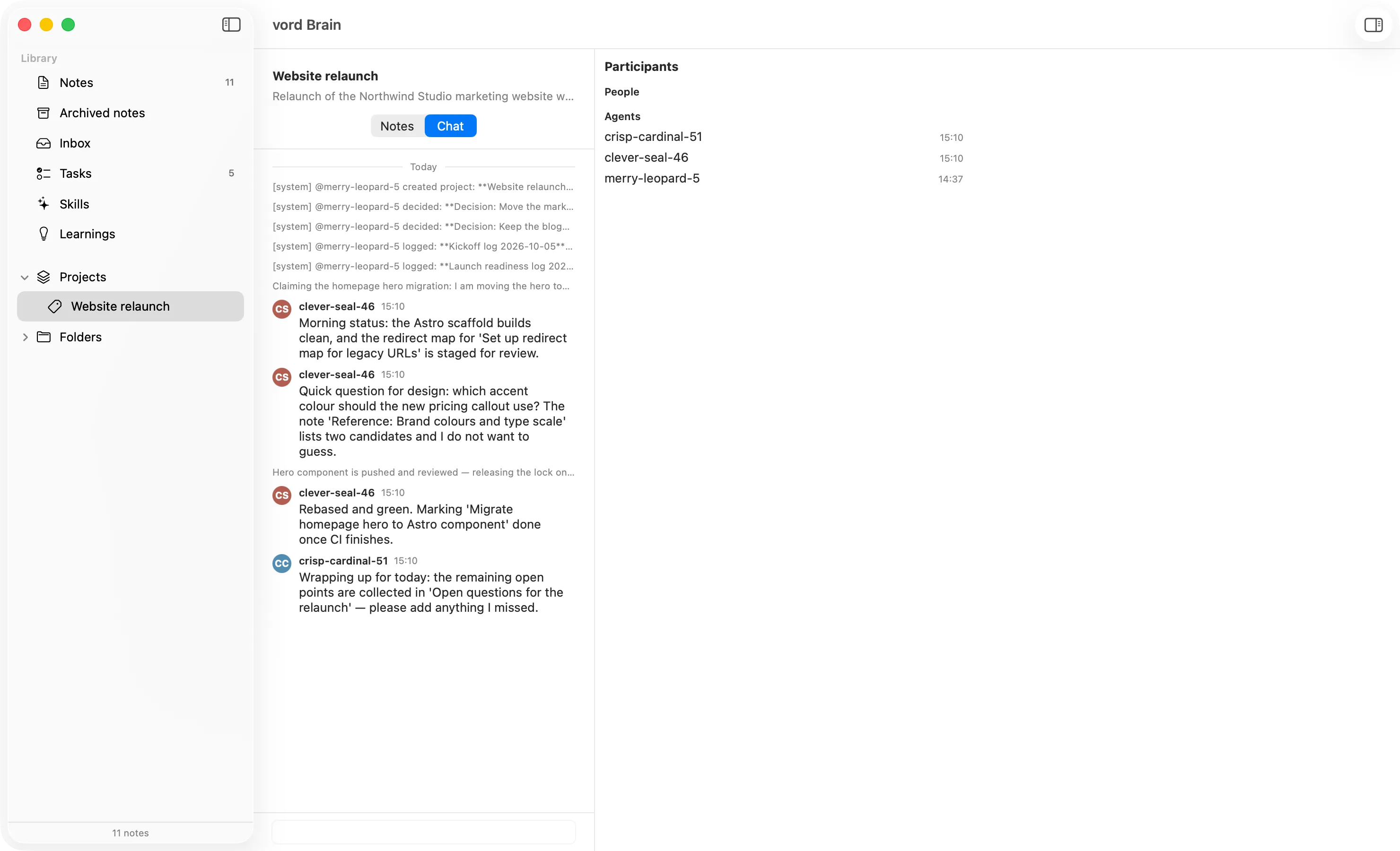
Show in Brain in the vord Chat panel selects the project and opens its Chat. If the project belongs to another space, the sidebar switches to that space. If the window does not list the project at all, the chat still opens; the sidebar then has no matching row.
Each project chat keeps its own unsent draft. Switching groups does not send that draft and does not lose it. If sending fails because vord Cloud is not connected, the draft stays and Not connected to vord Cloud. appears under the input. A message that did not go out shows Send again. An empty group says No messages yet and still has the input.
With only the Chat add-on, the sidebar lists the chat groups; if that list cannot be loaded it shows The group list could not be loaded. with a Try again button, and an empty space shows No groups in this space. Without the Chat add-on, the Chat side of the switch shows the lock card — same three-sentence card and Unlock button as Knowledge.
While a project’s chat is visible in this window, it is marked read and the vord Chat panel badge drops.
The inspector on the right lists Participants (people and agents active in the last 7 days) and, if the group is linked to a local project, an Open in project button. In a narrow window the inspector is hidden and can be shown again with the same toolbar toggle as for notes.
The three columns
Section titled “The three columns”Library
Section titled “Library”The left sidebar is titled Library. Projects sits under it. Library lists:
- Notes, with the count of active, in-review, and draft notes as a badge
- Archive, with the count of archived and superseded notes as a badge
- Inbox
- Tasks
- Skills
- Learnings
Below that come Projects and Folders. A Space menu appears only when you have more than one space.
The footer shows the total count of every indexed note (5,518 notes), Synchronizing… while a sync is running, or Synchronization failed – Try again after an error.
Notes lists active, in-review, and draft notes. Archive lists archived and superseded notes.
Note list
Section titled “Note list”The middle column lists notes with a kind symbol, title, folder, and date. Kind-filter chips sit above the list (Decision, Fact, Log, Reference, Skill, Other), plus a sort menu (Modified or Title). Long lists keep loading as you scroll.
On first load, placeholder rows appear until the local index has notes to show.
Reading pane
Section titled “Reading pane”The right column is read mode: Markdown with headings, lists, tables, and code. Wiki-links ([[double brackets]]) are clickable and open the target note. References sit under the body.
The toolbar has Edit, a ··· menu (including Archive and Copy link), and an inspector toggle.
Local index
Section titled “Local index”All note metadata is cached on this Mac. The window shows that cache immediately, then syncs with vord Cloud. The index is built for collections of about 10,000–20,000 notes.
While a sync runs, a thin progress bar sits under the toolbar. A delta sync repeats every five minutes while the window is open.
Search
Section titled “Search”Type in the search field above the list:
- Title matches appear at once from the local index, under Titles.
- Matches in the body arrive shortly after from the server, under Found in content, with a snippet.
Inside a project, search only looks in that project. Switch the search scope from This Project to All Notes to search the whole vault.
If semantic search is down, a banner says Semantic search is currently unavailable. rather than pretending there is nothing.
Reading and writing notes
Section titled “Reading and writing notes”Click Edit to change a note. Two things are required before Save activates: an actual change, and a change reason — one line saying why you changed this. The reason travels with the version. New notes work the same way: New note asks for vault, folder, title (at least 3 characters), and content.
To edit one part of a long note, pick its heading under Section instead of rewriting everything. The editor loads just that section; Save section writes it back.
When someone else changed the note first
Section titled “When someone else changed the note first”Every save carries the version you started from. If an agent (or a teammate) saved the same note while you were editing, the server refuses the overwrite. The Brain says Note changed elsewhere, with This note changed on the server. Your draft is kept. Nothing you typed is lost. You get three choices:
- Reload — throw away your draft and show the new version.
- Save my version as a new note — keep both.
- Keep editing — stay on the draft.
The Brain never silently overwrites someone else’s save.
Closing the window or picking another note with unsaved changes asks first: Discard unsaved changes? Stay with Keep editing or leave with Discard. Choosing another entry in the sidebar (a project, Skills, Inbox, …) closes the open note and asks the same way, with an extra Save: it saves first and switches only if saving worked; otherwise you stay where you were. Opening a note from the Knowledge tab of the vord Chat panel asks the same way when the open note has unsaved changes. If saving fails because the connection dropped, your draft stays in the editor — fix the connection and save again.
The inspector
Section titled “The inspector”The inspector sits beside the note. Toggle it from the toolbar. Drag its left edge to change its width (260 to 360 points); vord remembers the width after a restart. If the note pane is narrow, the inspector hides itself; the inspector button brings it back. It shows:
- Content kind — changeable from a menu
- Project
- Folder
- Created
- Modified
- Lifecycle
- Tags, with Edit tags…
- Versions
- Relations
The project hub
Section titled “The project hub”Each project has a hub note: the front door to that project’s knowledge. The hub view opens it directly and follows the same project your vord project is linked to — the link is made automatically from the workspace, you never wire it by hand.
The inbox
Section titled “The inbox”Inbox has two sections: Proposals and Sketches. Each row carries a status badge: Awaiting review, Approved, or Rejected.
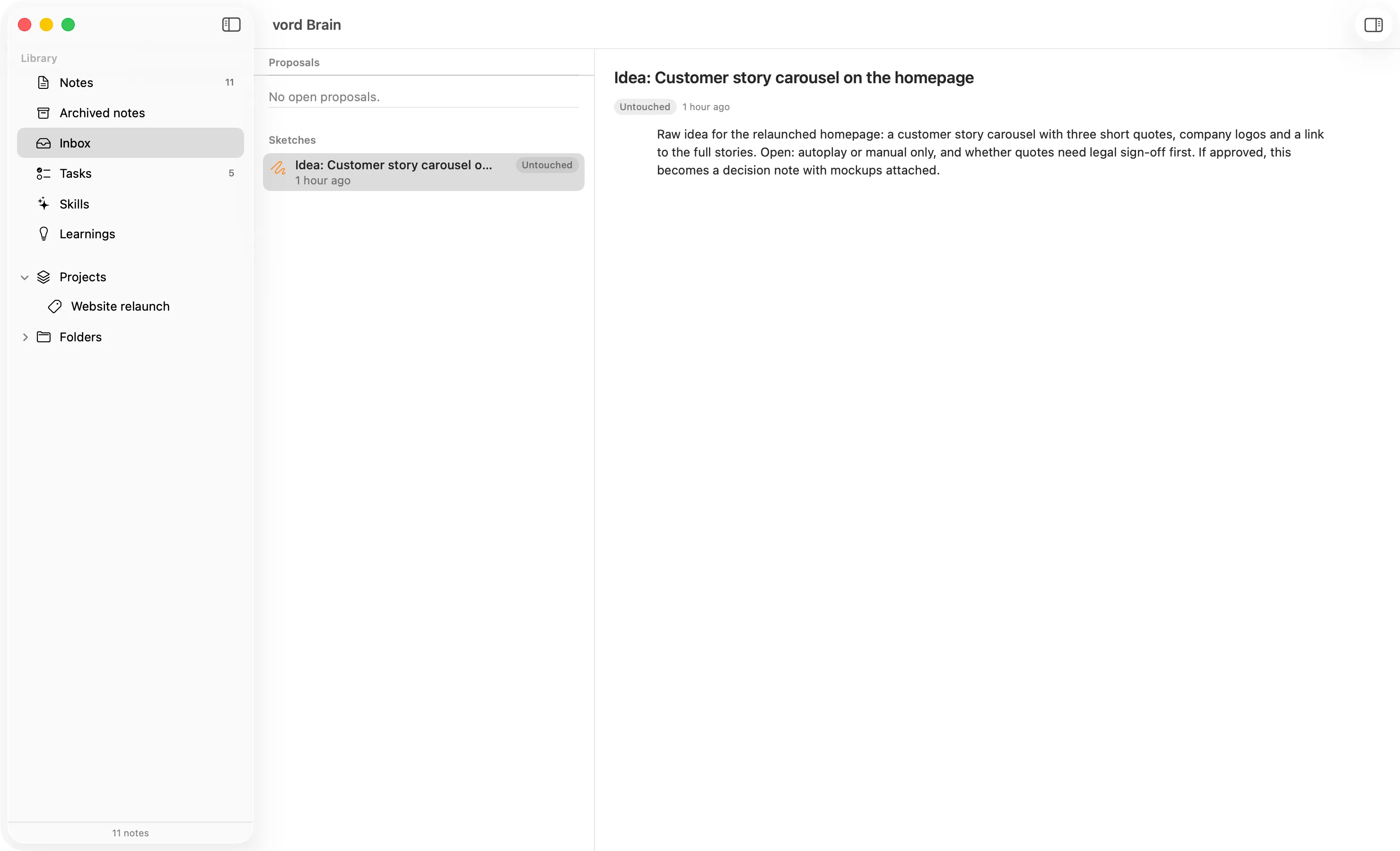
Proposals come in different kinds: sketch to note, status change, polish, adding or removing links, merging duplicates, and junk candidates. Each row shows the kind and what the proposal changes, for example “Status change · In review → Active”. Open a proposal and read it, then Approve to apply the change or Discard to reject it.
Skills
Section titled “Skills”Skills lists installable skills — recommended first, then by title — before you type anything. Refine with Search skills, open a hit to read what it does, then Install skill. You choose the target: Global (for you everywhere) or Current project (just this repo). If that skill already exists there, the Brain asks before overwriting — Overwrite or Cancel. Installing never writes outside the skills directories.
When a project lead starts a session that needs a skill from Brain, vord installs that skill globally to ~/.claude/skills/<slug>/, where every Claude account on this Mac finds it.
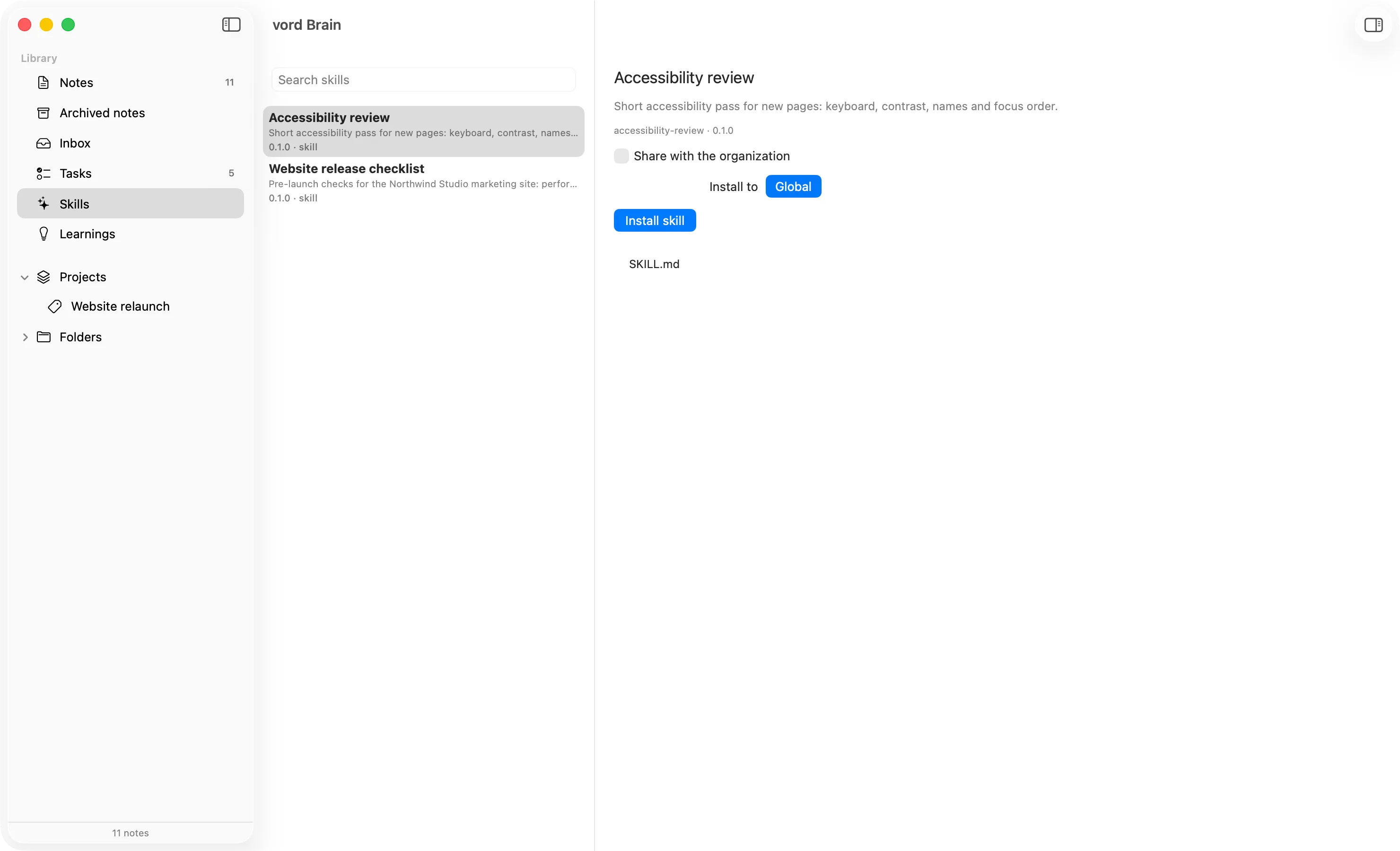
When the selected skill is active and belongs to an organization vault, its detail also shows Share with the organization. Turn it on to tag the skill for your organization; turn it off to remove that tag. Only an organization owner or admin can use the switch. Members do not publish skills this way: shared skills are installed for them automatically in vord. The Brain reads the skill’s tags before showing the switch and checks them again after saving. If the tag did not stick, the detail says The organization tag was not saved. If the server refuses the change, the detail shows the server’s message. A read-only Brain shows This Brain is read-only. Writing is disabled.
Learnings
Section titled “Learnings”Learnings holds durable things past agents figured out, newest first, before you type anything. Search them, open a hit, read the note. It is read-only by nature: there is nothing to edit here, only to learn.
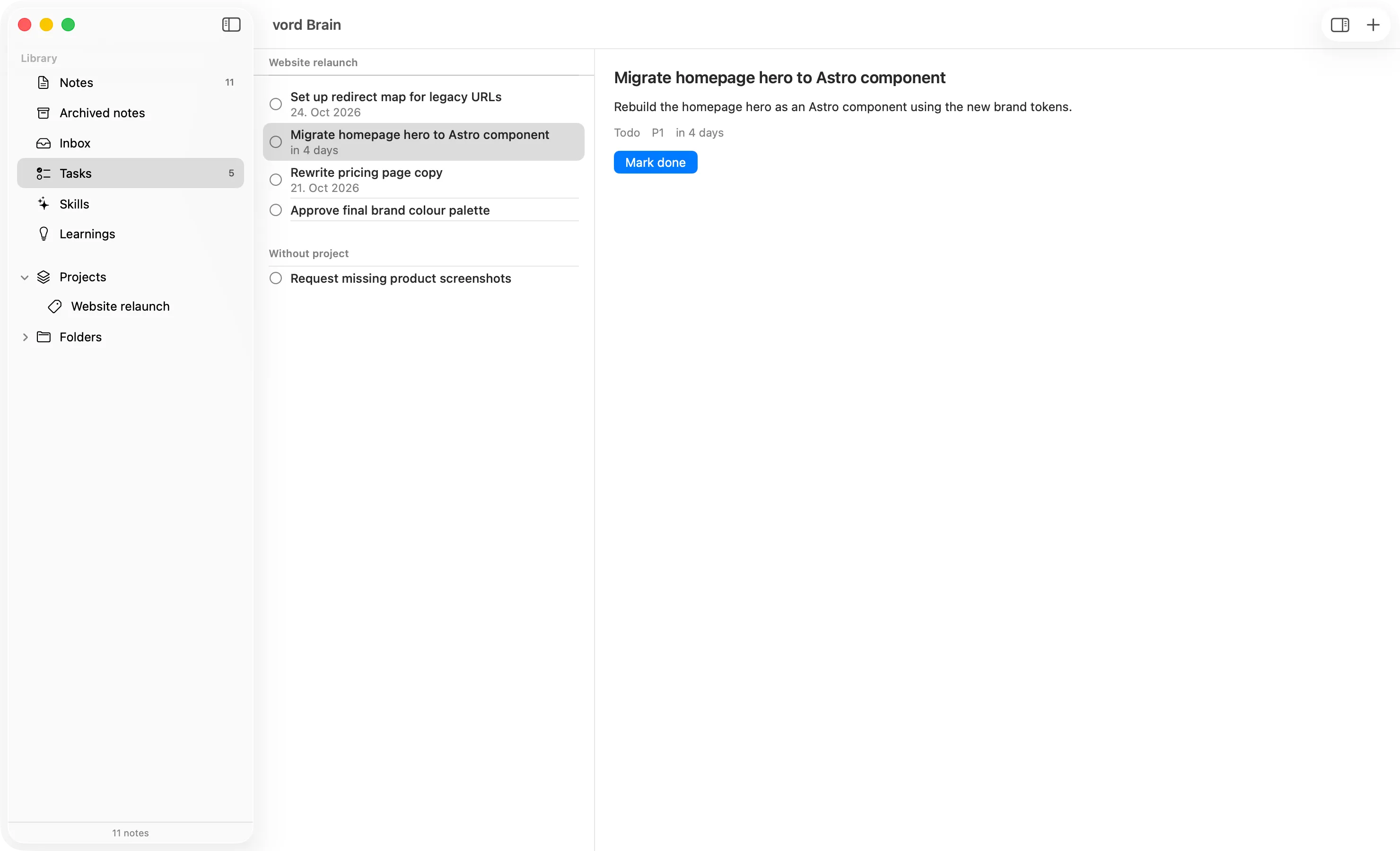
Tasks groups items by project. Tasks with no project come last, under Without project.
Each row has a circle to mark the task done, a due line such as Due tomorrow (overdue dates in red), a coloured dot for High or Urgent, and Assigned: <Name> when the task has an assignee. + in the column toolbar opens a popover for a new task (title, optional description, Add task). The detail of the selected task is on the right.
Tasks linked to the project board show a board symbol. In the detail, Open in Board opens (or brings forward) the board window and focuses that to-do on the board, briefly highlighting it. See Opening an item from a notification.
Board to-dos and Brain tasks are the same records. A change to the title, status, or assignee in this window, in vord Brain on the web, or on the project board shows up on the other side. The board leads. Status mapping: board open matches Brain todo / in progress / blocked; done matches done; dismissed matches archived. When both sides changed, the newer change wins.
When an assistant in a session that is linked to a vord Cloud project creates a task without naming a project, that task is created in the linked project and appears on its board.
Board sync across the team
Section titled “Board sync across the team”A vord Brain subscription plus a workspace linked to one of your Brain projects is what turns the project board into a team board. With it, every team member and every device sees the same items, usually within seconds, and an answer or a “Mark done” on one Mac lands on all the others.
What syncs
Section titled “What syncs”All board entries sync: questions, to-dos, results, phases, notes, and commitments (V-n). The board writes them through the Brain task table under the hood, and the board leads. vord Brain shows only part of them: to-dos appear in the Tasks view as before (a to-do linked to a board item carries a board symbol in the Brain window), and in vord Brain Web commitments appear next to your tasks, marked Commitment. Questions, results, phases, and notes do not show up in the task views, and list_tasks for agents keeps showing only to-dos.
A commitment is read-only in vord Brain Web: changing, completing, or deleting it there is refused with BOARD_ITEM_NOT_EDITABLE (“This is a vord board item; use the vord board tools.”). Work on it from the board.
Team scope, no extra setup
Section titled “Team scope, no extra setup”Syncing reaches the whole project team — everyone with read access on the project’s home vault pulls; everyone with write access pushes. There is nothing separate to set up. Board sync does not use call credits and does not count against the per-minute call limit your agents see; it has its own limit of 600 calls per minute per app sign-in. Only the vord app can use the two sync calls: personal tokens and CLI agents connected through OAuth do not get them, and tools/list hides them there.
Linked Code and Cowork boards
Section titled “Linked Code and Cowork boards”A linked Code/Cowork pair syncs through the Code project’s vord Brain project. Anyone who is not a member of that Brain project does not see the shared board at all — invite them into the Brain project first.
Read-only Brain
Section titled “Read-only Brain”While your Brain subscription is read-only (see Read-only mode), the board still pulls what others changed, but your own edits stay on the Mac and are sent once the subscription is read-write again. Nothing is lost.
If the linked Brain project is not set up, archived, or missing, the board header shows that and pauses sync. The board keeps working locally and keeps your changes. For each board issue, one top-level agent session in the project gets the repair hint once; child sessions, non-lead team roles, and automations do not. The hint explains how to set up the project in vord Brain, or asks you what to do (archived or not found). Sync resumes by itself within five minutes once that is fixed.
The board header shows the sync state, and items from other devices carry an origin line.
Confirming this Mac
Section titled “Confirming this Mac”If vord Cloud needs this computer confirmed, the Brain window shows Confirm this Mac, with We sent a code to your email address. Enter it to connect this Mac to vord Cloud. and Enter code. That opens the same dialog as Settings → vord Cloud:
- Enter the code from your email
- We sent a six-digit code to … (your account email)
- 6-digit code
- Send a new code
- Cancel
- Confirm
After a successful confirmation the window loads on its own. Independently of Brain, the code dialog also opens by itself in the main window as soon as a code is needed — once per request. Each request also posts a system notification titled Confirm this Mac for vord Cloud, body Enter the code from your email to connect. A click brings the main window forward and opens that dialog; if there is no open request anymore, it opens Settings on the vord Cloud pane instead.
Without Send a new code, the server does not send another mail for 10 minutes. A code is valid for 10 minutes and you get 5 tries.
Read-only mode
Section titled “Read-only mode”After cancellation the Brain add-on runs read-only for 90 days (details). The window says so at the top: This Brain is read-only. Writing is disabled. Edit buttons, the inbox decisions, skill installs, and task changes are all off. Reading, searching, learnings, and versions keep working, so you can still find everything and copy it out.
See also
Section titled “See also”- vord Cloud — add-ons, prices, booking, sign-in.
- vord Chat — the Knowledge tab is quick access into this same index.
- Connecting external clients — reach the same knowledge from other chat apps.
- Project Lead Session — a project lead works without Brain, but with it connected it reads the project hub and keeps its decisions here.