Notifications & the Menu Bar
One rule decides what is a notification: if it deserves a sound, a banner, or a phone push, it also lands in the notification inbox. If it doesn’t, it stays internal — the parent agent still hears from its children, and the session still shows in the grid, but the bell stays quiet.
That means the inbox is no longer a technical log of everything that happened. A supervised child session reports its finish and its errors to its parent agent, not to you — you see them only if you turn on Notify me about child sessions too (off by default). Its permission requests and plan approvals are the deliberate exception: they always come to you, because only a human can approve them. Quiet operational events — a scheduled job starting or failing to deliver its prompt, a clean session exit, a child report held because you were typing — stay out of the bell too. When an agent actively shows you media, it remains in the bell because that action already uses the native Mac and phone notification path. Turning a reason off in settings has the same effect: no banner, no sound, no push, and no inbox row. A job session stays quiet when it finishes, sits idle, or exits cleanly, and when the job is only starting or failing to deliver its prompt. Permission, a question, plan approval, and a session failure from that job notify you the same way they do for any other session.
When you first open this version, vord runs a one-time, bounded cleanup of rows saved before this rule existed. Old permission, question, plan, finished, and error cards are removed along with the purely technical rows and their attachments — in that old format there is no stored context to tell a genuine root card from a child card. Deliberate messages (notify_user, job approvals, provider-retry and paste-escalation cards) and shown-media cards are unambiguous there, so they and their read state remain intact. Every new row is stamped with the current classification version, so future cleanups can keep root and orphan status cards instead of clearing them wholesale.
What still reaches you is the real work: a root session waiting on permission, a question, a plan, or a genuine finish; a session that failed; a deliberate notify_user message; a job that needs your approval; a provider sign-in failure; a project lead that stopped and can’t continue on its own; or an accepted paste that is still sitting unsent after a restart or after vord exhausted its safe recovery — you still need to open that session and press Enter. If your phone is the active device, the Mac stays silent — but the bell still keeps that card, because it was a real notification. See When a session counts as finished.
System notices that need no action from you — a usage brake, an exhausted quota, a provider retry that gave up, an unreachable MCP hub, a project lead that vord restarted on its own, a failed job, a halted workflow, or a provider error — land only in the bell: no banner, no sound, no phone push. They are there when you go looking; they do not interrupt you.
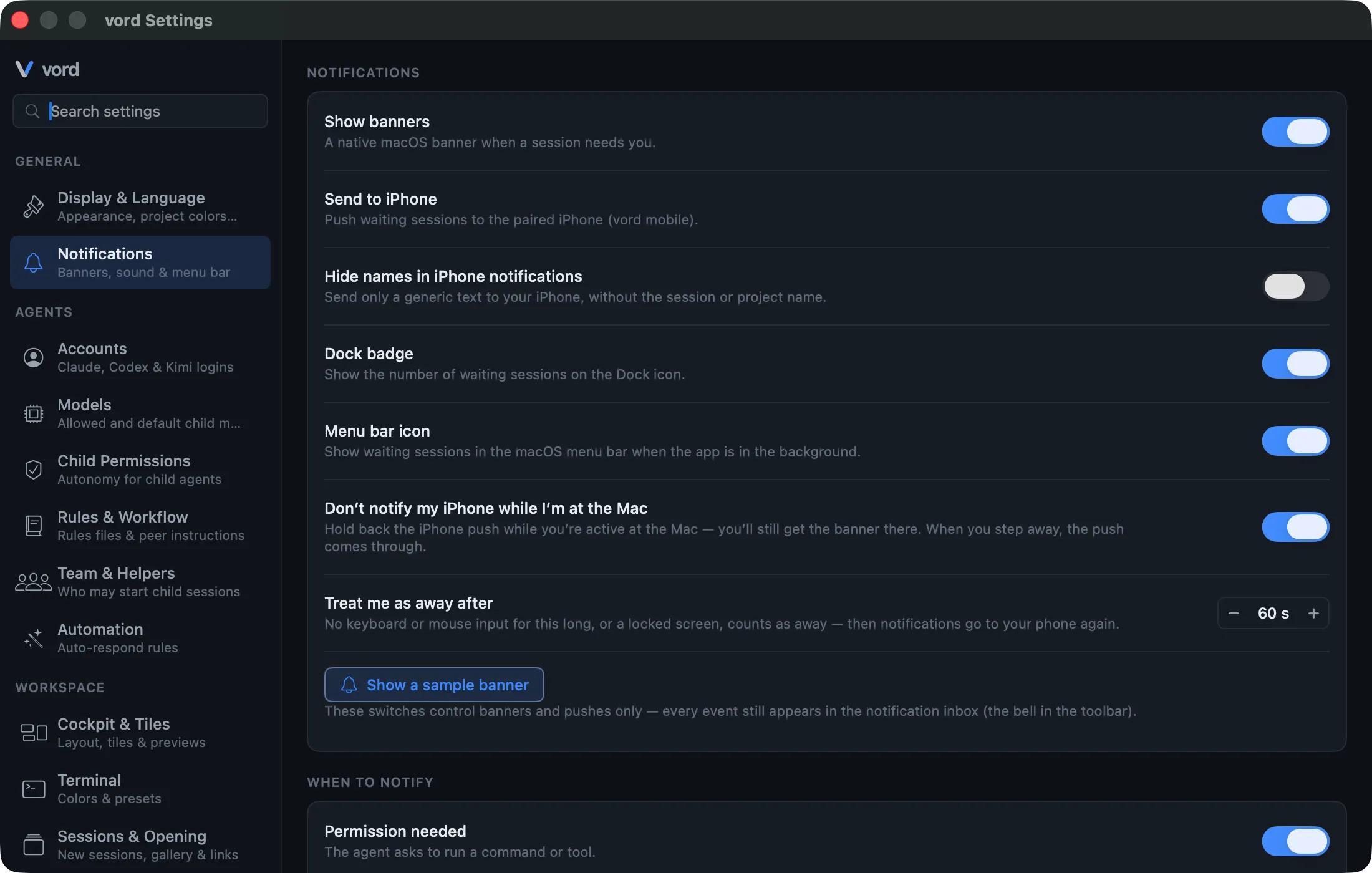
When a session goes 🟡 — it needs permission, it’s done, it has a question, or it’s waiting on a plan approval — or 🔴 (failed), vord can interrupt you four different ways: a Mac banner, a sound, a dock badge, and (with Pro) a notification on a paired phone. All four are configured in one place: Settings → General → Notifications.
The Mac banner
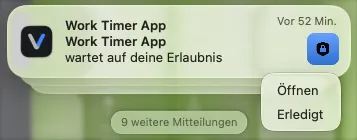
Section titled “The Mac banner”vord posts a native macOS notification the moment a session enters a waiting state. It’s not a generic system alert — the title is the session’s real name (not a raw “Terminal 3”), the subtitle is the project, and the body says what the session wants (“is waiting for your permission”, “is done and waiting for you”, “has a question”, “is waiting for your plan approval”, “failed”). On the right, the banner carries a branded icon: an accent-colored gradient with a white glyph for the reason (lock, checkmark, question mark, clipboard, or a warning glyph for a failed session).
Two action buttons sit on the banner:
- Open — brings vord to the front and focuses the waiting session.
- Mark done — quietly acknowledges the wait (clears the dock badge and notification) without bringing vord forward.
Banners need macOS’s own permission: vord asks for it on first launch, and you can change it any time under System Settings → Notifications → vord. If macOS refuses, no banner can appear no matter how vord is configured — the inbox and vord’s own sound keep working. vord records a refused permission in its event log, so missing banners can be traced to the system setting instead of to vord’s own switches.
A change into a waiting state is held for a short settling window before it interrupts you — a couple of seconds for permission, question, and plan, a little longer for “done & waiting.” If the status flips back before that window is up — the kind of momentary flicker a busy session produces as it wraps one step and starts the next — nothing fires at all: no banner, no sound, no push, and no inbox entry. Only a status that genuinely settles into a waiting state gets through, and only once. Leaving a waiting state clears its banner immediately — whether the session goes back to working or turns idle because you looked at it. That includes a “done & waiting” banner already sitting in Notification Center: once the session is idle, vord removes it there too. A session that fails is reported without delay; a clean exit is not a notification.
When a session counts as finished
Section titled “When a session counts as finished”“Done & waiting” is a statement about a session’s whole tree, not about a single turn.
An agent ends a turn far more often than it finishes its work. An orchestrator that hands a task to a child session and waits for it ends its turn every time it checks in — and each of those moments used to arrive as “is done and waiting for you”, while the tile correctly showed the session as still working. Two rules keep that from reaching you:
- A child session never reports itself finished. Its parent is watching it and gets its report; you’d only be told the same thing twice. A child whose parent is gone is the exception — it reports normally, so its work can’t get lost.
- A parent reports finished only once no child of its own is still working or waiting on a decision. A child that is blocked on a permission card counts as busy here, even though its own tile isn’t green: the job clearly isn’t done.
Anything filtered this way is dropped completely — it doesn’t post a banner, doesn’t push to your phone, and doesn’t appear in the inbox either. It isn’t a quiet event, it’s a non-event; the run simply hadn’t finished yet. When the tree actually goes quiet, you get exactly one notification.
Once the tree is quiet, vord also checks whether the turn came from you:
- A finish after your own input always reaches you. That’s anything you typed or answered since the last finish you were notified about.
- A short turn the agent ran on its own stays internal. If nothing came from you, a turn with less than 20 seconds of work posts no banner, no push and no inbox card, unless it closes a child the parent was waiting on. A brief
finished → working → finishedfollow-up right after a finish you already got is the typical case. - Longer turns the agent ran on its own are bundled. If one ends within three minutes of the last finish you were notified about, vord holds it and sends one notification for the end state once those three minutes are up. If you look at the session in the meantime, or it starts working again, nothing is sent for it. Otherwise the finish notifies right away.
- Questions and permission requests are never swallowed. If a session asks something or needs permission right after a finish that stayed internal or is still being held, you get that request as usual, on the Mac and on your phone.
The notification inbox
Section titled “The notification inbox”Behind the bell icon (Mac menu bar and toolbar; also in the phone companions) sits an inbox of the same events that deserve a notification — not a log of every operational blip. Open it and you get a flat, newest-first list: a session waiting for permission, done, a question, a plan ready, a session that failed, media an agent deliberately showed you, a deliberate notify_user message, or a job that needs your approval. A supervised child’s finished and error cards stay with its parent (see the note above). A clean exit, and a scheduled job that is only starting or failed to deliver its prompt, do not appear here. A job session waiting for permission, a question, or plan approval does.
Every card carries a group — an icon, a color, and a short label that tells you at a glance what kind of moment it is:
| Group | Covers |
|---|---|
| Action required | The session waits for your decision — a permission, a question, or a plan |
| Finished | Work is done, or the session ended |
| From agent | A message the agent or a workflow sent you — notify_user, a job approval, a workflow gate; also the fallback for card types this version doesn’t know yet |
| Board | A question, to-do, or phase on the project board |
| Shown | Media an agent deliberately showed you |
| Problem | A failure — a crashed session, an exhausted provider retry, an accepted paste still waiting for Enter |
The same six groups, with the same labels, appear in the bell on the Mac and in both phone companions.
- An unread count badge sits on the bell, and on the Mac’s Dock icon and the phone app when its notification path is available — so you notice new inbox entries without opening the main window. Entries that only land in the bell do not raise this count: they are there when you go looking, but they never claim you missed a notification.
- Agent messages can carry an Important or Urgent label. They may also show attachment chips; those open immutable copies saved with that inbox entry rather than the agent’s original paths.
- Viewing a session reads its cards. When a session is selected, actually on screen, and vord is in front — the active app, with a window that isn’t minimized or fully covered — all its unread bell cards become read after about a second of looking. That works in every view (focus, cockpit, compact, team), not just the focus view, and coming back to vord starts that second again. While History, Jobs, or Shared with me fills the window, no session is on screen, so nothing is read. Only that session’s cards clear: a child session reads its own, never its parent’s or siblings’. Opening an entry, or an explicit “mark all read,” still works as before.
- Answering through vord reads them too. Answering a permission, question, or plan in vord’s own prompt box reads that session’s cards once the agent has accepted the answer; an answer that fails, or one the agent had already settled elsewhere, reads nothing. Deciding a workflow approval — on a tile, in the team view, the workflow panel, or from your phone — reads just that approval card. Text typed straight into the terminal, including a reply sent from the phone to a terminal session, is ordinary input to vord and marks nothing read; looking at the session does.
- Clicking a card or a banner opens its target. An agent message — a
notify_usernote, a workflow gate or halt, media the agent showed you — opens the full entry text right in the bell, with its attachments and a Go to Session button for the session behind it. Everything else behaves as before: status cards (permission, question, plan, done, failure) navigate like clicking the session in the sidebar — the current view stays as it is, and in the cockpit the tile is pulled into the grid and selected. One deliberate exception: a board card opens that board item. A board-agenda banner without a session opens its board item too, and an MCP hub banner (“sign-in needed”, “hub unreachable”) opens the MCP manager window. For board items, the Mac switches to the project’s mode, scrolls to and briefly highlights the item, and shows a short notice if it is done or missing; see Opening an item from a notification. Sessions the cockpit excludes (archived or done) open in the focus view as a read-only replay — nothing is revived. If the target no longer exists, the card stays in the bell and shows Session no longer available instead of doing nothing. - The click follows the session’s mode and project. A session bell card or macOS banner first switches to the mode of the session’s project (vord Code or vord Cowork), then selects the project and the session’s tile. The project lead opens the project-lead view instead of a cockpit tile. Clicking from “All sessions” stays there.
- On the iPhone, taps open the same target. Tapping a push notification for an agent message — or a bell row — opens the full entry with its attachments and a Go to Session button for the session behind it; status rows and pushes open the session directly, like the bell rows before. If the entry hasn’t synced yet, the phone asks the Mac for it and opens it on arrival, falling back to the session after a few seconds. Against an older Mac without the inbox capability, every tap opens the session as before.
- Read state is one shared truth, synced from the Mac to paired phone companions over the live connection: mark something read on your phone and it’s read on the Mac too, and the other way around. There’s no per-device read state to lose track of.
- The inbox keeps a rolling window of recent entries — old ones age out automatically as new ones arrive, so it never grows without bound.
The reason toggles below gate the inbox as well. Turning off “Done & waiting” means that finish is not a notification at all: no banner, no sound, no push, and no inbox row. Using your phone instead of the Mac does not drop the card — the bell still holds it while the Mac stays quiet.
A root or orphan session can still notify you through its normal status. Child-report transport, including old terminal-redirect cards, stays internal. Separately, an accepted paste that is still unsent after a restart or exhausted recovery is a real user action — you still need to press Enter — and uses the full notification path.
Board questions bundle per project
Section titled “Board questions bundle per project”The project board can ask several questions in a row. Only the first board question per project within ten minutes interrupts you: it posts the usual banner, sound, and phone push. Further questions from the same project inside that window stay quiet — they arrive as a passive macOS banner without a sound and without a phone push, and they land in the inbox as usual. A passive question does not extend the window; ten minutes after the last interrupting question, the next one interrupts again. Every project has its own window.
Board to-dos and board phases never interrupt: they write a quiet inbox row (no banner, no sound, no push, and no unread badge), and nothing else. The board agenda stays as it is — items that belong to another device are already skipped.
Notifications are grouped in Notification Center by kind and project, so a project’s questions, permissions, board items, or finished sessions gather under one thread instead of stacking as loose banners. Media and agent messages form one global group, and operational or system notices another.
When a board item is assigned to you on another device, the Mac notifies you after the board sync. A paired iPhone can also receive a push when its local notification routing session is available. The first sync after setup does not report existing assignments. An active project lead receives one short line in its context for each assignment.
Organization skill notices
Section titled “Organization skill notices”In vord, organization skill events add a card to the notification inbox. These notices are independent of session notification reason toggles. If Show banners is on, vord also posts a macOS banner. Clicking either opens Settings → Organization. The Check now button on that page runs a manual check.
- New organization package — a skill was installed: New for your organization: title, version, and publisher (or an admin of your organization when the publisher has no name).
- Organization skill available — automatic install is off, so the skill is waiting. Open Organization settings to review it.
- Organization skill updated — the skill was updated to a version, with the publisher’s note.
- Organization package update — Update available for the title and version. Update on the Organization page installs it.
- Local organization skill changed — your copy changed. Nothing was overwritten; choose Overwrite with backup or Keep.
- Organization skill withdrawn — the organization no longer distributes the skill. Remove with backup or Keep.
- Organization skills check failed, Choose an organization vault, or Organization skills not checked recently — the check failed, you still have to pick a vault, or the last successful check is more than seven days ago.
These notices do not create phone pushes.
Three classes of event: notify, bell only, and internal
Section titled “Three classes of event: notify, bell only, and internal”Every event now falls into exactly one of three classes:
- Notifies you (inbox, plus banner, sound, and phone notification subject to the toggles and which device you’re on): permission needed, done & waiting, has a question, plan approval, and a new item on the project board — and a deliberate
notify_usermessage, which those toggles never mute, including when it came from an automation. The same full path covers a provider sign-in failure and an accepted paste that is still unsent after a restart or exhausted recovery (you still need to press Enter). A supervised child session’s permission and plan cards always notify you; with Notify me about child sessions too on, its finished cards do as well, and its error cards land in the bell like every session failure. - In the bell only (no banner, no sound, no push): system notices that need no action from you — a session that failed, a usage brake, an exhausted quota, a provider retry that gave up, an unreachable MCP hub, a project lead that vord restarted on its own, a failed job, a halted workflow, and provider errors. They stay in the inbox to look up later, and they do not raise the unread count.
- Internal, not in the bell: a session that exited cleanly, a scheduled automation starting or failing to deliver its prompt, a supervised child session’s finish and error reports (unless you opted in above), an armed or disabled provider retry, and other operational holds that do not need you. They still happen in the app; they just are not notifications.
show_to_useris user-facing because it already notifies the Mac and phone.
The master Push switch and Hide names in push still apply to events that are notifications. Unrecognized future event types stay internal rather than risking a surprise interruption — and if a card of an unknown type does reach the bell (for example, synced from a newer version), it shows under From agent instead of guessing at a meaning.
When to notify: the six reasons
Section titled “When to notify: the six reasons”Six independent toggles in the When to notify card decide which of the notify-class events actually fire — on every channel, including the inbox:
- Permission needed
- Done & waiting
- Has a question
- Plan approval
- Session failed
- Project board
Turn any of them off and vord stays quiet for that specific reason — this is one shared setting for Mac and paired phone companions, not two lists to keep in sync. The card dims when no channel (banner, sound, or phone notification) is active at all, since the reason toggles would have nothing to act on.
One more switch sits at the bottom of the same card: Notify me about child sessions too. Off by default — the parent agent already sees a supervised child’s finish, error, and notify_user messages. Turn it on and those reach you as well, clearly marked as child notifications. It never affects the child’s permission and plan cards: those always reach you either way.
Session failed is on by default. It fires the moment a session’s agent process crashes or exits with an error on its own — the same event that turns the tile 🔴 (see Status: the traffic lights). By default it only reaches the bell; turn on Show system notices as banners to get a banner, sound, and push for it. Ending a session yourself never triggers this notification, only an unrequested crash does; turn the toggle off if you’d rather not hear about it.
A session exiting cleanly (not an error) has no toggle here — it is not a notification.
Two more rules decide whether something reaches you at all:
- The bell counts quiet board questions too. A board question that arrived quietly still lands in the bell and in the unread count, so you can see that more than one is open.
- The session you are looking at never interrupts you. While vord is in front and that session is the selected one, it gets no banner, no sound and no phone push, and the bell entry it creates is marked read at once.
Extra switches
Section titled “Extra switches”Three more switches sit in the same card. They are not reasons — they decide whether a kind of event reaches you at all, and all three are off by default:
- Also notify when sessions started by the project lead finish — off by default: the project lead reviews these sessions and reports the results to you. Turn it on and a session led by a project lead notifies you directly when it finishes, instead of only reaching the project lead.
- Notify about every finish — off by default: a short follow-up turn the agent ran on its own stays quiet, and longer ones within three minutes are bundled into one notification (see When a session counts as finished). Turn it on and every finish notifies you on its own, without bundling.
- Show system notices as banners — off by default: notices that need no action from you — a usage brake, a retry that gave up, a project lead vord restarted on its own — land only in the inbox. Turn it on and they come like every other notification: banner, sound, and phone push.
Independent of the banner, vord plays a sound the moment something needs you — and this now covers every loud notification, not just the waiting states: agent messages (notify_user, workflow gates), job approvals, board events, and the problem cards above all play your configured vord sound instead of the macOS system sound. The banner switch and the sound switch are fully independent — turning banners off never silences the sound, and turning the sound off never blocks a banner.
The default is the same ICQ-style sound (~/.claude/icq.mp3) that the classic Claude Code stop hook uses, but you can pick any audio file.
- Turn on Play a sound.
- Optionally click Choose… to pick your own
.mp3,.wav, or.m4afile, or Default to go back to the ICQ sound. - Click Play sample to hear the current choice immediately.
If the file at the configured path is missing, vord just stays silent — no crash. A new sound always stops a previous one still playing, so back-to-back waits won’t overlap (a very short sound can sound clipped as a result).
The dock badge
Section titled “The dock badge”vord’s dock icon shows a red counter badge with the number of sessions currently waiting on you — and only those you actually have to answer. A project lead that finished its turn (done & waiting) does not count, and neither does a finished session the project lead runs — unless Also notify when sessions started by the project lead finish is on; neither does a supervised child session that is done. A permission, question, or plan box from a project lead, a session it runs, or your own session does count, because only you can clear it. A supervised child’s question that its parent agent can answer stays with the parent and doesn’t count. It’s empty when nobody is waiting, and clears automatically once every waiting session is handled or marked done.
Dock badge is its own toggle, independent of the banner and sound — you can run a silent counter badge with both of the others off. The menu bar item below still lists every waiting session, so its number can be higher than the badge.
The menu bar item (NSStatusItem)
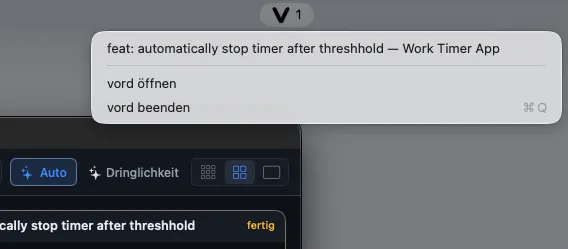
Section titled “The menu bar item (NSStatusItem)”vord adds a small “V” icon to the macOS menu bar that lists every waiting session — visible even with the main window closed or minimized.
- Click the vord icon in the menu bar.
- See the list of waiting sessions, each shown as “Title — Project”.
- Click an entry to bring vord forward with that session selected.
The item is on by default
Section titled “The item is on by default”The Menu bar icon switch in Settings → General → Notifications controls whether it appears while vord is in the background. It is on by default. The item shares its waiting-session data with the dock badge, but the two visibility switches are independent.
Open vord and Quit vord sit at the bottom of the same menu, so you can quit the app without reopening the main window first.
Phone notifications (Pro) and hiding names
Section titled “Phone notifications (Pro) and hiding names”With a paired phone companion, vord sends the same waiting-session event through the phone notification path when that path is available — the wording matches the Mac banner, localized in your current Mac UI language.
- Turn on the phone notification option (on by default once a supported phone is paired).
- Optionally turn on the name-hiding option for a generic, name-free notification — no session or project names travel over the relay or push provider.
Device-aware routing (no double alerts Mac ↔ phone)
Section titled “Device-aware routing (no double alerts Mac ↔ phone)”If you have both a Mac and a paired phone, vord avoids notifying you twice: whichever device is currently active gets the alert, the other stays quiet. If neither device looks active, both get notified — nothing gets dropped silently.
The one control here is the setting to avoid phone notifications while you’re at the Mac (on by default) — it gates the phone side only, never the Mac banner. This runs automatically; there’s no separate switch for the routing logic itself. A phone that doesn’t report presence makes the Mac fall back to Mac-only logic — not a bug, just backward compatibility.
The “agent showed you something” notice
Section titled “The “agent showed you something” notice”A distinct event kind — not one of the five interrupt reasons above — fires when an agent uses the show_to_user tool to drop something into your preview. It’s part of the silent class described above: it always reaches the notification inbox, but no longer posts a Mac banner or phone notification on its own. Opening its inbox entry opens that item directly in the preview panel.
Related settings
Section titled “Related settings”Everything on this page lives in Settings → General → Notifications (three cards: Notifications, When to notify, Sound), described in full — including default values — on Settings reference. For rule-based actions on top of these notifications — auto-approving, auto-sending text — see Automation. For the automations that fire the inbox entry described above, see Scheduled Jobs. To understand the waiting states themselves, see Status: the traffic lights and Responding to a waiting session. For the iPhone and Android phone flows, see iPhone Notifications and Android Notifications.