MCP Servers
This page is about MCP servers your agents use. In the other direction, vord itself can act as an MCP server for AI apps — see Let AI apps start sessions (external MCP).
vord ships a dedicated window for managing MCP (Model Context Protocol) servers — the tools your agent can call beyond its built-in ones. It supports Claude, Codex, Kimi, Grok, OpenCode, and Muse. Their own CLI configuration remains the source of truth; vord does not keep a shadow registry. Claude, Codex, and Grok use their native configuration formats and management commands, while Kimi, OpenCode, and Muse are read and written through the same config files those apps use.
For a remote OAuth MCP server that should be shared across sessions without agents replacing one another’s sign-in, use the MCP Hub. Keep local stdio servers and remote servers you want to manage in each agent’s own CLI configuration here.
The MCP manager window
Section titled “The MCP manager window”Click MCP in the top bar to open a separate, themed window (Scene ID mcpManager, 640×560 by default, freely resizable) — it isn’t a panel inside the main cockpit window.
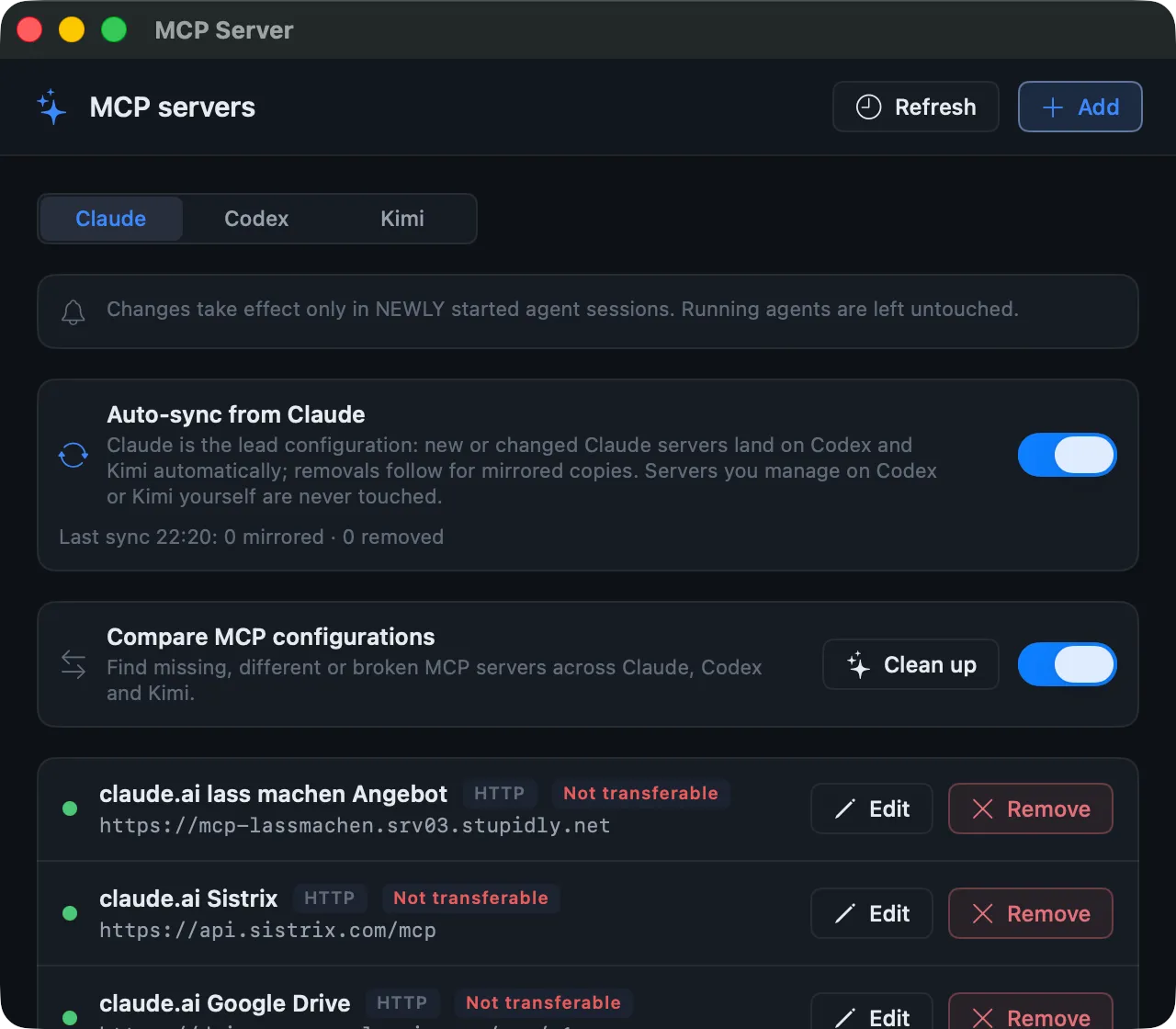
- The window loads the list for whichever agent is currently active.
- Switch agents with the Claude | Codex | Kimi | Grok | OpenCode | Muse control — switching reads that provider’s fast inventory without probing live connections.
- A manual Refresh is the explicit health/auth check.
Each row shows the server’s name, transport, and endpoint/command. The initial inventory is intentionally neutral: it does not start every configured server just to open the window. After an explicit connection check, the status can become connected (green), needs login (yellow), failed (red), or remain unknown (neutral). For an HTTP server that authenticates, the row additionally carries an honest sign-in badge — see Signing in and the honest auth status below.
A listing failure shows as a plain error state, not a silently empty list — if the window looks empty, check the error text before assuming you have no servers configured.
Adding a server
Section titled “Adding a server”Click Add in the window toolbar to open the add sheet.
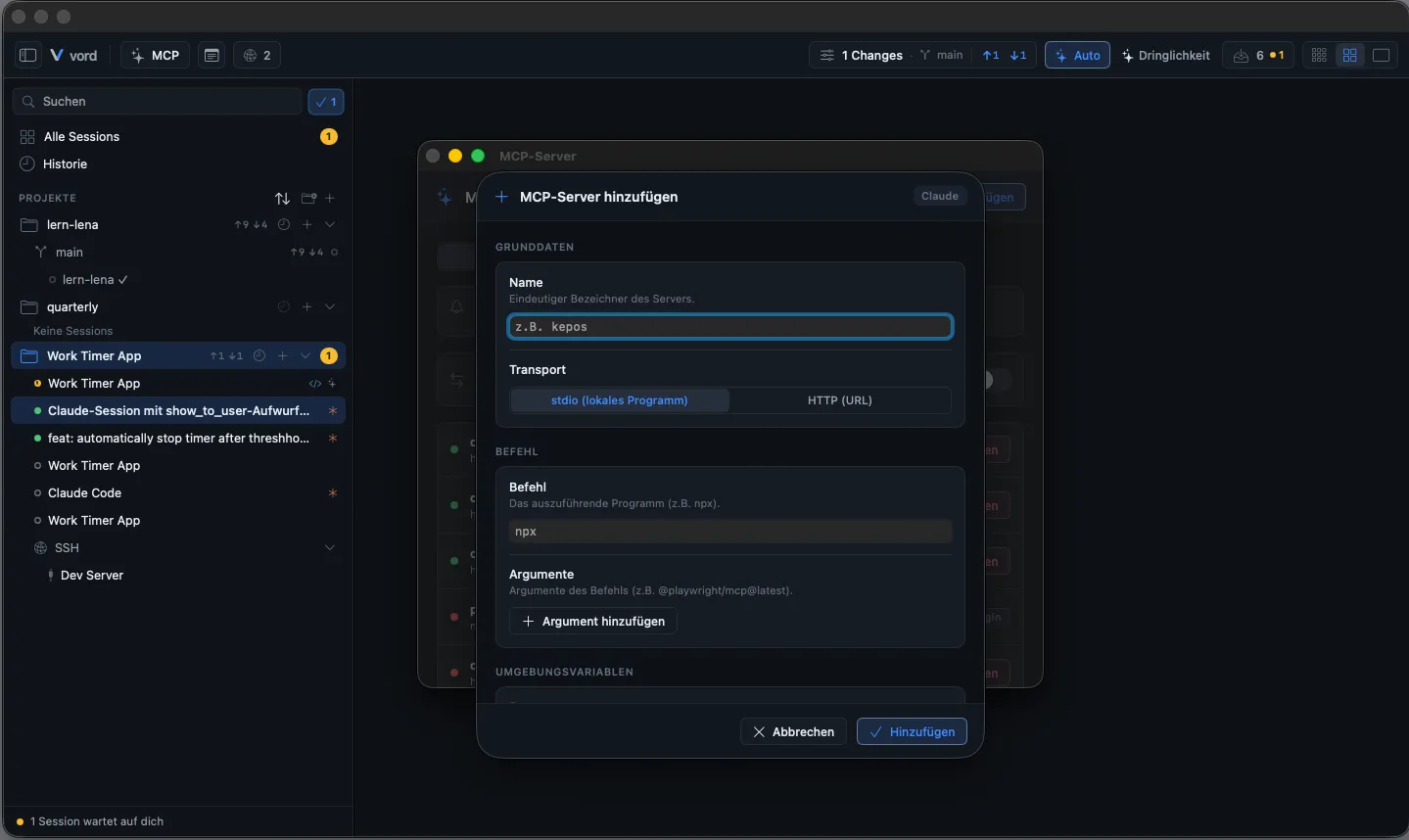
- Enter a unique name. Names starting with
-are rejected (guards against flag-smuggling into the underlying CLI call). - Pick the transport: stdio (a local program) or HTTP (a URL).
- For stdio: enter the command (e.g.
npx) plus an argument list (add/remove rows) and environment variable pairs (KEY=VALUE). - For HTTP: enter the URL. Claude additionally lets you add arbitrary header pairs and an optional plaintext bearer token (a secure field with a reveal toggle, sent as
Authorization: Bearer …). Codex instead only takes the name of an environment variable holding the bearer token — it never accepts a plaintext token in the sheet. - Claude, Kimi, and Grok: choose scope — global (all projects) or this folder only (with a folder picker, defaulting to the current working directory). See Project scope stores values in plain text before you put a secret into a folder-only server.
- Optionally check Add to all agents — only available in add mode, only for global scope, and only when the server translates 1:1 without headers or a token. This creates the same server on the other agents and links all sides for sync.
- Click Add.
Project scope stores values in plain text
Section titled “Project scope stores values in plain text”With This folder only, the CLI writes the whole server entry into a file inside that folder: .mcp.json for Claude, .kimi-code/mcp.json for Kimi, .grok/config.toml for Grok. A bearer token, header values, and (for stdio servers) environment values land there verbatim. That file is often committed together with the project, so anyone with access to the repository can read the secret.
As soon as such a value is filled in for a folder-only server, the sheet shows a warning. It does not block saving, because a project-only secret can be intended in a private repository, and the CLIs allow it themselves. For secrets, prefer the global scope, which keeps the value in your user configuration. With Claude you can also keep the secret out of the file: enter an environment-variable reference such as Bearer ${MY_TOKEN} instead of the token itself, and Claude reads MY_TOKEN from its environment when it starts the server. Kimi takes values literally, without ${…} expansion; for Grok the expansion isn’t documented, so use the global scope there.
Editing and removing
Section titled “Editing and removing”Editing is implemented as remove-then-re-add — neither CLI supports an in-place edit. The edit sheet opens pre-filled, with two differences from adding:
- The name field is editable on an existing server; changing it removes the old server and creates a new one under the new name.
- Headers, environment values, and tokens are never pre-filled (the CLI doesn’t return them on listing, and wouldn’t be safe to show if it did). A visible warning card reminds you that anything you don’t re-enter is lost when you save.
Plugin-managed servers are read-only and have no edit action.
Signing in and the honest auth status
Section titled “Signing in and the honest auth status”An HTTP server’s sign-in and its cross-agent sync are two separate things, and the row now shows them separately. Alongside the sync badge, an authenticating server carries a three-stage auth badge that tells you the truth instead of guessing from a manager-side health check:
- Set up — the server is configured, but nothing has signed in yet.
- Signed in — a credential is present (a static token or an OAuth sign-in) and the check reports a connection, but no real session has confirmed it yet.
- Verified — a real session, running in the exact environment your sessions use, reached the server (
claude mcp getreturned Connected there). This is the most reliable stage, because it proves the environment your agents actually run in can reach the server.
The sign-in button resolves to the right action for the kind of server, behind one click:
- An OAuth server (no static header) opens the provider’s browser login (
claude mcp login <name>,codex mcp login <name>, oropencode mcp auth <name>). - A token server (one that authenticates with a static
Authorizationheader) offers Renew access code instead — a browser OAuth login would do nothing for it. In vord you renew it through the server’s edit sheet. The code is stored only in Claude’s own settings, never in a separate vord file. For a server set up for one project folder (.mcp.json), renew it in vord’s MCP manager or with theclaudeCLI in that project folder.
Removing a server uses its confirmation alert, then the CLI’s exact scope:
- Click Remove on a server row.
- Confirm in the alert.
For claude, vord first asks claude mcp get <name> for the server’s actual scope and passes that exact scope to the removal call — the CLI’s default scope is local, so a hardcoded -s user would miss servers that aren’t in that scope. Codex has no scope to resolve. If the scope can’t be parsed, vord fails loudly instead of guessing, and the server stays put. Removing a server that has an active sync link cleans up that link automatically, so you don’t end up with a dangling half-connection.
Auto-sync from Claude
Section titled “Auto-sync from Claude”Turn on Auto-sync from Claude to make Claude the lead configuration. vord then mirrors Claude’s global MCP servers to Codex, Kimi, Grok, OpenCode, and Muse in the background — on app start, within about a minute of a config change, and at least every 15 minutes:
- New or changed Claude servers are created or updated on the installed target providers automatically.
- Removals in Claude also remove the copies the sync itself created. Servers you set up directly on a target provider are never touched.
- If a mirrored copy was changed by hand on the target side, the sync skips it and reports it as drift instead of overwriting — resolve it manually in the comparison list.
Enabling auto-sync asks for a one-time confirmation, because it also carries static authentication header values into the target configurations (stored there in plain text, like in Claude’s own config). OAuth sign-ins are never copied — each CLI signs in once itself and the row shows Sign-in required until it has. The sync’s own bookkeeping lives in a secret-free local mcp-autosync-state.json file; only servers recorded there are ever updated or removed automatically. Project-scoped Claude servers are not mirrored globally and appear as an explicit skipped outcome rather than disappearing silently. Plugin-managed and claude.ai connector names remain excluded. If a sync run hits errors, the card under the toggle lists every one of them in full, wrapped across lines — not just the first.
Sync across all six providers
Section titled “Sync across all six providers”Turn on Sync across agents to compare the global servers of all six providers and bring the installed ones into a consistent state. Kimi, OpenCode, and Muse take part through their own config files; Claude, Codex, and Grok keep their native CLI/config contracts.
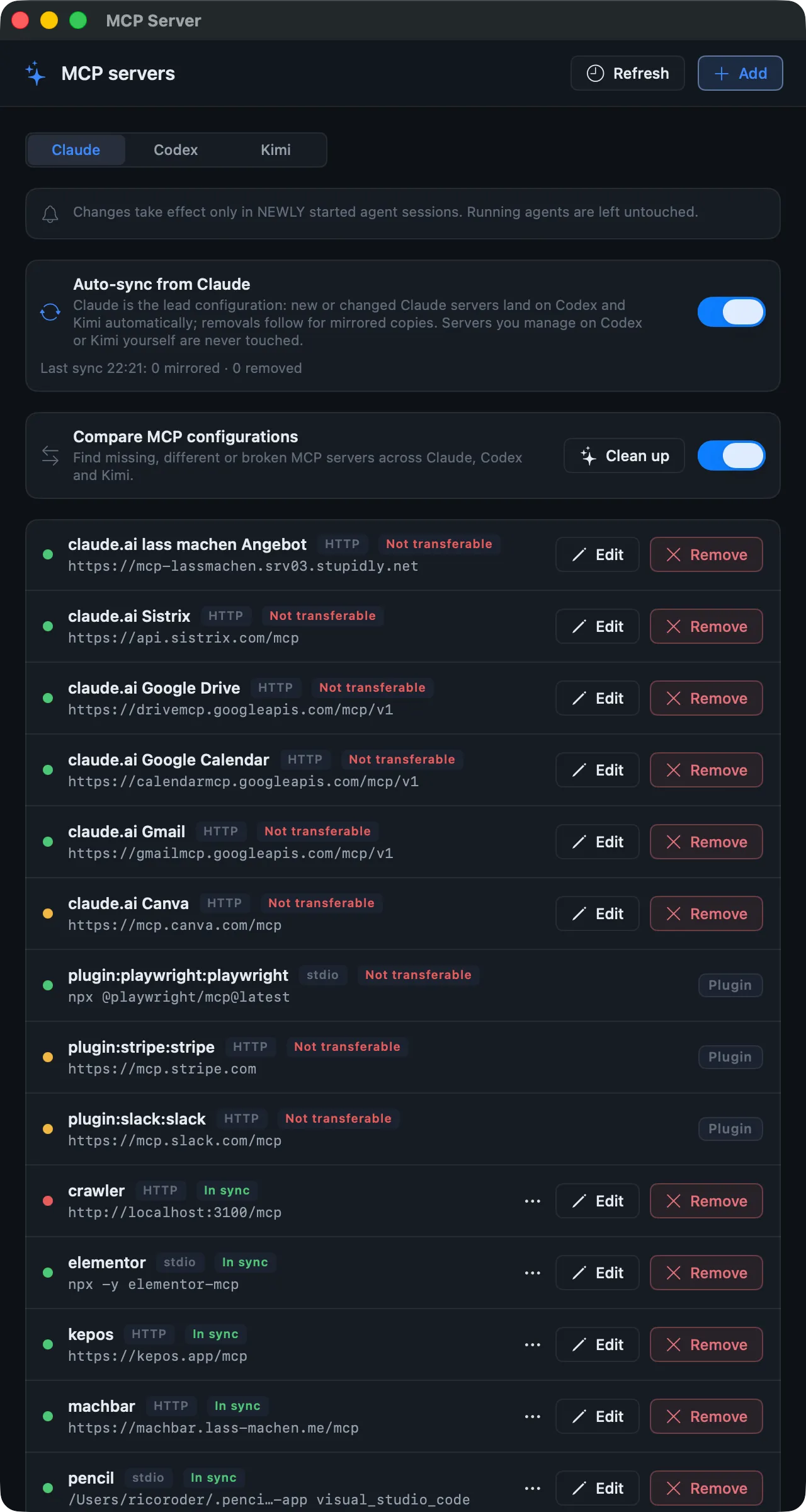
- Enabling sync loads the other providers in parallel and computes the comparison.
- Each row gets sync actions depending on its state, collected in the row’s ⋯ menu (so the list stays readable at any window width): Copy to
(the server is missing there — one menu item per missing provider), Reconcile in (drift detected — push this row’s version to that side), a keep-in-sync link toggle (persist the pairing), or a sign-in action for a provider that supports it. That action resolves to the right thing for the server — the provider’s browser login for an OAuth server, or Renew access code for a static-token server (see Signing in and the honest auth status). The green In sync badge only appears when the server exists identically on every available provider and all sides are actually usable; otherwise the row reports the missing, drifting, or sign-in-required side explicitly. - Servers that exist on other agents but not on the one you’re viewing collect under an Only on other agents section, with a copy action straight into the active agent.
Sync links persist without secrets in a local mcp-sync-links.json file.
When you copy (or align) a claude server that authenticates with HTTP headers to codex or kimi, vord asks whether to include the sign-in details. If you agree, the header values are written into each target’s configuration so the server works immediately — stored there in plain text, the same way they already live in claude’s config. Kimi supports those headers natively. Codex does not, so vord uses a narrow, format-preserving patch of that server’s http_headers in ~/.codex/config.toml. If you decline, the copy still happens without them, the row shows Sign-in required, and the UI explains what’s missing. OAuth credentials are never copied: every assistant keeps its own browser login.
Reconnecting vord Cloud after a connection error
Section titled “Reconnecting vord Cloud after a connection error”If a continued Claude session reports 503 or no available server for vord Cloud, the server was unreachable at the time of the connection attempt. The message alone does not prove a loss of the MCP configuration. A connector you added yourself and the mesh managed by vord have separate connections; one may already work again while the other still appears failed.
In the affected Claude session, open /mcp, choose the vord Cloud server, and then Reconnect. Then check the connection status and a real read access. The conversation is preserved. Claude automatically retries certain transient connection errors, but not indefinitely; once the attempts are exhausted, Reconnect also refreshes the tool list. Official Claude documentation.
MCP servers per session (MCP profile)
Section titled “MCP servers per session (MCP profile)”Which MCP servers a session may use depends on the role of the session and on the project it runs in. vord calls that combination the session’s MCP profile.
- Project lead: only
vordandmachbar, always — the project’s selection does not change this. - Parent sessions, child sessions, and scheduled job runs: the servers selected in the project. The default All servers (default) keeps every server, exactly as before.
Right-click a project in the sidebar and choose MCP Servers… to change the selection for that project:
- All servers (default) — every server stays available to every session of the project.
- Only selected servers — you pick from a list grouped by kind: MCP hub, Configured servers, claude.ai connectors, and Plugins.
The setting works in vord Code and in vord Cowork mode. It takes effect for sessions that start afterwards; a running session keeps the servers it started with. vord is always available, because it carries vord’s own tools.
An OpenCode child starts with vord’s own tools only. spawn_agent names further servers with mcp_servers — for example ["machbar"] — and those are added to the project’s selection. See Child Sessions.
What happens to a server that is not selected
Section titled “What happens to a server that is not selected”The agents differ in how firmly a server can be pushed out of a session, so vord uses the strongest mechanism each one offers:
| Agent | What happens to a server that is not selected |
|---|---|
| Claude Code | Hub servers are not connected at all. If no claude.ai connector is selected, vord switches claude.ai connectors off for that session. A plugin without own hooks whose MCP servers are not selected is switched off for the session — and with it that plugin’s skills. For every other server, vord hides the tools. |
| Codex, OpenCode | The server is switched off in the session. |
| Grok | vord denies the server’s tools in the session. |
| Kimi, Muse | Only Hub servers are filtered. |
Skill list budget per role
Section titled “Skill list budget per role”For Claude Code, vord sets skillListingBudgetFraction when it starts the session: 0.5 % of the context window for a project lead and for a parent session, 0.3 % for a child session and for a scheduled job run. Claude’s own default is 1 %.
Every skill name stays visible. When the budget is exceeded, only the descriptions of rarely used skills are left out. The point is a smaller base load for every session start.
The vord-mcp server injected into every session
Section titled “The vord-mcp server injected into every session”Every Claude, Codex, Kimi, Grok, OpenCode, and Muse session vord starts gets its own session-scoped MCP server, vord-mcp, wired in automatically — you won’t see it in the manager window, and there’s nothing to configure. It gives the agent these tools:
show_to_user— show you an image or a web page. See When the Agent Shows You Something for where it lands and its limits.host_read_file— copy one file from a project on a paired vord Headless host to this Mac (test reports, logs, or screenshots a host session produced) and get its local path; the agent reads the copy with its own file tools.host_status— read one paired Headless host from this Mac: online, last seen, versions, roles, features, agent CLIs, whether the end-to-end channel is up, and each session as an id, agent, status, and whether it is assigned to a Mac project. Read-only: it shows prompts and states and never answers a prompt. Child sessions can call it. Passhost(name or id) when more than one host is paired.host_check— read-only check of one paired Headless host from a main session: tool versions against lock files, free disk, latest error lines, and service, relay, and cloud. It shows prompts and states and never answers a prompt. Passhostwhen several hosts are paired, andchecks(tools,disk,errors,service) to run a subset. A host without the feature returns the cachedhost_statusinstead. The Mac needs the right to administer the host. Each check writes one line to the host log. Child sessions cannot call it.host_code_sync— send local branches to a paired vord Headless host without a git remote (first clone or incremental update); lead sessions only. The call waits up to 50 s; if the sync is still running, the answer carries itssync_id— call again with the samesync_idto collect the result. Optionalsource_pathsyncs from a sibling checkout (for example vord-store) instead of this session’s repository.host_gate_run— run a build or test of a committed branch on a paired Headless host and get the run id, exit code, a log excerpt, and the path, size, and SHA-256 of the zipped xcresult. The host needs the run builds right for this Mac and the Builds role; lead sessions only. See Builds on the host.host_code_fetch— fetch branches from a paired vord Headless host into this session’s repository underrefs/vord-sync/; lead sessions only.notify_user— deliberately send you a notification with a title, message, urgency, and optional file attachments. See When the Agent Notifies You.send_to_mesh— post a message into vord Chat, if you’ve turned that on. See vord Chat.find_agents— find active agents across vord Cloud projects, including their project and focus.jobs_create/jobs_list/jobs_update/jobs_delete/jobs_record_run— manage your scheduled automations from inside any session, in plain schedule language (no cron syntax). A job run records its outcome withjobs_record_run; vord writes the learning-memory files. See Scheduled Jobs.link_project(top-level hosted sessions only) — link the calling workspace to an existing active vord Brain project byproject_idor a uniquetagand optionalspace_slug. If none matches, the agent asks you to confirm creation, then uses its own Brain tools:list_vaultsto select ateam_defaultvault andpin_tag_as_projectwith a permanent name plus concrete prosedescriptionandscopeof at least 24 characters each. It retrieslink_projectafter creation. Managed child sessions do not receive this workspace-level tool.spawn_agent/send_to_agent/get_agent_status/stop_agent/complete_agent/resume_agent/send_to_parent— start and steer the agent’s own child sessions, if you’ve turned that on (off by default);send_to_parentruns the other way, letting a child report a result, question, or blocker up to the agent that started it. How much a child may do without asking is your setting, not the agent’s choice.spawn_agentcan optionally bind the child to a workflow stage; the parent supplies its concrete provider/model choice from the live allowed catalog. Starting a child waits until vord has launched the process (the task itself still runs asynchronously). If the local loopback drops while that start is still in flight — typical under a busy cockpit — the helper retries once with an honest error instead of claiming the app isn’t running. See Child Sessions.workflow_list/workflow_start/workflow_gate/workflow_status— run a workflow blueprint over child sessions. vord’s neutral roles tell the parent their reasoning class and live allowed choices; a user pin is enforced without a substitute. Human gates cannot pass throughworkflow_gate; only you approve those in the UI.
The model hints in the MCP come from the installed CLIs and the chosen accounts, including Grok and Muse. The session gets its tool list within a few seconds, even while the app is still probing models or connecting to vord Cloud. Model hints and Brain tools that are not ready yet follow later: vord-mcp keeps checking in the background and tells the agent when its tool list has changed. Agents that support MCP tool-list updates, such as Claude, reload the list on their own; Codex keeps the list it received at start. A failed fetch remains retryable; an unconfirmed substitute catalog is marked as such. Personal visibility in the model menu is separate from this.
Alongside the tool list, the server hands the agent a short standing contract via MCP server instructions, which supporting hosts render straight into the agent’s system prompt: running another coding agent goes through spawn_agent — never by launching agent CLIs in the shell, where vord can’t see, steer, or recover them — the mesh is written only via send_to_mesh under the session’s existing vord Cloud identity, and a child reports its real results through its report file and send_to_parent. Tool descriptions only reach an agent once it already considers a tool; these instructions are in its context from the first turn.
Hosted sessions in vord use the Brain tools from their injected vord-mcp server. For Claude, Grok, and OpenCode, an entry in the provider’s effective user MCP configuration with the same vord Cloud URL as the hosting app is disabled for that session. Matching ignores URL query and fragment, normalizes scheme/host case and default ports, and removes trailing slashes from the path. Other configured MCP servers remain available, and the provider’s original configuration is not rewritten. This applies on both start and resume. Codex, Kimi, and Muse keep matching user entries enabled. Codex rereads config.toml on each turn, so vord reserves vord and <slug>-hub for its Codex overrides and leaves direct entries untouched. A live Kimi Code 2.1.1 run replaced workspaces.json in an isolated home and wrote shared runtime state, so the app does not redirect Kimi’s home. Muse has no Muse-specific per-session config-root switch, and changing its generic XDG_CONFIG_HOME would also redirect child tools such as git and gh.
In hosted Codex sessions vord also turns off the ChatGPT workspace apps for vord Cloud and vord remote control, so Brain and session control run only through vord. Codex learns these apps from its local tool cache; before the first cache exists, nothing is disabled.
vord keeps its session injection additive: Claude gets a temporary --mcp-config file, Codex gets --config mcp_servers.vord.… and reserved Hub-name overrides, Kimi and Grok receive a merged project-local entry, and OpenCode receives a merged session config. Matching user entries stay enabled for Codex, Kimi, and Muse. Changing the manager never kills or rewrites a running session. Each session gets its own rotatable capability token, and a token only authorizes the one session it was issued for.
For Codex children spawned by vord, the vord server’s own tools are pre-trusted, so a
child no longer stops at an “Allow the vord MCP server …” box before it can report
back or continue orchestration. The override is scoped to mcp_servers.vord only;
Codex’s shell/file approvals and approval behavior for other MCP servers are unchanged.
send_to_mesh only works when vord Cloud is connected and you’ve turned on Let the agent reply in the mesh (off by default) — otherwise the agent gets a clear error back (mesh_not_connected or agent_send_disabled), never a silent no-op.
For messages, send_to_mesh accepts an optional project tag, name, or project ID to target another project’s channel. A session without its own project channel must pass project — otherwise the send is rejected with kepos_no_project_channel instead of going out tenant-wide. Use find_agents to discover active agents and project tags. Project-target errors include project_not_found, project_ambiguous, project_invalid, and project_not_allowed_for_claims. find_agents reports the same project errors plus query_too_long.
Provider capability summary
Section titled “Provider capability summary”The six providers expose different MCP management contracts. The manager keeps those differences visible instead of pretending every provider supports the same scope, auth, or health model:
| Claude | Codex | Kimi | Grok | OpenCode | Muse | |
|---|---|---|---|---|---|---|
| Managed through | CLI + config inventory | CLI JSON | mcp.json files |
CLI JSON | opencode.json file |
settings.json |
| Manager scope | User; local/project with an explicit folder context | Global | User/project | User/project | Global | User; project via shared .mcp.json |
| HTTP headers | Native | Config patch for copied static headers | Native | Native | Native | stdio and streamable HTTP; SSE is not copied |
| OAuth action | mcp login |
mcp login |
Use /mcp-config |
No MCP OAuth command | mcp auth |
Not transferred |
| Inventory health | Unknown until explicit check | Structured status | Unknown | Structured status | Unknown | Unknown |
kimi specifics
Section titled “kimi specifics”Kimi is managed through its own config files rather than a management CLI:
| claude | kimi | |
|---|---|---|
| Managed via | claude mcp … CLI |
kimi’s own mcp.json files (user + project level) |
| Scope | Global or per-project folder | Global (user file) or per-project (project file wins on name clashes) |
| HTTP headers | Arbitrary header pairs, plus a plaintext bearer token | Native headers field, plus a bearer-token env-var option |
| Live status | Per-server health check | None exists — rows report unknown / needs-login |
| Sync with the other agents | Yes | Yes — kimi is a full sync participant (via its files) |
See Claude, Codex, Kimi, OpenCode, Grok & Muse — What Differs for the full cross-domain list of structural differences between the agents.