Responding to a Waiting Session (🟡)
A 🟡 session is the moment vord exists for: an agent has stopped and is waiting on you. This page covers what it’s waiting for and how you actually answer it.
Questions and to-dos that can wait live on the project board, not as a 🟡 status. Answering them does not change the session’s status dot. If a project lead coordinates the project, it may answer board questions and to-dos of sessions it leads — marked as answered by the project lead; boxes on this page always stay yours. Every board item carries an ID such as F-12, and the board can be searched; see Finding an item on the board.
The four wait reasons
Section titled “The four wait reasons”Every 🟡 status carries one of four reasons, tracked internally as SessionStatus.WaitReason:
| Reason | What it means | Shown as |
|---|---|---|
| permission | The agent wants to run something — a shell command, a file edit — and needs your okay. | “is waiting for your permission” |
| question | The agent has a real question for you, not a permission check. Claude’s “We recommend compacting earlier” offer appears as a question; vord holds prompts until you answer it. | “has a question” |
| plan | The agent finished planning (ExitPlanMode) and wants your approval before it starts working. |
“is waiting for your plan approval” |
| finished | The agent is done with its current turn and wants feedback or a next instruction. | “is done and waiting for you” |
finished is the lowest-priority reason for notifications — it’s not blocking you the way the other three are, it’s just done and ready for what’s next. permission ranks highest, since it’s usually the one thing standing between the agent and forward progress.
Detection for all four comes from the same hybrid engine that drives the status dot itself — hooks first, output heuristic as fallback. This page assumes you already know a session has gone amber; see that page for how vord knows.
When a waiting session interrupts you
Section titled “When a waiting session interrupts you”Not every waiting session interrupts you. A session that turns amber either waits for something only you can clear — a permission, a question, a plan approval — or it has simply finished its turn and hands the turn back to you. The first kind is never swallowed by the finish rules: a question or a permission request reaches you on the Mac and on your phone, even when it arrives right after a finish that stayed quiet. Whether it interrupts at all is still decided by the reason toggles in Settings → General → Notifications.
The session you are looking at never interrupts you. While vord is in front and that session is the selected one, it gets no banner, no sound and no phone push, and the bell entry it creates is marked read at once.
The dock badge counts only the sessions that are genuinely waiting on you: a permission, a question, or a plan box. A project lead that merely finished its turn does not count, nor does a finished session the project lead runs unless Also notify when sessions started by the project lead finish is on, and neither does a supervised child’s question that its parent agent can answer. The badge empties as soon as every waiting session is handled or marked done.
All switches and the full rules are on Notifications & the Menu Bar.
Answering in the tile: the inline input line
Section titled “Answering in the tile: the inline input line”In the Normal overview density, each tile carries a thin input line at its bottom edge — a › field with the placeholder “write…”. It sends straight to the session’s terminal without you switching to Focus mode or clicking into the tile first.
- Click into the tile’s input field (this doesn’t steal the tile’s selection).
- Type your reply. Paste an image with Cmd+V and it becomes a readable
[Image #1]token instead of a raw file path — it expands to the real path claude/codex can read when you send. - Press Enter — the text goes straight to the terminal as one line plus a carriage return.
This works identically for claude, codex, kimi, and a bare shell. It only appears for live (not-yet-ended) sessions; an ended session shows a “Resume” button in its place instead.
The Compact density has no input line — its tiles are scan-only status cards. And the Cockpit grid doesn’t need one: each cockpit tile hosts a real, typeable terminal, so you answer in the terminal directly (see below) rather than through a separate input field.
It’s deliberately single-line — no multi-line editor. For anything requiring in-terminal paste behavior beyond that, use the real terminal directly (see sending input).
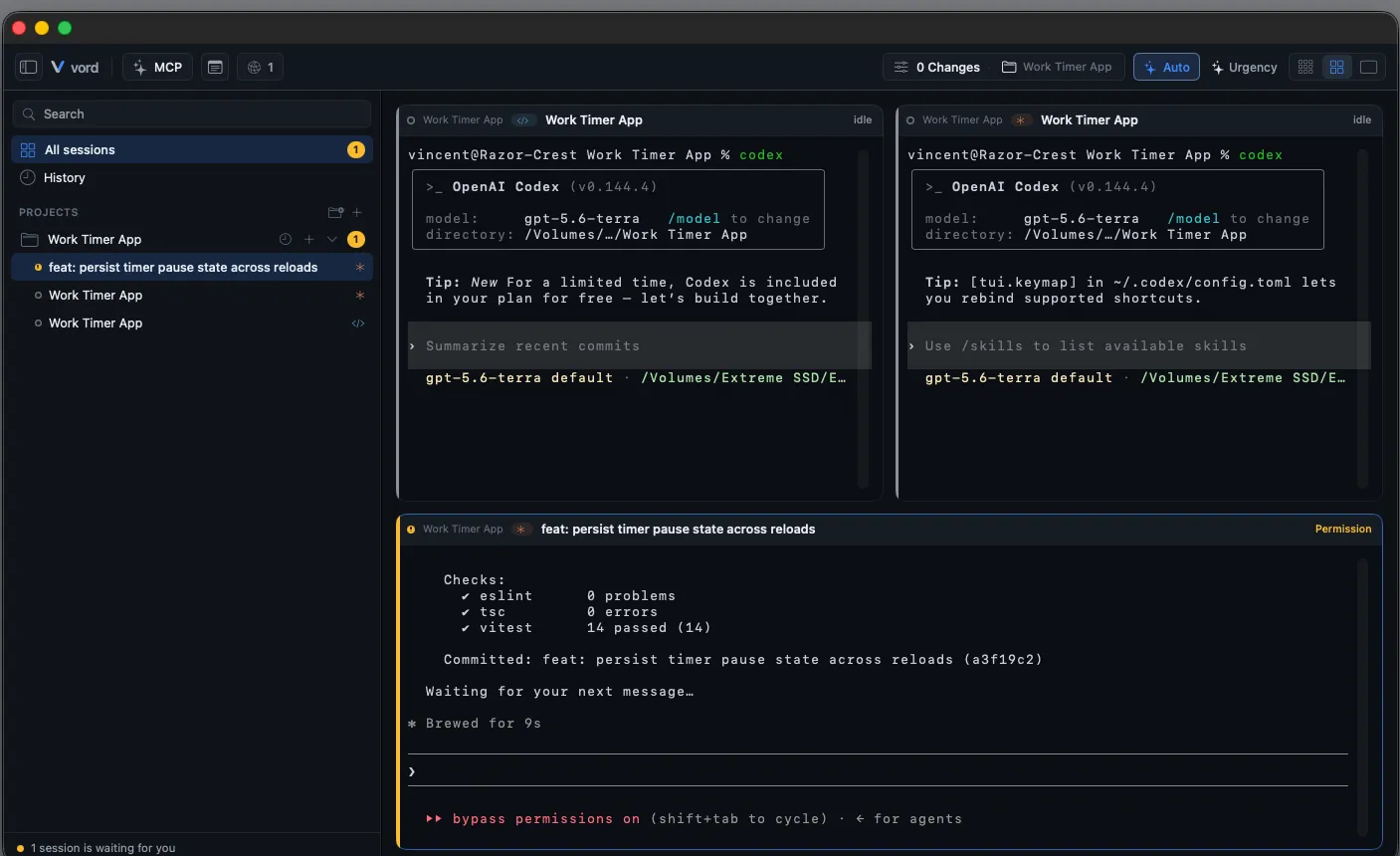
Answering in a waiting box
Section titled “Answering in a waiting box”Here’s the part that surprises people coming from other tools: the agent renders its own selection box in the real terminal — the same box you’d see running claude or codex directly in a terminal window. vord does not recreate every box as a second UI. Folder-trust dialogs are a special case. Claude’s two choices, No, exit and Yes, I trust this folder, and Codex’s Trust and continue and Back to Agent Command Center (Codex 0.166 and later, Trust this folder?) also appear as an answer card in Mac chat, even when the session has no transcript. For Codex, the card answers with Enter and the arrow keys, because Codex ignores a typed number in this dialog. The card appears in Code and Cowork, including the project-lead column, and the same two options appear as answer cards in the iPhone command zone. The terminal box remains available and still accepts its normal keys (arrow keys + Enter, a typed answer, etc.).
On the Mac Board, a waiting session card shows the same answer buttons as its tile, in both Code and Cowork. vord never answers on its own; a button click sends your choice through the same answer path as the tile. On iPhone, tapping the Board card opens the session; answer there from the command zone.
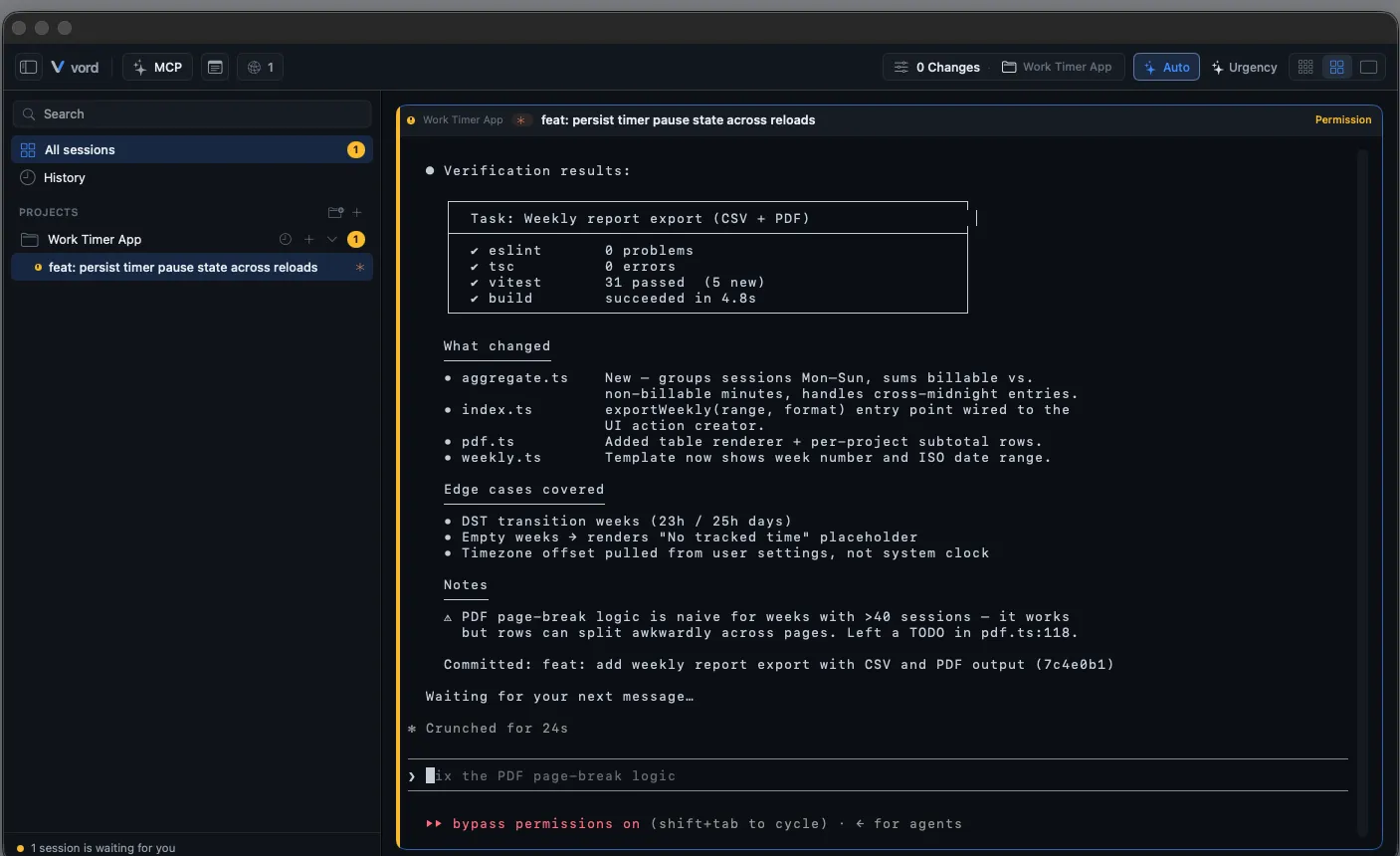
This keeps the terminal as the source of truth rather than building a general replica of every agent box. A folder-trust card mirrors only its two recognized choices; it does not replace or alter the terminal prompt. The tile’s inline input line still works for typing into a box (it’s the same PTY).
In a Cowork project, the decision card appears in the chat, in the focus transcript. It is there when vord has verified the live terminal and, where the combination requires it, matching hook evidence. The summary, risk notices, and answer buttons come from that verified box. The buttons send the corresponding key input to the session. For that session the tile omits its prompt box. The tile’s inline input line remains available for normal messages. When vord cannot verify the box, it shows no answer buttons, and you answer in the real terminal.
On a paired iPhone the same card appears in the command zone, above the answer buttons. You see the request type, the everyday summary, the warnings, and a Details disclosure with the cleaned terminal text. When the card can be answered from the phone, the buttons stay and send the same key input as before. A free-text option, and Claude’s Chat about this option, stay disabled and show a hint to type that answer in the terminal, in Cowork chat on the Mac and in the iPhone command zone. When it cannot, the buttons are hidden and the zone says Answer on the Mac. The message field stays available. A Code project, a guest phone, and a phone that does not announce the card keep the previous buttons and never receive the card text. Push notifications do not carry that text.
In Code mode the tile, its prompt box, and the terminal stay as they are. You answer in the terminal, or with the answer card vord already shows for a recognized question such as folder trust.
Idle sessions stay ready for the next task
Section titled “Idle sessions stay ready for the next task”In the Normal density, tile size follows urgency: a 🟡 waiting session gets a large tile, a 🟢 working one a medium tile, and an idle (⚪️) or ended session collapses to a slim row — no terminal preview, just the header and the same direct › input line. An idle session is a likely candidate for the next task, not dead weight, so the input stays right there:
- Type directly into the
›field and press Enter to send a new instruction — this is the same inline input line, just laid out compactly. - If the session has actually ended, the input is replaced by a one-click “Resume” instead.
The default sort collects these into a “Resting — ready for the next task” band beneath the waiting and working sessions. A session that just finished (fell from working/finished into idle) sorts to the front of that band, so the most likely next candidate sits at the top — without stealing your keyboard focus.
Todo progress while it works
Section titled “Todo progress while it works”While an agent is actively working through a todo list, the tile shows a compact “done/total” count plus the currently open step beneath the terminal preview — purely informational, no interaction. It only appears once vord has actually detected a todo list in the output; sessions without one simply don’t show the row.
Finding an item on the board
Section titled “Finding an item on the board”Every board item shows its ID in front of its title: F-n for questions, T-n for to-dos, V-n for commitments, E-n for results, P-n for phases and N-n for notes. These are the IDs agents use when they mention an item. Right-click an ID and choose Copy ID to copy it. An item written on another device keeps that device’s short suffix, for example F-12-ab12. Agents always receive the full ID. If you type the short form, for example F-12, it refers to the item created on this Mac.
When you answer a question (F-n), reply to a to-do or mark it done (T-n), or leave a note (N-n), the agent can reply with the board_reply MCP tool. The reply appears on the card below your message, with the agent’s name and a colored bar. This conversation is shown in both Code and Cowork mode on Mac, and on iPhone. Replies are plain text, up to 1,000 characters each and 10 per card. A reply does not change the item’s state.
A commitment titled “Planned start: …” belongs to a session the project lead planned (see Planning sessions). While the plan waits, the commitment stays visible in the agenda like any other commitment, but the agenda never acts on it; dropping it cancels the plan. Once the session starts, the commitment is marked done, so a running plan never shows as overdue.
The board window has a search field in its toolbar. Results appear after a short pause in typing. It finds items by ID, title and text, such as the reason, the answer or a note. It also finds items that were done or dismissed in the last 30 days; they appear in the open Done group, marked as done or dismissed. Typing an exact ID such as F-478 shows only that item. While you search, the board shows only the matches and keeps all their actions; matching commitments appear below them in an Agenda block. With the cross-project agenda selected, the search filters its rows. Clear the field to see the whole board again.
The cross-project agenda also lists your automations: every automation with an upcoming run in the next 14 days appears as a read-only row with a clock, the job’s name and the time of its next run. Clicking the row opens Automations with that job marked. Paused automations and automations without an upcoming run stay hidden.
Every open item has an owner. When the session that wrote a commitment, question or to-do no longer exists on this Mac (and the item does not belong to a job or to another device), vord hands it to the project’s lead session: the item’s origin moves to this Mac’s lead, and its text gains a “Taken over from …” note. Items that the former vord Cowork app wrote on this Mac count as this Mac’s own items, so they are handed over the same way instead of waiting under another device. The lead sees it in lead_board_list and handles it like its own. A project without a lead keeps the item open; the agenda then lists it under No owner instead of Overdue, on Mac in both modes and on iPhone, so you can close or drop it yourself. Nothing is closed automatically.
The board remembers where you were. Each project keeps its own position on the board and in its agenda, and the cross-project agenda keeps one too. The position is tied to the item at the top of the view, not to a fixed distance: when you come back after switching projects or views, after switching to another app, or after closing and reopening the board window, the board opens on that item again. If that item is gone by then, the board shows the nearest item that is still there. Opening a specific item always takes precedence; see Opening an item from a notification. The position is kept while vord is running; after vord restarts, the board starts at the top. The iPhone Board screen remembers its position per project the same way (iOS 18 or later).
Opening an item from a notification
Section titled “Opening an item from a notification”On Mac, opening a board item from a notification in the bell or inbox, a macOS banner, or a Brain to-do link opens the item’s project in the board window and switches the main window to that project’s mode: Cowork for cloud projects, Code otherwise. On a shared Code/Cowork board, it selects the item’s lane. It leaves the cross-project agenda and the project agenda, then shows the board, scrolls to the item and highlights it for about 1.5 seconds. This also happens when you reopen the same item.
If the item is already done or dismissed, the board still opens and briefly says This board item is already done. If it no longer exists, it says This board item no longer exists. Either notice closes after a few seconds or when you click ✕. This applies to F-n, T-n, V-n, E-n, P-n and N-n items.
On iPhone, tapping a board notification opens the project’s board in the right mode and tab, scrolls to the item and briefly highlights it. A done or missing item shows the same notice.
Copying text and commands from the board
Section titled “Copying text and commands from the board”You can select and copy the text on the board: question context, to-do reasons, commitment details, given answers, notes and agent replies. Item titles and file paths can be selected too. On the Mac, select text with the mouse and press ⌘C. On iPhone, touch and hold a text to copy it; for an item title, touch and hold it and choose Copy Title (or Copy ID).
Code that an agent writes in backticks appears in a monospaced font. Below the text, each command gets its own copy button that shows the command, so you never have to retype it. A code block (text between ``` lines) appears as a box with its own copy button. Copying only happens when you click or tap a copy button; the board never writes to your clipboard on its own.
Rows that you can drag (phases) or that open something when you click them (the cross-project agenda, answer options) are not selectable.
Code and Cowork on one board
Section titled “Code and Cowork on one board”A Code project (Git) and a Cowork project (vord Cloud) can share one board. One Code project links to at most one Cowork project.
When both sides share the same project name or the same vord Brain project, the board window suggests the pair with a banner: Link boards or Not now. Nothing is linked until you click Link boards. You can also link by hand: right-click the project row and choose Link board with …, then confirm. Right-click again and choose Unlink boards to end the shared board.
Linking moves the Cowork board’s open questions, to-dos, commitments, and notes into the Code project’s board; moved entries get new IDs. Done and dismissed entries stay readable in an archive copy of the old Cowork board — right-click the project row and choose Show old Cowork board in Finder to open it. While the old vord Cowork app still runs, linking is refused with a notice telling you to quit it first.
Unlinking only ends the shared board. Entries already moved stay in the Code board, and the Cowork project starts again with an empty board.
A linked pair appears as a single project row with a link symbol. Projects without a pair show a Code or a Cowork symbol instead. Above the board, the tabs All, Code, and Cowork filter the entries, each with a count. The default tab follows your current work mode (Code or Cowork).
Every entry carries a symbol showing which side it comes from. Badges add detail: Coordination marks entries that concern both sides — they appear in both tabs. In the All tab, entries also carry Code or Cowork, or No side when the origin is unknown (entries taken over at link time keep their side when it is known, otherwise they get No side). After a handover, the entry also shows With PL Code or With PL Cowork.
Right-click an entry to change its Side (Code, Cowork, or Both for coordination) or to hand it over: Hand over offers To project lead Code and To project lead Cowork for open questions and to-dos only, and Withdraw handover takes it back. A running project lead gets a line in its terminal; a lead that is not running finds the entry marked as handed to it in its board context at the next start.
In a linked pair, a session’s board context holds only entries from its own side plus Coordination entries; a project lead additionally sees entries handed to it. board_ask and board_todo take an optional lane (code, cowork, both), so a Code-side agent can reach the Cowork side by passing a lane. The project lead’s lead_board_list takes the same optional lane filter — see Project Lead Session.
Show what is yours: For me, All, or a member
Section titled “Show what is yours: For me, All, or a member”The board starts on For me. In a project with vord Cloud linked and at least two members, use the Responsibility menu in the board window’s header on Mac, or on the Board screen on iPhone. Choose For me, All, or a member; each choice shows the number of open items. The filter applies to every item type and combines with the All, Code, and Cowork tabs. Your choice is remembered separately for each project.
Board counts in the sidebar, the toolbar and the iPhone project list always count For me, regardless of the current filter. An item’s responsible person is:
- The assignee, for a to-do with an assignee.
- Otherwise, the person who created it from their session or device.
- The project owner, when its origin cannot be identified.
Projects without a vord Cloud link, or with only one member, do not show the menu; all items remain visible.
In both Code and Cowork on the Mac, with a linked vord Cloud project and at least two members, use the card menu to assign an open question (F-n), to-do (T-n), commitment (V-n), or note (N-n) to a project member. Open commitments can also be assigned from their context menu in the Agenda. To-dos keep their existing assignment support; questions, commitments, and notes show the menu only when the linked vord Cloud server supports assignment for all board item types. The board_assign MCP tool can assign the same open item types to a member by ID, email, or name; pass an empty assignee string to clear the assignment. Questions, commitments, and notes also require server support when assigned through MCP. Results and phases do not have assignees.
See also
Section titled “See also”- Status: The Traffic Lights — what the four colors mean and how detection works
- Notifications & the Menu Bar — how you get alerted that a session went amber in the first place
- Auto-Pilot — having vord answer some of these boxes for you automatically
- Permission Modes — the modes that decide how often a permission box appears at all