Skald Dictation (Beta)
Skald is a separate voice-transcription service. Pair your Mac with it once, and the microphone button in a phone companion’s compose field turns into press-to-talk dictation — speak, and the transcribed text lands in the field, editable, before you send it.
What it is
Section titled “What it is”Voice dictation on a phone companion needs three things in place at once: a Mac running vord with a paired Skald account, that Mac connected as your live peer, and the companion’s compose field open. The flow is:
- You hold the mic button on the phone.
- Audio streams to the Mac over the existing relay connection.
- The Mac forwards it to Skald for transcription and text cleanup.
- The result comes back and lands in the compose field on the phone — still editable, not auto-sent.
There’s no dictation button on the Mac itself. The Mac is only the bridge; the microphone and the compose field you edit are both on the phone.
Connecting the Mac
Section titled “Connecting the Mac”Skald dictation is off by default and needs an explicit account pairing before it does anything.
- Open Settings → Connections → Voice Dictation.
- Click Connect with Skald.
- Your browser opens Skald’s login/approve page — there’s no token to copy or paste. The Mac polls for the device token in the background and stores it in the Keychain once you approve.
- Back in vord, turn on the Voice dictation via Skald option. This master toggle stays disabled until a Skald account is actually paired.
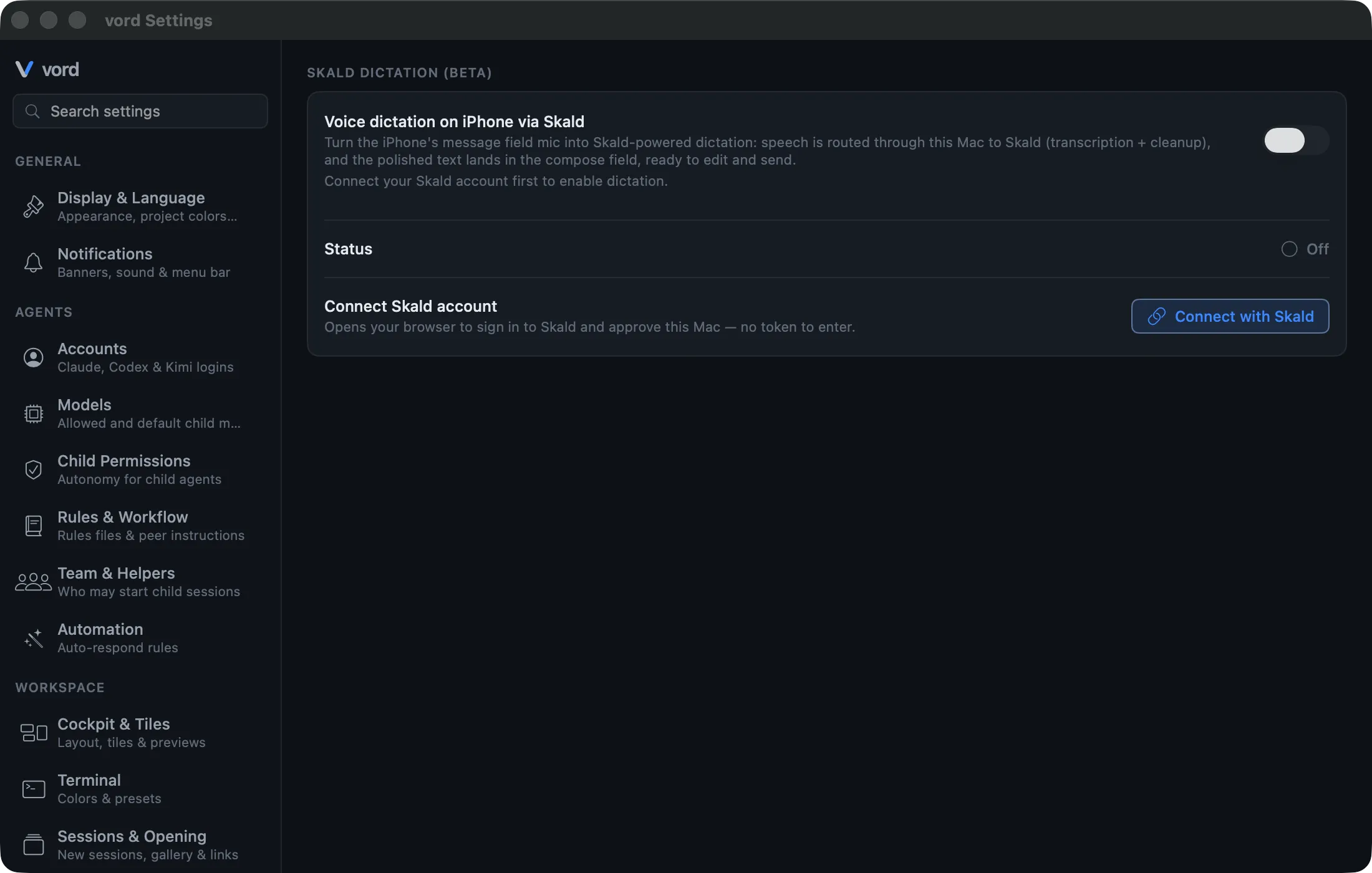
The connector talks to Skald’s production service (heyskald.com) — there’s no server address to configure. Until both the pairing and the master toggle are done, the Mac doesn’t announce dictation support at all, and the phone’s mic button stays disabled.
Account status and disconnecting
Section titled “Account status and disconnecting”Once paired, a second card appears: Account. It shows the connected Skald account (email/tenant), plan and subscription status, and your monthly dictation usage against Skald’s quota. This is a live snapshot from Skald’s last handshake, not a historical usage chart.
Click Disconnect to remove the pairing — it deletes the token from the Keychain, turns the connector off, and drops the connection. The phone’s mic button goes back to disabled the moment the connection drops.
Using dictation on the phone (the mic button)
Section titled “Using dictation on the phone (the mic button)”In a session’s compose row on a phone companion, the mic button is press-and-hold — hold to talk, release to finish:
- Press and hold the mic button — grant microphone permission the first time.
- Keep holding while you speak; recording runs the whole time (a pulsing red halo shows it’s live), and the live transcript streams into the compose field as you talk, growing continuously across pauses — not just the last thing you said — so you can see Skald is hearing all of you correctly.
- Release to finish. The full raw transcript appears in the compose field instantly, then gets replaced by the polished, cleaned-up version a moment later once Skald finishes processing — still editable, still yours to send whenever you’re ready.
There’s no tap-to-start / tap-to-stop toggle: lift your finger and the recording ends. Only one dictation session runs at a time, and the language hint is taken automatically from your phone’s device language — there’s nothing to configure on the phone itself.
If the Mac’s connection drops mid-recording — sleep, network hiccup, connector turned off — the recording is cut hard rather than left hanging against a Mac that can no longer transcribe it. Errors (microphone denied, a Skald-side failure) show up as real messages phrased by the Mac, never a silent failure. If no result arrives within a few seconds of releasing the button, the session fails visibly instead of spinning forever — and the Mac’s Skald connection heals itself on the next attempt (it also reconnects automatically after the Mac wakes from sleep).
See Controlling Sessions from the iPhone or Controlling Sessions from Android for the rest of the compose field’s capabilities (text, images, mode switching).
Limits (beta, needs a Skald account, Mac is only the bridge)
Section titled “Limits (beta, needs a Skald account, Mac is only the bridge)”- Beta. Labeled as such in the settings panel; behavior can still change.
- Needs its own Skald account. Skald pairing is a separate account/subscription from your vord license — the plan and quota shown come from Skald, not from vord’s own licensing.
- The Mac is only the bridge. There’s no way to dictate directly on the Mac through this feature; it exists purely to relay phone audio to Skald.
- Requires a live connection. Dictation depends on the phone being connected to the Mac as an active peer at the moment you press the mic — no offline dictation, no queued recordings.
- Fixed endpoint. The connector points at Skald’s production service; there’s no way to point it at a different Skald instance.
For the licensing side of the phone companions this feature rides on, see Account, License, and Trial.