The iPhone Companion (Pro)
vord mobile turns your iPhone or iPad into a live window onto the sessions running on your Mac. You can watch a claude, codex, or kimi session work, answer its questions, approve a plan, and send a new prompt — all without touching your Mac. This page covers what the companion is for and how it’s built; the next pages in this section cover pairing and the full remote-control toolkit in detail.
For a glance at waiting sessions and account usage without opening the app, see iPhone Widgets.
What the companion is for
Section titled “What the companion is for”The Mac stays the source of truth: every session actually runs in a real PTY on your Mac, exactly as if you’d started it in Terminal. The companion app is a shadow terminal — it mirrors that live output, and lets you send input back. Nothing runs on the device itself; if you close the app or lose connection, the session on your Mac keeps working undisturbed.
This is for the moments you’re away from your desk but a session is waiting on you: it hit a permission prompt, finished a plan and needs approval, asked a question, or just finished and is idle. You get a push notification, open the app, and answer from the couch or on the train.
Pro-only, and why
Section titled “Pro-only, and why”The companion is included with Pro and during your free trial — Pro is Basic plus iPhone/iPad remote control and cross-user session sharing, and an active trial previews it too. Without either (on Basic, or once your trial or subscription has lapsed), the relay server refuses to pair or connect at all (HTTP 403). See Account, License & Trial for what separates Basic from Pro and how billing and seats work.
Because the plan lives on your account, the app requires you to sign in to your vord account before you can pair — the same account you use on the Mac. On first launch you get a login screen and no registration option. Pairing appears once you’re signed in with an active Pro entitlement; if the account can buy vord Pro, the app shows the App Store paywall instead. Signing in on the device activates a device lease for the app, but never draws a member seat from your pool — seats count desktop computers only (one seat per activated Mac or Windows PC). Full flow: Pairing Your iPhone.
vord Pro as an App Store subscription
Section titled “vord Pro as an App Store subscription”vord Pro is the license for vord on the Mac, and remote control with vord mobile on iPhone and iPad is included. You can also buy vord Pro directly in vord mobile as an App Store subscription — monthly or yearly — billed through your Apple Account. The app shows the current price from the App Store; amounts are not listed here.
The subscription needs vord on a Mac that is signed in with the same vord account. Without that, the app shows this note instead of a purchase offer: “vord mobile is the remote control for vord on your Mac. Install vord on the Mac, sign in with this account, and pair this iPhone or iPad. Sessions from that Mac then show up here. Remote control is part of vord Pro.”
The paywall is titled “vord Pro for your Mac” and offers “Monthly” and “Yearly”, a “Restore Purchases” button, and “Terms of Use” and “Privacy Policy” links. If your account is eligible, the app shows a free trial offer before the first payment. There is no registration in the app: sign in with the account you already use in vord on the Mac.
Under Settings → Account in the app:
- “Manage Subscription” (only with an App Store subscription) opens Apple’s subscription management.
- “Subscribe to vord Pro” appears only when a purchase is available.
- With a plan from the website, the row reads “Your plan is managed in your vord account.”
- The status line reads “Free trial until {date}” during the trial and “vord Pro · App Store” with an active App Store subscription.
Managing and cancelling an App Store subscription happens in your Apple Account settings (or through “Manage Subscription”), not in the Hub. Refunds for App Store purchases go through Apple.
A few hard limits come with the plan, not just the price:
- One Mac + one default device channel at a time — untargeted updates go to one paired device (a stable default when several are online, not whichever woke last; see below).
- Max 2 devices (iPhone or iPad) per account and product, enforced server-side — pairing a third fails with a device-limit error. Signing in on the device activates an app-seat lease; it never draws a member seat.
- Each desktop computer uses one seat from your pool (with a safety cap of 5 desktop devices per account).
End-to-end encrypted — the relay never sees plaintext
Section titled “End-to-end encrypted — the relay never sees plaintext”Your Mac and your iPhone or iPad don’t talk directly; a relay server (vord-store) sits between them because phones and laptops aren’t reliably reachable on the same network. That relay is a blind switch: every frame between Mac and device is encrypted with ChaCha20-Poly1305 under a key that’s freshly negotiated on each connection, with perfect forward secrecy. Pairing establishes a long-lived key that only authenticates that per-connection handshake — it never encrypts your data directly, so a stolen recording of one session can’t be replayed against another. The relay operator — including us — cannot read your terminal output, prompts, or answers.
The two tabs: Cockpit and Sessions
Section titled “The two tabs: Cockpit and Sessions”The app opens on one of two tabs, and remembers whichever you used last:
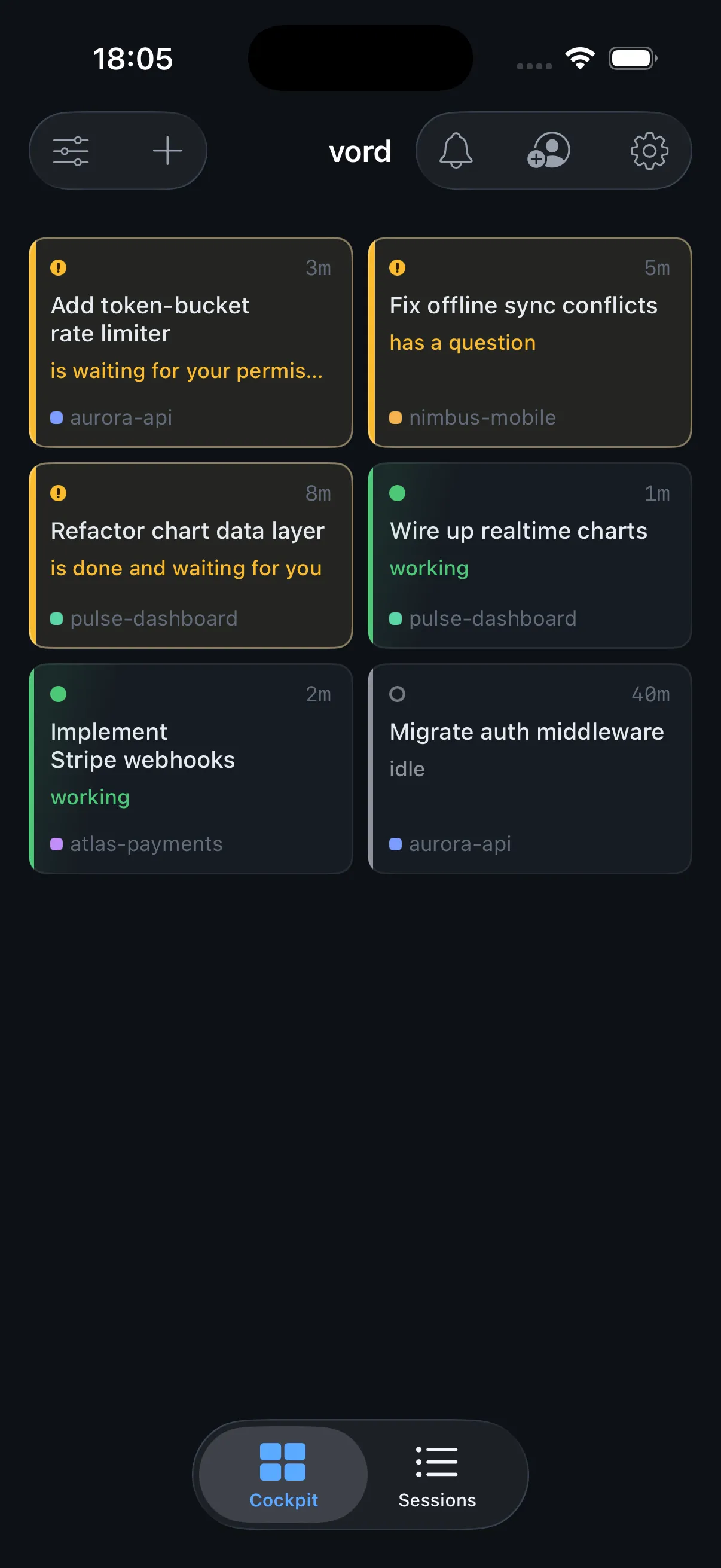
- Cockpit — a compact, two-column tile grid across all your projects. Tap a tile to open that session. Each tile shows a status dot, wait reason, project, and relative runtime — no live terminal content, just enough to triage at a glance. Tiles are ordered by urgency by default (waiting on you → failed → usage-limited → working → idle → ended). A Project leads block at the top stacks one visible, accent-framed card per project lead. Tap a card to open its chat. Sessions led by a project lead carry a clipboard badge labelled Led by the project lead, including on Cockpit tiles. The Cockpit has no search.
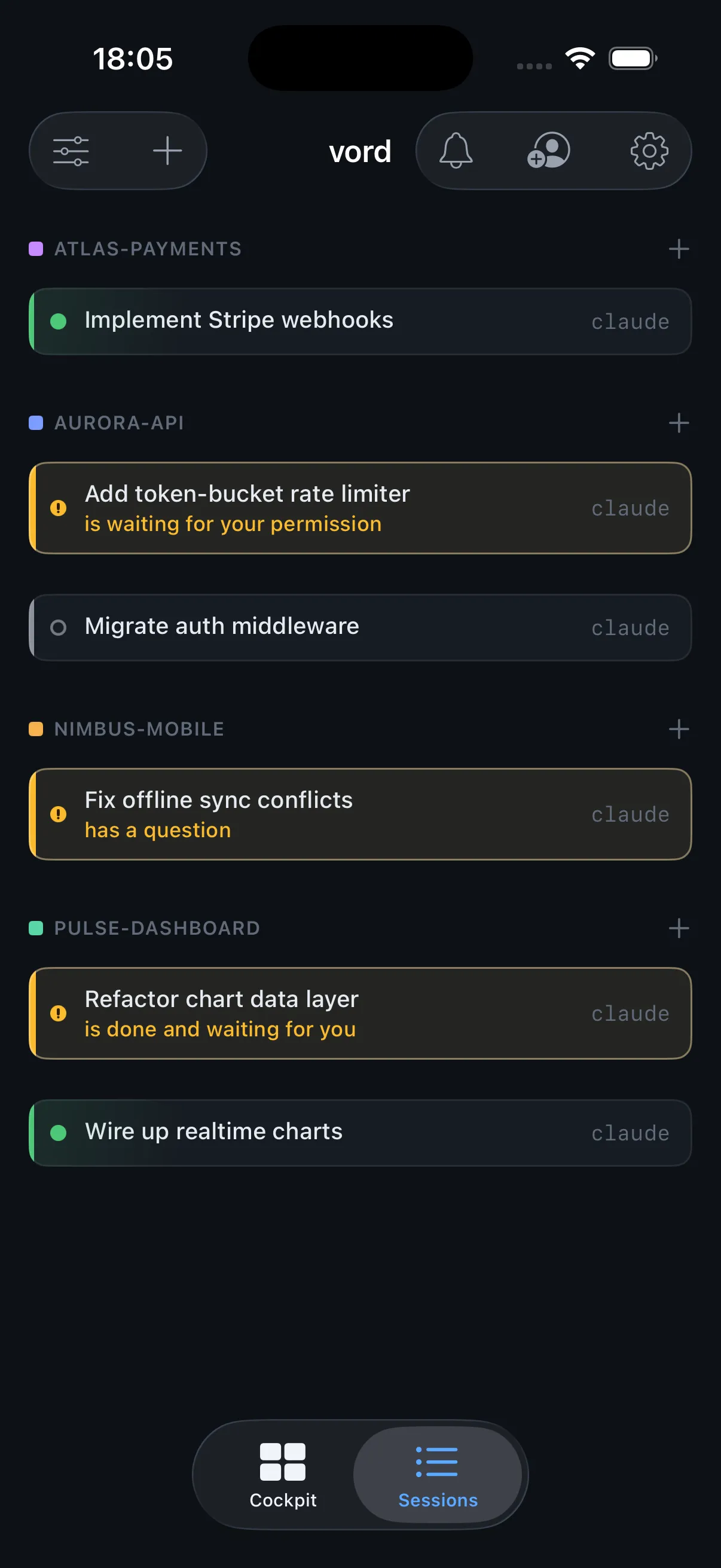
- Sessions — a full list of your Mac’s running sessions, grouped by project (with the same color dot as the desktop sidebar) or by activity (active vs. inactive), with a Search projects and sessions field. It follows the project order and groups in the Mac sidebar: a group heading shows a folder icon and path (for example, Clients › Acme) above its projects. Sessions within each project are sorted by status, then last activity. Tapping “+” next to a project header starts a new session in that project. Under By project, a project lead has its own card directly below the project heading, never a regular session row. Under By activity, a Project leads block at the top stacks one card per project; leads do not appear again among sessions. A matching project name keeps the whole project visible, including its lead card; otherwise, search filters sessions by title, and finds a lead through its project. An older Mac without project-structure support supplies alphabetical project order without groups.
Both tabs carry the same header with the view name (Cockpit, Sessions, All projects) as the title: a sort menu and “+” on the left, and one usage shortcut, the notification bell, and a More menu on the right. The More menu keeps Accept shared session and Settings within one tap without crowding the title.
At the top of both tabs, the Code | Cowork switch selects the work mode. The companion remembers the choice on each iPhone. With a Mac that identifies Cowork projects, the session views show sessions for the selected mode; an older Mac without that capability shows its sessions in both modes. Cowork-project sessions with a transcript open in chat by default in Cowork mode.
- Sort menu — switches between by project and by activity. In the Sessions list it changes the session grouping; in the Cockpit it reorders the tiles. Project order, folder groups, and session status/activity order follow the Mac sidebar when the Mac supports project structure. Each tab remembers its own choice.
- “+” — starts a new session from the phone: pick a project from the scrollable list (and, if the Mac has it installed,
claude/codex/kimi/ a plain shell), tap start, and it appears once the Mac pushes the updated list. - Bell — opens the notification inbox; a red dot marks unread items. Open deletion, watchdog, and job-change requests sit at the top as Open decisions (from the inbox). Start requests from external AI apps also land here with a Review button (approving from the phone).
- Usage & quota — one toolbar shortcut appears after your Mac sends usage data. A current Mac opens the public overview. When that overview includes a card status, the phone shows account cards: pills Free, Your limit reached, Provider limit, Paused, and Blocked, counts for free, stopped, and paused, a provider group when that provider has two or more accounts and Other providers otherwise, bars with your limit mark and a hatched reserve, and a session line. There is no Next pill. Against an older Mac, limits are changed only on the Mac; a current Mac that announces the settings channel adds Edit limit to the account cards it prepared for editing, so window limits and pauses can be changed right there (editing limits). When the Mac also sends consumption ranges, the same screen offers 7, 30, and 90, with tiles, a daily chart by provider, accounts, Top projects, Most expensive sessions, and Token mix. A public overview without card status or without those ranges keeps the earlier windows, reset times, and the projects and days of the last 30 days. Against an older Mac that only sends the internal usage-dashboard format, the same single shortcut opens that read-only account-card mirror instead. Details: Usage and quotas.
- More — contains History (closed sessions), Automations when at least one of your own paired Macs supports them, Accept shared session, which opens a session someone shared with you, and Settings. Without a capable Mac, the entry stays hidden.
A third tab, All projects, pages through the project lead chats — see All projects.
History
Section titled “History”Closed sessions stay reachable. The More menu (“…”) in the header opens History across all your Macs; a project’s menu in the Sessions list opens that project’s history. Rows come with the most recent activity first, like the Mac history. A project lead never shows as a regular row. A tap shows the transcript read-only, Open restores the session on the Mac. Details: Session history.
Automations
Section titled “Automations”The More menu shows Automations when one of your own paired Macs supports it. The list follows each Mac’s order and gets a section per capable Mac when more than one supports automations. Cards show the schedule and next run, project, origin, agent and no catch-up, plus the last run’s open board items and reason, recent run sessions and finished runs.
Use the switch to pause or resume a job. Work now and Run once · Automation paused appear as they do on the Mac. Open takes you to a live session or its read-only transcript in History. Agent requests to change or delete an automation appear at the top for approval or rejection. Create, edit and delete automations on the Mac; guests in shared sessions do not see them.
Timeline
Section titled “Timeline”In Session Detail, the “…” menu offers Timeline (or Saved checkpoints in a Cowork-cloud project) when that session’s Mac supports it. Tap a row for the turn diff, comment on lines, and send the review. Restore and branch-off ask for confirmation on the button you tapped. Details: Controlling sessions.
One Mac + one default device channel at a time
Section titled “One Mac + one default device channel at a time”vord sends untargeted updates to one paired device at a time. When more than one device is online, it keeps a stable default rather than switching to whichever woke last. Messages aimed at a specific Mac or conversation still go there.
Two different devices (an iPhone and an iPad) stay paired in parallel — they do not kick each other off. Close code 4409 is only for the same device identity reconnecting: a new connection from that same deviceId displaces the old one (for example a second instance of the same app, or a reconnect after the token was reused). That is not “a second phone took over.” The Mac’s Settings → Connections → iPhone & iPad panel lists every paired device, warns you when several are paired, and lets you revoke any of them.
Notifications are routed device-aware: if your iPhone or iPad is in the foreground and looking at a session, the Mac stays quiet for that session; if you’re actively at the Mac, the push to the device stays quiet. See iPhone Notifications for the exact rules and the five per-reason toggles.
On the device, the app’s own Settings sheet shows an Account section (your signed-in email, license or trial status, and a Sign out button), the current relay address, the paired Mac’s short ID, the confirmed pairing fingerprint (all read-only, for cross-checking), an Unpair from Mac button, and the installed app version and build number under About. With a current Mac it also gains a Mac settings section that changes that Mac’s switches in place (from the phone). Signing out returns you to the login screen; your pairing keys stay on the device, so signing back in with the same account drops you straight back into the paired app.
Adaptive view on iPhone and iPad
Section titled “Adaptive view on iPhone and iPad”The companion app adapts to the available space on iPhone and iPad, including when you resize the window in Split View or open and close a foldable display.
- Split or compact view. In windows large enough, the session list and detail appear side by side. In narrow or short windows, use the compact single view.
- Terminal view. At low heights, vord mobile shows the Mac terminal’s character-accurate raw grid. Otherwise, you can read the conversation as chat or semantically formatted terminal output. The software keyboard does not change the selected view.
- Context is preserved. When switching between compact and split views, the selected session, navigation, draft, image attachments, answer selection, and reading position are preserved. If you were writing, you can continue in the input field. Live output keeps arriving.
- Split layout. The session list sits in a sidebar next to session detail, so you can switch sessions without going back. A fixed Cockpit row and the detail toolbar take you back to the overview.
- Live cockpit tiles. The overview uses the Mac’s short activity preview, so a waiting tile can show the question and a working tile can show the current step without opening a second terminal stream. Parent sessions fold their child sessions into the card, and team sessions get a team section with member rows.
- Inspector column. On wide iPad layouts, Session Detail can show a right-hand Inspector with live activity, to-dos, child sessions, and shown media. It is read-only; answers stay in the command zone.
- Usage mirror. The iPad shows the same usage screen as the iPhone: account cards and, when the Mac sends them, the 7/30/90 consumption ranges. The device never calls provider APIs; it only mirrors what the Mac already has. Against an older Mac, limits stay on the Mac.
- Reading width. Session content is centered and capped at a comfortable line length instead of stretching edge to edge.
- Hardware keyboard. With a keyboard attached, esc, the arrow keys, ctrl+C and ⌘+↩ send their terminal input directly; ↩ in the compose field inserts a line break.
- One window. The iPad app runs a single window — no multi-window support in v1.
Everything else — pairing, the toolkit, notifications — works exactly as described on these pages. The screenshots in this section show the iPhone layout.
iPhone Duo
Section titled “iPhone Duo”Closed (outer display). The app uses the full screen. Tabs and toolbar buttons sit in a vertical bar along the right edge (left in right-to-left languages). The connection banner and Code/Cowork switch stay at the top.
Open (inner display), portrait and landscape. A sidebar with Cockpit, All projects, and sessions appears next to the open session, as on iPad. The navigation bar shows the view name in both modes, closed and open.
Partially folded. The two columns sit on either side of the fold. Centered screens for pairing, sign-in, and empty states move away from the fold.
Counts appear as badges on toolbar buttons.
What codex can’t do on the phone yet
Section titled “What codex can’t do on the phone yet”Both claude and codex sessions mirror to the phone, start from the phone, and take a free-text prompt from the phone. But several companion features depend on hooks and output patterns that only claude exposes today — most visibly the multi-question stepper, the “write your own answer” card, the mode-warning color, and the usage-limit countdown. See Claude vs. Codex vs. Kimi — What Differs for the full list, and Controlling Sessions from Your iPhone for where each gap shows up in the phone UI itself.
kimi sessions mirror, start from the phone (when kimi is installed on the Mac),
accept answers through the same answer cards, and show the conversation view from
Kimi’s own session log, just like claude and codex. This part of the integration
is newer; currently, status, conversation, approvals granted on the Mac, and
show_to_user media are supported. Details and current limits are covered on the same pages.