The Pool & Sorting
The cockpit grid shows at most 12 tiles at once. Everything else — plus whatever you’ve explicitly parked or filtered out — waits in the on-demand pool. This page covers how the pool works, how you pull a session out of it, and the sort axis that orders the slots once they’re filled.
The on-demand pool (sessions that don’t fit a slot)
Section titled “The on-demand pool (sessions that don’t fit a slot)”Once you have more live sessions than fit the grid — because it’s full, or because you’ve capped Most session cards to show below your session count — the extras don’t disappear. They collect in the pool, reachable from a toolbar button.
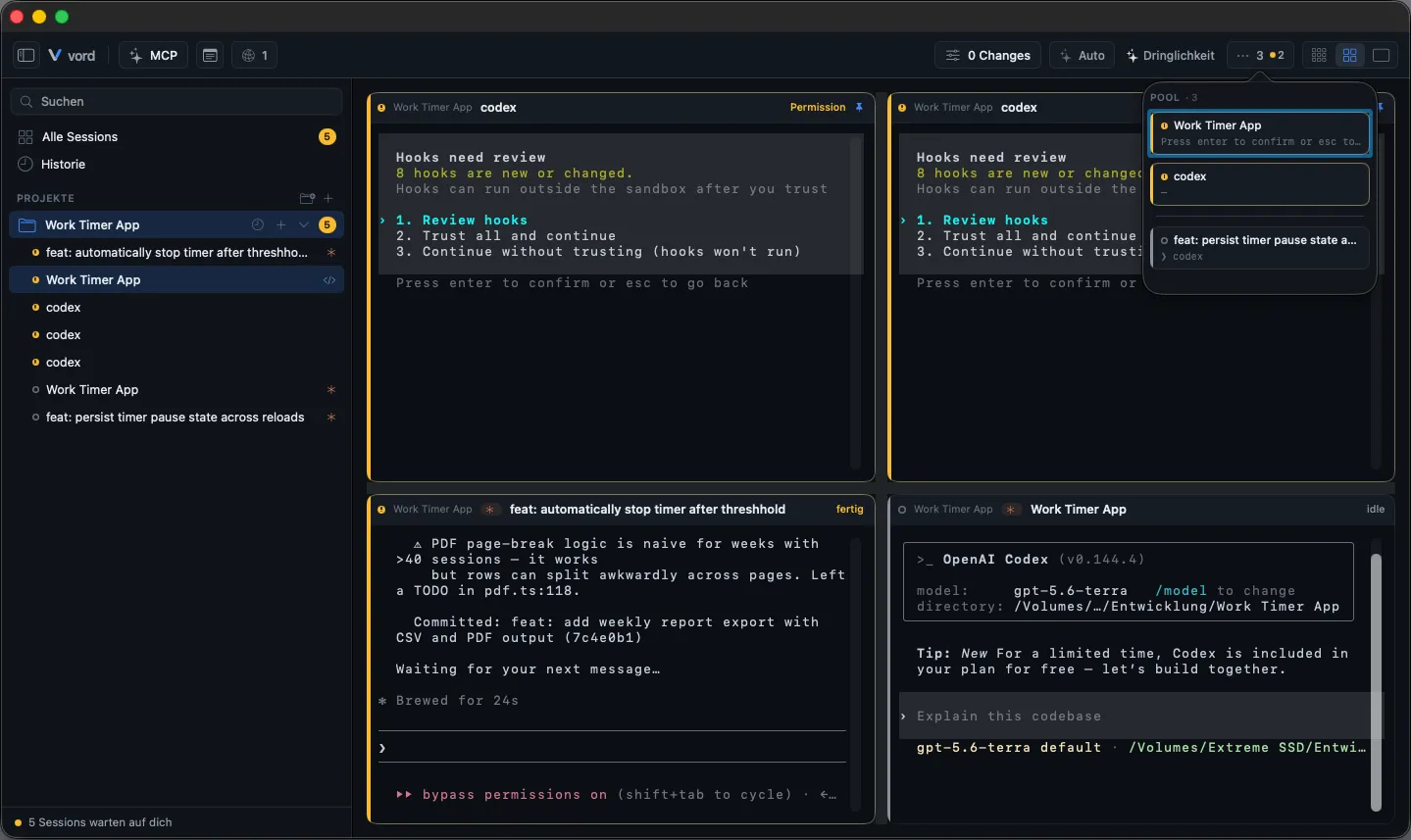
The pool button sits in the toolbar at Normal density. It always shows the number of pooled sessions, 0 included. If any pooled session is active, a small colored dot sits at the top right of its icon (amber when one is waiting or has an error, green when one is working) so a session that needs you doesn’t go unnoticed just because it didn’t make the grid. The dot doesn’t change the button’s width. With nothing in the pool the button stays in place but is disabled, so its position never shifts.
- Click the pool button to open its popover.
- Each pooled session shows as a compact chip: status dot, title, and the last real line from its terminal.
- Click a chip to select that session (it becomes the active selection, without placing it in a slot).
Child sessions carry a ↳ marker; hover it to see the parent.
Dragging a pooled session into a slot
Section titled “Dragging a pooled session into a slot”To bring a pooled session into view, drag its chip onto any slot in the grid. This swaps the placement: the session you dragged takes that slot, and whatever was there before goes back into the pool.
There’s no license gate here — the pool and drag-to-place work identically on Basic and Pro, and for claude, codex, kimi, and shell sessions alike.
The sort axis (project/status/agent/activity/created)
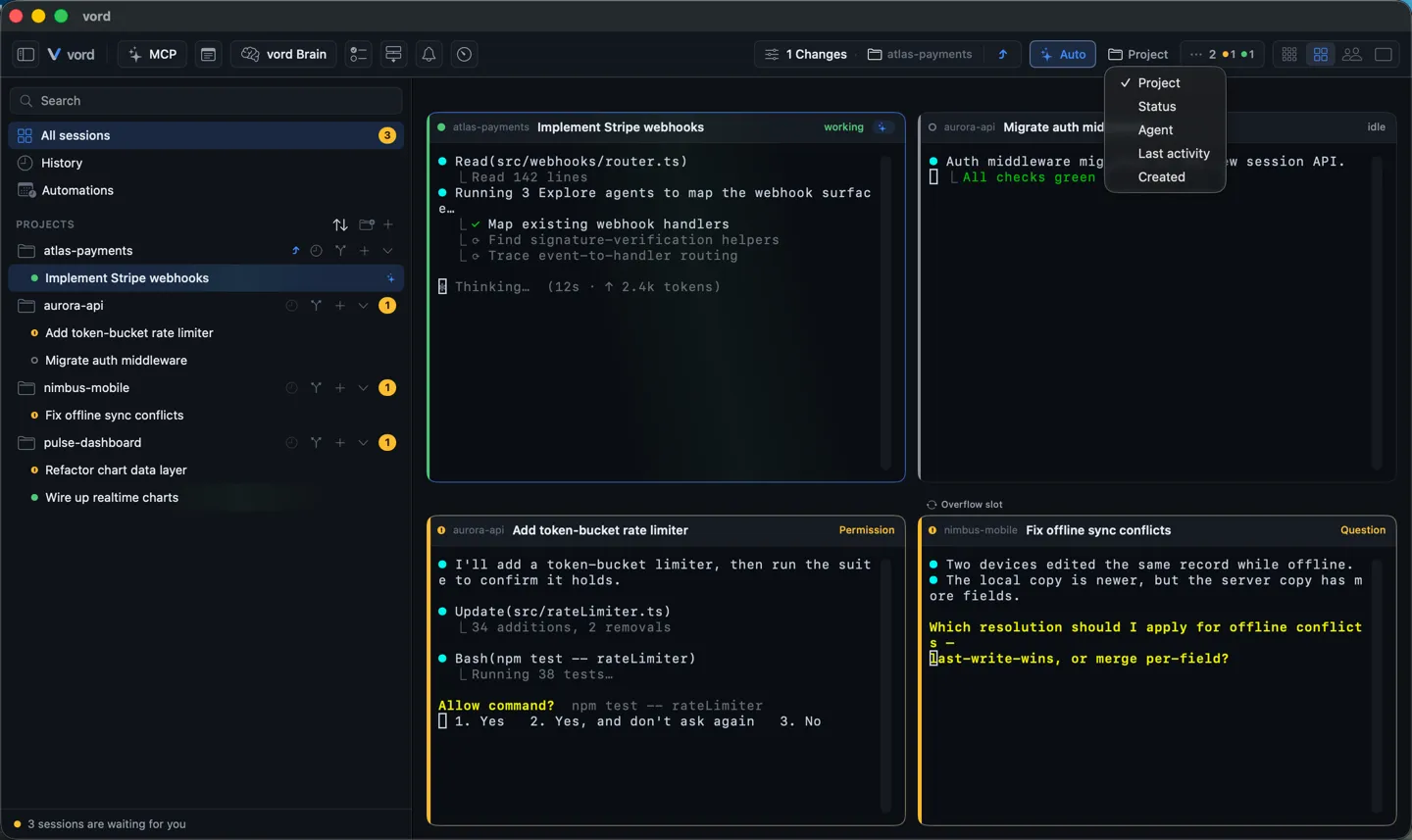
Section titled “The sort axis (project/status/agent/activity/created)”The sort axis lives in the toolbar’s Cockpit menu (Normal density). It decides which sessions are initially shown and the order of visible tiles. vord fills the grid along the selected axis; it does not choose sessions by a separate global urgency ranking. With Auto on and more sessions than slots, only the last unpinned slot is marked as the Overflow slot. An invisible active session (waiting or working) can replace its occupant after that tile has held the slot for at least 20 seconds and the incoming session’s status has been stable for about 2.5 seconds. vord does not scan other visible tiles for the oldest idle one. Visible active tiles never push each other out, tiles with equal rank do not rotate, and pinned tiles and selected root/family members prevent the swap. The overflow slot does not move to another index, and the rest of the grid stays stable.
| Axis | Orders by | Behavior |
|---|---|---|
| Project (default) | Project name A–Z, then creation time (oldest first) | Stable when status changes |
| Status | Urgency, then most recent activity | Live — reorders as statuses change |
| Agent | claude → codex → kimi → opencode → grok → muse → shell → unknown, then creation time (oldest first) | Stable when status changes |
| Last activity | Most recently active first | Live |
| Created | Creation time (oldest first) | Never moves on a status change |
Open the Cockpit menu and pick an axis — the grid re-sorts once immediately. Pinned tiles stay fixed regardless of axis (see Pin, Park & Mark Done).
One predictable overflow slot
Section titled “One predictable overflow slot”Project and Agent use creation time (oldest first) within their groups. Status orders by urgency and then most recent activity. Last activity orders by most recent activity. Created orders by creation time (oldest first). Project, Agent, and Created do not change order when status changes; Status and Last activity can.
When the grid first fills, it follows the selected axis; there is no global urgency selection. With Auto on and overflow, only the last unpinned slot is marked as the Overflow slot. The most urgent invisible active session (waiting or working) may replace that slot’s occupant after the occupant has stayed there for at least 20 seconds and the incoming status has been stable for about 2.5 seconds. No other visible tile is scanned or displaced. Active sessions never displace other active sessions, equal-rank sessions do not rotate, and pins or the currently selected root/family prevent the swap. The slot stays at the same index and all other tiles keep their places. Scope-specific layout memory remains in effect, and Auto off preserves manual ordering.
Opening a session while the grid is full. If you start a new session, click a session in the sidebar, or jump to one from the inbox while every slot is taken, it appears on the overflow slot, and the tile that was there goes back to the pool. vord does not pin it, so the rest of the grid keeps following the sort axis. The session keeps the overflow slot while it is selected. Once you move on, an active session from the pool can take the slot over as described above. If you have pinned every slot, the session stays in the pool.
The grid also remembers its layout per sidebar view: All Projects, a single project, a folder, and the park/share filters each restore their own arrangement when you come back, and status changes or new sessions from the meantime are applied as soon as you’re back.
The park and share filters
Section titled “The park and share filters”Both filters live in the toolbar’s Cockpit menu (Normal density), each showing its count in parentheses and disabled while there is nothing to filter and the filter is off:
- Only parked — shows only sessions you’ve explicitly parked. Use it to work through a backlog of set-aside sessions one at a time without the rest of the cockpit competing for slots.
- Only shared — shows only sessions currently being cross-user shared, as host or guest. This only ever becomes available while something is actually shared — it’s a Pro, beta feature; see Session Sharing for what sharing itself does.
The two filters are mutually exclusive — turning one on turns the other off, and neither can be “only” active at the same time. Both sit on top of the same sort axis: turning on a filter narrows which sessions are visible, but the chosen axis still decides their order within that narrowed set.
Where to go next
Section titled “Where to go next”- The Cockpit Grid — how slots fill and resize around your live sessions
- Pin, Park & Mark Done — the three ways to get a tile out of your way
- Session Sharing — what the share filter is actually filtering