When the Agent Shows You Something
Your agent isn’t limited to text in the terminal. With the show_to_user tool, claude, codex, kimi, Grok, OpenCode, or Muse can present a file, image, or web page straight in the app — a report it created, a screenshot it took, a diagram it generated, or a link worth opening now. With notify_user, it can deliberately call your attention to an important result without treating routine progress as urgent. vord keeps a record of both in the notification inbox.
The notify_user tool
Section titled “The notify_user tool”Use notify_user when you genuinely need the user’s attention: for example, when a long-running task has produced a decision, needs a human to review a result, or has hit a problem that should not wait in the terminal. It is not a progress log; ordinary status changes and scheduled-job activity stay quiet in the inbox.
The agent supplies:
titleandbody(both required)urgency:normal,important, orurgent(defaults tonormal)- optional
attachments, each with an absolutefile_pathinside the current workspace and an optional displaytitle
vord validates the text and files at the app boundary. An agent can attach up to eight regular files, each up to 60 MiB. The files are copied into an immutable, owner-only snapshot when the inbox entry is created, so changing or deleting the original later does not change what you received. Paths outside the workspace, traversal paths, symlinks, and unreadable or oversized files are rejected.
The entry appears in the notification inbox with Important or Urgent when the agent selected one of those levels; normal messages have no extra badge. Attachment chips open the saved copies. A deliberate notify_user message is loud relative to the ordinary status-reason switches (permission, finished, question, plan, failed): those toggles never mute it, including when the caller is an automation session. The master Push switch and Hide names in push still apply — if push is off, the inbox and Mac banner still record the message and no relay control leaves the Mac; if names are hidden, only the generic body is pushed. On a compatible paired iPhone, its attachment chips can request the saved file from the Mac; both phone sides must support notification attachments. The inbox entry remains available even if you miss the banner.
The show_to_user tool
Section titled “The show_to_user tool”show_to_user is one of two tools vord bundles into every session via its own vord-mcp server (the other is send_to_mesh, covered on MCP Servers). There’s no button for it — the agent calls it on its own, with exactly one of four sources:
- a web URL (
http/httpsonly) - a local file path (must be absolute and inside the current workspace)
- a local image path (must be absolute)
- base64 image data
You do nothing to trigger it; you just see the result appear. Afterward, you can revisit it anytime through the “Shown to you” archive below.
vord validates the call before showing anything: general files are capped at 60 MiB, must be regular files, and must stay inside the current workspace even after resolving symlinks. Image data is capped at 16 MiB and must decode as PNG, JPEG, GIF, or WebP (checked by magic bytes, not by trusting the file extension); a local path can’t contain .. traversal; a URL without http/https and a host is rejected. The agent also can’t redirect the call to another session — the tool is bound to the session’s own process via an environment token, so there’s no cross-session spoofing.
Where it appears in vord: Mac or phone
Section titled “Where it appears in vord: Mac or phone”vord routes each show_to_user call to exactly one place, based on where you’re actually looking:
- Your iPhone or Android phone, if you’re currently watching that session live there and your Mac has a working relay connection to it.
- The Mac’s preview panel, in every other case — including when no phone is paired at all.
This is graceful by design: if the phone channel isn’t available for any reason, the Mac just shows it instead. Nothing gets silently dropped, and the Mac side always works without a phone companion.
On the Mac: the preview panel and the browse bar
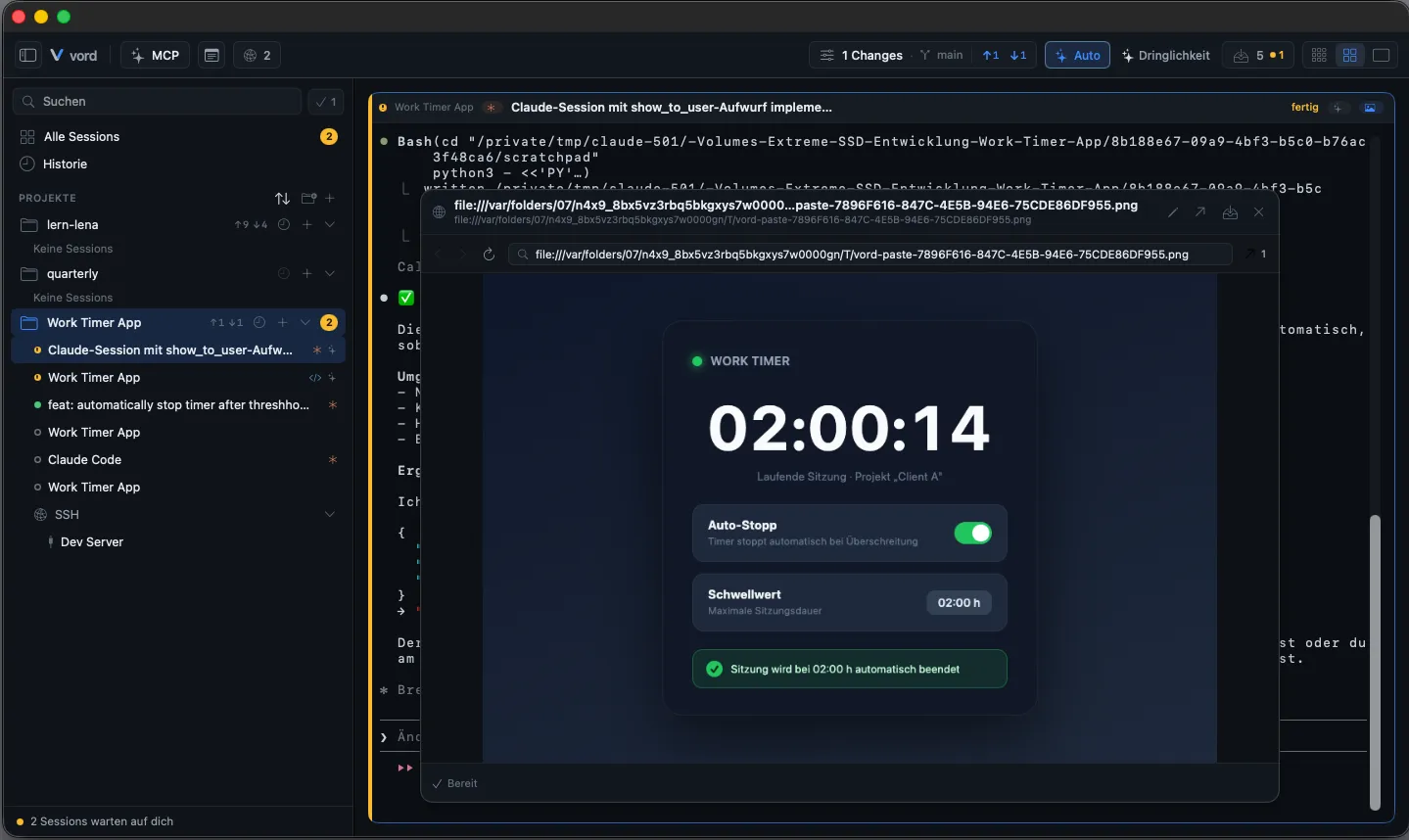
Section titled “On the Mac: the preview panel and the browse bar”On the Mac, a show_to_user call opens directly in the preview panel — the same side panel used for the built-in browser and file preview (see The Built-in Browser). An image shows there directly; a URL opens as a live web page.
Every shown item gets its own tab, so when an agent shows several things in a row, nothing replaces what came before. A file vord can’t display inline, such as a ZIP, opens as a background tab when something else is already open — a report shown just before it stays in front, and the ZIP waits next to it in the tab bar without reopening the panel. If nothing else is open, it’s shown directly.
Every entry also lands in that session’s “Shown to you” archive, so you can browse everything the agent has shown this session, not just the most recent item:
- A 📸 chip appears on the cockpit tile’s header as soon as the session has shown anything at all, and it stays — it no longer disappears once you’ve viewed everything. While there are unseen entries it’s accent-colored with a count; once you’ve seen them all it dims to a plain icon, so the archive stays reachable. Hovering the header expands the chip to “N shown” and makes it clickable; clicking opens the newest entry in the preview panel, or switches to its tab if it’s already open.
- Whenever the active tab shows an archive entry — opened from the chip or shown live by the agent — the preview panel’s header grows a browse bar: ‹ / › chevrons to step to the neighboring entry, and a “n/m” position chip in between. Clicking that chip opens a menu of every entry in the session (title or URL, or “Image” as a fallback, each with a relative timestamp) so you can jump straight to any one of them. Browsing changes the entry in the current tab rather than opening new ones.
- The ‹ and › buttons don’t wrap around — they simply disable at the oldest and newest ends of the archive.
- Opening an entry — whether via the chip, the arrows, or the menu — marks it seen, and the unseen counter drops accordingly.
On the phone: the live viewer and the archive
Section titled “On the phone: the live viewer and the archive”If the phone is the one showing the media live, it gets a full-screen cover over the entire app — even over an open session detail screen:
- An image opens with zoom and pan.
- A URL opens in an in-app browser (Safari view), not the system Safari app.
- A Markdown file (
.md,.markdown, or.mdown, up to 1 MiB of UTF-8) is stored as a private snapshot and opens from the archive formatted: headings, lists, tables, and code. The header shows the entry’s title, or the file name when the entry has none. Share sends that file. The text stays clear of the status bar, and a wide table scrolls sideways instead of being cut off. - Any other file is stored as a private snapshot and opens from the archive in the system preview. The header shows the same title or file name, not an internal id.
- A close button (✕) in the top-right corner dismisses it.
If vord Mobile is backgrounded when the call comes in, you get a local notification — “Your agent wants to show you something” — instead of the live cover; tapping it opens the app to that session.
Every entry, live or missed, is also reachable from the photo icon in the session detail screen’s toolbar:
- Tap the photo icon (it carries an unseen-count badge when there’s something new).
- A list opens: each entry shows a title, a date, and an unseen dot.
- Tap an entry to open it — an image loads and displays, a URL opens the in-app browser, a Markdown file opens formatted, and any other file opens in the system preview.
- Pull to refresh to fetch an up-to-date list from the Mac.
The “shown to you” archive: nothing gets lost
Section titled “The “shown to you” archive: nothing gets lost”The archive is the safety net behind all of this: every show_to_user call is stored per session, on the Mac, independent of whether you saw the live moment. Miss the notification, close your phone, don’t even have a phone paired — the entry is still there when you open the archive later.
It requires no license tier and needs no setup — it activates automatically the first time a session calls show_to_user. On the Mac, images from show_to_user are stored as files under ~/Library/Caches/<bundle-id>/shown/<project>/<date>/ and are removed automatically after 14 days.
Getting notified
Section titled “Getting notified”Every show_to_user call also creates an entry in the notification inbox — but it no longer posts a Mac banner or phone notification on its own; check the bell instead of expecting an interruption. Details on that inbox entry are on Notifications & the Menu Bar.
Limits
Section titled “Limits”| Limit | Value |
|---|---|
| Entries kept per session | 50 (oldest entries, including their image files, are evicted automatically) |
| Max image size (as sent by the agent) | 16 MiB |
| Max general file size | 60 MiB (what the Mac stores and can preview) |
| Max file size sent to a paired iPhone | 32 MiB — larger files stay Mac-only, and the card says so instead of failing silently |
| Accepted image formats | PNG, JPEG, GIF, WebP (verified by content, not extension) |
| Accepted URL schemes | http, https only, with a host |
| Local file path | Must be absolute, inside the current workspace, and unable to escape through .. or symlinks |
| Image size sent to iPhone | Downscaled to ≤4 MiB / ≤2048 px (the Mac’s own copy in the archive stays full-size) |
| Archive scope | Per session — there’s no cross-session or global archive |
Orphaned archives (left behind by a deleted session) are cleaned up automatically the next time vord launches; there’s no manual “clear all” action in the UI.
The same tool on every hosted agent
Section titled “The same tool on every hosted agent”show_to_user reaches full parity across claude, codex, kimi, Grok, OpenCode, and Muse. vord bundles the same vord-mcp server into every session and injects it per CLI — a --mcp-config file for claude, session-scoped --config mcp_servers.vord.… overrides for codex, a project-local .kimi-code/mcp.json for kimi, Grok’s [mcp_servers.*] in ~/.grok/config.toml / .grok/config.toml, and Muse’s user settings.json plus the shared project .mcp.json. That’s a wiring detail. The tool itself, its description, the validation, the Mac/iPhone routing, and the “Shown to you” archive are agent-neutral. A Muse session that calls the tool gets the same preview panel, live view, and archive entry a claude session does.
What you see still depends on the agent choosing to call the tool during its work — that’s a decision each CLI makes on its own. But vord no longer stays neutral about it: the tool description now actively asks the agent to show a finished result rather than name its path, and lists what counts (documents, presentations, spreadsheets, reports, diagrams, charts, images, rendered pages) as well as what doesn’t (source code, configuration, lock files, logs, intermediate scratch output). Every hosted agent gets the same wording.
Related
Section titled “Related”- MCP Servers — how vord’s bundled MCP server (and its two tools) gets injected into every session.
- Notifications & the Menu Bar — the “agent showed you something” notice and its toggles.
- Controlling Sessions from Your iPhone or Controlling Sessions from Android — the rest of the phone companion experience this plugs into.
- iPhone Notifications or Android Notifications — presence and notification behavior.
- Claude vs. Codex vs. Kimi — every other structural gap between the hosted agents in vord.