Managing Projects
A project in vord is a local folder — usually a Git repo, but it doesn’t have to be one. This page covers everything around the project itself: opening it, cloning it, removing it, splitting a monorepo into sub-projects, coloring it, and where its data lives on disk.
Cowork projects
Section titled “Cowork projects”When Cowork mode is selected, the sidebar shows cloud-backed projects instead of the Code-mode project groups. It keeps three sections in this order: Invitations, My Projects, and Shared Projects. Search matches project and invitation names across these sections.
To create a project, click + in the sidebar to open the New Cowork project sheet directly, enter a name, and click Create. vord creates the owned cloud project and a local working folder in the Cowork workspace.
A cloud project that is not yet in the local workspace has a Get button in either project section. Click it to fetch the project’s saved bundle into the Cowork workspace. The project then appears as a local project row in its owner or shared section.
Invitations show the project name and whether access is read-only or editable. This sidebar displays invitations but does not accept them yet. Code mode continues to show local folder projects and their usual groups.
Open a folder
Section titled “Open a folder”The most common way to add a project is to point vord at a folder you already have on disk.
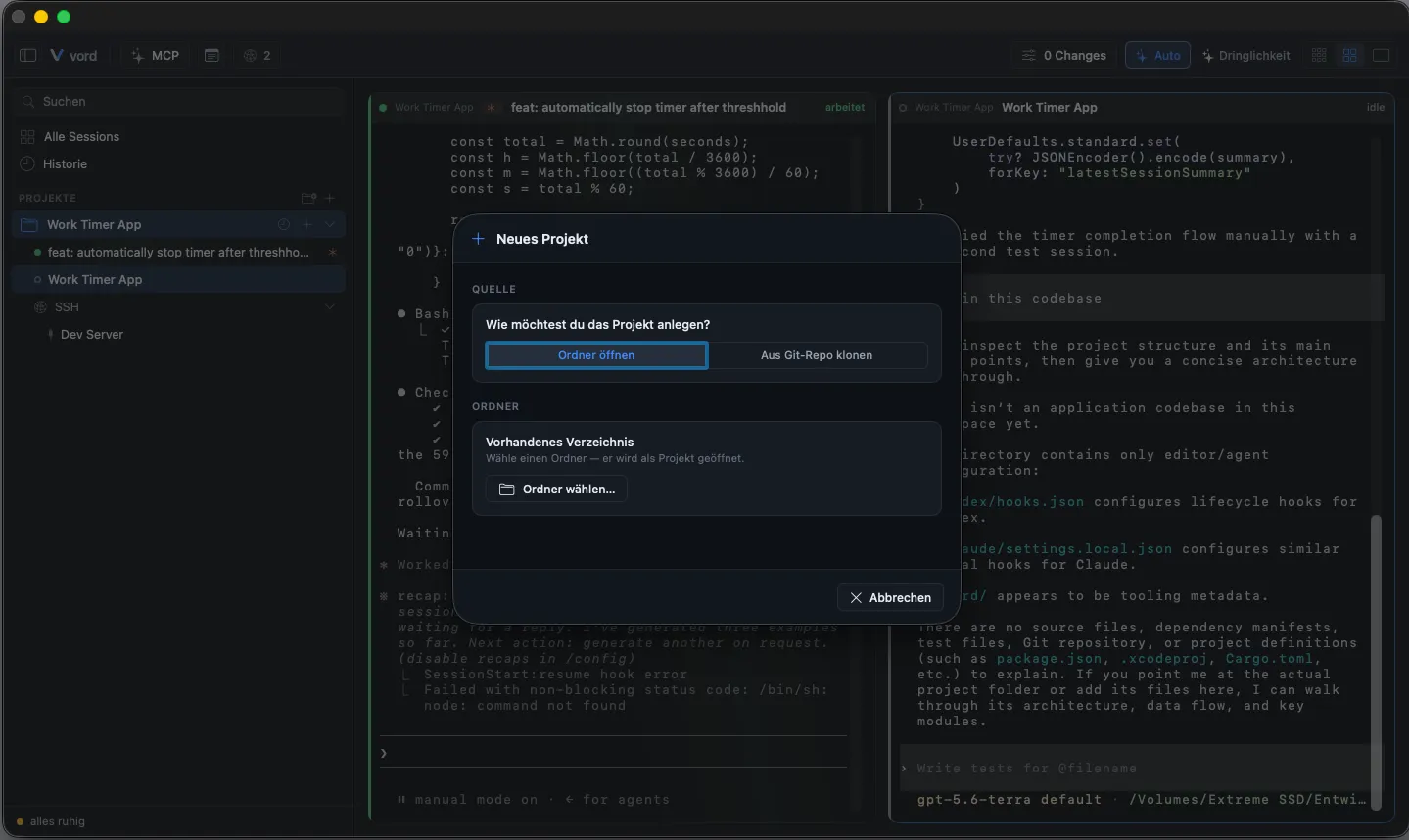
- Click the + button in the sidebar.
- In the “New Project” sheet, stay on the default “Open folder” tab.
- Click Choose folder… and pick the folder in the native picker.
- The project appears in the sidebar immediately and is selected.
The folder doesn’t need to be a Git repository — if it isn’t, vord just won’t show any Git features (Inspector, branch rows, sync bar) for it.
Project display name and renaming
Section titled “Project display name and renaming”What vord shows as a project’s name is its display name. It is resolved in this order:
- A name you set yourself in vord (see below).
- The name of the linked vord Cloud project, if the project is linked.
- The folder name on disk.
So a project whose folder is called f-rderfuchs shows as Förderfuchs once it is linked to that cloud project, without anything changing on disk.
Rename a project: right-click the project row in the sidebar and choose Rename…, type the new name, and click Save. The rename applies in both Code and Cowork mode, and the same display name appears in the sidebar, the project lead column, the board, menus and notifications — and on your iPhone, which shows the same name as the Mac.
Renaming only changes the label inside vord: the folder on disk, its path, and any Git or worktree names stay exactly as they are. Leave the name empty (or clear it) and click Save to restore the automatic name — the linked cloud project’s name, or the folder name if there is none.
Folder access
Section titled “Folder access”If vord cannot read a project folder, a lock icon appears beside that project in the sidebar. The Inspector and the project’s board tab show an access hint, and the change count is hidden while access is denied.
For a privacy restriction, use Open System Settings and allow vord under System Settings → Privacy & Security → Files & Folders. This button appears only for the privacy case. For a folder permissions issue, open the folder in Finder, choose Get Info, then check Sharing & Permissions.
When you switch back to vord, it rechecks only the projects that were denied. Once access is restored, their change counts resume.
Clone from a Git repo
Section titled “Clone from a Git repo”You can also have vord clone a remote repo for you and open the result directly.
- In the “New Project” sheet, switch to the Clone from Git repo tab.
- Choose GitHub, GitLab, or Other, then enter
owner/repoor a full HTTPS/SSH URL. Bitbucket, Azure DevOps, and self-hosted servers are recognized from full URLs and use the generic Git path. - Pick a destination parent folder (the picker remembers the last one you used).
- Check the destination preview (
parent/<repo-name>) and click Clone. - On success, the cloned repo opens as a project automatically.
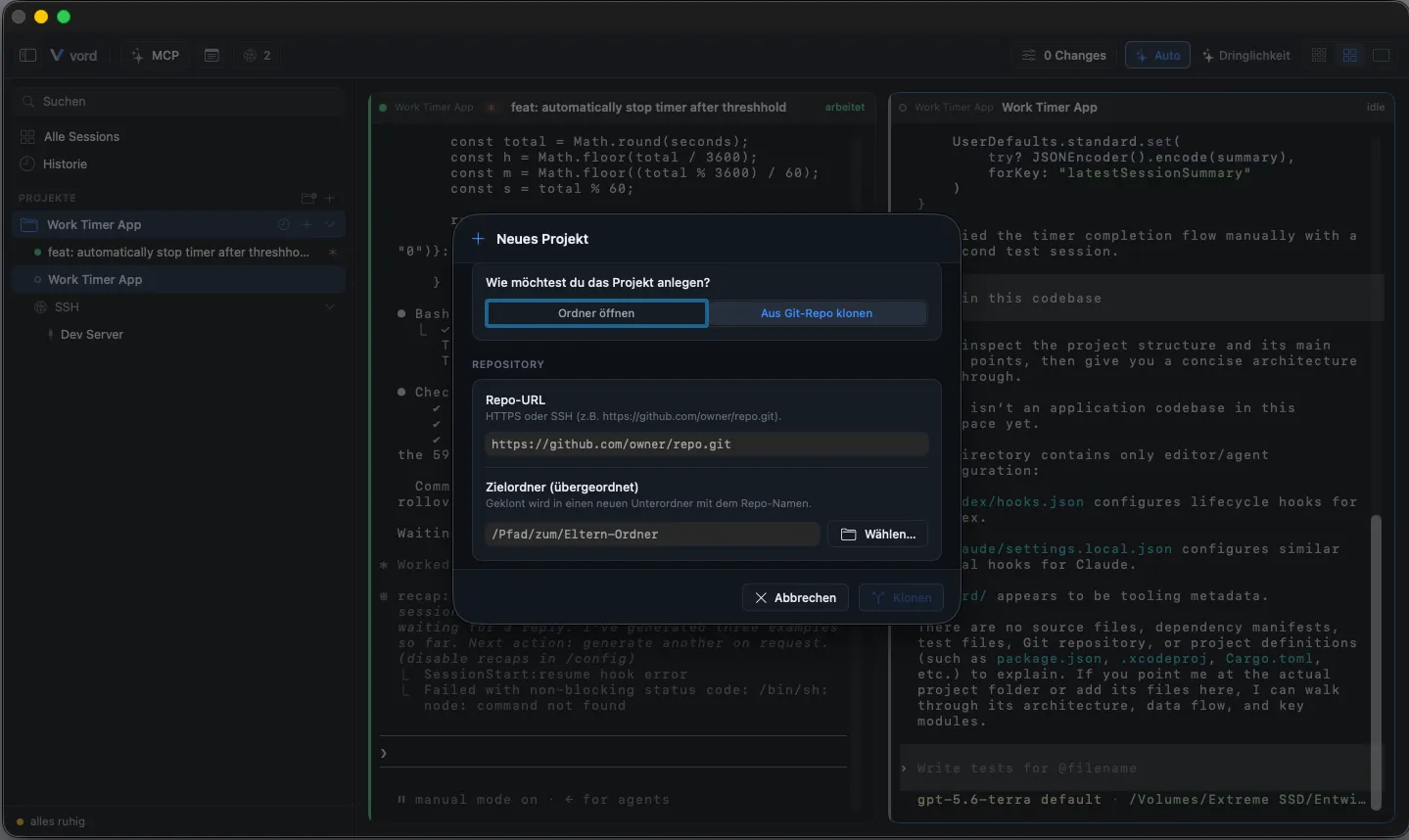
The public github.com and gitlab.com hosts show optional sign-in status from their official gh/glab CLI when installed. Sign-in opens in Terminal. Self-hosted GitLab and other servers stay on the generic System Git, Git Credential Manager, Keychain, or SSH path. vord stores no Git token or password.
Be aware of what this does not do:
- No progress bar. You get a spinner and a “Cloning repository…” text, not a percentage or byte count.
- Never clones into an existing folder. If the destination already exists, you get a “destination exists” error instead of an overwrite — the sheet stays open and your input is kept.
- No depth limit, sparse checkout, or submodule options. It’s a plain, full clone.
- No network probe before cloning. vord performs one
git cloneattempt and turns its redacted error into an actionable authentication, network, or repository message. - No credentials in URLs. A URL such as
https://user:token@host/repo.gitis rejected before Git runs. Use the official CLI, System Git/GCM/Keychain, or SSH instead.
For the full provider matrix, see Git Hosts & Authentication.
Remove a project
Section titled “Remove a project”Removing a project from vord’s sidebar stops all its sessions and cleans up its live caches, Git watcher, and auto-fetch backoff — but it’s not a delete.
Right-click the project row in the sidebar and choose Remove project.
If the removed project has sub-projects attached, a confirmation dialog appears with a pre-checked Also remove sub-projects option. Leave it checked to remove the sub-projects along with their sessions from vord; uncheck it to keep them — each then becomes its own independent top-level project.
Sub-projects for monorepos
Section titled “Sub-projects for monorepos”If a project folder contains other Git repos nested inside it (a common monorepo shape — think apps/frontend, apps/backend), you can attach those as their own sidebar rows with their own Git status, indented under the parent.
Attaching a sub-project:
- Right-click a project that doesn’t itself have a parent → Add sub-project….
- Pick a folder inside that project in the picker (it starts browsing from the project’s own folder).
- It appears immediately as an indented row under the root, which expands automatically.
Automatic detection: when you open a folder that has Git repos nested inside it, vord scans for them and shows a confirmation sheet offering to add them as sub-projects right away. You can deselect any of them, add more, or skip the whole thing and open just the parent.
Detaching: right-click the root → the “Detach sub-project” submenu → pick the child. It becomes an independent top-level project rather than being deleted.
Project color
Section titled “Project color”Each project gets an accent color, shown in the sidebar row, the cockpit tile header, and the focus view. You control it in two ways:
- Automatic (default): colors are assigned across the full color wheel with a rank-based, evenly-spaced distribution — no “birthday problem” of similar-looking neighboring hues, and stable across restarts.
- Uniform: every project gets the same single color you pick.
- Manual pin: right-click any project → Project color… to pick one of 8 curated swatches or a fully custom color via the color picker. A pinned color always wins over automatic/uniform assignment, and pinned projects don’t consume a slot in the automatic rotation.
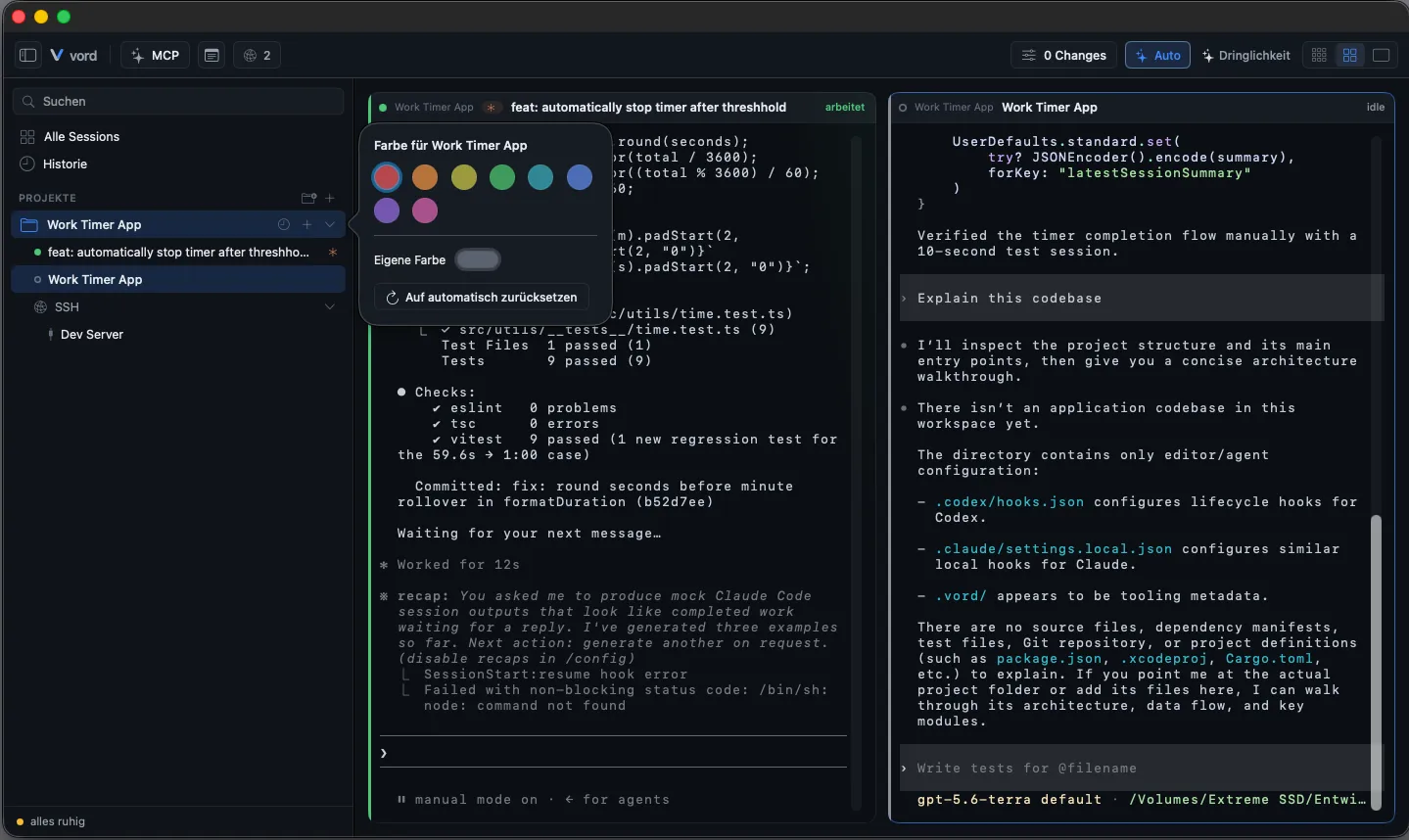
The mode itself (automatic vs. uniform) and the default uniform color are controlled from Settings → General → Display & Language — see Settings reference for the master toggle. Only the per-project pin lives in the sidebar’s right-click menu.
Per-project startup command
Section titled “Per-project startup command”vord has a global default command it launches when you start a new session (typically claude, codex, or kimi). You can override that per project.
- Right-click the project → Startup command for this project….
- Type a command in the text field, or leave it empty to fall back to the global default.
- Click Save.
This only affects new sessions started in that project — it doesn’t change the global default used elsewhere. See Starting sessions for how the startup command is used when a session launches.
The .vord data directory
Section titled “The .vord data directory”Project-scoped data — notes, SSH connections, and custom command snippets — lives in a .vord folder rather than being tied to vord’s internal project ID. That’s a deliberate design choice: it means this data survives you removing and re-adding the same folder as a project, and it travels with the folder if you copy or move it.
There are two storage locations:
| Location | Scope |
|---|---|
~/.vord |
Global, not tied to any one project |
<project-root>/.vord |
This project only |
Both directories are created with 0700 permissions (owner-only access). Secrets — like SSH passwords — never live here; those go into the Keychain instead.
If the project folder is a Git repo and doesn’t already have a .gitignore, vord creates one and adds a .vord/ entry to it automatically. It won’t touch an existing .gitignore beyond that.
This all happens automatically the first time you save a project-scoped note, SSH connection, or snippet — there’s no UI for the directory itself.
Session worktrees
Section titled “Session worktrees”vord can start a session, or a child session, in its own Git worktree beside the repo. Those worktrees live in a <repo>-worktrees/ folder next to the project.
As soon as the worktree’s branch is integrated into the base branch, the worktree has no unsecured changes, and no session runs in it anymore, vord removes it automatically. Before that, vord moves the child reports into the project’s .vord folder and notifies you. The branch is deleted only when Git considers it merged — a branch that arrived by cherry-pick stays. Worktrees vord did not create are never touched. vord only removes worktrees in its own worktree folder, never the main checkout and never handed-off worktrees.
Worktrees inside <repo>-worktrees/ belong to the free zones described in Deletion Protection.
In the Repo overview, worktrees vord created for a session carry two row actions: Go to Session jumps to that session in the main window, and Clean Up… removes the worktree after asking for confirmation. Cleanup applies the same safeguards as the automatic sweep — vord only removes the worktree once its branch is integrated, nothing unsecured remains inside, and no session is running there; otherwise it reports the reason under the row. Worktrees vord did not create stay display-only.
Where to go next
Section titled “Where to go next”- The vord window — where projects sit in the overall layout (sidebar, cockpit, inspector).
- Starting sessions — how the per-project startup command is actually used.
- Settings reference — the master “Color-code projects” toggle and default color.