A Tour of the vord Window
vord is a single window with four regions you’ll live in: a sidebar on the left, a working area in the middle (the cockpit), a toolbar across the top, and up to one side panel on the right at a time. This page is your map before the deeper how-to pages.
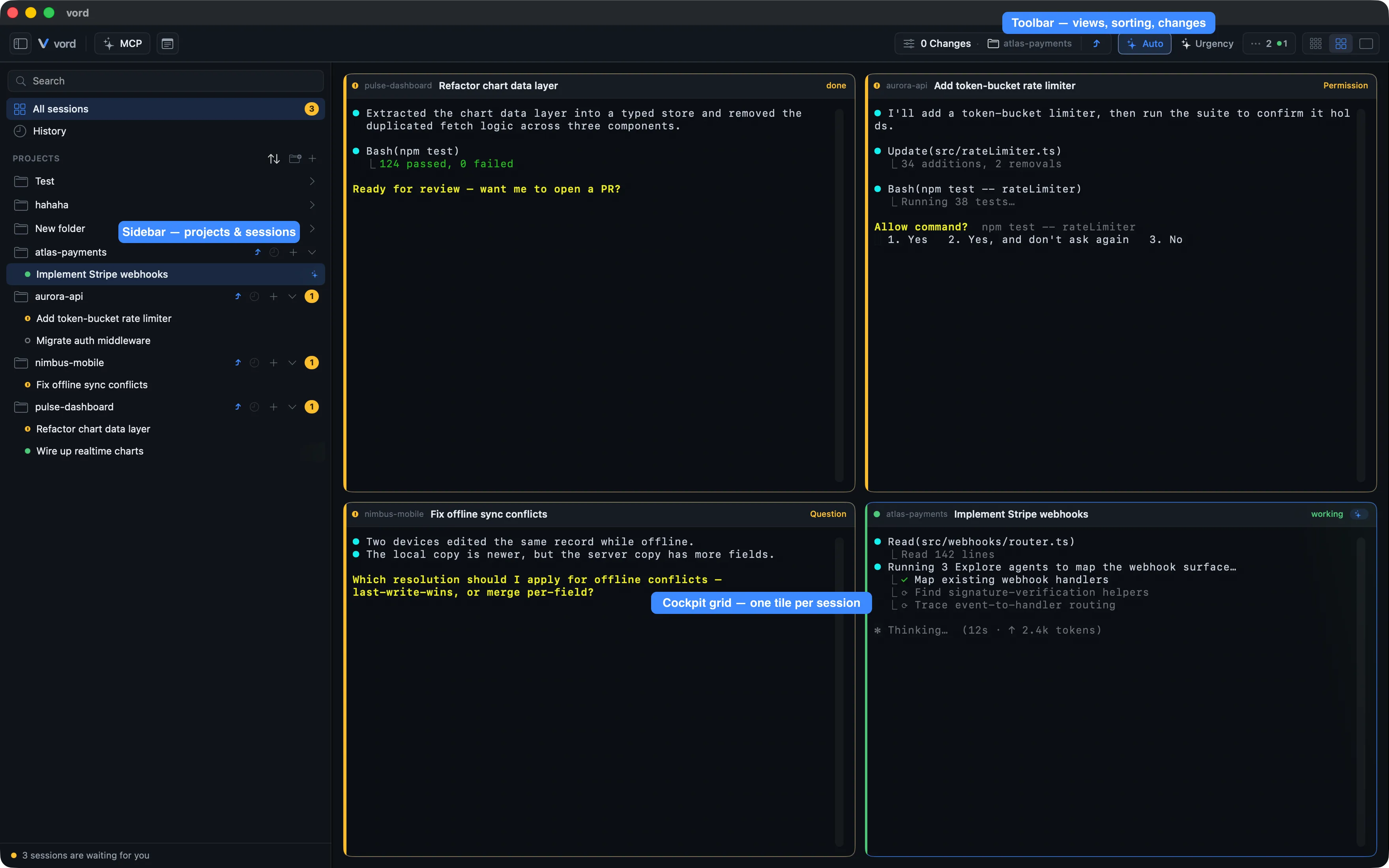
The sidebar (projects, branches, sessions)
Section titled “The sidebar (projects, branches, sessions)”The left column lists your projects, each with its git branch/worktree rows and session rows underneath. Click a project’s + to open a new session there, or use the header + to open or clone a new project. A toggle button at the far left of the toolbar collapses the sidebar entirely when you want more room for the cockpit; right next to it, a second toggle shows and hides the project lead column whenever the current view has one. This toggle is the only control for the column; the column itself has no collapse button. Project rows show the display name (your renamed label, else the linked cloud project’s name, else the folder name); right-click a project and choose Rename… to change it.
Projects and sessions inside the sidebar are the entry point for most of what’s covered in Projects & Sessions and Managing Projects.
The cockpit (your working area)
Section titled “The cockpit (your working area)”The center of the window is the cockpit: a grid of live, miniature terminals for your running claude/codex/kimi/shell/ssh sessions. It has three density modes — Compact, Normal, and Focus — controlled by the segmented control in the toolbar (icons: grid-of-9, grid-of-4, rectangle), or by menu/shortcut. Double-clicking a tile in Compact or Normal jumps straight into Focus for that session.
This is covered in depth on The Cockpit Grid and Three View Densities — this page only orients you to where it sits.
The toolbar (view switch, cockpit options, Git, panels)
Section titled “The toolbar (view switch, cockpit options, Git, panels)”The native toolbar across the top is split into groups, from left to right:
| Region | What’s there |
|---|---|
| Far left | Sidebar toggles: the project sidebar and, when the current view has one, the project lead column |
| Work mode | Code / Cowork switch |
| View mode | Density segmented control (Compact / Normal / Team / Focus / All projects) |
| Cockpit actions | Cockpit menu, the pool button, and the park toggle |
| Git | Project menu (only while no project is focused) and the Git sync menu |
| Panels | Board, Notes, Workflows, vord Chat, MCP servers, and vord Brain icons |
| Status | Usage & quota, Notifications |
| Far right | Git inspector toggle, whose count is the active project’s changed files |
The Cockpit menu (Normal density only) bundles auto-fill, the sort axis, and the park/share filters; the on-demand pool button and the park toggle sit next to it. The park toggle switches straight to your parked sessions and always shows how many there are, 0 included; a small amber dot on its icon means a parked session is waiting for you. The Git sync menu offers fetch/push/pull/publish together with their counts — there is deliberately no one-click push. Once the branch has an upstream, the button always shows the combined push and pull count, 0 included, so the toolbar keeps its width; an unpublished branch shows no count. The MCP servers and vord Brain buttons sit with the panels by default (vord Brain only while it is available). The SSH button is not on the toolbar by default; add it through the toolbar’s Customize Toolbar… command (its action also stays in the Session menu). If you customized the toolbar yourself, your arrangement stays as it is.
By default each button shows only its symbol. Right-click the toolbar and choose Icon and Text to show the labels too; every button also carries a hover tooltip.
The View menu mirrors the toolbar actions. Its Cockpit submenu contains auto-fill, the overflow pool, parked/shared filters, and sorting. The Session menu includes SSH connections and the same Push, Pull, and Publish Branch actions shown by Git sync. Default shortcuts are listed in Keyboard Shortcuts.
Side panels and the tool windows (Git inspector · preview/browser · notes · vord Chat · workflows)
Section titled “Side panels and the tool windows (Git inspector · preview/browser · notes · vord Chat · workflows)”Only one right-side panel is active in the column at a time: the Git inspector, the file/browser preview, a session peek from the sidebar, or the Repo overview — never two side by side. Notes, vord Chat, and Workflows each live in their own window instead and can stay open alongside any of them.
Settings and tool windows stay in front of the main windows while vord is active. In full screen, they appear in the same Space.
- Git inspector — Diff, Commit, History, and Files tabs. See The Git Inspector.
- Preview/browser — code, Markdown, image, PDF preview, and the built-in mini-browser. See The Built-in Browser.
- Repo overview — worktrees, branches, unpushed commits, and patch-based landing checks for one project. See Branches & Git Sync.
- Notes — its own window, global and per-project. See Notes.
- vord Chat — its own window for the project chat and knowledge base. See vord Chat.
- Workflows — its own window for runs and blueprint templates. See Workflow blueprints.
The Inspector, preview/browser, and Repo overview can leave the right-hand column through their Open in Window action and continue in their own window. The same project or preview target reuses the existing window and brings it to the front.
Column layout
Section titled “Column layout”The Git inspector, preview/browser, session peek, and Repo overview all use the same right-hand column in the main window. The column is resizable, only one of these contents is visible at a time, and opening one replaces the current content. vord remembers a separate column width for each content type. Inspector, preview/browser, and Repo overview can also use the diagonal-arrow button in their header to temporarily expand across the content area beside the sidebar; the same button returns them to the column without changing the saved width. Each panel closes from its own header; there is no minimize-to-chip action.
The sidebar, the project lead column, and the right-hand column keep the width you drag them to. While you drag a divider, a line shows the new position; the column adopts the width when you let go. vord saves a width when you let go of the divider (or set it with an accessibility tool such as VoiceOver) and restores it after a restart, after hiding and showing the column, when you switch between a project and All Sessions, and in both Code and Cowork mode. If the window is too narrow for every open column, the columns shrink only on screen; widen the window again and they return to their saved widths.
Everything comes back after a restart
Section titled “Everything comes back after a restart”Quit and reopen vord and your whole previous state is back automatically: every project you had open, every session in it, still there. There’s no “recent projects” picker and nothing to manually reopen — restoration covers the full state you left, not just a shortlist.
The window remembers its size and position
Section titled “The window remembers its size and position”vord starts at 1100×700 by default, with a minimum of 900×600, and its title bar is stripped down (no visible native title). Whatever size and position you leave the window at is saved and restored the next time you launch — this is vord’s own persistence, not the system’s window-restore mechanism, since that doesn’t apply reliably to this kind of window.
vord quits when you close its last window, aside from the optional menu bar icon staying available (see Notifications & the Menu Bar for what that icon does on its own).