History & Resume
Closing a session in vord doesn’t throw the conversation away. It moves to history, where you can read back what happened or bring it back to life — the same conversation, not a fresh one that happens to be in the same folder.
The history view
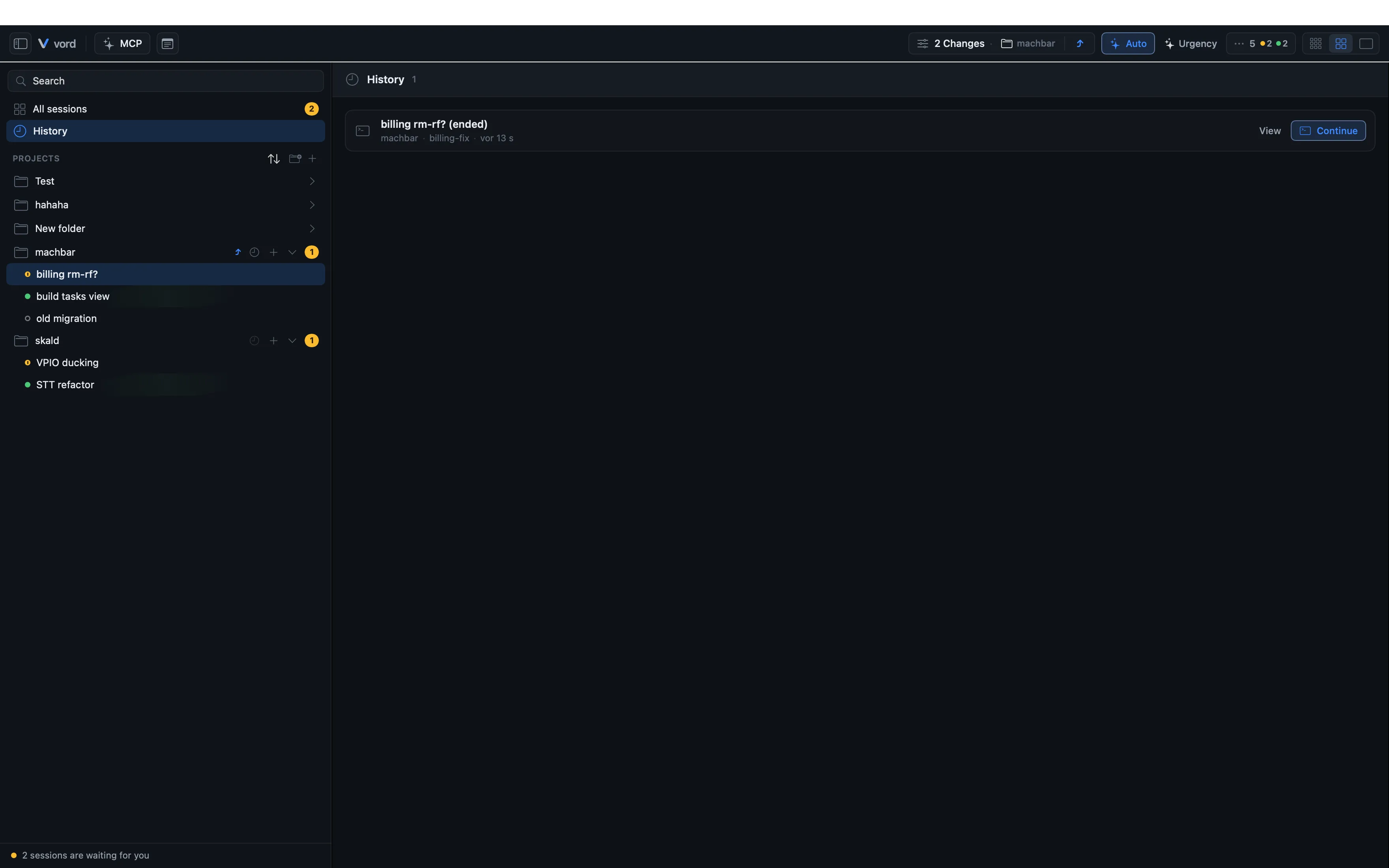
Section titled “The history view”The history panel lists every past session: archived sessions (closed via Close Session) plus sessions marked Done (see Pinning, Parking & Done for that state). Open it from the clock icon in the sidebar/toolbar, either across all projects or filtered to one.
Each row shows:
Child sessions carry a ↳ marker; hover it to see the parent.
- Session title
- Project name
- Branch
- Relative time since last activity
Two actions sit on each row:
- View — opens a read-only replay of the terminal, no process involved.
- Continue — resumes the session (see below).
If nothing has been closed or marked Done yet, the panel just says so — there’s no separate empty-state configuration.
Viewing a transcript (read-only replay, no process)
Section titled “Viewing a transcript (read-only replay, no process)”Click View on a history row (or open an already-closed session directly) and vord loads the saved terminal bytes into a real terminal surface — same rendering as a live session, but with no process behind it. You get the actual scrollback at the terminal size it was recorded at, not a plain-text log. The same replay fills the tile of a session that ended — including sessions after vord restarts — so the tile shows the session’s last screen instead of an empty area.
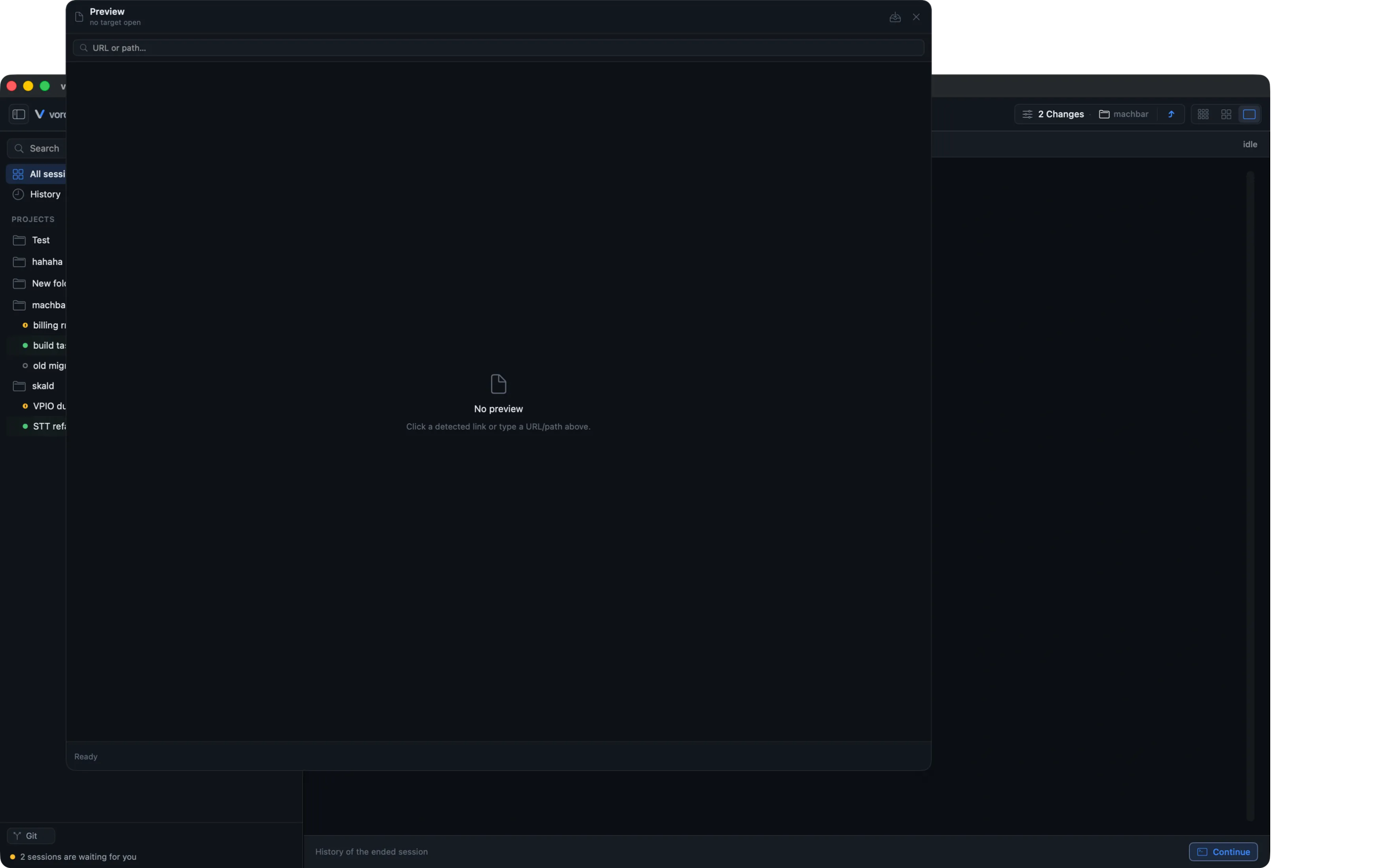
A few things follow directly from “no process”:
- You can scroll and select text, but you can’t type into it. Search (⌘F) and copying still work — see Working in the Terminal.
- Large transcripts load in stages so the UI doesn’t freeze on first open.
- The replay starts from a saved snapshot of the screen when a matching one exists. While a session runs, vord saves what its terminal shows — shortly after the first output, then roughly once a minute while new output arrives (sooner after large bursts) — and again when the session ends or vord quits. The replay paints that snapshot and plays only the output recorded after it, so the last screen appears complete even for full-screen agents such as Grok and Muse that redraw only parts of their screen. After a crash or force quit, the most recent periodic snapshot is used.
- Only the last 512 KiB of the transcript is loaded, not the entire archive. Without a matching snapshot — for example when the terminal was resized after the last one was saved — the replay is built from that tail alone, and for a very long-running session the earliest screen content before it simply isn’t in the replay. Scrollback older than the tail is never part of the replay.
- The terminal bell is muted during replay. A
BELbyte that’s part of the recorded output won’t make your Mac beep just because you scrolled past it.
When the Mac is under extreme memory pressure
Section titled “When the Mac is under extreme memory pressure”vord watches its own memory footprint as well as macOS memory-pressure signals. Around 6 GiB it starts reducing the cost of open transcript views: replay surfaces are cleared and loaded history is trimmed toward the newest items. Around 10 GiB, or when macOS reports critical pressure, open transcript views switch back to the Terminal view and vord shows a message explaining what happened. You may therefore see a history or conversation view leave the screen under extreme pressure; this is a protective step to keep the app responsive, not a deletion of the saved transcript.
Resuming: the same conversation, not the newest one
Section titled “Resuming: the same conversation, not the newest one”Continue resumes a closed or archived session. What that means depends on the session type:
| Session type | What “Continue” does |
|---|---|
| claude | Resumes the exact conversation (claude --resume <id>) |
| codex | Resumes the exact conversation (codex’s own resume mechanism) |
| kimi | Resumes the exact conversation (kimi --session <id>) |
| muse | Resumes the exact learned conversation (muse resume <session>); the history appears in the focus/chat view and on the iPhone |
| Shell | Starts a fresh zsh -l in the same working directory |
| SSH | Reconnects the same saved connection |
The button says Continue for every session type on purpose — vord picked one word instead of “Restart”/“Reconnect”/“Resume” depending on kind, since from your side you’re just picking up where you left off either way.
If the session’s process is still alive somewhere (rare, but possible), vord selects it instead of starting a second one.
If a running session switches to a different conversation (/resume, /clear), the chat view follows immediately without reloading.
For claude, codex, kimi, and muse, Continue also brings back the permission mode the session was last running in, instead of starting it in the agent’s default. A session you had put into Plan mode comes back in Plan mode. Sessions vord never saw a mode for start in the agent’s default as they always did, and restoring never hands a session more freedom than it had — the exact rules, including what vord can and can’t see for kimi, are in Permission Modes.
vord also checks that the session’s saved working directory still exists and isn’t a manipulated symlink before resuming. If that check fails, the session is archived as unrestorable instead of being spawned against a risky path.
kimi: exact match, and everything rewired before start
Section titled “kimi: exact match, and everything rewired before start”For kimi, vord pins the exact conversation by its learned session ID (session_<uuid>, validated before use) and resumes it with kimi --session <id> — never “the newest conversation in the folder”. If no ID was learned (an older session, or one vord never saw a hook from), a safety net kicks in: vord compares the session’s start time against each candidate conversation’s creation time (state.json.createdAt) and only resumes automatically when exactly one candidate matches. It deliberately does not compare against the conversation’s last activity — a session that ran for hours would otherwise never match its own start. (Conversations saved by older kimi versions without a creation time fall back to their modification time.) Zero or several candidates means the choice sheet below opens instead of guessing.
On the first app start after this migration, vord also repairs the characteristic legacy damage: if several tiles carry the same kimi conversation ID, it clears that doubtful assignment from every affected tile. Their next Continue uses the creation-time match above, so an arbitrarily chosen “owner” cannot keep opening the wrong old conversation.
Just as important, a resumed kimi is wired up completely before its process starts — the same contract as a freshly started one: vord’s managed hook block in kimi’s config.toml, the session’s account (KIMI_CODE_HOME), the session-scoped credentials in the process environment, and the project-local .kimi-code/mcp.json that gives the session vord’s MCP tools (show_to_user, mesh messaging, jobs). That preparation also covers the choice-sheet path: the shell vord opens for the picker already carries the full contract, so the kimi --session … command it types inherits everything. If any part of that setup fails, vord shows a message and does not start a half-wired session at all.
The conversation choice sheet (when it’s ambiguous)
Section titled “The conversation choice sheet (when it’s ambiguous)”For claude, codex, kimi, and muse, vord tracks which conversation ID belongs to which session. Most of the time Continue just works. It gets ambiguous when:
- vord doesn’t have a learned conversation ID for that session, or
- the folder contains more than one conversation, or
- another currently open session already claims that same conversation ID (so blindly resuming could land you in the wrong tile’s conversation)
In any of these cases, a choice sheet opens instead of guessing:
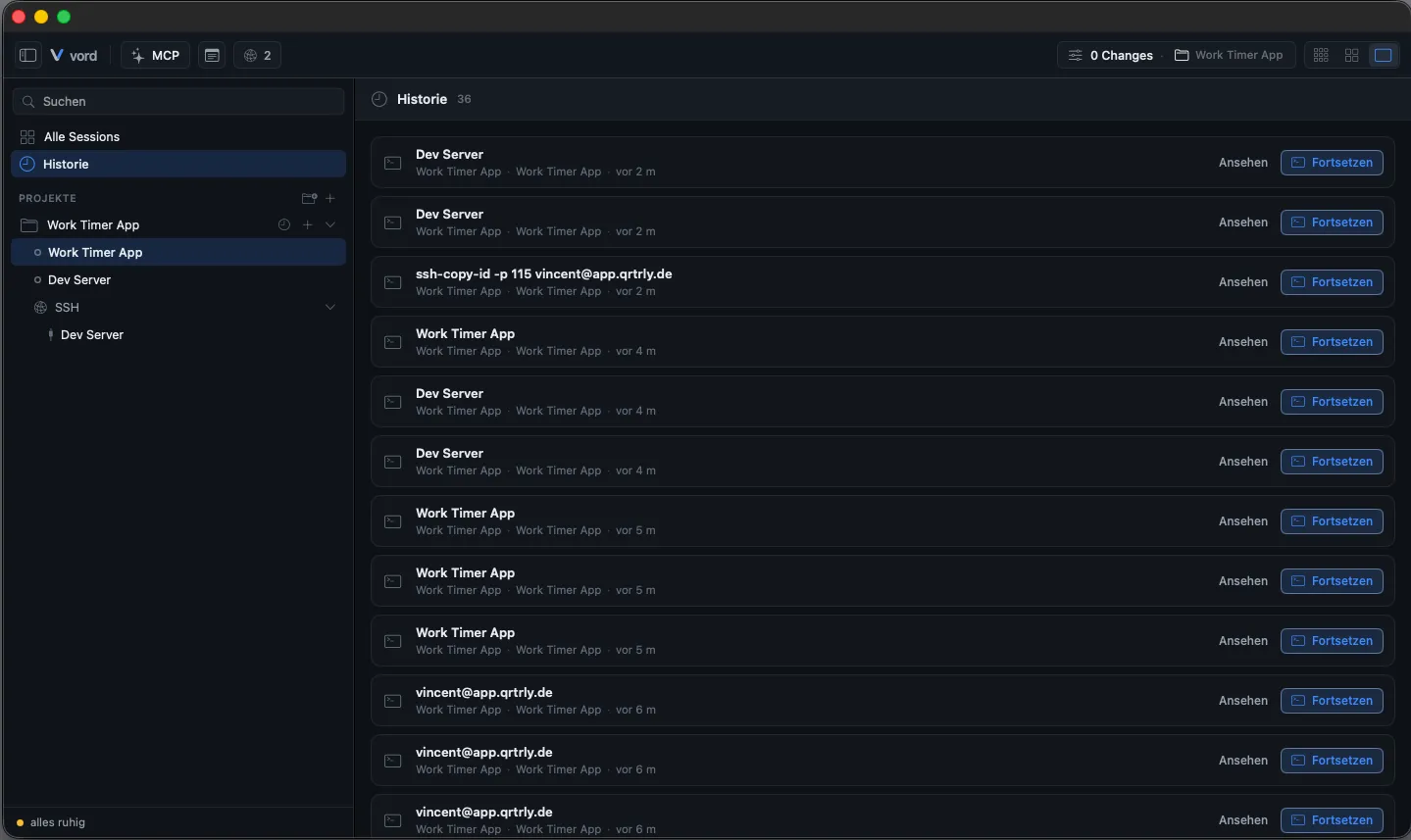
- The sheet lists every conversation found in that working directory, newest first.
- Each row shows the vord session name if one was set, otherwise the conversation’s first message as a topic, plus a relative date.
- Click a row to resume that specific conversation. Cancel closes the sheet without doing anything.
The sheet only distinguishes the agent in its wording — there’s no further search or filter inside the list itself, so with a lot of candidates you’re scanning by date and topic.
Automatic cleanup (pruning, shell self-cleanup) — what disappears and when
Section titled “Automatic cleanup (pruning, shell self-cleanup) — what disappears and when”Three separate cleanup behaviors run without any UI switch:
Archive pruning, on every app start: an archived session is only removed once it’s both older than 90 days and outside the most recent 500 archived sessions. Both conditions have to hold — a rarely-triggered but old session survives, and a young but crowded history survives too. Removal deletes the session’s raw transcript along with it. Active, Done, and parked sessions are never touched by this.
Orphaned transcript sweep, also at start: raw transcript files on disk with no matching session left in vord’s state (for example, left over from an older pruning pass) get deleted.
Shell self-cleanup: a shell or SSH session you exited stays visible for a grace period, in case you just stepped away. If it stays idle past that window, it moves to history on its own. This only applies to shells that died during the current app run — a dead shell loaded from a previous session’s saved state stays visible indefinitely, by design.
None of these three thresholds are user-configurable — there’s no settings toggle for prune age, prune count, or the shell grace window.