Account, License & Trial
The regular vord setup starts with signing in. Your account carries your trial, your plan, and — if you’re on a team — your seat. A local license, lease cache, or previous payment never replaces that account identity. Web administration (plans, invoices, team, devices, Brain, Chat, MCP, profile) is the Hub at hub.vord-app.dev. Here’s exactly what happens at each edge case.
One account, signed in
Section titled “One account, signed in”On the first launch of a regular new installation, vord shows a full-window sign-in screen before you can do anything else — the cockpit simply isn’t rendered until you’re through. There’s no way to dismiss it. Two buttons, same two fields, plus a registration link:
- Sign in — enter the email and password of your existing vord account.
- Start free trial — opens the vord signup in your browser immediately, without asking for email or password first. The 14-day trial itself starts on that page, with a card. Under the two buttons there’s always Create an account at hub.vord-app.dev if you’d rather go there yourself.
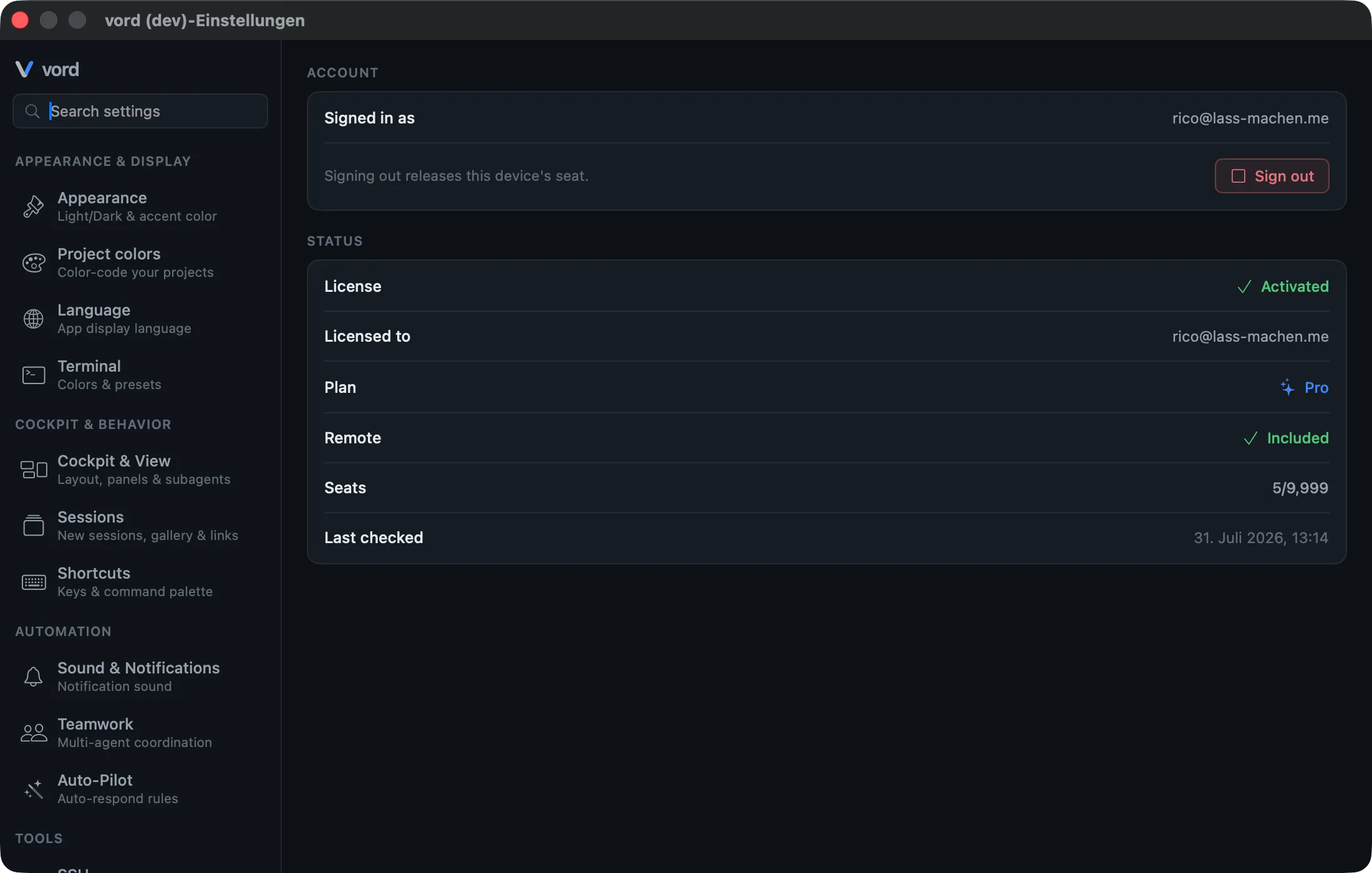
After signing in, Settings → Account & System → Account & License shows your account and the Sign out action. It revokes the sign-in token, removes the local sign-in state and the associated lease, and returns you to the sign-in screen. The computer’s license seat is not released by this.
The status card follows the active account lease: when your organization or your own plan provides a valid seat, it shows Activated even if an older trial on that account has already ended. The historical trial never overrides a current Basic or Pro entitlement.
If your email isn’t confirmed yet
Section titled “If your email isn’t confirmed yet”A new account has to confirm its email address before it can sign in. If you try anyway, the sign-in screen says Please verify your email address first, then sign in — and offers a Resend confirmation email button right below it. It uses the email and password you just typed, so there’s nothing else to fill in. This appears everywhere you can sign in: vord’s sign-in screen, Settings → Account & System → Account & License → Sign in, and the phone companion apps.
The answer is always plain: the mail is on its way (Confirmation email sent. Check your inbox, then sign in again.), the address is already confirmed (just sign in), or you asked a moment ago and need to wait — you can request a new mail once a minute and five times a day. Each new link replaces the previous one, so always use the most recent mail.
The iPhone companion uses that same account before pairing. There is no registration in the app: sign in with the account you already use in vord on your Mac. Phones are remote controls, not workplaces — they never consume a seat. Desktop computers do: each Mac or Windows PC you activate uses one seat from your pool. See Pairing Your iPhone or Pairing Your Android Device for the phone-side flow.
Staying signed in during normal use
Section titled “Staying signed in during normal use”The device login is renewed on every successful authenticated app request. Active Macs and phone companions therefore do not hit a fixed 30-day logout boundary while they are being used.
The login token and the signed seat lease have separate lifetimes, but both are required. If the token expires or is revoked, vord removes the coupled local lease and asks you to sign in again. Signing out closes local access immediately; an administrator revocation or invalid seat lease closes it as soon as vord’s server check reports it.
If the network is unavailable after a successful check, a subscription remains usable only until the server-signed paid through date for that same account. There is no extra grace period after that date. Unlimited offline use exists only for a license whose signed plan type explicitly says perpetual; a missing date or an old “paid once” marker never implies that type. When the network returns, vord re-checks immediately.
The 14-day trial
Section titled “The 14-day trial”The trial is bound to your account, not to your Mac. You start it in the vord Hub — the sign-in screen sends you to the product-specific signup — and it’s valid for 14 days from that moment. One email gets exactly one trial — reinstalling vord or switching machines doesn’t reset the clock. Settings → Account & System → Account & License shows the countdown as Trial — N days left, turning to a waiting-amber color once you’re down to 3 days or fewer.
The trial previews Pro’s phone companions, too: for its full duration you can pair an iPhone, iPad, or Android device and use remote control — the trial account carries the remote entitlement, so once the trial is running and you’re signed in you can connect the device right away.
The trial clock is also anchored against clock manipulation: a signed file outside UserDefaults tracks the latest timestamp ever observed, so turning back your Mac’s clock doesn’t buy you more time.
Basic and Pro — what each unlocks
Section titled “Basic and Pro — what each unlocks”Once you’re on a paid plan, Settings → Account & System → Account & License shows your Plan (Basic or Pro) and a Remote row (Included / Not included) straight from your active lease.
| Plan | What’s included |
|---|---|
| Basic | Full local cockpit — projects, sessions, status detection, git inspector, browser preview, notes |
| Pro | Everything in Basic, plus the iPhone, iPad, and Android companions (remote access, pairing) and session sharing between vord users |
Pro-gated features tell you so in place — for example, the Remote settings panel disables its main switch with a hint that remote access requires Pro or an active free trial, if you’re on Basic or your trial or subscription has lapsed. See The iPhone Companion and Session Sharing for what those actually do. Full plan details and pricing: vord-app.dev/pricing.
vord Pro from the App Store
Section titled “vord Pro from the App Store”On iPhone or iPad you can buy vord Pro as an App Store subscription — monthly or yearly, billed through your Apple Account. Details: The iPhone Companion (Pro). Managing and cancelling happens in your Apple Account settings (or through “Manage Subscription” in the app), not in the Hub, and refunds for App Store purchases go through Apple.
If you pay by card on the website and then take out the App Store subscription in the app, the card subscription ends automatically and the unused part of the current period is refunded to the card pro rata.
When the App Store subscription ends, vord mobile keeps you signed in and shows the subscription screen again. There you can subscribe again or use “Restore Purchases”. If your team’s plan has a billing problem or another member owns the plan, the screen says so instead.
Deleting your account in the app
Section titled “Deleting your account in the app”In vord mobile, Settings → Account → “Delete Account” requests deletion of your account. It asks for your password to confirm. Account and data are deleted after 30 days; until then you can cancel the deletion in your vord account on the web. An App Store subscription keeps running until you cancel it in your Apple Account settings — the app says so when you delete. Settings (the gear in the top-right corner) is available right after sign-in, also before you pair a Mac and on the subscription screen.
When a paid subscription expires
Section titled “When a paid subscription expires”An expired subscription does not turn into a perpetual license. At the server-signed paid through boundary, vord locks before rendering the cockpit or starting sessions. There is no post-expiry grace period, and having used local AI before does not change the decision. Your projects, conversations, and transcripts remain on disk; renew and sign in again to revalidate the account and reopen the app.
Indefinite offline access exists only for a license whose signed planKind is explicitly perpetual. Neither a missing paid-through date nor an older “paid once” cache marker can create that license type. See Updates & Channels for update-channel behavior after access has been revalidated.
When the trial expires
Section titled “When the trial expires”This is the other failure mode, and it’s stricter: once the 14-day trial runs out without any valid license, vord locks back to the sign-in screen. The cockpit — sessions, history, tiles — is no longer rendered; the lock screen states the reason (“Your free trial has ended…”) and offers Sign in again. Settings stay reachable via ⌘,, so Settings → Account & System → Account & License still shows the Trial period expired status and your account card.
There’s no partial-functionality workaround here; signing in with an account that has an active subscription or seat is the only way forward.
Team seats and re-checking a lapsed seat
Section titled “Team seats and re-checking a lapsed seat”If your account belongs to a team, Settings → Account & System → Account & License shows a Seats row as used/limit — for example 3/5. This counts active desktop seats against your organization’s pool, turning waiting-amber once you’re at the limit. A seat is per desktop device: every Mac or Windows PC signed in with your account uses its own seat — working on three computers takes three seats. Computers that were already activated before this rule took effect keep running unchanged, even if they exceed the new limit; the rule only applies to new activations. On top of the seat binding, a safety net caps each account at 5 desktop devices per product.
Phone companions never draw from your seat pool. Signing in on a phone or tablet activates a device lease for the app, but that’s separate from the member seats your desktop computers consume — companions are remote controls, not workplaces. The device allowance (two iPhones or iPads per account) is enforced server-side, apart from the seat count.
Für jedes Konto und Produkt hat dieses Gerät eine geprüfte Organisationszuordnung. Wenn die Organisation nicht eindeutig zugeordnet oder die Lizenz nicht bestätigt werden kann, wende dich an den vord-Support oder den Kontoinhaber. Bei der Anmeldung mit einem anderen Konto wird die bisherige Lizenz nicht übernommen; für das neue Konto wird eine eigene Organisationszuordnung geprüft.
A Last checked row shows the timestamp of the last successful server contact for your lease.
If your seat lapses — someone on your team revoked it, or the lease needs refreshing — vord shows a clear “This device’s seat lapsed. Re-check to keep it activated” notice with a Re-check button. Clicking it re-runs the server heartbeat; if it succeeds, you’ll see a confirmation (“Seat re-checked ✓”). If it fails, vord shows the same specific reason the sign-in screen would — for example 3 of 3 seats are already in use. Ask your account owner to free a seat on another device, or add more seats. or “This device’s seat was revoked.” — instead of a generic error.
Signing in on a new device when the pool is already full is just as specific: the sign-in screen states exactly how many seats are taken, for example 3 of 3 seats are already in use. Ask your account owner to free a seat on another device, or add more seats. The owner frees a Mac on Devices in the Hub (Revoke device) or adds seats on Plans & invoices.
Signing out
Section titled “Signing out”Sign out ends the sign-in and removes local access. Signing out does not automatically release the computer’s license seat.
Releasing the device/license seat is a separate action with confirmation. It frees the seat and can end the associated remote connection. Use it when this computer should no longer occupy the seat.
Local test version
Section titled “Local test version”The additional app vord Test uses a separate local test environment with its own accounts and devices. Its sign-in screen does not belong to the production Hub. Use the test account provided for the test environment there. Beta and Live remain regular delivery channels with production sign-in.