View Densities
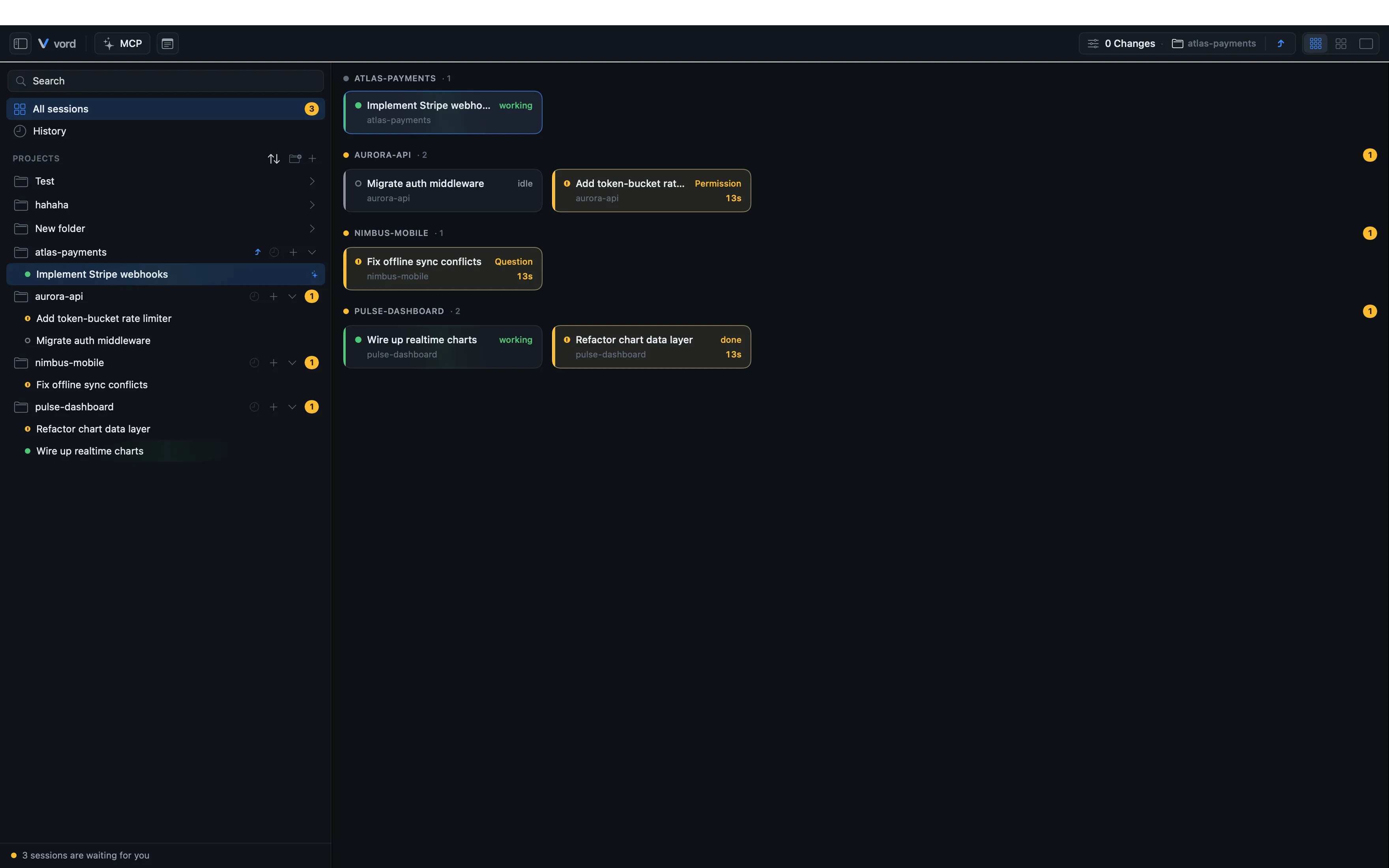
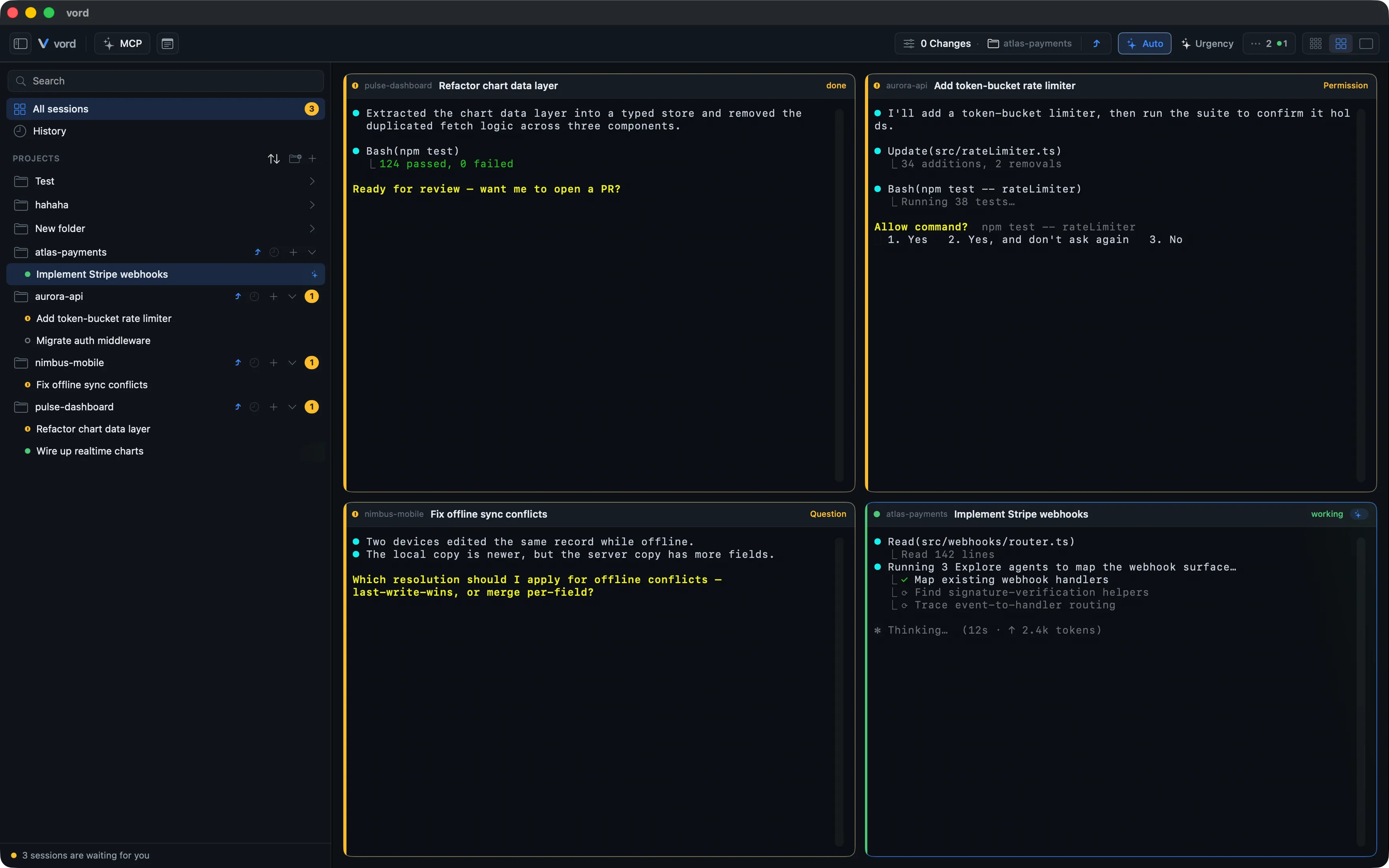
vord offers five workspace views from the toolbar. Compact is a wall of status cards for scanning many sessions at once. Normal is the cockpit — a grid of real, typeable mini-terminals. Team lines up a parent session with its spawned child sessions side by side. Focus gives one session the whole window. All projects places each project’s resolved project lead side by side. Switching between the session views never loses your place; the current session stays selected as you zoom in or out.
Compact: scan many sessions at once
Section titled “Compact: scan many sessions at once”Compact shows every session as a three-line status card, with no live terminal content. The first line pairs the status dot and title with the current status. The second shows the project and branch, then the execution target, agent, and account with its quota percentage. The third shows the most useful activity: a limit account, workflow stage, child stage, quiet-session note, todo progress, or the latest meaningful terminal line.
- What you get: a dense grid of cards, grouped by project. A parent and its visible children stay together in a full-width family block: the parent card comes first, followed by the children in family order. A waiting member raises the whole family ahead of other families. Standalone sessions follow beneath the family blocks; waiting sessions come first, then cards stay in start-time order, so new output does not make cards jump. A family’s project is the parent’s project.
- Small workflow-action and headroom buttons open popovers, keeping the cards the same height. Workflow actions stay available from the workflow popover; Where do you still have headroom? opens the existing account suggestion card.
- What you don’t get: no terminal preview, no inline input field — Compact is for scanning, not typing. Click a card to select it, or double-click to jump straight into Focus for that session.
Normal: bigger cards with a live terminal preview
Section titled “Normal: bigger cards with a live terminal preview”Normal is the cockpit itself — the same up-to-12-slot grid documented on The Cockpit Grid, with real, running mini-terminals you can type into directly. Each card also reserves a fixed 6-line terminal preview, so every card in the grid is the same height regardless of how much output a session has produced.
Auto-fill, pinning, manual drag-reorder, the on-demand pool, and the sort axis all belong to Normal — see The Cockpit Grid and The Pool & Sorting for the full mechanics.
Focus: one full, typeable terminal
Section titled “Focus: one full, typeable terminal”Focus drops the grid entirely and gives the selected session the full terminal — the real thing, not a preview, so it behaves exactly like a normal terminal window. A gallery strip alongside it lets you flip to other sessions without losing this one’s scrollback. See Focus Mode & the Gallery for gallery position, keyboard flipping, and the split view.
Team: a parent session and its children, side by side
Section titled “Team: a parent session and its children, side by side”Team is the family view for child sessions: the parent (main) session gets a large column on the left — about a third of the window, full height, with the real typeable terminal — and its spawned children fill the right as live cockpit tiles, six per page. Larger families simply get more pages: a pager row above the tiles flips between them (no wrap-around), and a status dot next to the page label warns you when a child on another page is waiting. A chip bar along the top switches between families; only real families (a parent with at least one visible child) get a chip, and a small counter notes how many other sessions have no team. Each chip also carries a small project color dot and name next to its title, so when families from more than one project are on screen it stays clear where each team belongs. ⌘⇧←/⌘⇧→ flip through families from the keyboard.
Finished children stay visible as replay tiles with a Resume footer until you mark them done — same as in the cockpit. The grid shows six live child tiles per page; larger families page through their children with the pager row, and selecting a child on another page flips straight to it — nothing is ever parked automatically (see Child Sessions). On a narrow window — where the parent column already claims a third of the width — the tile area scrolls horizontally so a tile never drops below the readable minimum width set by the Card density option (see Cockpit Grid). If the parent is running a workflow blueprint, the same two-line route sits above the family grid: current activity, exact stage position, elapsed minutes, and one connected node per stage. Its Approve and Resume actions use the same confirmation and budget rules. If nothing has spawned children yet, Team shows an empty state with a shortcut back to the cockpit.
All projects: project leads side by side
Section titled “All projects: project leads side by side”All projects shows one full-height column for every project with a resolved project lead, in the same order as the sidebar. Each column keeps the lead’s chat or terminal and composer. When more leads exist than fit side by side, scroll sideways: only the columns you can see are loaded, and a column outside the visible area shows as an empty panel until you scroll to it, then loads its chat. This keeps the view responsive with many project leads. Choose a project from a column header to swap it with that column; the order is saved. Projects without a lead appear in the fixed Without project lead (n) menu at the right edge; choose a project there to start its lead. If no project has a lead yet, the view shows No project leads yet and the same start menu. Selecting a project in the sidebar scrolls to its column and briefly highlights it. The regular session grid and split project-lead column are hidden while this view is active.
Switching (toolbar, menu, double-click)
Section titled “Switching (toolbar, menu, double-click)”A five-way segmented control in the toolbar switches views — icons for a 3×3 grid (Compact), a 2×2 grid (Normal), two people (Team), a single rectangle (Focus), and three side-by-side rectangles (All projects). Shortcuts are ⌃⌘1 (Compact), ⌃⌘2 (Normal), ⌃⌘4 (Team), ⌃⌘3 (Focus), and ⌃⌘5 (All projects); see Keyboard Shortcuts.
| Way to switch | What it does |
|---|---|
| Click a toolbar icon | Jumps straight to that density |
| Double-click a card in Compact or Normal | Selects that session and switches to Focus for it |
| Double-click a gallery entry in Focus | Opens that session in a second column next to the current one (see split view) |
The current density is part of the window’s live state — it isn’t written to disk between launches, so vord always starts in Normal (the cockpit) unless a new session’s target view sends it elsewhere (see below).
Automatic view on your first visit to a project
Section titled “Automatic view on your first visit to a project”The first time you switch into a project from the sidebar, vord picks a density for you: Team, if the project already has a team, otherwise a fallback view set by Settings → Workspace → Cockpit & Tiles → Team view → view without a team (Cockpit or Focus, default Cockpit). This saves the back-and-forth of landing in Team for a project that has no children yet.
It only ever picks once per project. As soon as you switch density yourself while that project is active, vord remembers your choice and never guesses again for that project — including if a team appears there later; the view won’t jump out from under you.
Where new sessions land (setting)
Section titled “Where new sessions land (setting)”Starting a new session (toolbar +, a project row in the sidebar, or its context menu) doesn’t have to force you into Focus. Settings → Workspace → Sessions & Opening has a new session view choice:
| Option | Behavior |
|---|---|
| Keep current view (default) | Stay in whichever density you’re already in — the new session is still selected, so it’s easy to find |
| Always focus | Switch to Focus, showing the new session full-size (the old, pre-setting behavior) |
| Always normal | Switch to Normal (the cockpit grid) |
| Always compact | Switch to Compact |
This only affects freshly started sessions. Restoring a session from history always opens it in Focus, regardless of this setting.
For where the Focus gallery sits (top/bottom/right/hidden), see the same Sessions & Opening settings pane, covered in Focus Mode & the Gallery and the full pane list in Settings Reference.