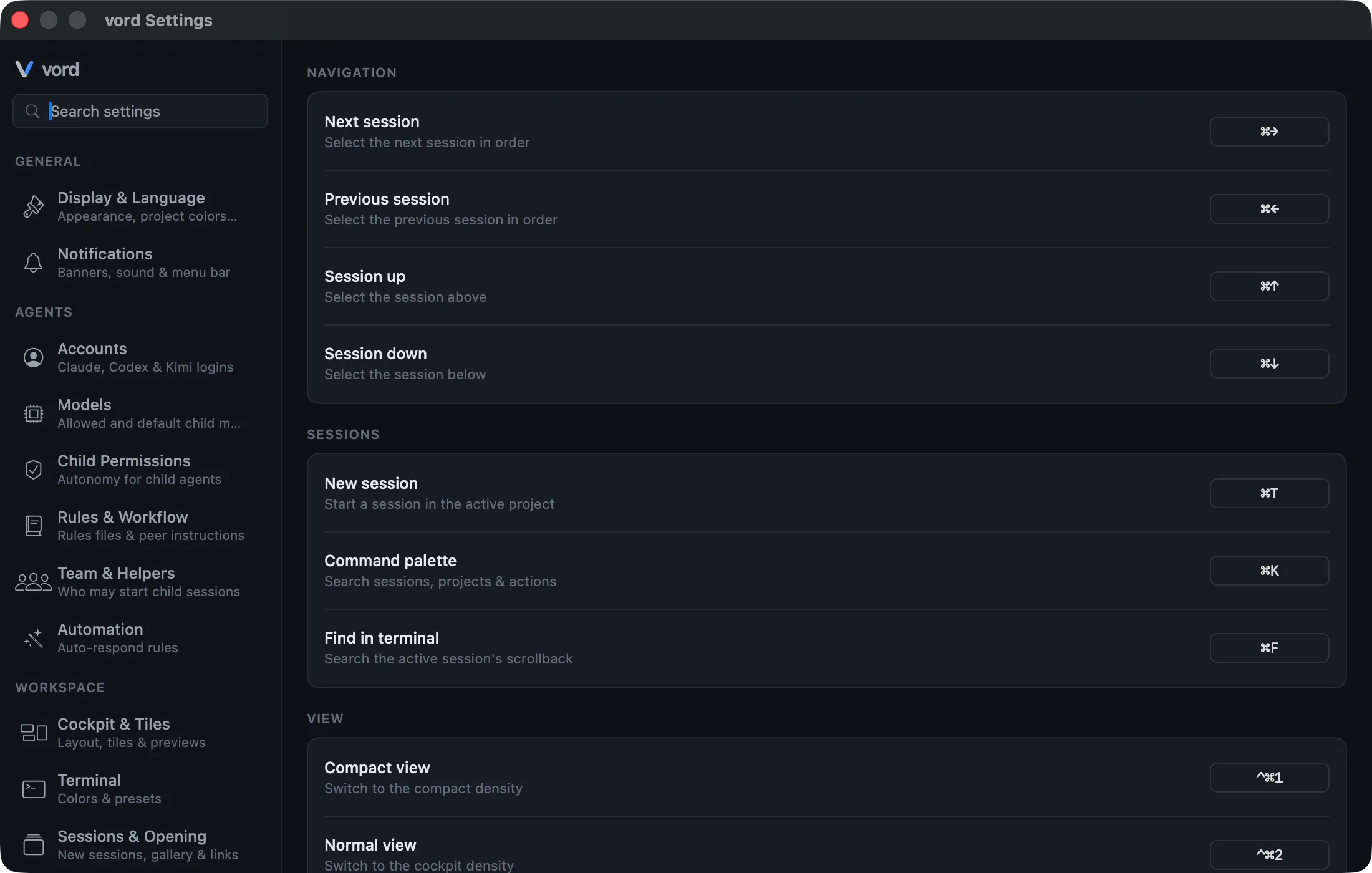
Keyboard Shortcuts
Every keyboard shortcut in vord comes from one registry — the same list drives the command palette, the macOS menu bar, and the Settings page below. Rebind anything you don’t like; nothing is hardcoded.
Rebinding a shortcut
Section titled “Rebinding a shortcut”- Open Settings → Workspace → Shortcuts (⌘,).
- Click the key-combo field next to any action. It starts recording.
- Press the new key combination. It’s saved immediately — there’s no confirm step.
- If you changed a default, a Reset button appears next to that row.
- Reset all to defaults at the bottom of the page reverts everything at once.
Arrow-key navigation always needs a modifier (⌘). That’s deliberate: a bare arrow key still has to reach the terminal underneath, so vord never binds an action to an unmodified arrow.
Collision warnings
Section titled “Collision warnings”vord lets you bind the same key combination to two different actions — it doesn’t block the recording. Instead, it warns you inline: the row shows a small Used by "…" note (with the conflicting action’s name) next to the field you just changed.
Both actions technically keep the combo assigned, but only one fires when you press the key: whichever you set last wins. This is intentional — vord doesn’t second-guess which action you meant to keep working; it trusts the most recent change and tells you what you overrode.
The default shortcut table
Section titled “The default shortcut table”Actions are grouped the same way in Settings, the palette, and here — most-used group first.
Navigation
Section titled “Navigation”| Shortcut | Action | What it does |
|---|---|---|
| ⌘→ | Next session | Select the next session in linear order |
| ⌘← | Previous session | Select the previous session in linear order |
| ⌘↑ | Session up | Select the session above, in the same grid column |
| ⌘↓ | Session down | Select the session below, in the same grid column |
⌘←/⌘→ follow reading order and wrap at the ends; ⌘↑/⌘↓ jump a real row and don’t wrap. See Keyboard Navigation for the full spatial-movement behavior.
In the sidebar and the board’s project list: click into the list (or Tab to it), then use ↑/↓ to move the selection and Return to open it. In the session sidebar, Return opens the selected session in the focus view; the arrow keys only move the selection and don’t rearrange the cockpit. The keys only act while the list has focus — the terminal keeps all its keys. Secondary lists (settings categories, notes, Git history) are standard macOS lists with the same arrow-key behavior.
Sessions
Section titled “Sessions”| Shortcut | Action | What it does |
|---|---|---|
| ⌘T | New session | Start a session in the active project |
| ⌘K | Command palette | Search sessions, projects & actions |
| ⌘F | Find in terminal | Search the selected session’s scrollback |
| — | SSH connections… | Open the SSH connection pool |
⌘F opens the find bar over the selected session’s terminal; ⌘K opens the navigation palette covered on Keyboard Navigation.
| Shortcut | Action | What it does |
|---|---|---|
| ⌃⌘1 | Compact view | Switch to the compact density |
| ⌃⌘2 | Normal view | Switch to the cockpit density |
| ⌃⌘4 | Team view | Switch to the team density |
| ⌃⌘3 | Focus view | Switch to the focus density |
| ⌃⌘5 | All projects view | Show every project’s project lead side by side |
| ⌘⇧→ | Next family | Team view: next family. Cockpit: next member of the family the selection is in |
| ⌘⇧← | Previous family | Team view: previous family. Cockpit: previous member of the family the selection is in |
| ⌘I | Toggle inspector | Show or hide the Git inspector |
| ⌘⇧N | Notes | Show or hide the notes window |
| ⌃⌘S | Show or hide sidebar | Collapse or show the session sidebar |
| ⇧⌘D | Board | Show or hide the board window |
| — | Workflows | Show or hide the workflows window |
| ⇧⌘U | Usage | Open account usage and quotas |
| ⇧⌘I | Notifications | Open the notification inbox |
| — | vord Chat | Show or hide the vord Chat window |
| — | Automatically fill cockpit | Toggle automatic cockpit slot filling |
| — | Pool… | Open sessions outside the cockpit grid |
| — | Only parked | Show only parked sessions |
| — | Only shared | Show only shared sessions |
| ⌘⇧T | Toggle transcript | Switch the selected session between the terminal and the conversation transcript |
Density switching deliberately uses Control+Command+digit, not Shift+Command+digit — macOS reserves ⇧⌘3/4/5 system-wide for screenshots, so a Shift+Command binding here would simply never fire. Family flipping (⌘⇧←/⌘⇧→) works in two places: in the Team view it switches families, in the cockpit it steps through the members of the family the selection is in — swapping the tile’s terminal in the Folded family layout, moving to the neighbouring card in the Grouped one. (⌘←/⌘→ walk from card to card, so in the Folded layout they step past a whole family; ⌘⇧←/⌘⇧→ is the way into it.) In the other densities it’s a no-op.
The board (⇧⌘D) opens as its own window: close it with the red button or ⌘W — ⇧⌘D toggles it shut too. Its toolbar pin (and the Window menu) controls Keep Board on Top.
| Shortcut | Action | What it does |
|---|---|---|
| — | Switch branch… | Switch or create a branch |
| — | Push | Push the current branch when available |
| — | Pull | Pull the current branch when available |
| — | Publish Branch | Publish a branch without an upstream |
Switching branches has no fixed key combination by default — it’s reachable only through the command palette or the sidebar’s branch context menu. You can still assign it a shortcut yourself on the Shortcuts page if you use it often.
| Shortcut | Action | What it does |
|---|---|---|
| ⇧⌘B | vord Brain | Open vord Brain |
| ⌘, | Settings… | Open the Settings window |
| — | MCP Manager | Open the MCP server manager |
⌘, is the one action not part of vord’s own shortcut layer. macOS already binds it natively through the app’s Settings scene; giving it a second binding inside vord caused a double-fire (Settings would open and immediately close again). It still shows up on the Shortcuts page and in the palette — it’s just not rebindable there, since the key is owned by the system.
The “Session” menu and the View menu
Section titled “The “Session” menu and the View menu”The same actions are also discoverable in vord’s native menu bar — this is pure discoverability, not a second way to bind a key:
- Session menu (its own top-level menu): Command Palette, Find in Terminal, New Session, Next/Previous Session, Session Up/Down, SSH connections, Push, Pull, Publish Branch, Switch Branch…
- View menu (added into the standard “Darstellung”/View group): Sidebar, Compact/Normal/Team/Focus view, Inspector, Notes, vord Chat, Board, Workflows, Usage, Notifications, and Cockpit controls. Cockpit controls include Auto-fill, Pool, parked/shared filters, and the Sort by submenu.
- Window menu: vord Brain and MCP Manager.
- Help menu: Send Feedback…
Each menu item shows its current key combination next to the title, but clicking the menu item and pressing the shortcut trigger the exact same code path — there’s no separate menu-only behavior and no risk of a double-fire. Actions that depend on the current toolbar state are disabled when no main window is focused or when that toolbar item is unavailable.