Pair Browsing: Send Feedback to the Agent
When the built-in browser is showing a web page, you can mark something on it — a sentence, a button, a misaligned element — and hand it to the agent bound to that panel, instead of describing it in words in the terminal.
What it’s for
Section titled “What it’s for”Feedback mode turns “the button in the top right is too small” into an actual pointer at that button, sent to the agent as structured context. Two ways to mark something:
- Text — select a passage the normal way (drag), the way you’d copy text on any page.
- Element — hover to highlight, click to pick. The click is intercepted, so the page doesn’t navigate away under you.
For element picks, vord also captures a code anchor — tag, id, name, type, placeholder, href, role, data attributes, aria-label, classes, and visible text — so the agent can find the matching spot in your source, not just describe pixels back to you. For form controls without an id, a unique name among sibling controls gives the selector tag[name="…"] instead of a position-based selector.
Turning on feedback mode
Section titled “Turning on feedback mode”In the preview panel header, click Mark text or Select element. Each button starts feedback mode with that tool selected. The two-button switch is only visible when the panel is showing a web page — it’s hidden for code, Markdown, and file views, since there’s nothing to mark on those.
The tool switch has two options:
| Tool | Icon | Behavior |
|---|---|---|
| Mark text | document icon | Standard drag-to-select text on the page. |
| Select element | grid icon | Hover highlights the element under your cursor; click selects it. |
Leaving feedback mode
Section titled “Leaving feedback mode”You can leave feedback mode in three ways: click the active tool again, click End feedback in the notice row below the switch, or press Escape. Escape also works while the web page has focus. The first Escape ends feedback mode and keeps your collected drafts; a subsequent Escape closes the preview panel.
Below the tool switch, a draft bar appears in the panel — this is where your marks collect before you send them.
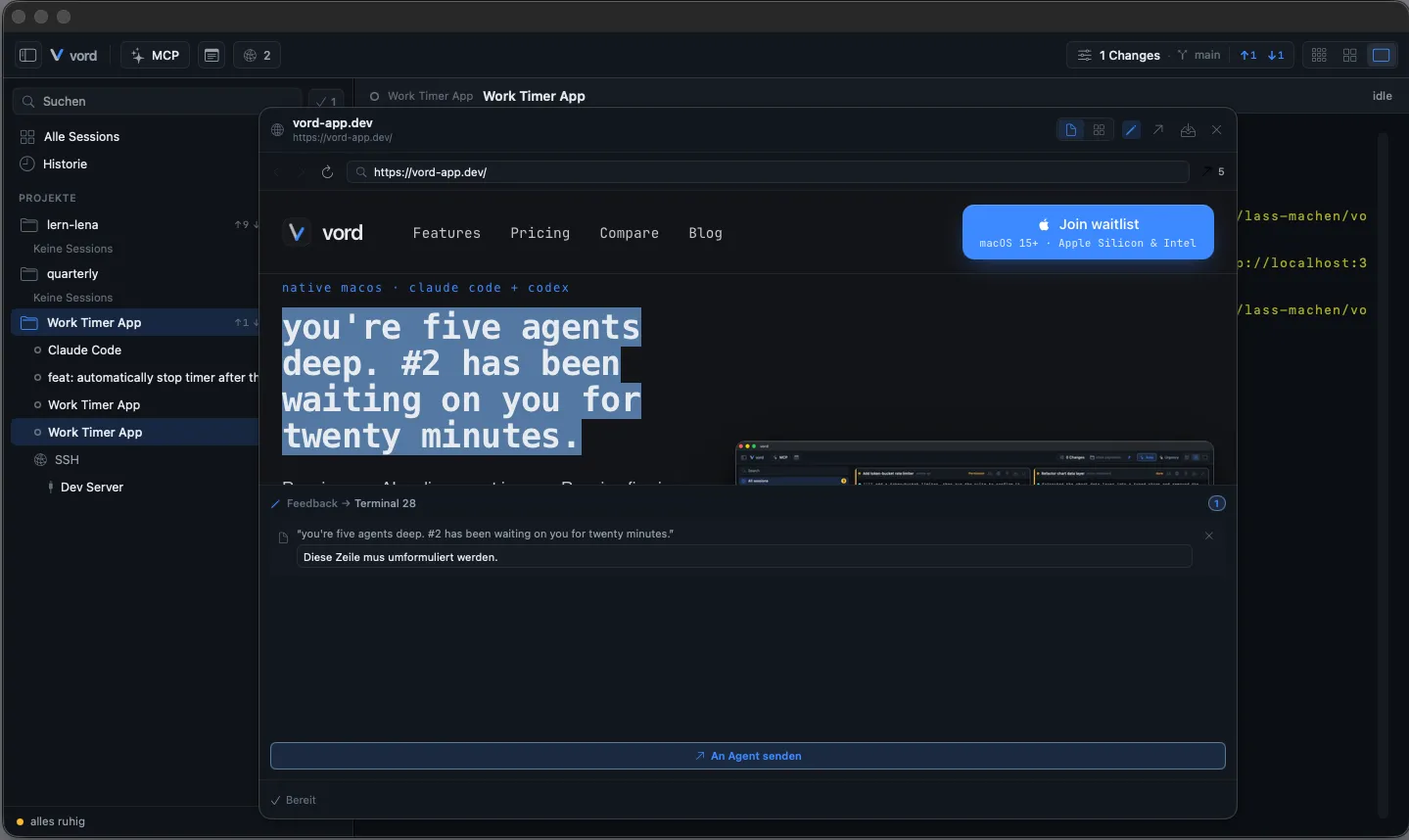
Marking and sending feedback
Section titled “Marking and sending feedback”- Click Mark text or Select element in the panel header to turn on feedback mode with that tool.
- To switch tools, click the other button — feedback mode stays on.
- Mark something on the page. It appears immediately in the draft bar — nothing is sent yet.
- Optionally type a note on any draft entry (e.g. “this should be 16px, not 12px”). Press ⌘↩ in a note field to send the whole batch, just like the Send … item(s) to agent button. This shortcut works when the panel is bound to a session that has not ended and sending is available.
- Made a mistake? Remove a draft entry with its ✕ button.
- Repeat for as many marks as you want, then click Send … item(s) to agent to deliver the whole batch at once.
Each marked element optionally gets a small screenshot crop attached automatically. The crop is placed on the panel background so it remains readable on pages without their own background, including in Dark Mode. If the crop fails to render, the mark still sends, just without the image.
Text selection vs. element pick
Section titled “Text selection vs. element pick”Use text selection when the issue is about wording or content. Use element pick when the issue is visual or structural — the code anchor is what lets the agent jump straight to the relevant markup instead of guessing from a text snippet or a description.
Marks from nested iframes are discarded — only the main frame is captured. If the thing you want to mark lives inside an embedded iframe, you’ll need to describe it in the terminal instead.
Collecting drafts and sending as a batch
Section titled “Collecting drafts and sending as a batch”The draft bar is deliberately a holding area, not a one-shot form. Mark several things across the page, add notes where useful, then send them together with one click on Send … item(s) to agent — the agent gets one batch instead of a stream of interruptions.
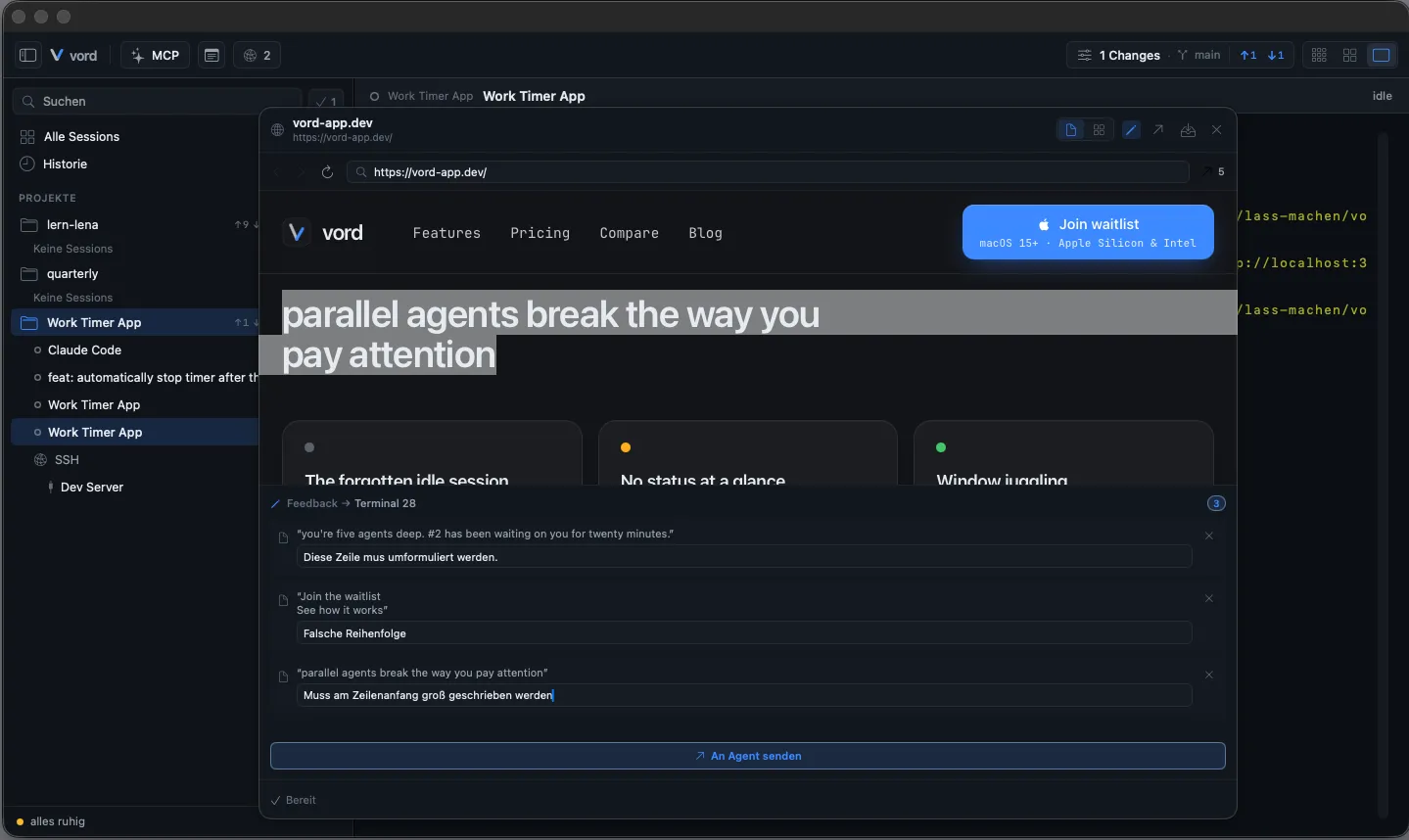
Drafts are session-local and do not survive an app restart. If you quit vord with unsent marks in the bar, they’re gone. Once you’ve sent them with Send … item(s) to agent, though, the story changes — see below.
How delivery depends on session state
Section titled “How delivery depends on session state”Feedback always targets the one session the panel was opened from (shown in the draft bar header as “Feedback → (session name)”). What happens after you click Send … item(s) to agent depends on what that session is doing right now:
| Session state | What happens |
|---|---|
| Running normally (working / idle) | Pasted straight into the session’s terminal — visible immediately. |
| Stuck in a permission, plan, or question box | Held back until the box is resolved, then delivered. |
| A plain shell with no agent detected | Queued in vord’s hook channel, delivered on the next UserPromptSubmit — not visible right away. |
| Session has ended | Not deliverable. Your drafts stay in the bar; resume the session to send them. |
Feedback works the same way for both claude and codex sessions — delivery only branches on session state and agent type, not on which agent you’re running. It isn’t a claude-only feature.
Diff review comments in the Git Inspector use this same delivery path: they arrive immediately, or when the session is ready.
Marks that have been sent but are waiting in the hook channel do survive an app restart or crash — only the un-sent drafts in the bar are ephemeral.
Safety
Section titled “Safety”A web page you’re viewing isn’t a trusted source, so everything you mark is sanitized before it reaches the agent:
- All control characters — notably Escape and carriage return — are stripped from marked text, closing off any bracketed-paste escape or command-injection attempt from a hostile page.
- Hard size caps: 4,096 characters of marked text, 1,024 characters for the selector, 2,048 for the URL, 512 per anchor field, a maximum of 12 data attributes, and 16 KB for the total block.
None of this is configurable — feedback mode has no settings of its own, and the mode itself is never persisted. Every time you open the panel, it starts in normal (non-feedback) mode.
Related
Section titled “Related”- Built-in browser — the panel feedback mode lives inside: address bar, auto-detected links, JS dialogs.
- Responding to waiting sessions — what it means when your feedback is held back by a permission or question box.