Projects & Sessions
Every screen in vord is built from two things: projects and sessions. Once these two definitions click, the rest of the app — the cockpit grid, the status lights, the inspector — is just views onto them.
A project is a folder
Section titled “A project is a folder”A vord project is a local folder on disk. That’s the whole definition — it doesn’t have to be a Git repository. If it isn’t, vord just won’t show Git features (branch rows, the sync bar, the inspector’s diff/commit tabs) for it.
You add a project by opening an existing folder or cloning a Git URL into a new one:
- Click the sidebar’s + button.
- In the “New Project” sheet, pick Open folder (choose an existing directory) or Clone from Git repo (paste an HTTPS or SSH URL, choose a parent directory, vord runs
git cloneand opens the result). - The project appears in the sidebar immediately, selected.
A project can also be a sub-project: a subfolder of an already-open project (typical for a monorepo, e.g. apps/frontend under a root). Sub-projects show up as an indented sidebar row with their own Git status, and vord offers to add them automatically the first time it detects Git subfolders inside a newly opened parent. Nesting is capped at two levels — a sub-project can’t have a sub-project of its own.
Remove project in the sidebar context menu stops and removes that project’s sessions from vord. Its unfinished workflow runs are aborted, while runs owned by other app instances remain unchanged. If the project has sub-projects, a confirmation dialog lets you choose whether they are removed along with it (pre-checked) or kept as independent top-level projects. The project folder, your working files, and project-local notes, SSH connections, and snippets stay on disk and are available again when you reopen the project. Aborted workflow runs remain in history.
Each project can carry its own accent color (sidebar row, cockpit header tint) and its own startup-command override (what runs when you open a plain terminal in it). Full detail on both, plus cloning edge cases and sub-project management, is on Managing Projects.
The name shown for a project is its display name: a name you set via Rename… in the project row’s context menu wins, otherwise the linked vord Cloud project’s name, otherwise the folder name. Renaming never renames the folder on disk; clearing the name restores the automatic one. See Project display name and renaming.
A session is one unit of work (claude · codex · kimi · shell · ssh)
Section titled “A session is one unit of work (claude · codex · kimi · shell · ssh)”A session is one running (or once-running) process inside a project, shown as a tile in the cockpit. There are four kinds:
| Kind | What it is | Naming |
|---|---|---|
| claude | A native, hooked Claude Code process — 1-click spawn with hooks and MCP wired in | auto-titled from claude’s own terminal title (OSC), until you rename it |
| codex | A native, hooked Codex process — its own notify/hook mechanism | Codex creates a short content-based title; until then the existing Codex name or base title appears. Manual names take precedence |
| kimi | A native Kimi Code CLI process — hooks via vord’s managed block in kimi’s global config.toml |
auto-titled from kimi’s own session state (title / first prompt — kimi sends no terminal title either) |
| Shell | A plain login shell (zsh -l) — you type claude, codex, npm, git, anything |
no auto-title |
| SSH | A connection to a remote host (a saved connection or an ~/.ssh/config alias); your local working directory stays the project folder, not the remote path |
no auto-title |
All four appear as equivalent tiles with the same status detection, context menu, and history behavior. Start one from the project’s + button (or ⌘T for “new session in the active project”), which opens a menu with all four options.
A colored pill on each tile (claude: terracotta with an asterisk icon; codex: cyan with a chevron-slash icon; kimi: violet with a moon-stars icon) shows which agent is running at a glance — it renders nothing for a plain Shell or SSH session without a detected agent. If a session runs sub-agents or a team (claude’s Task tool, codex’s or kimi’s equivalent), a collapsible hierarchy tree with per-node status and a compact counter badge (“✦ 1/3”) shows up alongside it.
Starting any session type is blocked by the same license gate: an expired trial without a valid license stops the spawn with a visible error, never a silent no-op.
For the full spawn flow (including SSH connection management and the auto-start command) see Starting Sessions.
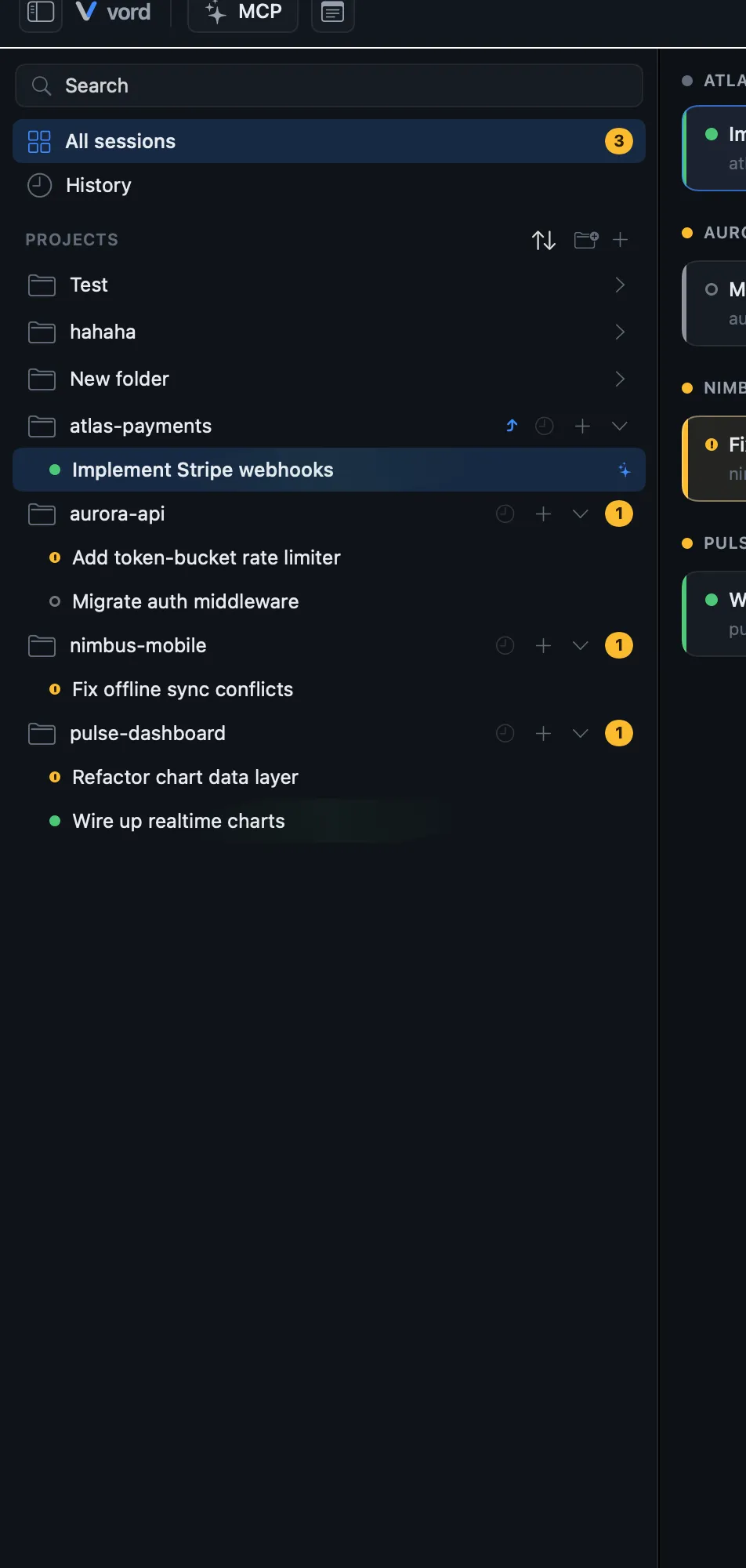
How sessions relate to projects and branches
Section titled “How sessions relate to projects and branches”A session always belongs to exactly one project — its process runs with that project’s folder as working directory. The sidebar additionally groups sessions by Git branch: for every running terminal session, vord reads the real branch straight from the OS process’s current directory (not a cached guess), so the grouping in the sidebar stays correct even if you git switch inside the shell.
That branch reading only happens while the process is alive. Once a session ends, vord freezes its last-known branch/root location so the sidebar grouping survives app restarts instead of dropping the session into an “unassigned” bucket.
Branch switching, worktree rows, and the Git sync bar itself are inspector features, covered in The Inspector.
The lifecycle: live → done/parked → archived → resumed
Section titled “The lifecycle: live → done/parked → archived → resumed”A session moves through a small set of states, all reachable from its context menu (right-click the tile, sidebar row, or focus header):
- Live — the process is running, status detection is active, the tile shows in the cockpit’s normal view.
- Mark as done — ends the process and hides the session from the cockpit and sidebar. It’s not gone: flip the sidebar’s checkmark toggle (its tooltip reads “Show completed sessions”) or use search to find it again, and Bring back in its context menu makes it visible again without restarting the process — that’s a separate step, Continue (see below).
- Park (set aside) — the opposite trade-off: nothing stops. The PTY and status detection keep running; the tile just leaves the active cockpit and shows up under the cockpit’s park filter instead. Use this for a session you want to keep alive but out of the way — it still consumes resources and can still produce commits while parked. Bring back to cockpit reverses it.
- End session — stops the process for good and moves the session into history. The visual transcript is kept, so it’s still reachable from there.
- Archived / History — every ended or done session lands in the history view (sidebar/toolbar clock icon), filterable by project, showing project, branch, relative time, and title. View opens a read-only, process-less replay of the saved terminal bytes at the original terminal size — you can look, but not type, and very large transcripts load in stages so the UI doesn’t freeze.
- Continue — the single, deliberately unified label for resuming any session kind: claude, codex, and kimi pick up the exact same conversation (not just “the newest one in the folder”), Shell starts a fresh
zsh -lin the same directory, SSH reconnects. If vord can’t tell which conversation to resume (more than one match in that folder), a chooser sheet lists the candidates newest-first instead of guessing. If another open tile already owns that same agent conversation ID, vord shows the chooser rather than risk attaching to the wrong one.
Build runs started from a session through the build gate keep running when the session ends. End session lists those runs first.
Two automatic cleanups run quietly in the background: very old archived sessions (older than 90 days and beyond the most recent 500) are pruned at app start along with their raw transcripts, and a dead Shell/SSH session left idle after exit moves itself to history after a grace period (claude/codex sessions archive immediately on process end — no such grace window for them). How long transcripts survive on disk at all is a Settings choice, not a session-lifecycle one — see the diagnostics retention setting on the Settings reference.
For everything about resuming, the conversation chooser, and replaying old transcripts in depth, see History & Resume. For what “live” actually means in status terms — the traffic-light colors and the hybrid hook/output detection behind them — see Status Traffic Lights.