Pairing an iPhone or iPad
Pairing links an iPhone or iPad to your Mac over an encrypted relay connection. You do it once per device pair; after that, the device reconnects automatically whenever both ends are online. This page covers the pairing flow itself — for what the companion does once you’re connected, see The iPhone Companion (Pro).
Sign in on the iPhone or iPad first
Section titled “Sign in on the iPhone or iPad first”The companion app requires a signed-in vord account before it will let you pair. On first launch you land on a Sign in to vord screen — enter the email and password of the account you use in vord on your Mac and tap Sign in. There is no registration in the app. Only after you’re signed in does the Pair with your Mac step appear; if you can buy vord Pro, the app offers it as an App Store subscription instead — see The iPhone Companion (Pro).
If you already paired a device before this requirement existed, the app asks you to sign in once after updating — your existing pairing stays intact, and you drop straight back into the paired app once you’re signed in.
Start pairing on the Mac
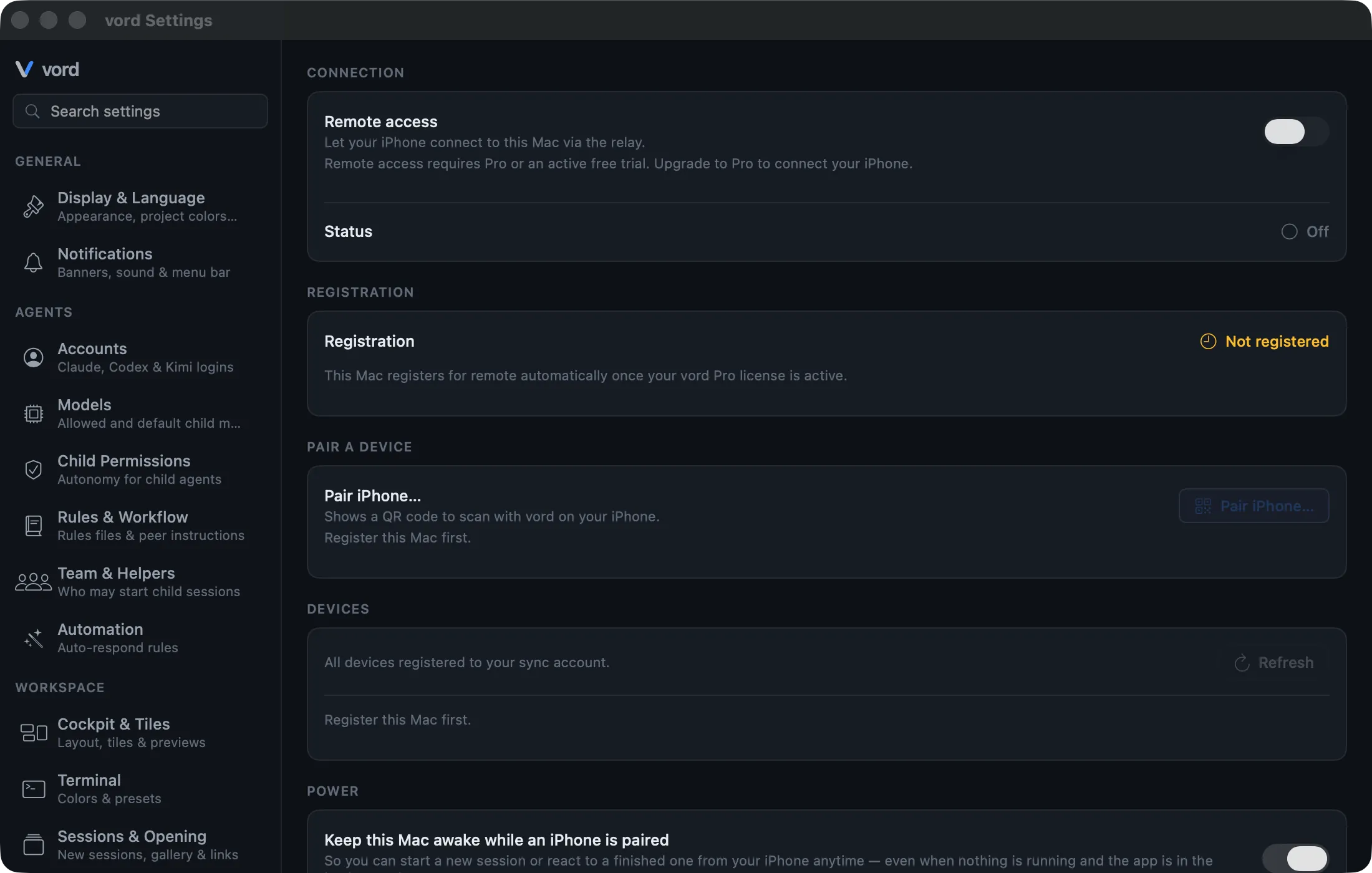
Section titled “Start pairing on the Mac”- Open Settings → Connections → iPhone & iPad.
- After signing in with Pro or an active trial, your Mac registers automatically. Under Registration you see the current progress. An explicitly switched-off Remote access stays off; enable it to connect.
- Click Pair iPhone or iPad…. The window shows a QR code, a copyable code, and its remaining validity.
On temporary network or server errors, vord retries the registration automatically. The upstream license check is also repeated promptly after such an error. You don’t need to restart the app for this. After a successful registration, the settings update automatically and release the pairing code.
If the registration keeps failing, the settings show the reason and a matching action: Try again, Sign in, or Account & License. Account, activation, and device-limit problems need this correction; they don’t trigger endless registration attempts.
Scan the QR (or paste the code)
Section titled “Scan the QR (or paste the code)”On the iPhone or iPad, once you’re signed in, the “Pair with your Mac” screen shows instructions to open vord on the Mac and go to Settings → Connections → iPhone & iPad. From there:
- Tap Pair with your Mac. A sheet opens with two segments: Scan QR and Enter code.
- Scan QR — point the camera at the Mac’s QR code. It scans automatically; no shutter button.
- Enter code — paste or type the plaintext code from the Mac instead. Tap the clipboard icon next to the field to paste what you copied. This is also the automatic fallback on devices that can’t run the camera scanner (for example, the iOS Simulator).
- Tap Pair.
The QR code carries no device name in the clear — before verification, the phone only shows a generic “Mac”. If the code points at a relay host vord doesn’t trust, pairing is rejected before any connection is attempted (“points to an untrusted server”).

Verify the fingerprint on both devices
Section titled “Verify the fingerprint on both devices”After the device sends its pairing request, both devices display the same 8-digit fingerprint. This is the one moment a human confirms both ends hold the right keys — the relay never sees plaintext, so this side-by-side comparison is what protects you from a machine-in-the-middle:
- Compare the fingerprint shown on the Mac to the one on the iPhone or iPad.
- On the Mac, click Pair if they match (or Reject if they don’t).
- The device shows “Paired with your Mac” → tap Done.
The Mac has no independent channel to verify the device’s public key — the fingerprint comparison is the security check on that side. Don’t pair if the numbers don’t match.
The connection banner and automatic reconnect
Section titled “The connection banner and automatic reconnect”Once paired, a narrow banner sits above the Cockpit and Sessions tabs whenever the connection isn’t in its steady “connected” state:
| Situation | What you see |
|---|---|
| Brief hiccup (under ~1.8s) | Nothing — short drops are absorbed silently |
| Longer drop, retry in flight | A spinner banner while vord retries, with Next attempt in N s after a handshake failure |
| Disconnected, no retry scheduled | Disconnected — no spinner claiming a reconnect |
| Terminal end (revoked, or this same device’s connection was displaced) | A banner with a Reconnect / Pair again button |
| Pairing broken (the devices’ keys no longer match) | A steady banner telling you the connection couldn’t be verified, with a Pair again button |
Reconnects back off automatically (1s, 2s, up to 60s, with jitter) and retry immediately when you bring the app to the foreground. Close code 4409 is a displacement of this same device identity (a new connection with the same deviceId wins — typical after a reconnect or when two instances of the same app share a token). It is not “your iPad kicked your iPhone off.” Two different paired devices stay in parallel; untargeted Mac updates still use one stable default device, and you reconnect from this device if its connection was displaced.
When the keys no longer match: in rare cases the Mac’s device identity gets renewed — for example after a keychain repair or reinstall. The iPhone or iPad then still holds the old pairing, and every connection attempt fails its security check. vord detects this after a few failed handshakes and stops spinning: the device shows the banner above, and the Mac shows a matching hint. Pairing again from the Mac fixes it in under a minute — nothing on either device is lost. vord never re-pairs on its own, because a key mismatch is exactly what an attack would look like; you stay in charge.
On a device revocation, the app shows This device’s pairing was revoked. and offers Pair again. If the Mac’s device registration was replaced, the banner names this reason explicitly: first check remote access on the Mac and then pair again. A missing Pro entitlement points to the sign-in and Pro access on the Mac; the pairing is preserved in the process. These final server rejections are not presented as a brief network outage.
Managing devices and revoking
Section titled “Managing devices and revoking”The additional local test apps use their own test environment with separate accounts and pairings. A test pairing cannot replace a production Mac/iPhone pairing. The phone test app’s loopback configuration is meant for the simulator on the same Mac; it does not connect a physical iPhone to the Mac. In the regular apps, the production automatic registration stays active.
Back in Settings → Connections → iPhone & iPad on the Mac, the device list shows every device registered to your account with a Revoke… action per entry. Each row names the device as it reports itself — an iPad shows up as “iPad” with an iPad icon, an iPhone as “iPhone”.
- iPhone and iPad: max 2 devices per account and product, enforced server-side. Signing in on the device activates an app-seat lease; it never draws a member seat. Pairing a third device fails with a device-limit error — revoke an old device here to free a slot.
- Desktop computers: max 5 per account as a safety net, on top of the per-desktop seat binding (each activated Mac or Windows PC uses one seat from your pool).
- vord sends untargeted updates to one device at a time, using a stable default when several are online — not whichever woke last. A second different device does not take the first one over with close 4409.
- Several devices can be paired under one account. The panel warns you if several devices are paired, because untargeted traffic still uses that one default channel.
- Refresh re-fetches the device list from the account. Revoke… removes a device’s registration server-side.
On the device side, Settings → Connection shows the current relay address, the paired Mac’s short ID, and the confirmed fingerprint — read-only, but the values are selectable and copyable if you need to double check them. The Mac only calls a device “connected” after the server device entry, local pairing record, pairing secret, and live end-to-end connection all agree; a leftover Mac token alone is never shown as a paired device.
Keep-awake and presence settings
Section titled “Keep-awake and presence settings”Two Mac-side settings shape how pairing behaves while you’re away:
- Keep-awake window — while a device is paired, the Mac prevents sleep so your sessions keep running for you to check on remotely. Configurable in 6-hour steps from 1 to 168 hours. Note: if the lid is closed on battery power, macOS sleeps anyway regardless of this setting.
- Presence threshold — controls how quickly the Mac decides you’ve stepped away and can push notifications to your device again, in 15-second steps from 15 to 300 seconds. This pairs with device-aware notification routing: if you’re actively looking at a session on the iPhone or iPad, the Mac stays quiet for that session, and vice versa. Full detail on the reason toggles is in iPhone Notifications.
Reset connection… clears the device token and local device list on the Mac. This is local cleanup only — the server-side registration isn’t touched until you revoke it explicitly from the device list.
Unpairing
Section titled “Unpairing”To disconnect a device from a Mac for good, do it from the iPhone or iPad:
- Open the Settings sheet on the device.
- Tap Unpair from Mac (shown in red).
- Confirm in the dialog: Unpair from this Mac? → Unpair.
This deletes the device’s local keys and device token immediately. The server-side revocation is best-effort — it fires an HTTP call, but the device cleans up locally regardless of whether that call succeeds. To pair again afterward, repeat the full flow from the Mac.
For what your data looks like in transit and at rest once you’re paired, see Privacy & Data.
Pair a host
Section titled “Pair a host”To connect vord on this Mac to a headless host, first register this Mac and connect it to the relay. In Settings → Connections → iPhone & iPad → Hosts, choose Pair host… and paste the VORD-PAIR-1… code shown in the host terminal. Compare the 8-digit fingerprint in vord with the one on the host, then confirm on the host only if they match. After pairing, the host appears with its online status and session count. Choose Unpair… and confirm to remove the saved pairing.
Recovering after a Mac identity change
Section titled “Recovering after a Mac identity change”If your Mac registers with a different device identity, earlier iPhone and iPad pairings stop working. The Mac keeps a Pair your devices again warning in its device settings, including the date of the change. The warning survives app restarts and remains visible even if the old devices disappear from the account’s device list.
Choose Pair iPhone or iPad… in the same settings section, then scan the new QR code or enter the pairing code and confirm the matching number. Repeat this for each device you still want to use. The warning clears after the first new pairing is confirmed; other previously paired devices still need to be paired again individually.
You can also remove all remaining paired devices from the Mac’s device list. The warning clears once the server confirms that none remain. Closing a pairing sheet, refreshing the list, or resetting the local connection does not dismiss an unresolved warning. A later identity change creates a new warning with its own date.