Notes
vord keeps a small, persistent notes panel alongside your sessions — a place for recurring commands, snippets, or reminders that don’t belong in a file. It’s a separate feature from the agent’s show_to_user archive: notes are things you write, not things an agent shows you.
Notes in their own window (⌘⇧N)
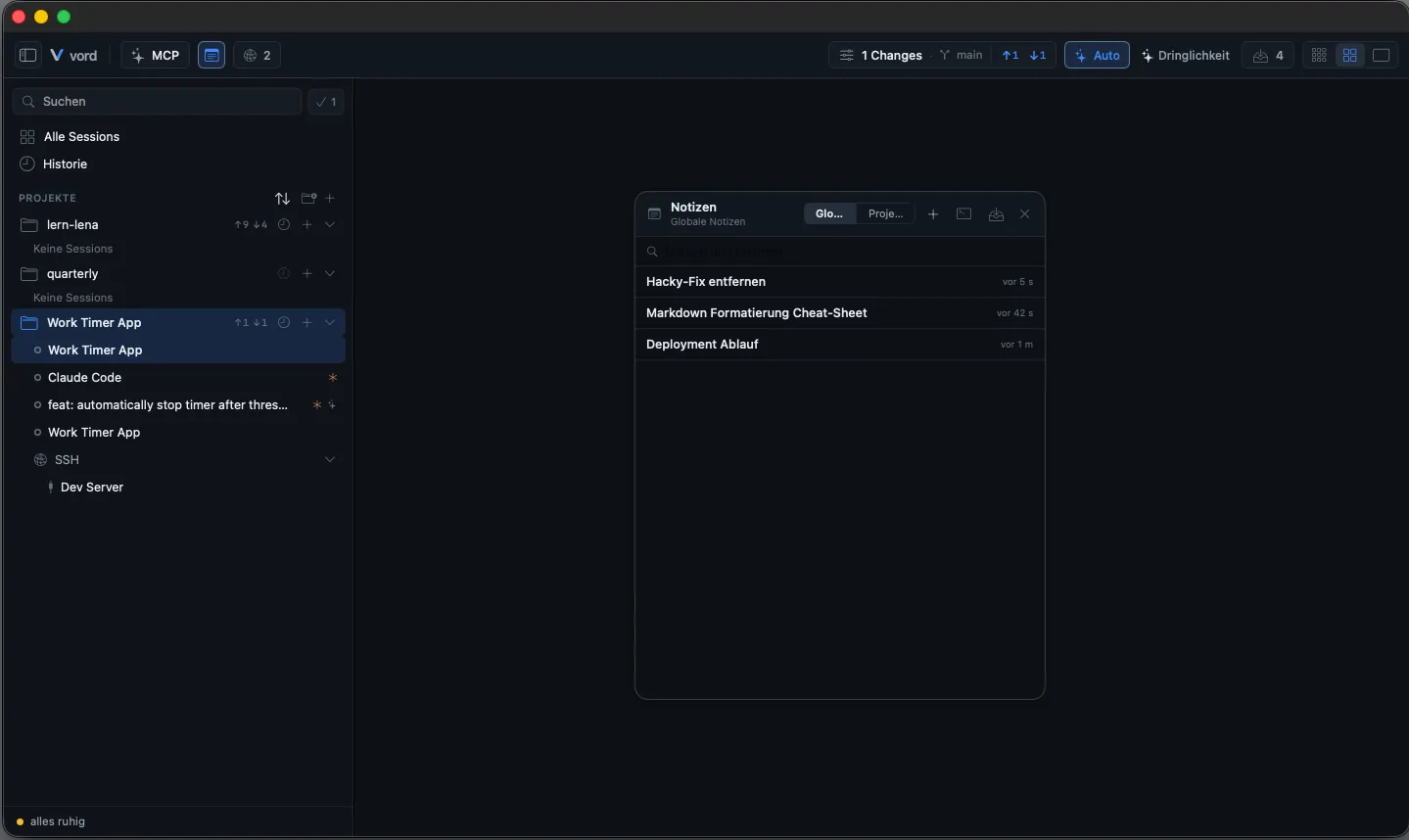
Section titled “Notes in their own window (⌘⇧N)”Open the notes from the notes icon in the toolbar, or press ⌘⇧N. Notes live in their own window — like the board, it has a native title bar and toolbar, and you choose its size and position. The toolbar button shows whether the window is open. There is no minimize-to-chip and no fixed column: close it with ⌘W or the red button and reopen it the same way.
From top to bottom, the window has:
- A toolbar with Global/Project tabs, a new-note button, and a rendered/raw toggle.
- A search field, always visible.
- A list of notes.
- A detail/editor pane for the selected note.
Global vs. project notes
Section titled “Global vs. project notes”Every note lives in exactly one of two scopes:
- Global — always visible, independent of which project you have open.
- Project — bound to exactly one project.
To create one:
- Open the notes window (toolbar button or
⌘⇧N). - Pick the Global or Project tab. The Project tab follows whichever project is focused in the sidebar; if you’re on “All Sessions,” it shows every project’s notes grouped, each group with its own “+”.
- Click “+” in the toolbar (or inside a project group) — a new, empty note opens directly in the editor with keyboard focus.
You can also right-click a project in the sidebar and choose + Note — it creates a project-scoped note and opens the notes window straight to it.
There’s no cross-machine sync and no iPhone access: notes are a Mac-only, local feature.
First line is the name
Section titled “First line is the name”There’s no separate title field. The first non-empty line of a note’s Markdown text is automatically what shows in the list — type it, then write whatever else you need below.
Search across all notes
Section titled “Search across all notes”The search field is always visible and searches the full text of every note, across both scopes at once — Global first, then the active project, then the rest in sidebar order. Typing into it replaces the tab view with a results list; clearing it brings the tabs back.
Rendered vs. raw, copy raw text
Section titled “Rendered vs. raw, copy raw text”Selecting a note (without editing it) shows it either:
- Rendered — headings, lists, code blocks with syntax highlighting, and block quotes, using the same Markdown renderer as file preview.
- Raw — plain monospaced text, selectable.
Toggle with the icon in the window toolbar. It flips globally, not per note — switch to raw and the next note you open shows raw too, until you switch back. This shares the same setting as file preview’s Markdown toggle, so switching one switches the other. You can also choose the default under Settings → Workspace → Cockpit & Tiles → Preview → Render Markdown.
To get a note’s contents onto the system clipboard, select it and click Copy in the detail action bar. It briefly shows Copied as confirmation. This always copies the unmodified raw text — never the rendered version — so commands and formatting come through exactly as written.
To remove a note, click delete once to see a Delete? confirmation, then click again to confirm. There’s no undo after that second click.
Limits
Section titled “Limits”- No separate title field. The name is always the note’s first line — see above.
- No tags or folders. Just two scopes (global/project) plus search.
- No undo for deletions. The two-click confirmation is the only safety net.
- Notes for removed projects aren’t deleted. They stay in the notes file rather than disappearing, but there’s no automatic cleanup either.
- Mac-only, no sync. No iPhone access, no sync between machines.
- 5 MiB size cap on the notes file as a whole. If it’s exceeded, vord treats it as corrupt, backs it up, and starts fresh.
Related
Section titled “Related”- Showing things to you — the separate archive for what an agent shows you with
show_to_user, not something you write yourself. - File preview — shares the rendered/raw Markdown toggle and renderer with notes.