Connections & MCP
Connections & MCP (/account/connections): Manage which apps and agents can access your vord account. Every revocation takes effect immediately.
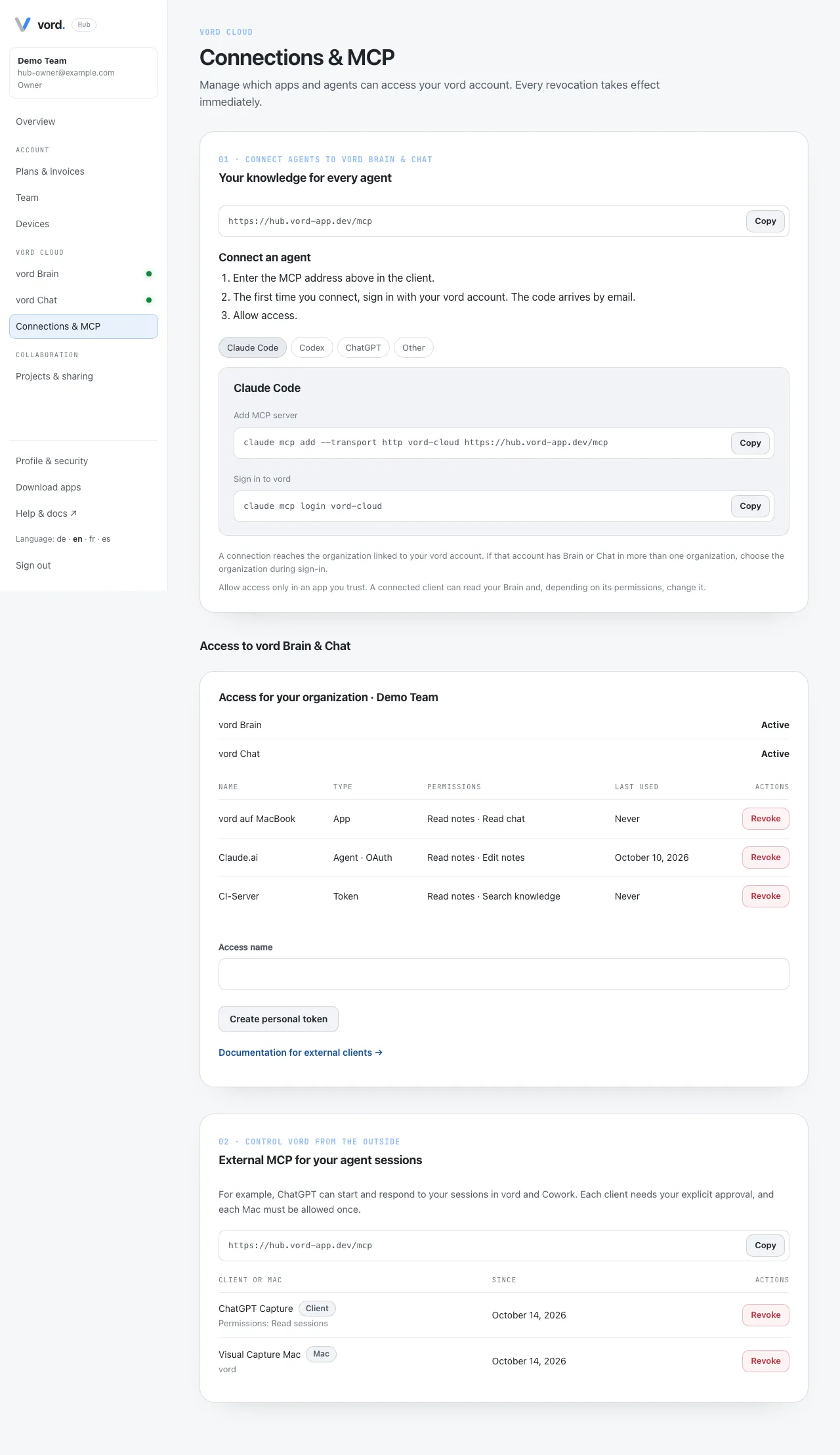
The older Cloud page https://cloud.vord-app.dev/me/mcp-tokens is specified to redirect here (the Hub store worktree does not itself register that redirect). The Access section’s extra docs line Documentation for external clients points to /docs/cloud/external-clients/ on this docs site. Overview Open guide also goes to this Hub page (/account/connections).
Connect agents to vord Brain & Chat
Section titled “Connect agents to vord Brain & Chat”The Hub labels this block 01 · Connect agents to vord Brain & Chat. Your knowledge for every agent. Copy the MCP address (from the Cloud origin, typically https://cloud.vord-app.dev/mcp). Then Connect an agent:
- Enter the MCP address above in the client.
- The first time you connect, sign in with your vord account. The code arrives by email.
- On the consent page, check Signed in as <email> · <organization>. Choose Use another account if it is wrong.
- Allow access.
Tabs Claude Code, Codex, ChatGPT, Other. Selecting a tab shows that client’s steps; without JavaScript all four are listed one below the other.
Claude Code — Add MCP server and Sign in to vord:
claude mcp add --transport http vord-cloud https://cloud.vord-app.dev/mcpclaude mcp login vord-cloudCodex:
codex mcp add vord-cloud --url https://cloud.vord-app.dev/mcpcodex mcp login vord-cloudChatGPT and Other: Create a custom MCP connector with the address above, then sign in with your vord account.
A connection reaches the organization linked to your vord account. If that account has Brain or Chat in more than one organization, choose the organization during sign-in.
Consent is available only when the vord Cloud sign-in is no more than five minutes old. If it is older, vord Cloud signs you out and asks you to sign in again. Every new connection requires a new email code. The signed-in page has a Sign out button. On the email-code page, Not you? Sign in with another account signs you out of the Hub and takes you to sign-in for another account.
Without Brain or Chat: There is nothing to connect without the vord Brain or vord Chat add-on. Book an add-on first. Owner and Admin see Book Brain or Chat to Plans & invoices. Members see the text without that link.
Access to vord Brain & Chat
Section titled “Access to vord Brain & Chat”Per organisation: Brain/Chat status (Active, Read-only until {date}, Not booked), then the access table Name, Type, Permissions, Last used, Actions.
Types: App, Agent · OAuth, Token. Permissions are shown in plain words (Read notes, Edit notes, Search knowledge, …). Never if unused. Empty: No access connections yet.
Revoke → Revoke “{name}”? This access immediately loses access to vord Brain and vord Chat. The connected app must sign in again. → Revoke access.
Create personal token
Section titled “Create personal token”Create personal token with Access name. The Hub emails a six-digit code (10 minutes). After the code, the token is shown once: The “{name}” token is shown only here. Copy it now and store it safely. Choose an expiry of 30, 90, or 365 days, or No expiry; a token without an expiry stays valid until you revoke it. Each member can have up to 20 active personal tokens; revoke one at any time.
Control vord from the outside
Section titled “Control vord from the outside”The Hub labels this block 02 · Control vord from the outside. External MCP for your agent sessions: For example, ChatGPT can start and respond to your sessions in vord. Each client needs your explicit approval, and each Mac must be allowed once.
The address is the Hub MCP URL (typically https://hub.vord-app.dev/mcp). Setup on the Mac: Let AI apps start sessions.
Confidential clients such as Grok and ChatGPT can register and connect to the Hub. CLI clients with a local callback such as http://127.0.0.1:<port>/…, http://localhost:…, or http://[::1]:… can connect as public clients with PKCE.
The table Client or Mac / Since mixes:
- Client — Revoke approval for “{name}”? / Revoke approval
- Mac — Sign out “{name}”? / Sign out
Empty: No clients or Macs connected yet.
MCP Hub connections and shares
Section titled “MCP Hub connections and shares”The Connections & MCP area also lets you review MCP Hub connections for your organisation. You can disconnect your own server login or withdraw a share. Server owners can manage their shares; organisation owners and admins can withdraw shares across the organisation.
The vord MCP Hub is managed in vord’s MCP manager. It requires an active vord base subscription, but not Brain or Chat. Read the MCP Hub setup guide for setup, sharing modes, status, and privacy details.
External AI apps and tokens
Section titled “External AI apps and tokens”Connect external AI apps with the vord MCP Hub using the setup guide. In vord, Manage connected apps opens this Hub page. Review connected apps here and revoke access when needed. Personal tokens are created on this page with an email code, shown only once, and can be used in an MCP client’s Authorization header. Never put a token in a URL.