Let AI apps start sessions (external MCP)
vord can act as an MCP server for other AI apps. An app that supports MCP connectors — for example Claude or ChatGPT — can then start real sessions on your Mac: a tile in vord, with any of your locally installed agents (Claude, Codex, Kimi, Grok, Muse, OpenCode). The client sees your sessions and their children, reads status and results, sends prompts, and stops sessions again.
This uses the same start, prompt, status, and stop paths as a start from the app itself or from the iPhone companion — there is no separate sandbox runtime for external clients. Everything is off by default, and every client needs an approval that is stored locally on your Mac, not on the server.
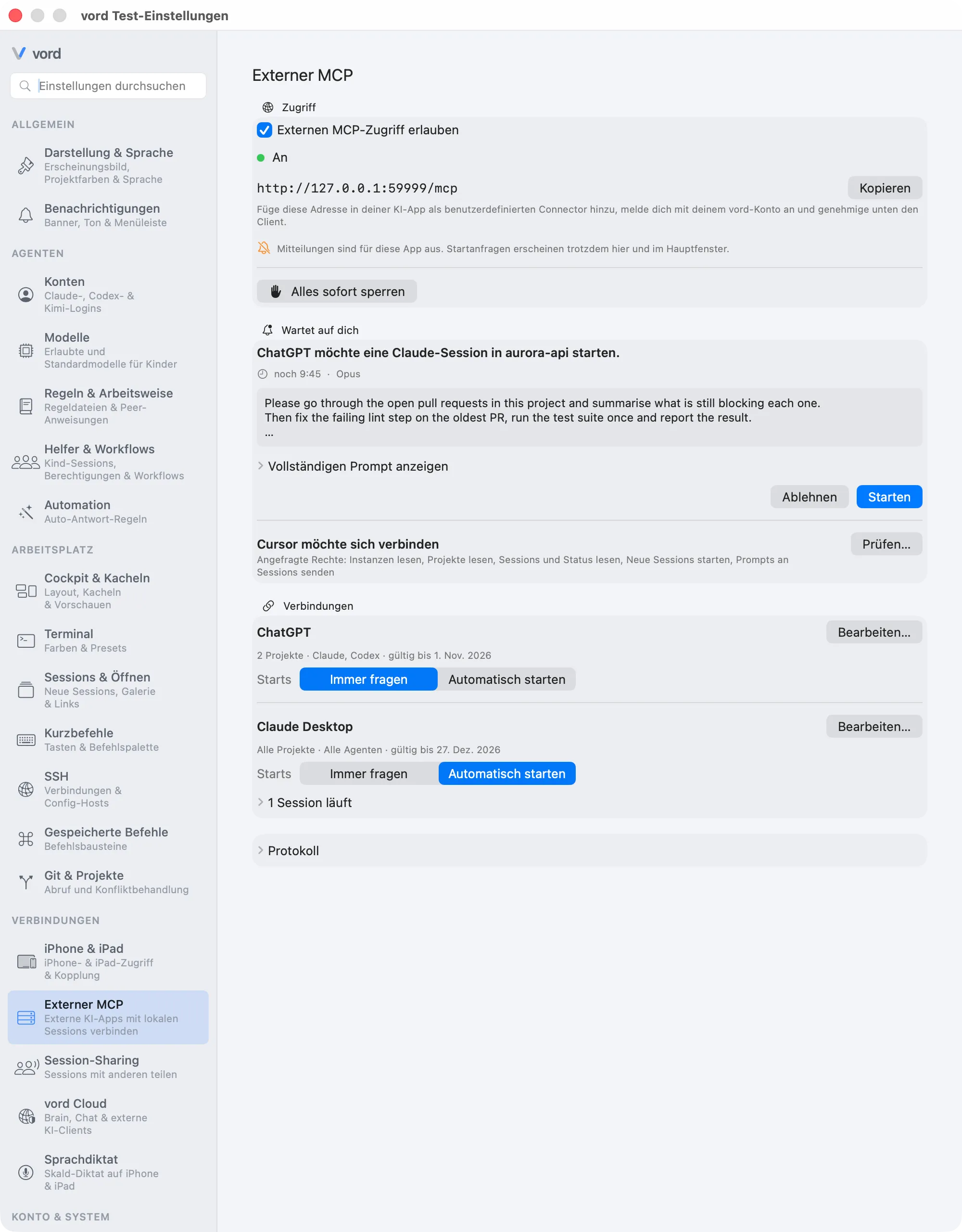
- Open Settings → External MCP in vord and turn on Allow external MCP access. Only a locally signed-in user can enable the host. The switch is remembered for your vord account: after quitting, an update, or a restart, the app turns external access back on when you sign in with the same account. Turning it off and Block everything now are remembered too. A coloured dot with a short text shows the state: On, Starting, Connection is being restored, Off, or Error:
. After temporary network or server errors, the host reconnects automatically (status “Connection is being restored”); authentication or revocation errors, invalid server responses, and local storage errors switch it off, and the error state offers Try again. After a failure, the app does not make another automatic attempt while it is running; the next app launch tries once. Switching off and Block everything now take effect immediately. - The same section shows your MCP address with a Copy button:
https://hub.vord-app.dev/mcp. The hint below it reads: “Add this address as a custom connector in your AI app, sign in with your vord account and approve the client below.” Connected clients and Macs can be revoked in the Hub under Connections & MCP. - In your AI app, add that address as a custom connector and sign in with your vord account. Confidential clients such as Grok and ChatGPT are supported. CLI clients with a local callback such as
http://127.0.0.1:<port>/…,http://localhost:…, orhttp://[::1]:…are supported as public clients with PKCE. - On the consent page, check Signed in as <email> · <organization>. Choose Use another account if it is wrong, then choose Allow. If the app already has a connection using the wrong account, remove that connection in the app first.
- The app then appears under Waiting for you in Settings, together with the rights it asked for in plain words (“Read projects”, “Start new sessions”, …). Click Review… to open the access editor (see Permissions per connection) and allow it. An app you don’t allow can’t do anything on this Mac — every request it sends is rejected.
The vord Cloud sign-in must be no more than five minutes old when you approve the connection. If it is older, vord Cloud signs you out and asks you to sign in again. Every new connection requires a new email code. On the email-code page, Not you? Sign in with another account signs you out of the Hub and takes you to sign-in for another account. The signed-in page has a Sign out button.
If macOS notifications are switched off for the app, the Access section says so: “Notifications are off for this app. Start requests still show up here and in the main window.”
What a client may do
Section titled “What a client may do”Each tool needs a matching right that the app asked for when it connected, and every call is checked again locally against the stored approval — what the server claims never widens a local permission.
| Tool | What it does |
|---|---|
list_instances |
Lists your connected vord instances. |
list_projects |
Lists the projects of an instance. |
list_agents |
Lists the agents this client may start and that are installed locally, with their models and thinking levels. |
list_sessions |
Lists the sessions visible to this client, including the parent relationship; at most 100 entries per page, older pages via a cursor. |
start_session |
Starts a session with agent, optional model and thinking level, title, and a first prompt. Returns the session id and the initial status. |
send_prompt |
Delivers a prompt into a running session. Never answers a permission, plan, or question box — see Safety. |
get_session_status |
Returns the status, an open box if one is waiting, and the direct children. |
get_session_result |
Returns the current state, paginated: the last agent answer plus the visible terminal state. |
stop_session |
Stops the session and its whole family of children. Idempotent: stopping an already ended session succeeds without effect. |
Model and thinking level are optional on a start. A session started by an external client always starts with an orchestrator model in the newest version of its family: without a model, the agent’s orchestrator default applies (your default model for that agent if it is an orchestrator model in its newest version, otherwise the newest version of its least expensive orchestrator family). An alias such as opus starts the newest explicit version of its family; an older version such as claude-opus-4-6 and a model that is not an orchestrator model are rejected with model_unavailable. A thinking level must be one of the levels list_agents reported.
Status values
Section titled “Status values”get_session_status and the other tools report one of these states:
| Status | Meaning |
|---|---|
awaiting_confirmation |
The start is waiting for your confirmation on the Mac. |
rejected |
You declined the start, or it went unanswered for 10 minutes. |
starting |
Confirmed, the session is being created. |
working |
The agent is actively working. |
waiting_for_permission / waiting_for_answer / waiting_for_plan_approval |
The session is waiting at a box only you can answer — on the Mac. |
finished |
The agent’s answer is complete and the session is ready for the next prompt. |
idle |
The session is alive but not currently working. |
limited |
The agent has hit a usage limit. |
error |
The session failed. |
stopped |
The session was stopped. |
finished and idle are deliberately distinct from working: “running” and “successfully done” are never conflated. Note that finished means the answer is complete — the session itself is still alive and accepts the next prompt.
The Settings at a glance
Section titled “The Settings at a glance”Settings → External MCP has four sections, top to bottom:
| Section | What it shows |
|---|---|
| Access | The on/off switch, the status, the address with Copy, and — only while there is something to block — the red Block everything now button. |
| Waiting for you | Only visible while something is open: start requests and new apps that want to connect. |
| Connections | One row per connected app: its name, a summary (“3 projects · Claude, Codex · valid until Nov 12, 2026”), Edit…, the Starts choice, and its running sessions. Sessions whose connection has expired or was removed are collected in an Other sessions row, each with a Stop button. |
| Activity log | Collapsed by default. The latest 100 entries in plain words; an event the app doesn’t know shows as “Other event”. |
With no connection yet, Connections says: “No connections yet. Add the address above in your AI app.”
Approving starts
Section titled “Approving starts”By default, every start_session waits for your confirmation on the Mac. Three places show the request:
- a notification — “
wants to start a session” with the project, agent, and the first line of the prompt. It carries Start and Reject buttons, so you can decide without opening the app; clicking the notification body opens the full request for review instead, - a banner in the main window — “
wants to start a session in .” with the time remaining, a “+N more” hint when several requests are open, and a Review button that opens the full request. In vord it is a solid bar above the workspace, - the Waiting for you section in Settings. Requests are listed oldest first. Each shows the same sentence, the time remaining, and the first lines of the prompt, with Show full prompt for the rest, plus Reject and Start.
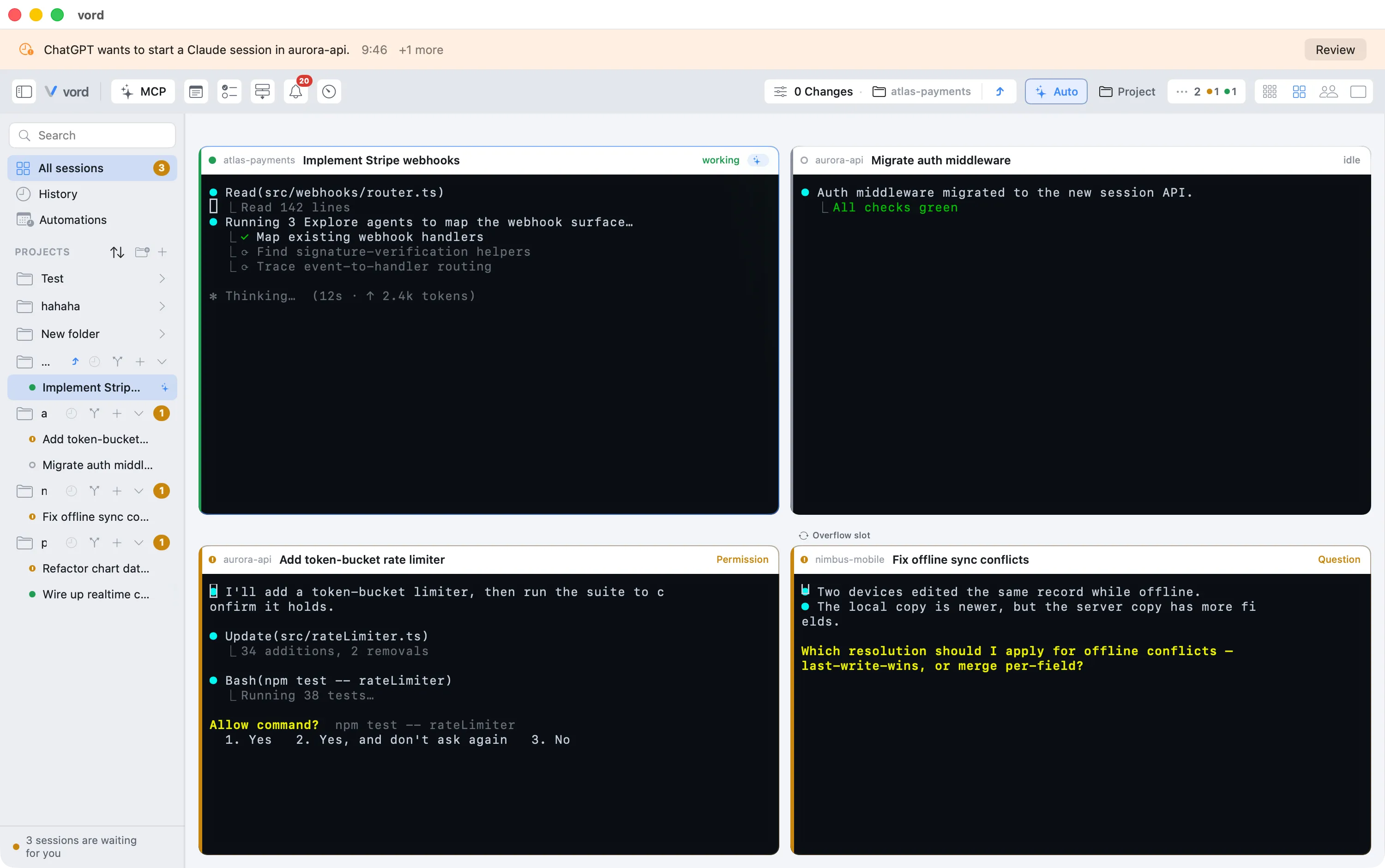
If you don’t answer within 10 minutes, the start counts as rejected and the prompt is discarded. This neutralises a stolen token or a compromised server for the riskiest operation: without your local confirmation, nothing starts.
Starting without asking
Section titled “Starting without asking”Each connection has its own Starts choice in Connections: Always ask (the default) or Start automatically. Switching to Start automatically asks once, “Start sessions without asking?”, and explains that the app will start sessions on this Mac without asking you first. The limits below — projects, agents, concurrent sessions, runtime — still apply. Switching back to Always ask needs no confirmation.
Approving from your iPhone
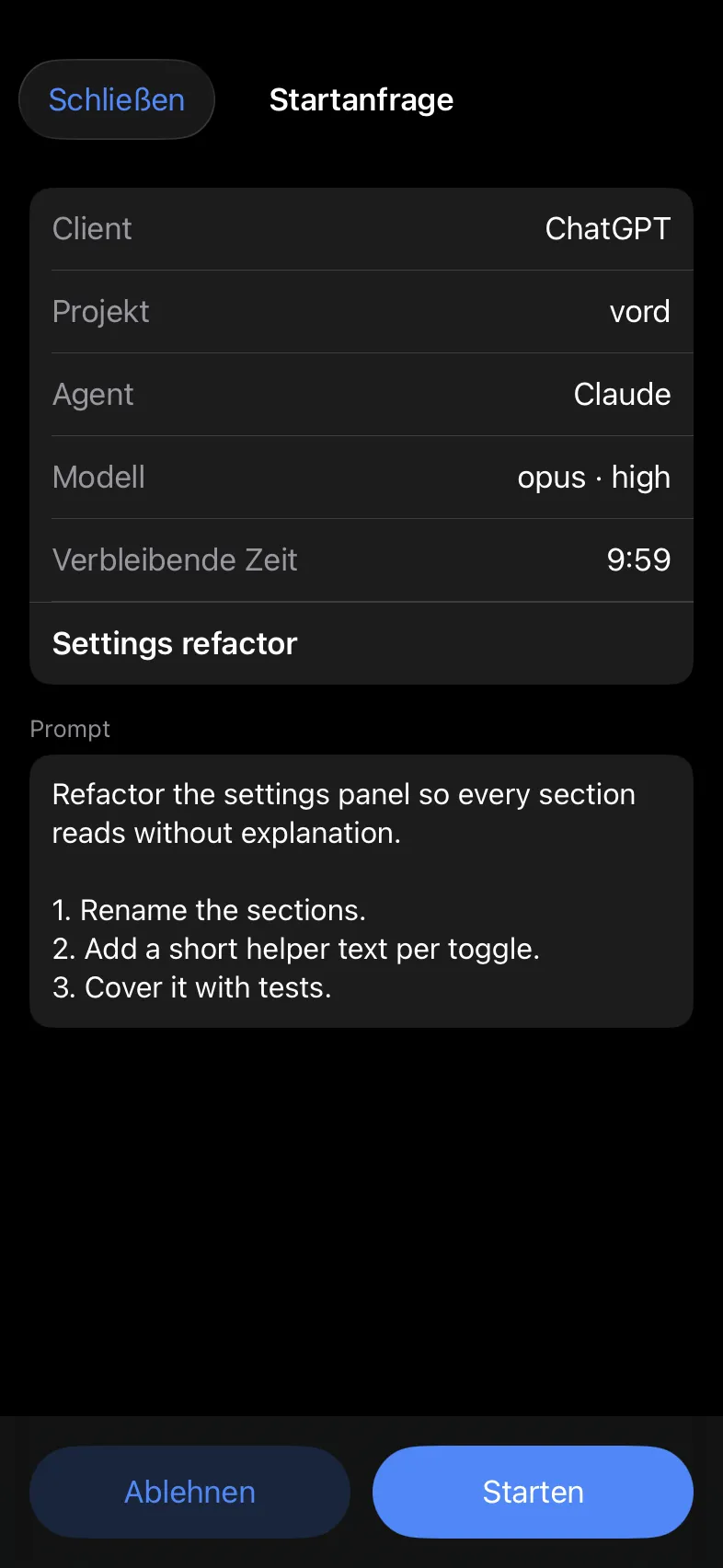
Section titled “Approving from your iPhone”You can also decide from your paired iPhone or iPad, without opening the Mac app:
- A start request arrives as a push with Review and Reject actions. Review opens the approval sheet; Reject declines immediately.
- The approval sheet (Start request) shows the client, project, agent, model, title, the full prompt, and the time remaining, with Reject and Start buttons.
- The same request sits in the phone’s notification inbox with a Review button. Against an older Mac that doesn’t support phone decisions yet, the inbox shows “Approve on Mac” instead and the sheet says “Approve this request on your Mac.”
- Only a paired iPhone on your own account can decide — a guest device never gets the decision. The prompt itself is never stored in the phone’s inbox cache; the sheet loads it live from the Mac.
- One decision counts: if the Mac or another device got there first, the sheet says “This request was already decided.” An unanswered request expires after 10 minutes (“The confirmation period has expired.”).
Permissions per connection
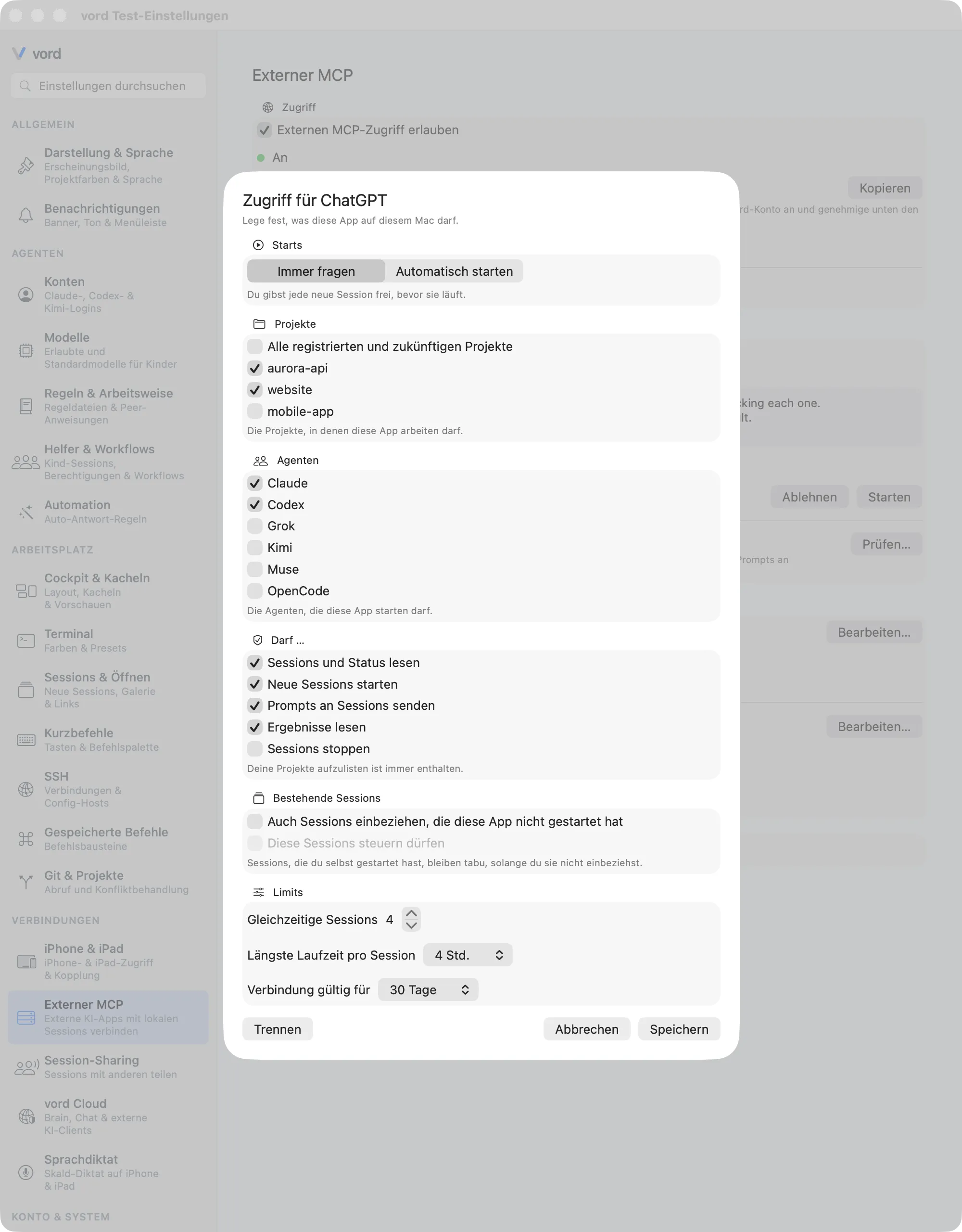
Section titled “Permissions per connection”The access editor (“Access for
| Section | Default | Meaning |
|---|---|---|
| Starts | Always ask | The start confirmation described above. Greyed out when the app doesn’t have the right to start sessions. |
| Projects | your choice | All projects or a selection you pick. Allow connection (and Save) stays disabled until you choose All registered and future projects or at least one project; a hint below the buttons says “Choose at least one project, otherwise this app cannot do anything.” Projects whose folder no longer exists on the Mac are not offered to apps; they don’t block external access. |
| Agents | all known agents | Multi-select of the known agents; only agents that are also installed locally can actually be started. |
| Allowed to… | your choice | Read sessions and status, start new sessions, send prompts to sessions, read results, stop sessions. Listing your projects is always included. When you review a new app, everything it asked for is preselected and anything it didn’t ask for is greyed out (“Greyed out: this app didn’t ask for it.”). |
| Include sessions this app didn’t start | off | Lets the app read sessions it didn’t start. Without it, the app sees only its own family (sessions it started and their descendants). |
| Allow controlling those sessions | off | Additionally lets the app write to those sessions (“Control existing sessions”). Requires the previous option; for a new app it must have asked for this right. |
| Concurrent sessions | 2 | At most this many sessions at once per app (range 1–16); open start confirmations count toward the limit. |
| Longest runtime per session | 4 h | 30 min, 1 h, 2 h, 4 h, 8 h, or 24 h. When the limit expires, the whole family is stopped. |
| Connection is valid for | 30 days | The approval expires after 7, 30, 90, 180, or 365 days. |
At the bottom, Cancel and Allow connection (Save when editing) sit on the right. Disconnect sits on the left and only appears when you edit an existing connection.
Disconnecting
Section titled “Disconnecting”Disconnect is in the editor and in the context menu of a connection row. It asks “Disconnect this app?” — “The app loses access and all sessions it started are stopped.” — and then withdraws the approval and stops every family that app started.
Safety
Section titled “Safety”- Off by default. Only a locally signed-in user enables the host. The switch is remembered per vord account and restored after quitting, an update, or restart when you sign in with that account. Turning it off and Block everything now are remembered as well. After temporary network or server errors, the host reconnects automatically (status “Connection is being restored”). Authentication or revocation errors, invalid server responses, and local storage errors switch it off, and the error state offers Try again. After a failure, the app makes no new automatic attempt while running; the next app launch tries once.
- Local approvals win. Each approval binds account, client, computer, and product, and is stored locally. The server is only transport and authentication — it can never widen a local permission.
- Boxes are never answered.
send_promptnever answers a permission, plan, question, or selection box. If the session is waiting at one, the call fails withsession_waiting_for_userand returns the box content — you answer it on the Mac. Sessions start with the agent’s local standard permissions, exactly like a start from the iPhone. - Prompts are marked as external. Every prompt from an external app reaches the agent inside a short English frame that names the app, says the task was not typed at this Mac, and asks the agent to stay in the project, keep credentials private, and not run irreversible or outward-facing actions unless the task explicitly asks for them. This is an extra hint for the agent, not a security boundary — the start confirmation, the per-connection limits, and the agent’s own permission prompts stay in charge. The frame is visible in the terminal.
- Always visible. Externally started sessions permanently carry an origin badge, External ·
, on the tile or conversation. A session started automatically shows a notification (“ started a session”) with a Stop button; clicking it brings that session to the front. A start you confirmed yourself gets no extra notification. Settings show the connections, the running external sessions of each connection (each with a Stop button), and the activity log. - Emergency stop vs. switching off. The red Block everything now button appears in Access only while there is an active connection or a running external session. Its confirmation reads “Block everything now?” — “Stops all sessions started by external apps and turns off external access.” It disables the host, rejects open requests, and stops all externally started session families. Simply turning off Allow external MCP access closes the intake and rejects open start requests, but leaves running sessions alive as normal, visible sessions — without the host, no external prompt reaches them. Quitting the app treats external sessions like any other session.
- Disconnecting stops families. Disconnect on a connection (dialog: “The app loses access and all sessions it started are stopped.”) withdraws the approval and stops every family that app started.
- Runtime limit. Counts from the moment the start was requested, including the confirmation wait. When it expires, the family is stopped and you get a notification.
- Fail closed. Unknown or outdated states and missing scopes are rejected. Approvals from the old v1 connector are revoked on first load and must be granted again.
- No secrets in plain text beyond the result. A prompt lives only in memory until the session starts — never in a file or log. The activity log stores metadata only (time, client, operation, session, outcome; at most 500 entries, the last 100 shown) — never a prompt, title, or content.
Limits & errors
Section titled “Limits & errors”Size limits: a prompt is at most 64 KiB, a title 256 characters, and one result page 256 KiB.
In addition to the v1 codes, these error codes exist:
| Code | Meaning |
|---|---|
agent_not_allowed |
The agent is not in this client’s approval. |
agent_unavailable |
The agent is not installed or could not be started. |
model_unavailable |
The requested model is not available for that agent. |
session_waiting_for_user |
The session is waiting at a permission/plan/question box; the error includes the box kind, text, and choices. Answer it on the Mac. |
start_rejected |
The start confirmation was declined locally or expired after 10 minutes. |
Sending a prompt to a session that is still in awaiting_confirmation or starting fails with operation_pending — poll get_session_status instead.
OAuth errors from vord Cloud and the vord Hub use the standard OAuth error format.
See also
Section titled “See also”- MCP Servers — the other direction: MCP servers your agents in vord use.
- Controlling Sessions from your iPhone — the iPhone companion, which uses the same real session paths.
- Kepos Mesh — presence and team messages for your sessions, a separate opt-in bridge.