Staging & Committing
The Inspector separates preparing a commit from writing it. The Diff tab stages files or individual Working Tree blocks; the Commit tab shows only Git’s index and commits exactly that staged set.
Stage files and single hunks
Section titled “Stage files and single hunks”- Open the Inspector and stay on Diff.
- Select a file under Working Tree, then choose Stage file or Stage block on a hunk. Select a row under Staged to unstage the whole file.
- Switch to Commit. Its bordered list contains only staged files — the exact index that
git commitwill use. - If files remain in Working Tree, the tab shows their count and a link back to Diff. They are not silently included.
This is the same granular control you’d get with git add -p, without leaving the app.
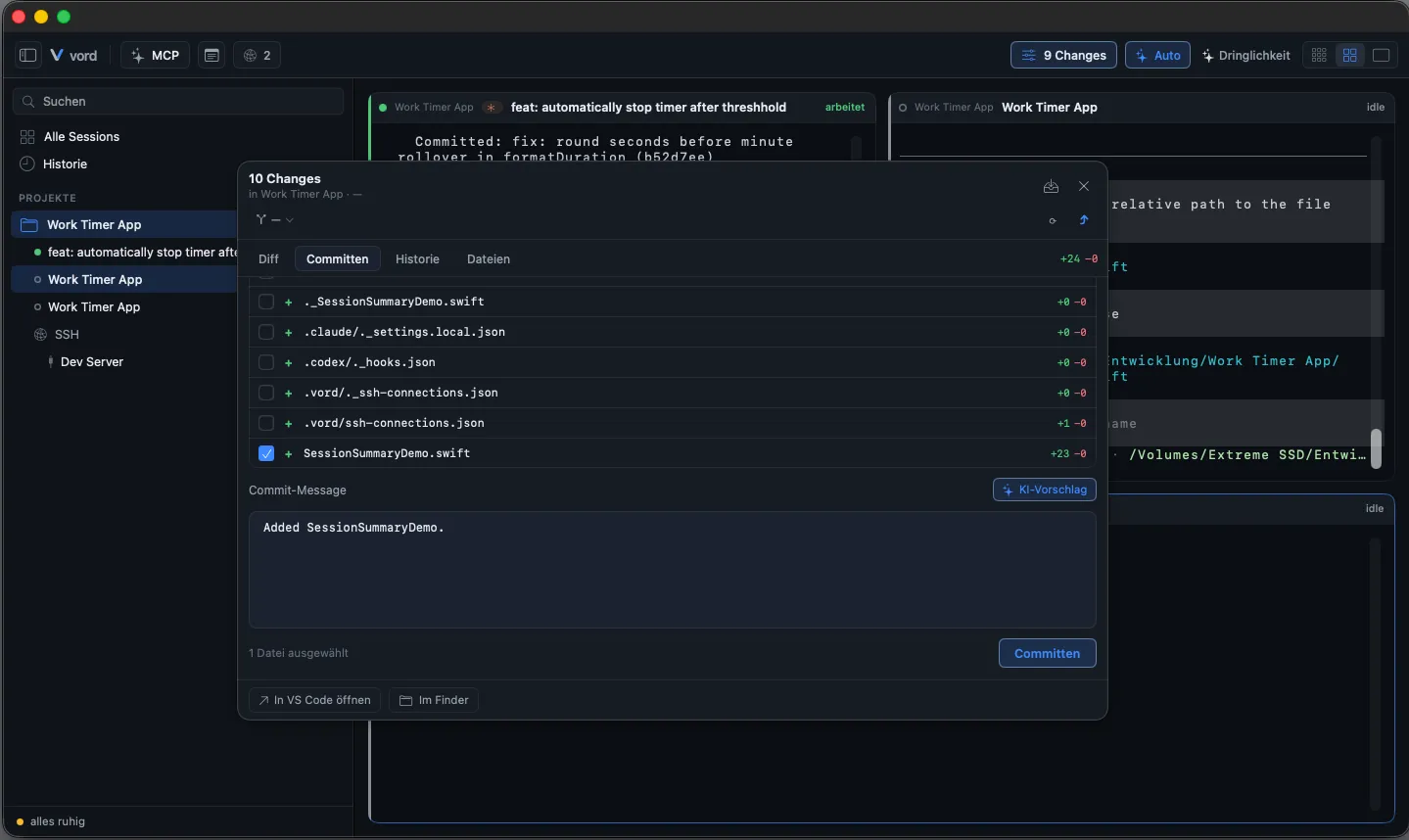
Write the commit message (or ⌘Return)
Section titled “Write the commit message (or ⌘Return)”Below the file list is a plain-text commit message editor.
- Type your message directly into the editor.
- Click Commit (or press ⌘Return) to commit the currently staged changes.
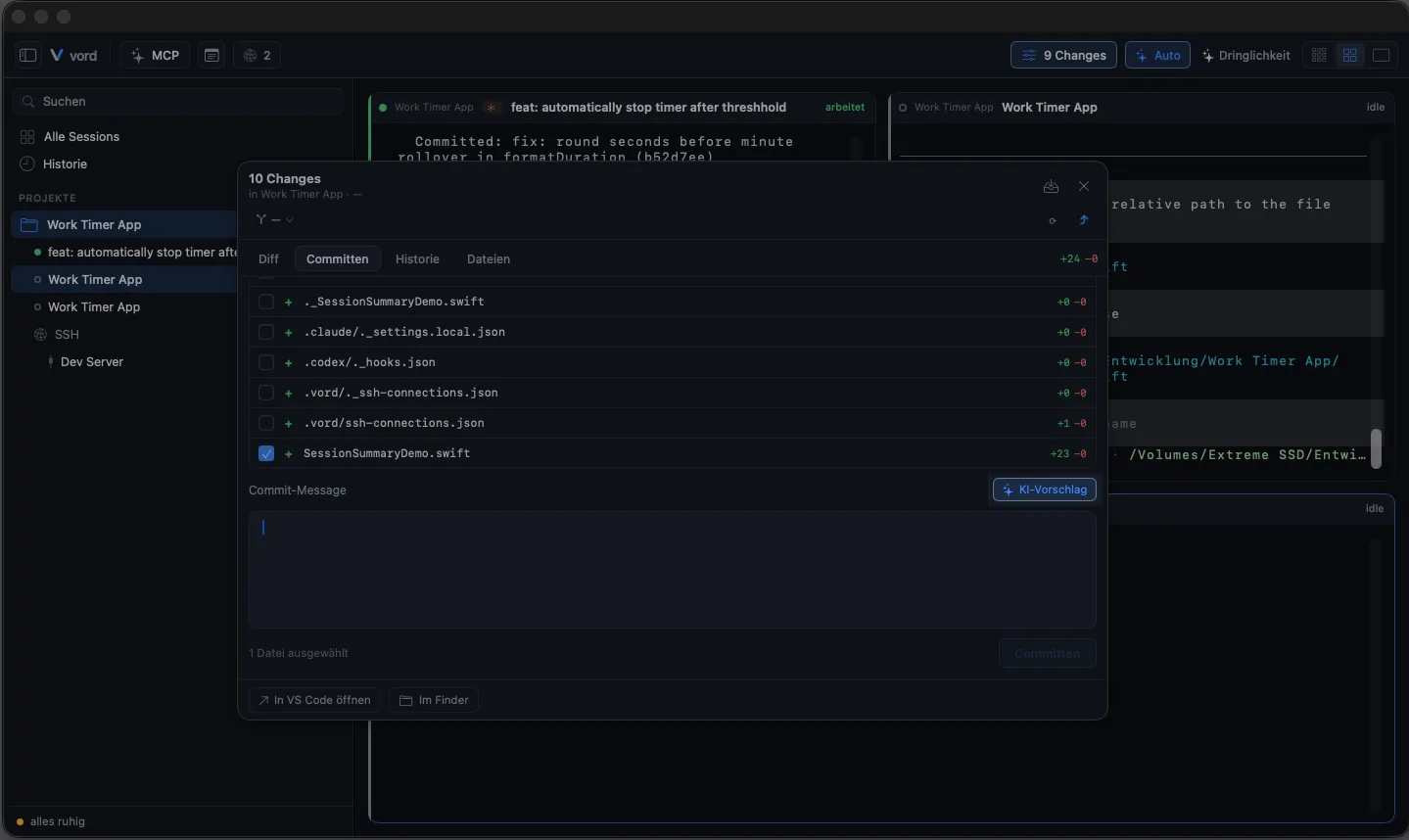
The Commit button is disabled whenever the message is empty, a commit is already in progress, or nothing is staged. The footer shows how many files are selected (e.g. “2 files selected”) and, after committing, a brief “Committed ✓” status — or a failure message if the commit itself errors.
AI commit-message suggestion (uses local claude, text-only, German output)
Section titled “AI commit-message suggestion (uses local claude, text-only, German output)”Instead of writing the message by hand, click AI suggestion (the sparkles button above the editor) to generate one from the currently staged diff.
How it works, and why it’s safe to point at a diff full of agent-written code:
- Stage at least one file.
- Click AI suggestion. The button label switches to “Generating…” while it runs.
- vord runs
claude -pheadless against the staged diff, with--disallowed-toolscovering Bash, Edit, Write, Read, WebFetch, WebSearch, NotebookEdit, Task, Glob, and Grep — so this call can only return text, never touch a file. That’s a deliberate defense against prompt injection hiding in diff content (e.g. a comment engineered to look like an instruction). - The suggestion lands in the message editor, still fully editable, before you commit.
- A 60-second timeout applies; if it’s hit, or the diff is empty, or something else goes wrong, you get the generic failure text above with no further detail.
Which session made a commit
Section titled “Which session made a commit”Each row in the History tab carries a small badge when vord can tell which session produced the commit. The badge shows the agent (for example claude) and, when the session trail knows it, the turn (· T3). Hover it for the session name, the model, the turn, and the ticket keys.
vord matches the commit’s SHA first. A rebase or cherry-pick produces a new SHA, so vord falls back to the stable patch ID of the diff and still finds the originating session.
If two sessions in the same folder produced an identical patch, vord does not guess: the badge reads “2 sessions” and the tooltip lists every candidate. The comparison runs locally against the session trails in vord’s support folder; nothing leaves the Mac.
What’s not here (no amend/signing/no-verify in the UI)
Section titled “What’s not here (no amend/signing/no-verify in the UI)”The Commit tab wraps a plain git commit -m and nothing more. There’s no button for:
- Amending the previous commit
--no-verify(skipping hooks)- Commit signing options
For any of that, use your terminal. The History tab is read-only too — it shows past commits, it doesn’t let you rewrite them.
See also
Section titled “See also”- The Inspector — how to open the panel and what the other three tabs (Diff, History, Files) do.
- Branches & Git Sync — pushing what you just committed, and the fetch/pull side of things.
- claude vs. codex — why the AI suggestion needs the
claudebinary specifically, even in a codex session.