The Git Inspector
The Inspector is vord’s right-hand column for the current project: a hunk-accurate diff viewer, a staging-and-commit workflow, a read-only commit log, the session timeline, and a full file explorer with a built-in editor. It has five tabs — Diff, Commit, History, Timeline, Files — and opens beside the cockpit grid without interrupting your sessions underneath.
Opening and closing the panel
Section titled “Opening and closing the panel”Open it from the toolbar’s Git inspector toggle (a slider icon, on the far right), which carries the live change count for the currently focused project’s Git repo. Clicking it toggles the panel open and closed. There’s also a keyboard shortcut — ⌘I (“Toggle inspector”), rebindable in Settings → Workspace → Shortcuts.
Inside the panel:
- The ✕ in the panel header closes it outright.
The Inspector always uses the right-hand column. Its width and the file tree’s column width (in the Files tab) are draggable and remembered between sessions. The right-hand column remembers a separate width for each content type (Inspector, preview, Repo overview, and peek), so switching panels does not make one panel inherit another’s width. Use the diagonal arrows in the Inspector header to Expand to full width; the same button returns it to the column. Full width is temporary and does not change the saved column width.
Choose Open in Window in the Inspector header to move the Inspector content into its own window. The window has no panel header: its title and subtitle are in the window title, and the Inspector tabs, Inline/Side-by-side, Open large view, and Git-sync menu are in the window toolbar. The window keeps the same project and Inspector state, while the main window’s right-hand column is released; opening the same project again brings that window to the front.
The Diff tab: Working Tree → Staged → To Push
Section titled “The Diff tab: Working Tree → Staged → To Push”The Diff tab is a repository stack, not a merged change list. Its left side always keeps three layers in order:
- Working Tree — unstaged and untracked files.
- Staged — exactly what is currently in Git’s index for the next commit.
- To Push — local commits and their files that have not reached the configured upstream.
The same path can appear once in Working Tree and once in Staged when only part of a file is staged. Those rows stay separate and load separate diffs. Use the layer filter and file search above the list to narrow the stack without changing Git state.
- Click a file in any layer (the list width is draggable) to load that layer’s diff on the right. Content is loaded lazily for the selection only.
- Use the segmented control in the top-right of the panel header (or in the window toolbar, visible only on this tab) to switch between Inline and Side-by-side views. Side-by-side gives you two independently, synchronously scrolling columns — the same layout you’d get from GitHub or VS Code.
- Long lines scroll horizontally; in side-by-side mode each column scrolls on its own.
You can stage or unstage a whole file from its diff header and stage a single Working Tree block from the hunk header. Binary files and submodules get explicit placeholders instead of a misleading text diff. For very large diffs, vord turns off syntax highlighting past a line-count threshold to keep scrolling smooth; the green/red change coloring stays intact.
The panel keeps the last good repository snapshot while it refreshes. If Git fails, an error banner appears and the previous list stays visible instead of being replaced with “0 changes”.
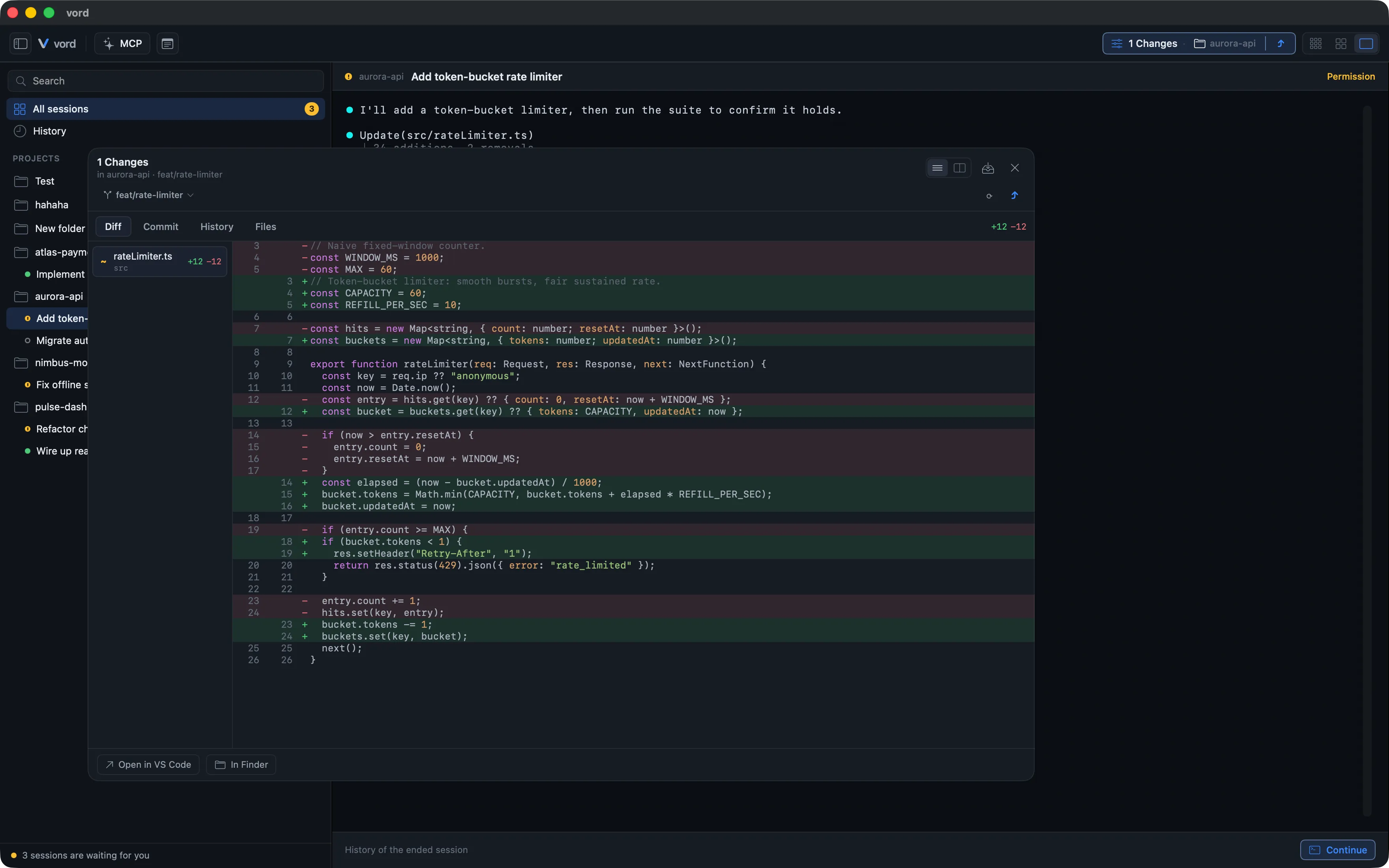
The Commit tab is deliberately index-only; see Staging & Committing. Push review lives in To Push and shows outgoing commits, files, line totals, and warnings before anything leaves the Mac.
Comment on a diff
Section titled “Comment on a diff”Hover a changed line and click the comment button in the gutter. Hold Shift and click a second line in the same file, on the same side, to cover the lines between them. A Shift-click in another file or on the other side starts a new one-line comment.
In Side-by-side, the left column comments the old side and the right column comments the new side. An empty cell has no line number, so it has no comment button.
The same gutter is in the working-tree diff, in a commit opened from History, and in a turn diff on the Timeline. The Timeline gutter is in Code mode; Cowork does not show turn diffs yet. Drafts belong to the worktree and stay on disk when you quit vord.
A comment whose lines no longer match the diff is marked Outdated. It stays in the draft until you send or delete it.
When the worktree has drafts, a bar above the diff shows N comments, Send to …, and Discard.
vord chooses the session that receives the review:
- One session is working in this folder: Send to that session.
- Several sessions are working in this folder: pick one, then Send to …. The session that was active most recently is already selected.
- A History commit that belongs to one session is sent to that session, including when the session’s folder is different. If that session has ended, sending stays off and the bar says The session that made this commit has ended. If the commit matches more than one session, vord does not pick one of them; the bar uses the sessions working in this folder.
- A turn diff is sent to the timeline’s session. If that session has ended, the bar uses the same ended-session reason.
- No usable session: Send stays disabled and the bar says No session works in this folder.
Sending follows the same path as browser feedback. The review is pasted into the session immediately, or held until the session is ready. The bar then says Sent. or Will be sent when the session is ready.
The History tab
Section titled “The History tab”History shows the last 100 commits on the current branch: subject line, author, relative time, and short hash.
- Click a commit to open its full diff on the right (equivalent to
git show). The diff text is not an editor. Line comments are described in Comment on a diff. - Use the back arrow to return to the list.
The Timeline tab
Section titled “The Timeline tab”Timeline lists the checkpoints of the selected session, newest first. Select a row to read that turn’s diff. Line comments on that diff go to the timeline’s session; see Comment on a diff. Badges mark a safety point before a restore, a checkpoint that was restored, commits, sessions branched off from that point, and a Parallel hint when other sessions worked in the same folder. Full steps for restore, branching off, and how long checkpoints are kept: History & Checkpoints. The same list is a sheet on iPhone and iPad, from the session’s “…” menu; the phone shows the turn diff and lets you comment on lines.
The Files tab
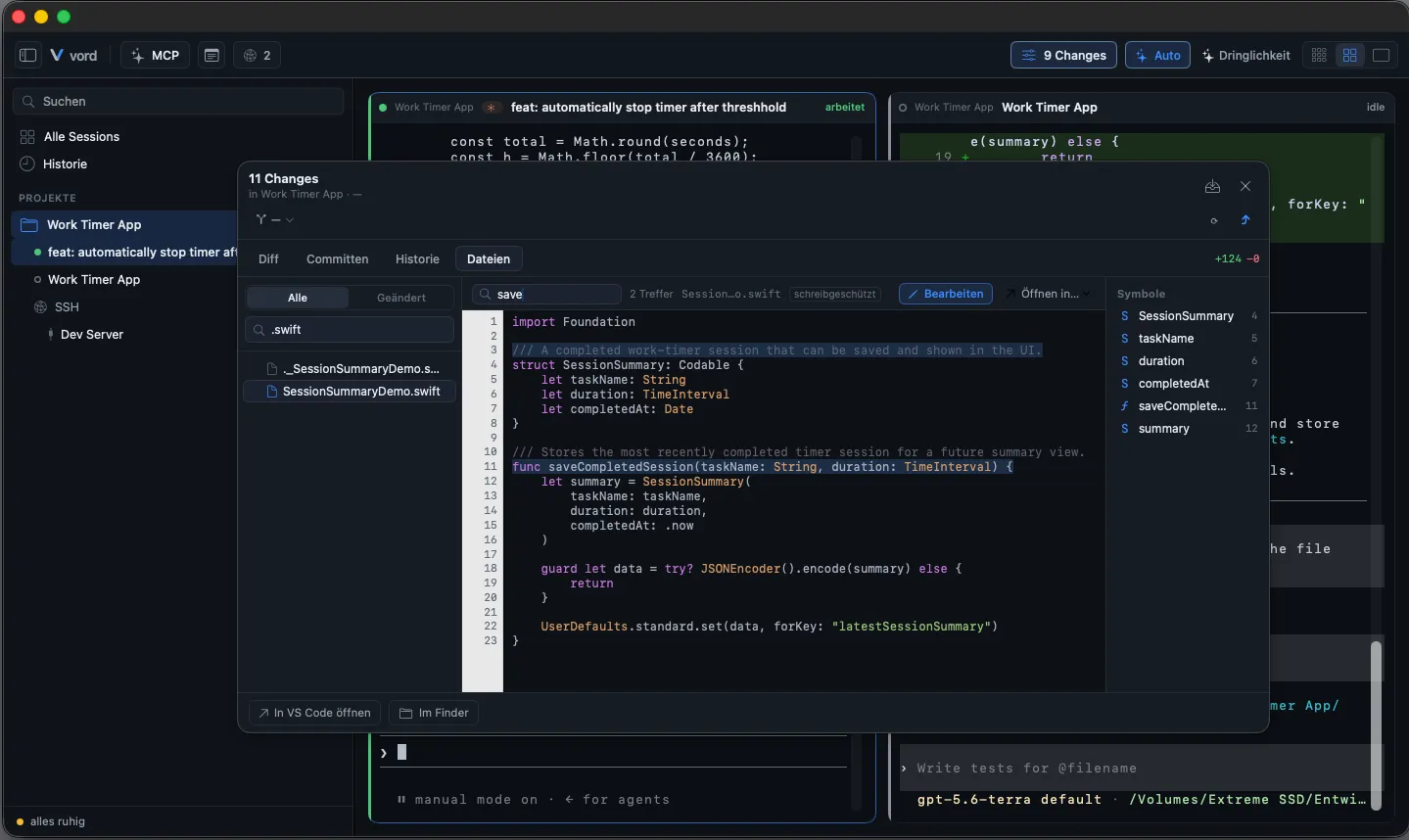
Section titled “The Files tab”Files gives you a three-column file explorer for the whole project, independent of what’s changed:
- Left — folder tree. Click any file to load its content in the middle column. Use the All / Changed filter buttons, or the Filter files search box, to narrow the tree down. Git badges identify Working Tree, Staged, conflict, binary, and submodule state without creating a second file browser.
- Middle — file content. Read-only by default, with language-aware syntax highlighting. Use Search in file plus Enter to jump to matches (a match count is shown). For
.mdfiles, a toggle switches between the rendered Markdown preview and raw source. - Right — Symbols. A symbol outline (functions, types) for the open file; clicking a symbol jumps straight to its line.
Click ✎ Edit to make the middle column editable, then Save (⌘S) or Cancel to leave without writing.
The Inspector itself stays compact for quick Git work. When you need to read or edit a file properly, choose Open large view in the Files tab. It opens a separate, keyboard-accessible workspace with enough room for the folder tree, file content, and Symbol Outline at the same time. Closing that workspace returns you to the same selected file in the compact Inspector.
Some deliberate limits on this tab:
- Files over 5 MiB aren’t loaded as text — you’ll see “File too large” instead.
- Symlinks are never resolved or rendered, even inside the repo — you get a “Symbolic link” notice with the target path, not the target’s content. This is a security decision, not a bug.
- Paths that resolve outside the project’s own directory are rejected outright (“Outside the repo”).
- Saving passes through several symlink/containment checks (TOCTOU-safe); if a check fails, the save is aborted with an error rather than silently writing somewhere unexpected.
The built-in editor (deliberately no LSP)
Section titled “The built-in editor (deliberately no LSP)”The Files tab’s editor is a native text editor (undo/redo, bracket matching, find/replace) — not a code intelligence tool. There’s no LSP, no autocomplete, no inline error squiggles, no auto-formatting. It’s built for quick, comfortable edits, not for writing a feature.
Open in IDE / Finder — the escape hatch
Section titled “Open in IDE / Finder — the escape hatch”When you want real tooling, step out of vord entirely:
- The Inspector panel’s footer has Open in
<your IDE>and In Finder buttons. - The Files tab’s Open in… menu offers the same targets, plus
$EDITOR.
Both act on the currently selected file, or the project root if nothing is selected. Which IDE shows up here is controlled by the Open in picker under Settings → Workspace → Sessions & Opening → Preferred editor — vord detects whether that IDE is actually installed and disables the option if not.
Live change count (no polling)
Section titled “Live change count (no polling)”The change count shown next to the toolbar’s Git inspector toggle and in the panel header uses the same per-project live count. The count is hidden while vord cannot read the project folder; see Folder access. vord watches the project directory recursively with FSEvents, not polling, so any file write anywhere in the repo — including deep in subfolders — is picked up immediately. Bursts of activity (an npm install, or an agent writing many files at once) are debounced and throttled so a single burst doesn’t trigger a git status run per file. If you switch projects while the Inspector stays open, it reloads the new project’s repository.
Pure Git internals (.git/objects/…, lock files) are deliberately ignored — staging or unstaging (which touches .git/index, .git/HEAD, .git/refs/…) still reliably triggers a recount.
As a safety net against a dropped filesystem event, vord also recounts directly from the shared Git status source when you open the Inspector. The Inspector’s detailed file list loads from its repository snapshot, while its header uses the same count as the toolbar.
The project board
Section titled “The project board”The project board no longer lives in the Inspector. The toolbar’s Board button — top-left, right after the vord Chat button and before Workflows — opens it in its own window. The window is freely resizable and remembers its size and position. A notification that names a board item, or an iPhone jump to one, opens that window on the item and brings it to the front, briefly highlights it, and shows a short notice if it is done or missing; see Opening an item from a notification. Close it with the red button or ⌘W; the toolbar button then shows it as closed again. The pin button in the window’s toolbar controls Keep Board on Top (also in the Window menu, on by default): on, the board floats above other windows and hides when vord is not active; off, it behaves like a normal window. With the board off, the Board button and the board counts disappear.
Where to go next
Section titled “Where to go next”- History & Checkpoints — the Timeline tab: turn diffs, restore, and branching off
- Staging & Committing — the Commit tab: hunk-level staging, the commit message editor, and the AI commit-message suggestion
- Branches & Git Sync — branch switching, fetch/push/pull, and merge-conflict resolution
- Git Hosts & Authentication — GitHub/GitLab sign-in and generic Git servers without an app token store
- File Preview — the lighter-weight file viewer used elsewhere in vord, as distinct from the Files tab’s full editor
- Settings Reference — the Preferred editor (Open in) picker and every other settings category