vord Cloud
vord Cloud is where your team’s shared knowledge, agent chat, and remote MCP connections live, at https://cloud.vord-app.dev. vord Brain replaces the former Kepos integration. Your notes, skills, learnings, tasks, and team chat sit there instead of on one Mac, so every device and every org member sees the same state.
Three optional add-ons are booked per organisation, priced per seat, and work in vord.
The three add-ons
Section titled “The three add-ons”- vord Brain — the knowledge graph: notes, projects with hub notes, search, sketches and Dream suggestions, skills, learnings, and tasks. You work with it in the vord Brain window.
- vord Chat — the agent mesh: team presence, project channels, claims, and focus. Agents and humans meet there.
- vord MCP Hub — connect remote MCP servers once in vord Cloud and use them in vord and other AI apps. See the MCP Hub setup guide.
Prices
Section titled “Prices”Prices are per seat per organisation, ex VAT where applicable:
| Add-on | Monthly | Yearly |
|---|---|---|
| vord Brain | €7.90 / seat / month | €79 / seat / year |
| vord Chat | €2.90 / seat / month | €29 / seat / year |
| vord MCP Hub | €0.99 / seat / month | €9.90 / seat / year |
The seat count always follows your subscription’s seats (Basic + Pro). Add or remove a seat and the add-on quantity moves with it in the same step. There is no separate checkout: each add-on needs a base vord subscription on the same organisation. The vord MCP Hub can be booked without Brain or Chat, and Brain and Chat do not require the Hub add-on.
Booking and cancelling
Section titled “Booking and cancelling”Owner and Admin book and cancel add-ons on Plans & invoices in the Hub (/account/billing, Add-ons). Members do not see that page. Booking takes effect through your next license refresh; cancelling runs to the end of the paid period. Cloud settings lists all add-ons with their Active or Not booked status and links to manage them in the Hub.
Cancelling does not delete anything on the spot:
- vord Brain turns read-only for 90 days after the period ends. You and your agents can still read and search everything, and you can export. Writing stays off. After the 90 days the data is deleted.
- vord Chat turns off when the period ends.
- vord MCP Hub keeps its servers, logins, connections, and personal tokens for 30 days after the period ends, but its tools are unavailable. Booking it again within those 30 days restores them; after that, they are deleted.
- If the base subscription itself ends, the add-ons end with it. Brain still gets its 90 read-only days, and the Hub keeps its 30-day restoration window.
Signing in
Section titled “Signing in”You sign in with your vord account. No second login, no server address to type. The app fetches a short-lived assertion from the Hub and trades it for a Cloud token, which it keeps in the Keychain (Windows: Credential Manager). The token lasts 30 days and the app renews it on its own, a few days before it expires or right after a rejected request. Temporary renewal failures are retried automatically. If the server rejects the sign-in itself, vord Cloud settings ask you to sign in again.
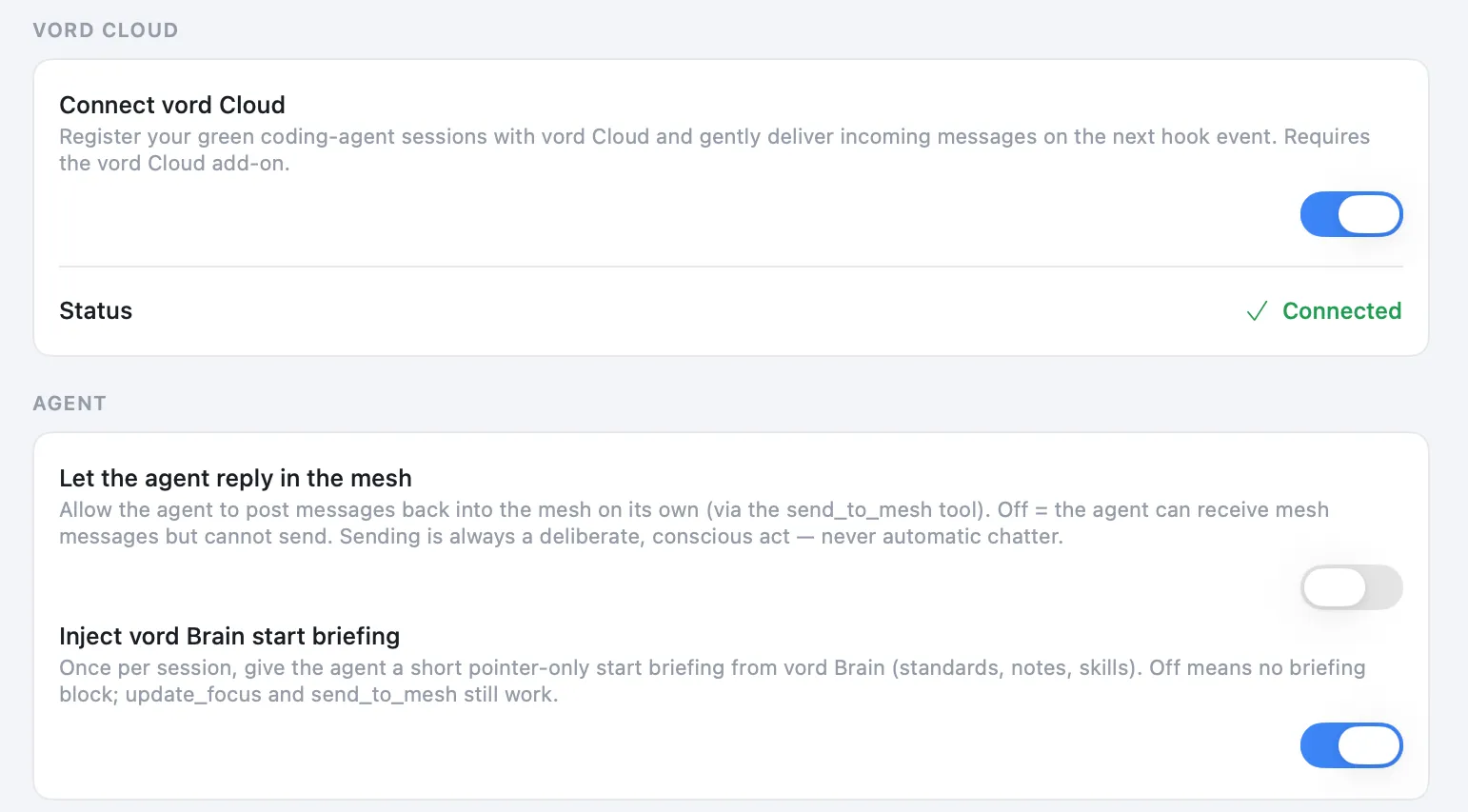
Each app keeps its own Cloud token. Signing in or renewing never signs another app out.
If vord Cloud is unreachable, the app says so and your agents keep working without Brain and Chat until it is back.
Confirming a new device
Section titled “Confirming a new device”The app signs in with a password, and a password alone must not unlock your vaults. So each Mac confirms Cloud access once with a code from an email, and stays confirmed. When a code is needed, the dialog opens by itself in the main window. The same dialog is also used in Settings and in the vord Brain window:
- Sign in on the new device as usual.
- The app asks Enter the code from your email. A six-digit code is sent to your account email (We sent a six-digit code to …).
- Type it into 6-digit code and choose Confirm. If it never arrived, ask for a new one with Send a new code. Cancel closes the dialog.
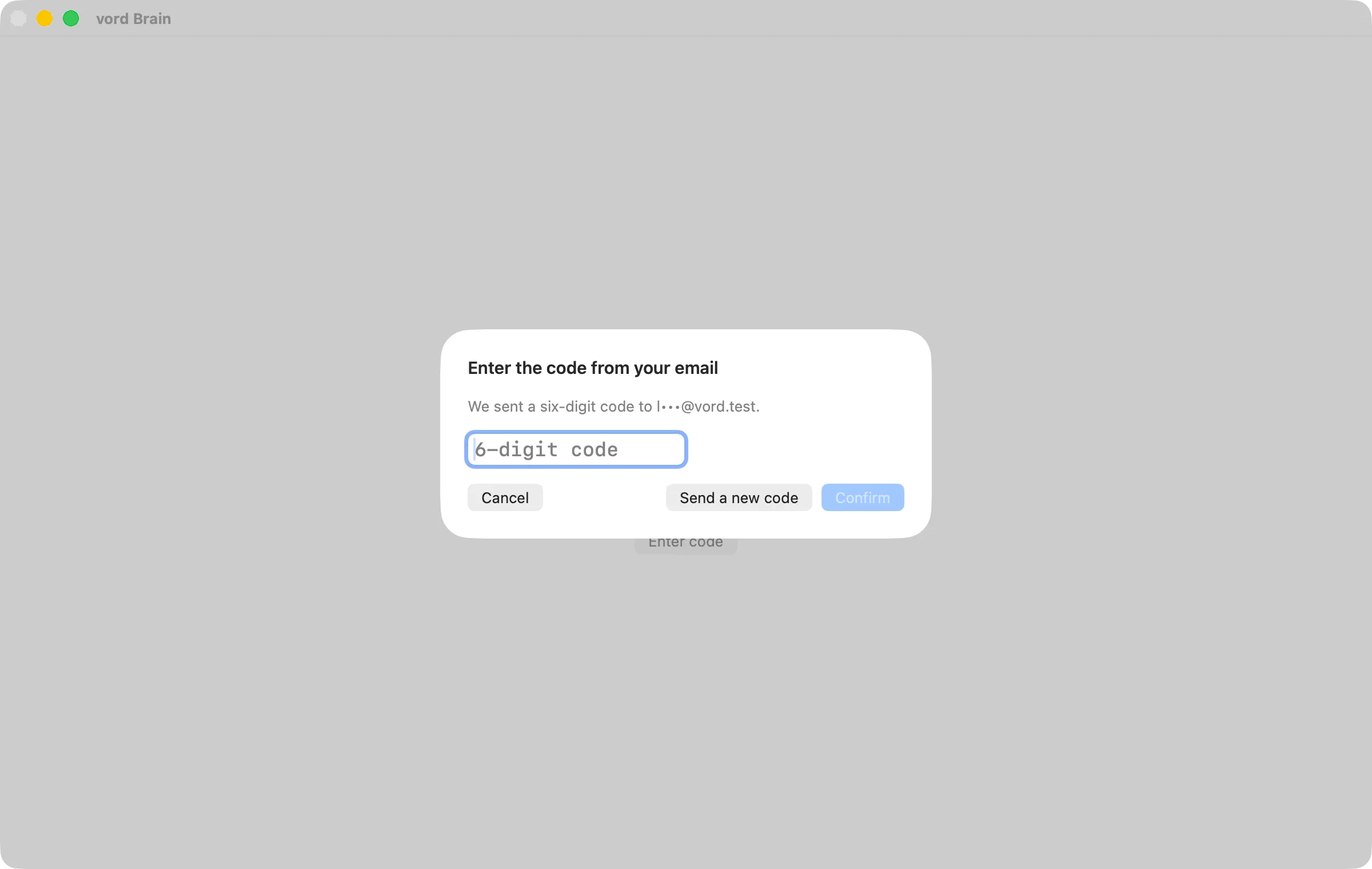
If Brain is open while this Mac still needs confirming, the window shows Confirm this Mac and Enter code, which opens that same dialog. After you confirm, Brain loads on its own. Each request also posts a system notification: Confirm this Mac for vord Cloud / Enter the code from your email to connect. A click brings the main window forward and opens that dialog; if there is no open request anymore, it opens Settings on the vord Cloud pane instead.
A code is valid for 10 minutes and you get 5 tries. Asking for a new code does not reset the try counter, so type carefully. Without Send a new code, the server does not send another mail for 10 minutes. The confirmation lapses after 90 days without use, after a password change or reset (all devices then), and when the seat on that device is deactivated. Then you simply confirm again.
Where to go next
Section titled “Where to go next”- vord Brain — the Brain window, step by step.
- vord Chat — the chat panel, presence, and which messages reach an agent.
- Connecting external clients — use your Cloud knowledge from other chat apps over MCP.
- The Hub — plans, add-ons, devices trusted for Cloud, Connections & MCP.